
With Pabau GO, you can document treatments directly on a face chart within a treatment form.
You can either draw freehand on the chart to annotate treatment areas, or switch to injection plotting mode to place numbered pins on the chart, each linked to a specific product, area, and dose.
Both tools are saved directly to the client's clinical record.
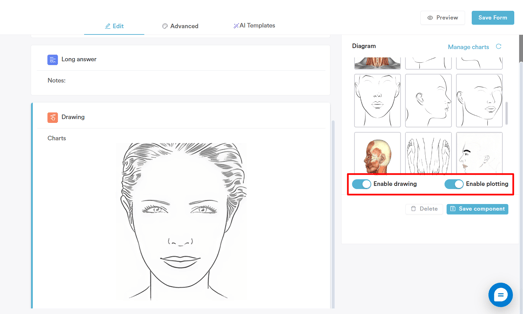
NOTE: Before using the drawing or plotting tools on the app, make sure both are enabled on the form. To do this, go to Clinical > Medical Forms on the web, open the relevant form, select the chart component, and toggle on ''Enable drawing'' and ''Enable plotting'' in the right-hand panel.
Step 1: Launch the Pabau GO iOS App
Start by launching the Pabau GO app on your iOS device and logging into your Pabau account using your credentials.

Step 2: Access the Client
There are several ways to open a treatment form in the Pabau GO app, including from the care pathway. In this example, tap Clients from the bottom navigation bar and search for the client you are treating. 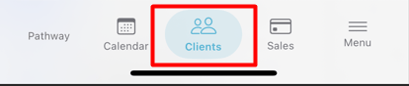
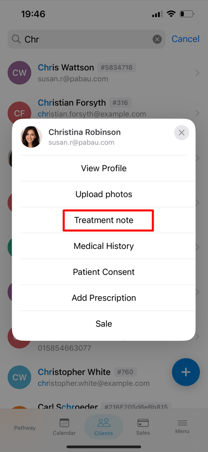
Tap their name to see the available actions and select Treatment note.
Step 3: Select the Treatment Form
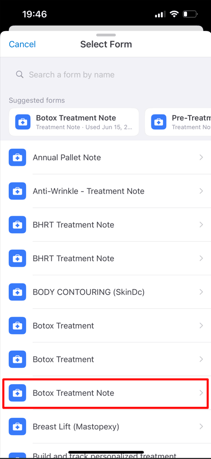
You will be prompted to choose a form from the list. Select the relevant treatment form - make sure it includes a face chart in order to use the drawing and plotting tools.
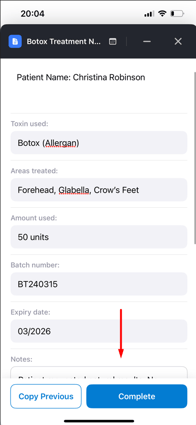
Step 4: Fill In the Form Details
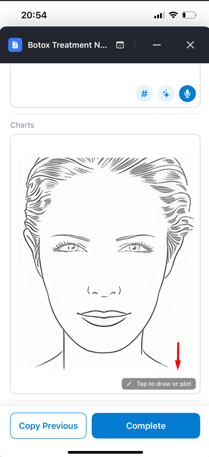
Once the form is open, complete the required fields. When done, scroll down to the Charts section and tap on the face chart to open the drawing and plotting canvas.
Step 5: Draw on the Chart
Once the canvas is open, you are in draw mode by default, indicated by the pen icon being selected in the bottom toolbar. Draw mode allows you to annotate the chart freehand, mark treatment areas, or add any visual notes directly on the image.
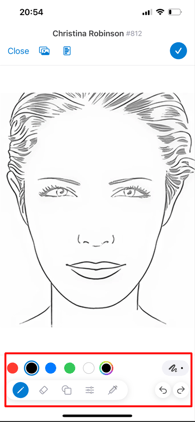
The drawing toolbar includes the following tools:
- Colour swatches - choose from red, black, blue, green, white, or a custom colour
- Brush size - tap the brush icon on the right to adjust the stroke size
- Pen - draw freehand directly on the chart
- Eraser - remove any marks you have made
- Shapes - add geometric shapes to the chart
- Settings - adjust brush opacity and other drawing options
- Undo / Redo - use the arrow icons to step back or forward through your changes
Step 6: Switch to Injection Plotting Mode
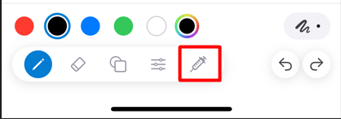
To plot injection points, tap the syringe icon in the bottom toolbar to switch from draw mode to injection plotting mode.
Select Your Product
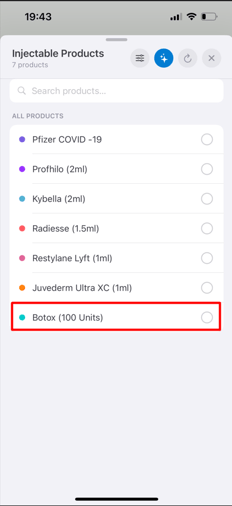
Tap the product name in the bottom bar to choose which injectable you are using. Each product is automatically assigned its own colour on the chart, making it easy to distinguish between multiple products used in the same session.
Set the Dose
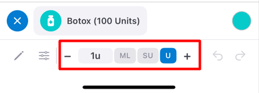
Use the − and + buttons to adjust the dose per injection point, or tap the unit value directly to select from a list. You can also enter a custom value. Switch between ML (millilitres), SU (syringe units), and U (international units) using the tabs on the right.
Select the Treatment Area
Tap Areas to open the area panel and choose a specific face area such as Forehead, Glabella, or Crow's Feet.
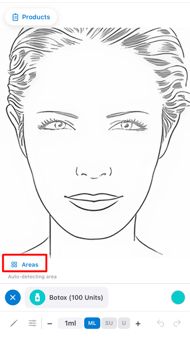
If you leave it on Autodetect, the app will automatically identify the area based on where you tap on the chart. You can also tap Visualize to see the treatment zones mapped on the chart.
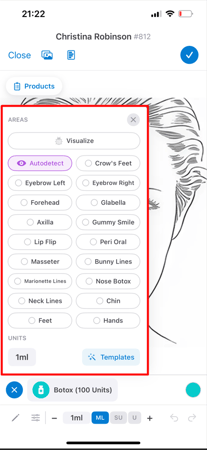
If you want to apply a pre-set injection pattern, tap Templates to browse Pabau, Community, or Custom injection templates for common treatment areas.
Place Injection Pins
Double-tap anywhere on the face chart to place a pin at that injection site. Each pin is numbered and colour-coded to the selected product. If you selected a specific area, the pin will be placed within that area. If Autodetect is on, the area will be identified automatically based on where you tap.
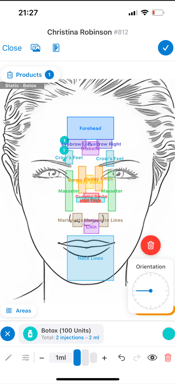
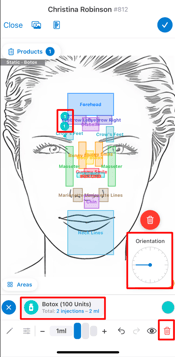
The total number of injections and cumulative dose are shown at the bottom of the screen. You can:
- Tap a placed pin to select and edit it
- Drag from the pin outward to reposition the label
- Adjust the needle orientation using the dial that appears on the right
- Tap the red trash icon to delete selected pins
Step 7: Review Products and Add Batch Information
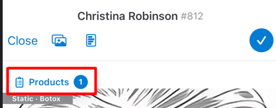
Tap Products at the top of the screen to open the product summary. Here you can see all products used and the total number of injections per product.
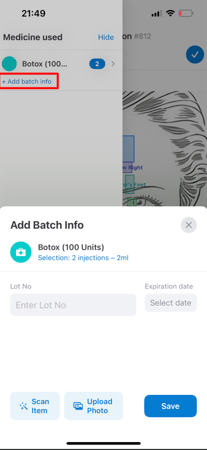
Tap a product to open the ''Add Batch Info'' panel, where you can enter the''Lot No'' and ''Expiration date''. You can also tap ''Scan Item'' to scan the product barcode, or ''Upload Photo'' to attach an image of the packaging.
Step 8: Save the Chart and Form
When you are done, tap the blue tick in the top right corner to save the chart. If any product is missing batch information, you will be prompted to add it before proceeding.
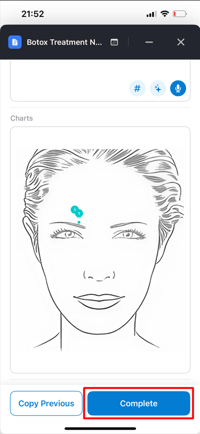
Once the chart is saved, tap Complete to save the full treatment form. The record will be saved to the client's EMR tab under ''Forms'', where it can be viewed, printed, or edited at any time.
By following these steps, you can accurately document injectable treatments directly on the face chart in the Pabau GO app, keeping your client records detailed and up to date.
📱Please note: The latest version of Pabau GO requires iOS 17 / iPadOS 17 or later. Devices that can't update to iOS 17 / iPadOS 17 won't be able to run it.
Download Pabau GO on your iPhone or iPad from the App Store.
For more guides, refer to related articles below, select additional guides, or use the search bar at the top of the page. These guides will help you get the most out of your Pabau account.
Additionally, to help you fully utilize and understand your Pabau account, we recommend exploring additional guides and resources offered at the Pabau Academy. It offers in-depth video tutorials and lessons, offering a holistic learning experience that can equip you with the essential skills for achieving success with Pabau.