
This article covers the new Client Card, available to selected clinics from August 2026. If your Client Card looks different, see the How to Draft Letters Using AI in Pabau (Classic) guide instead.
Creating letters from scratch can take time — especially when they need to be accurate, personalised, and clinically appropriate. Letter AI drafting in Pabau automates this process by generating complete letter drafts directly from your existing treatment notes. Combined with quick access to your recently used templates, this makes letter creation significantly faster and more consistent.
Before you start: each AI letter draft uses 5 credits.
Step 1: Navigate to the Client Card
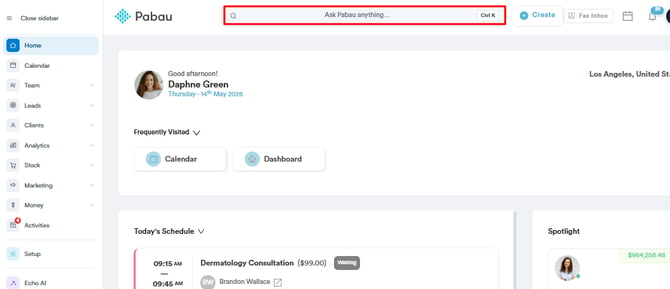
Start by logging in to your Pabau account. Then use the search bar at the top of the page and type the client’s name — Pabau filters the results as you type.
Step 2: Click the Create Button
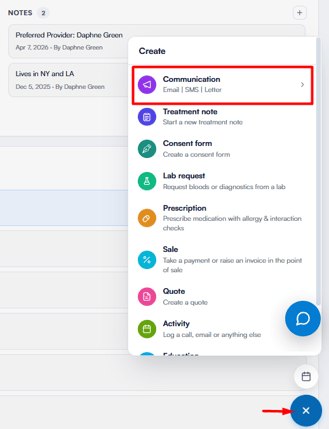
Navigate to the bottom-right corner of the page and click the Create button (the blue plus sign) to see all available actions.
Step 3: Choose Communication, Then Letter
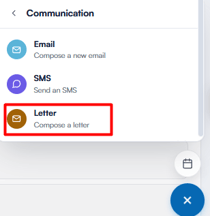
Click Communication, then select Letter. The letter composer opens in full screen.
Step 4: Select a Treatment Note
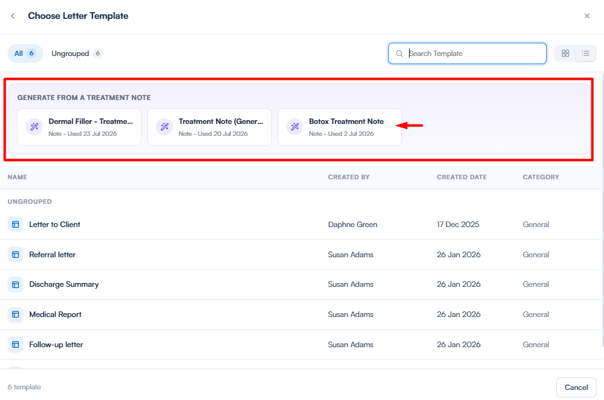
For a new letter, the Choose Letter Template window opens automatically. Alongside your letter templates and recently used templates, the Generate from a treatment note section at the top lists the client’s last three treatment notes (newest first).
Click a treatment note tile to get started.
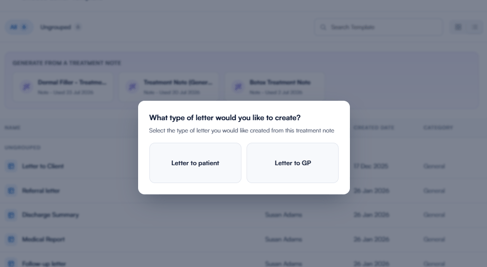
Step 5: Select the Letter Type
Next, choose Letter to patient or Letter to GP — the AI will generate a draft letter automatically.
Step 6: Review the AI-Generated Content
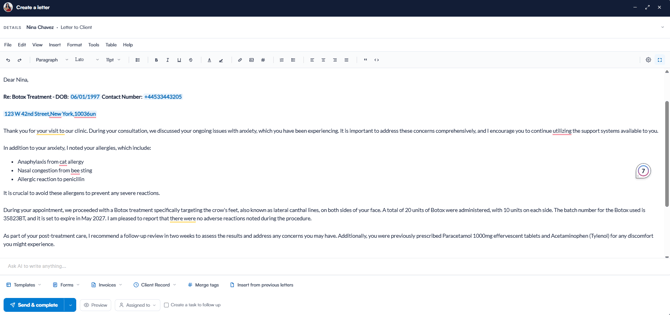
The AI drafts the letter from the treatment note, weaving in relevant details from the client’s record — such as their age, known conditions, allergies, and recent medications — and writes it for the chosen recipient. The subject line is set for you.

Once generated, the draft appears in the editor, ready for you to review.
Step 7: Edit & Save
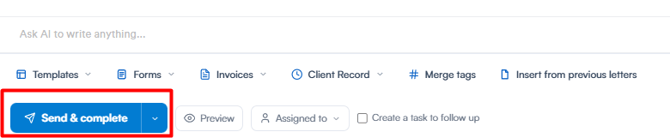
Make any edits needed, ensuring the letter reflects the treatment notes correctly. Once you’re satisfied, click the Send & complete button at the bottom of the composer. To save the letter with a different status instead — for example, as a draft — click the arrow next to the button.
By following these steps, you can use AI to automatically generate letters from your treatment notes.
Was this guide helpful? Let us know by voting below - your feedback helps us write clearer articles.
For more guides, browse the related articles below or use the search bar at the top of the page. You can also watch our video learning series, the Pabau Academy, or visit the Support page for additional help.