
Creating letters from scratch can take time — especially when they need to be accurate, personalised, and clinically appropriate. Letter AI Drafting in Pabau automates this process by generating complete letter drafts directly from your existing treatment notes. Combined with quick access to your most recently used templates, this feature makes the letter creation process significantly faster and more consistent.
Step 1: Navigate to the Client Card.
Start by logging in to your Pabau account using your login credentials. Then navigate to the search bar at the top of the page and proceed to type the client's name. Pabau will filter the results as you type.
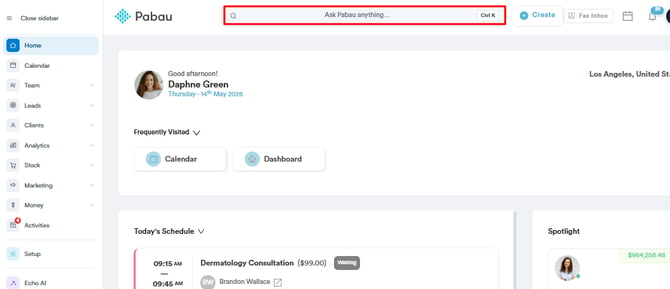
Step 2: Click the Create Button
Navigate to the bottom right corner of the page and click the Create button (represented as a blue plus sign) to access all actions.
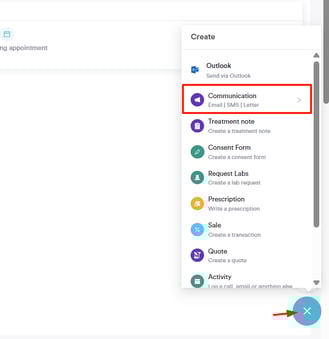
Step 3: Write a Letter
Click the "Communications" option. This will reveal the option to write a letter to the client.
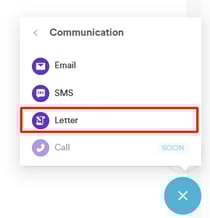
Step 4: Select Treatment Note
After choosing the Letter option, you'll see your letter templates and at the top of the screen, only the last 3 completed treatment forms for the client (newest first).
Click a treatment note tile to get started.
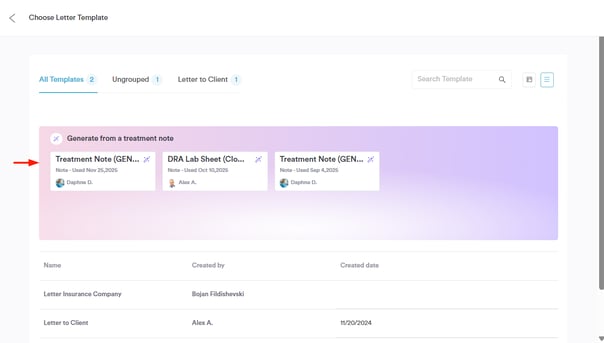
Step 5: Select the Letter Type
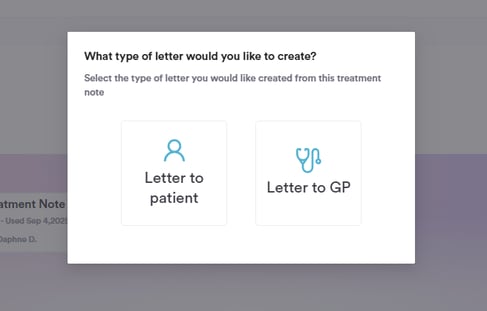
Next, select whether the letter is for the patient or the GP—this will generate a draft letter automatically.
Step 6: Review AI-Generated Content
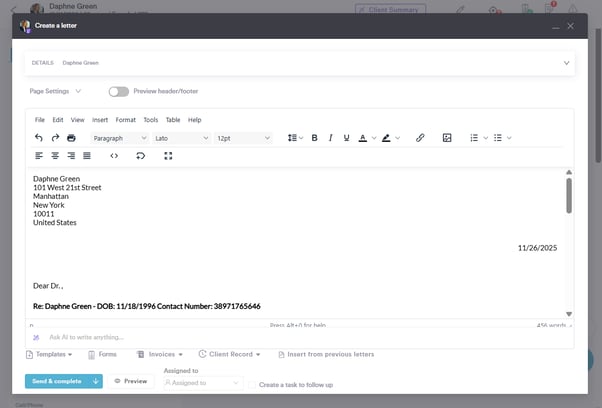
The AI uses the treatment note to draft the letter. Merge tags are automatically applied, and the Letter is structured according to the template type (Patient or GP).

The draft includes headings like Background, Clinical Update, and Requests (if applicable). The Recipient's name is included in the top-left and the Date on the top-right.
Step 7: Edit & Save
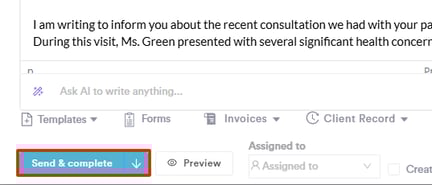
You can make edits if needed, ensuring the letter reflects the treatment notes correctly. Once satisfied, save the letter by clicking the "Send & Complete" button in the bottom left corner.
By following these steps, you can use AI to automatically generate letters using your treatment notes.
For more guides, refer to related articles below, select additional guides, or use the search bar at the top of the page. These guides will help you get the most out of your Pabau account.
Additionally, to help you fully utilize and understand your Pabau account, we recommend exploring additional guides and resources offered at the Pabau Academy. It offers in-depth video tutorials and lessons, offering a holistic learning experience that can equip you with the essential skills for achieving success with Pabau.