
An insurance invoice is a statement of a visit for the client's insurer. It lists your practice and the treating practitioner with their GMC number, the client's policy and authorisation code, the diagnoses and the coded services, so the insurer has everything it needs to process the claim. You can download one from any invoice on the client card, choose which lines it shows, or produce one for several visits at once.
NOTE: Insurance invoices are available to UK clinics that use insurance billing. In the United States the same document is called a superbill. See How to download a superbill for a client.
Step 1: Download the Insurance Invoice
- Open the client card, select Financials, then Invoices, and open the invoice (hover over it and click the pencil icon).
- Click Options and choose Download insurance invoice.
- To choose which lines appear, pick Insurance Invoice (Custom) instead (see Step 2).
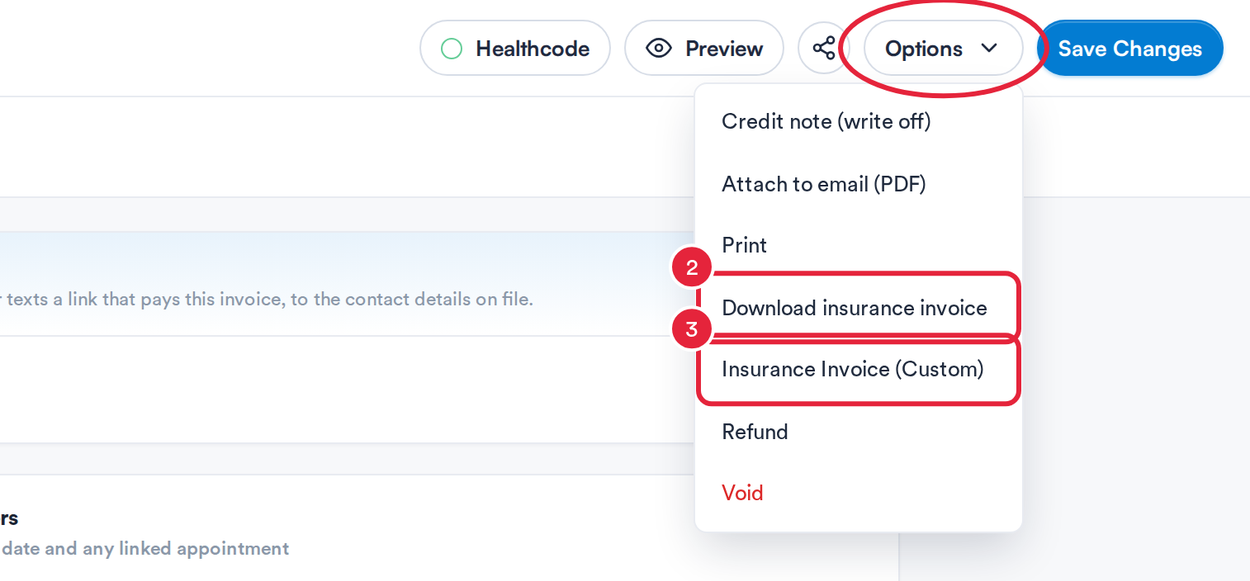
Both insurance invoice options sit in the invoice's Options menu
Pabau shows Preparing the insurance invoice… and opens it in a new tab, ready to print or save as a PDF. If nothing opens, your browser blocked the new tab: allow pop-ups for Pabau and try again.
Step 2: Choose Which Lines to Show (Optional)
To leave some items off, for example a product the insurer doesn't cover:
Click Options and choose Insurance Invoice (Custom).
- Under Choose the items to show on the insurance invoice., tick the lines you want, or use Select all.
- Click Print, or Email to send it to the client with the message Please find your insurance invoice attached.
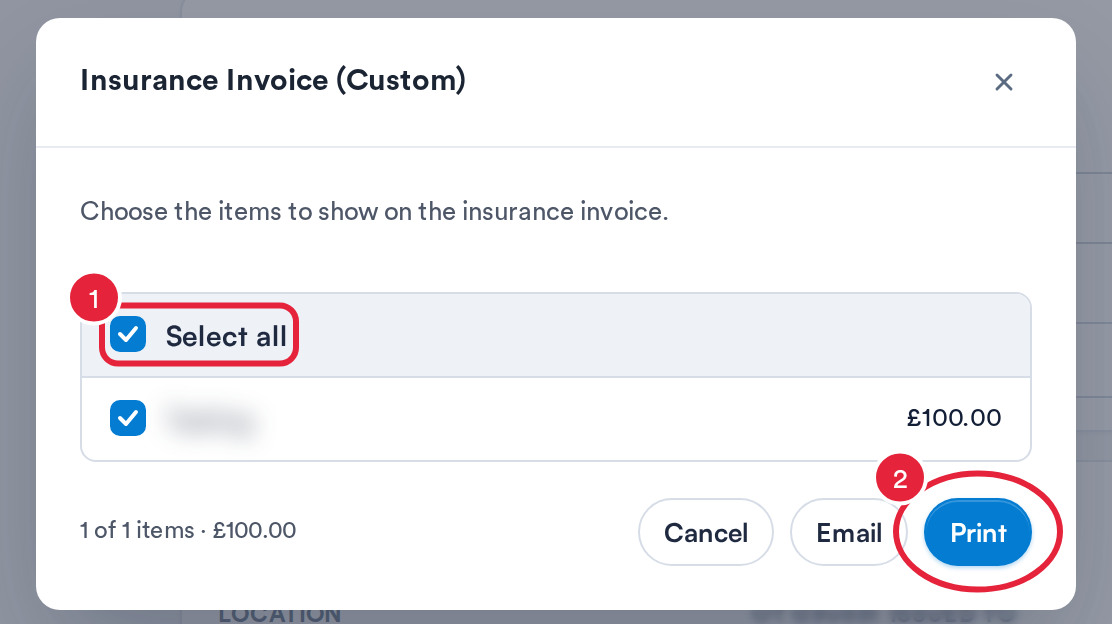
Pick the lines to include
Step 3: Add Any Missing Details
An insurance invoice is built from the appointment the services were delivered at, and it needs a diagnosis.
- If the invoice has no linked appointment, Pabau shows Link an appointment first. Click Link appointment, choose the visit, then download the insurance invoice again.
- If there is no diagnosis on the invoice or the visit, Pabau opens Enter Problem so you can record one. Save it, then download the insurance invoice again.
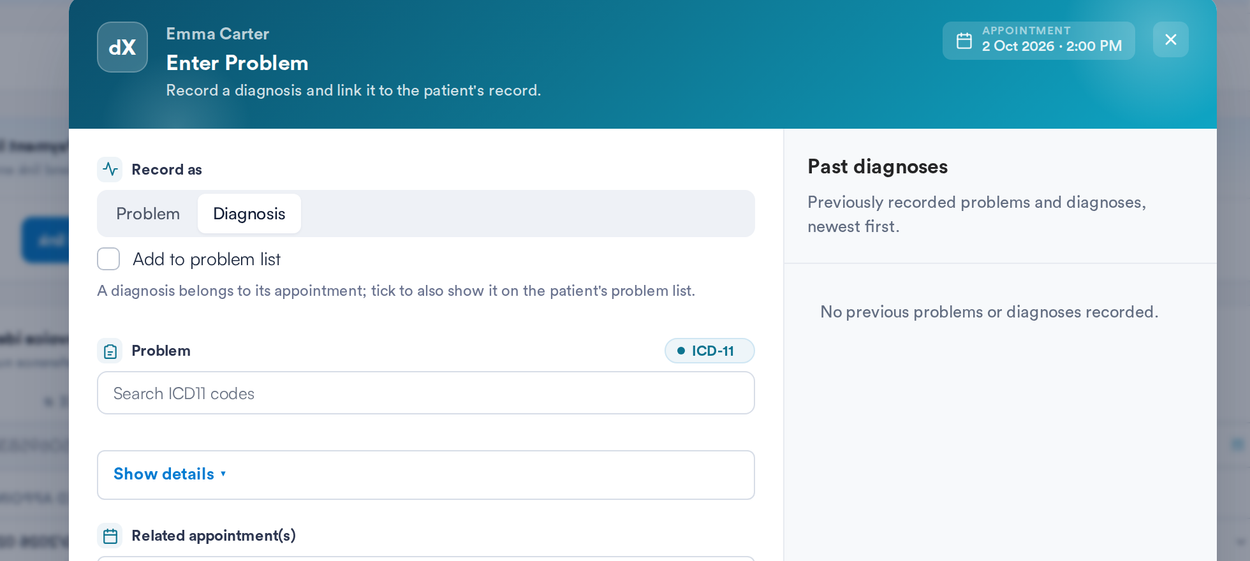
Pabau asks for a diagnosis when the visit has none
Step 4: Check What's on It
The insurance invoice contains:
- Provider Information: the treating practitioner and their GMC number, taken from the Registration number on their staff profile.
- Client Information: the client's name, date of birth and address.
- Policy Information: the Insurance Company, Insured Name and Member ID from the client's policy, and the Authorisation Code from the visit's insurance case.
- Diagnosis and Services: each line with its date of service, billing code (the insurer's code for lines billed through Healthcode), description and fee, followed by a Summary of charges, amount paid and balance due.
It ends with No payment is requested with this document.
Step 5: Produce Insurance Invoices for Several Visits
- On the client card, select Insurance and click View on the insurance case.
- In the case's Invoices section, tick the invoices you need.
- Click Export and choose Batch insurance invoice.
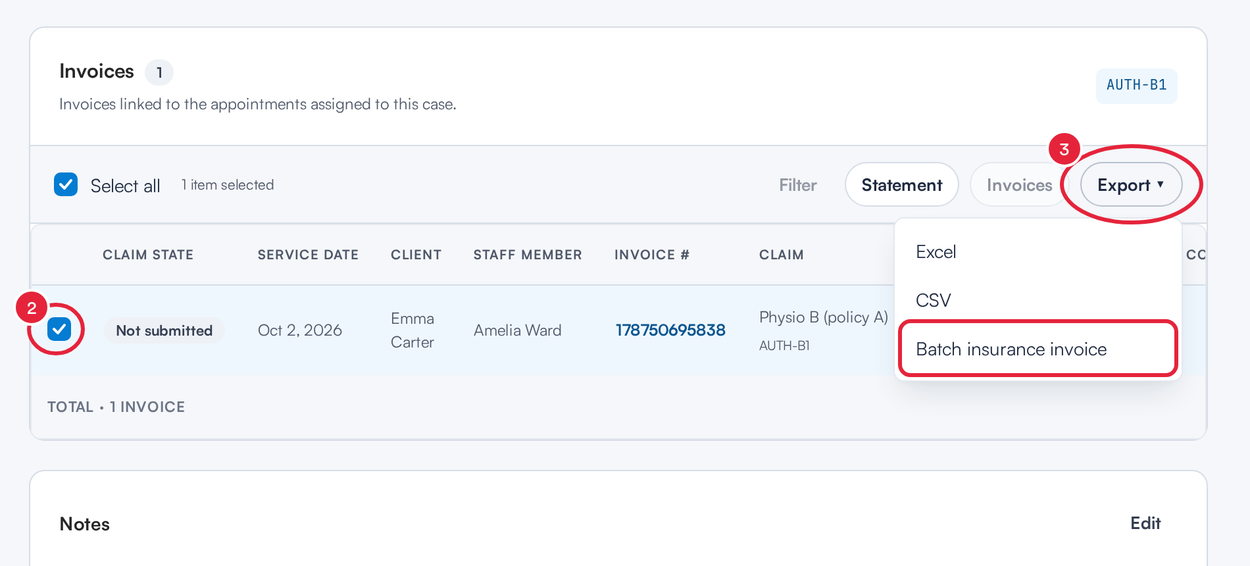
One batch for every visit on the case
The batch is prepared in the background and Pabau takes you to Analytics → Exports to download it. If you see Unable to export insurance invoices, some of the invoices you ticked are missing details, such as a linked appointment or a diagnosis.
TIP: Clients can download their own insurance invoice from the client portal when the visit has a diagnosis recorded. See How to View and Manage Your Payments in the Client Portal.
What's next?
- Insurance Guide Part 3 (UK): Connect appointments to insurance in Pabau
- How to Manage Insurance Case Details (New Client Card)
- How to record insurer payments with remittances
Was this guide helpful? Let us know by voting below - your feedback helps us write clearer articles.
For more guides, browse the related articles below or use the search bar at the top of the page. You can also watch our video learning series, the Pabau Academy, or visit the Support page for additional help.