
This article covers the new Client Card, available to selected clinics from August 2026. If your Client Card looks different, see How to Download a Document (Classic) guide instead.
Step 1: Navigate to the Client Card
Start by logging in to your Pabau account using your login credentials. Then, navigate to the Search bar at the top of the page and type at least three letters of the client's name. Pabau will filter the results as you type.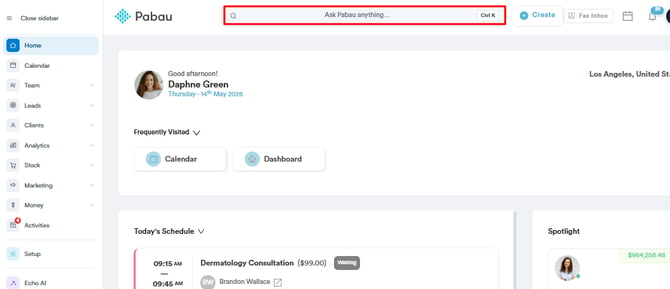
Step 2: Open the Documents Section
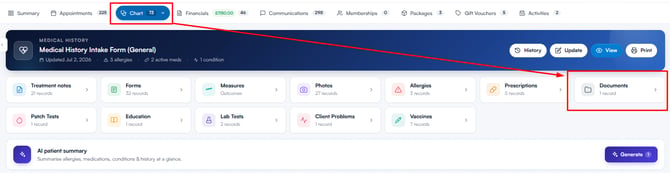
Click on the "EMR" tab (labelled "Chart" for US businesses), then click on the "Documents" card in the grid.
Step 3: Download the Document
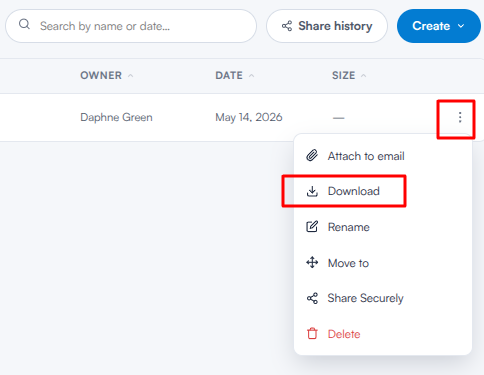
Locate the document you want to download and click the three-dot menu on the far right of its row. Select "Download". Depending on the file type, the file will download straight to your device or open in a new browser tab.
TIP: To download multiple documents at once, tick the checkboxes on the left side of the document rows you want to include. A toolbar will appear at the bottom of the screen — click "Download" and the files will be saved together as a single .zip file.
To view a document without downloading it, double-click its row to open a full-screen preview.
By following these steps, you can download any documents uploaded to the client card.
Was this guide helpful? Let us know by voting below - your feedback helps us write clearer articles.
For more guides, browse the related articles below or use the search bar at the top of the page. You can also watch our video learning series, the Pabau Academy, or visit the Support page for additional help.