
This article covers the new Client Card, available to selected clinics from August 2026. If your Client Card looks different, see the How to Delete an Appointment from the Client Card (Classic) guide instead.
Step 1: Navigate to the Client Card
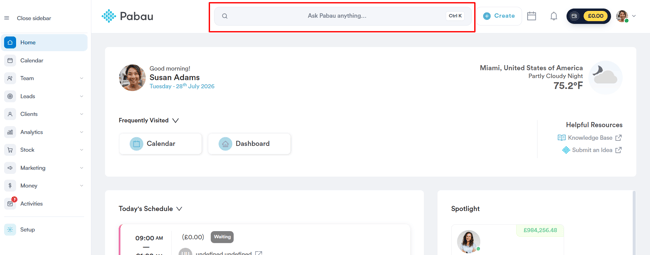
Start by logging in to your Pabau account. Then click the search bar at the top of the page and type at least three letters of the client’s name — Pabau filters the results as you type. Select the client to open their Client Card.
Step 2: Switch to the Appointments Tab
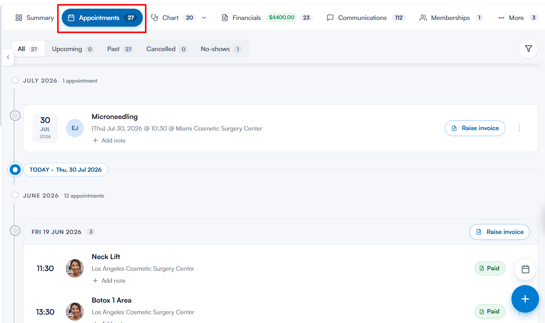
After selecting the client, open the Appointments tab on the Client Card. This tab lists all the appointments that have been scheduled for the client.
Step 3: Locate the Appointment
Find the appointment you wish to delete. Use the All, Upcoming, Past, Cancelled and No-shows tabs at the top of the list to narrow it down.
NOTE: All cancelled appointments are grouped under the Cancelled tab.

Step 4: Click on "Delete"
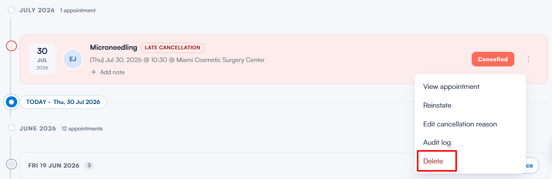
Click the three dots on the far right of the appointment, then select Delete from the menu.
Step 5: Confirm the Deletion
A confirmation dialog titled “Delete appointment?” appears, warning that this permanently removes the appointment and cannot be undone. Click Delete to confirm, or Cancel to keep the appointment.
CAUTION: Deleting an appointment removes it permanently. If you want to keep a record of the booking, cancel the appointment instead — cancelled appointments stay on the client’s history and can be reinstated later.
Was this guide helpful? Let us know by voting below - your feedback helps us write clearer articles.
For more guides, browse the related articles below or use the search bar at the top of the page. You can also watch our video learning series, the Pabau Academy, or visit the Support page for additional help.