
Step 1: Navigate to Setup
Log in to your Pabau account and in the left sidebar menu, click on Setup. Click on the "Clinical" filter tab, then click on the "Vaccines" card and select "Vaccine."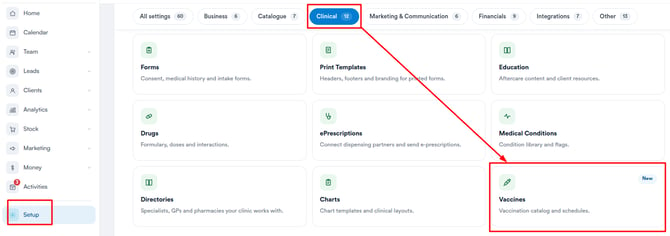
Step 2: Access Vaccines
Click the "Vaccine" option to access the vaccines listing page, where you can view all existing vaccines in your account.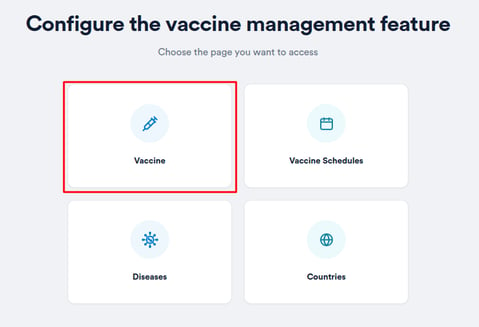
Step 3: Create a New Vaccine
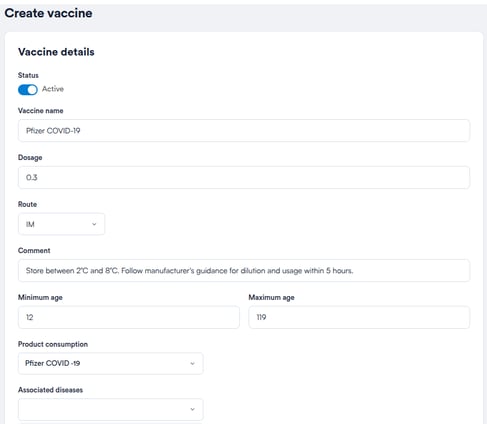
To add a new vaccine, click the Create Vaccine button in the top-right corner of the screen. You’ll be prompted to complete the following fields:
-
Vaccine Name - The name of the vaccine (e.g., Pfizer COVID-19).
-
Dosage - Specify the amount administered.
-
Route - Choose from standard options (e.g., Intramuscular, Subcutaneous).
-
Comment - Add any internal notes.
-
Min/Max Age - Set the age range for administration.
-
Product Consumption - Link the product used during the procedure. (Vaccine)
- Associate Diseases - Search and select one or more diseases that this vaccine targets. These will be pulled from your disease database in Pabau.
Step 4: Configure Vaccine Schedules
Once diseases are associated, you can configure vaccination schedules tailored to each disease.
Click "+ Add day" within a schedule type card to add a schedule row for that dose. Each row contains the following fields:
-
Disease: Select the disease this schedule applies to from the dropdown.
-
Day: Enter the number of days from today when this dose should be administered, for example 30 for 30 days from now.
-
Cover Months: Enter how many months this dose provides immunity for.
You can add multiple rows within a single schedule type if the vaccine covers more than one disease or requires different timing per disease. To remove a row, click the × button on the right.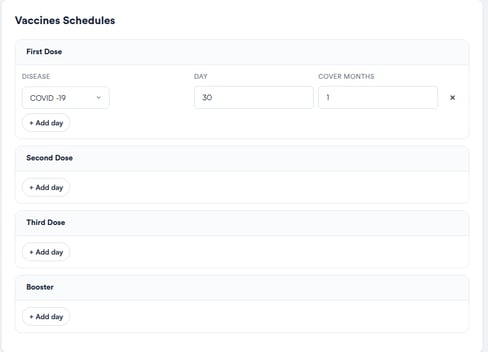
Step 5: Save the Vaccine
Click "Create Vaccine" in the top right corner to save the vaccine. The new vaccine will appear in the list showing its name, associated diseases, number of schedules, route, and age range.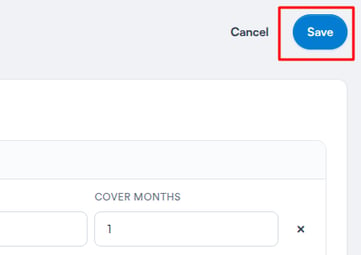
Step 6: Edit Vaccine
To edit an existing vaccine, click the "Edit" button on the right side of its row. The same screen will open with existing data pre-filled - make your changes and click "Save" once done.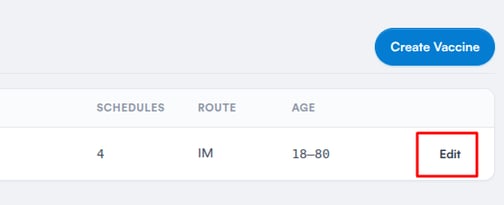
NOTE: Vaccines cannot be deleted - only edited.
By following these steps, you can easily create vaccines in Pabau.
Was this guide helpful? Let us know by voting below - your feedback helps us write clearer articles.
For more guides, browse the related articles below or use the search bar at the top of the page. You can also watch our video learning series, the Pabau Academy, or visit the Support page for additional help.