
Step 1: Navigate to Calendar
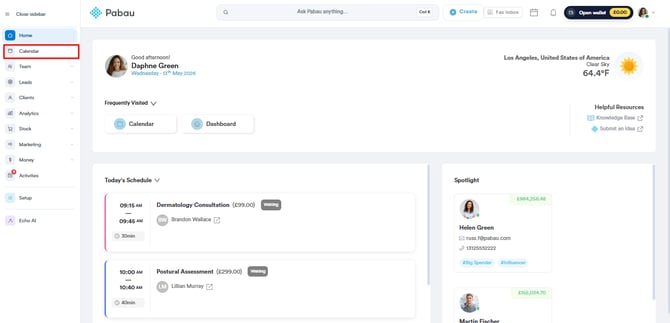
Start by logging into your Pabau account using your login credentials. Then, navigate to the Calendar, located on the left sidebar menu.
Step 2: Access Calendar Filters
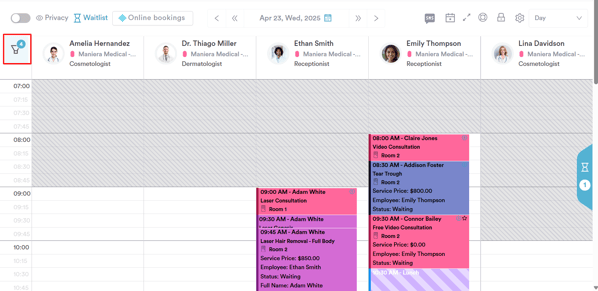
To access the calendar filters, navigate to the top left corner of the page and select the filter icon.
Step 3: Configure Calendar Filters
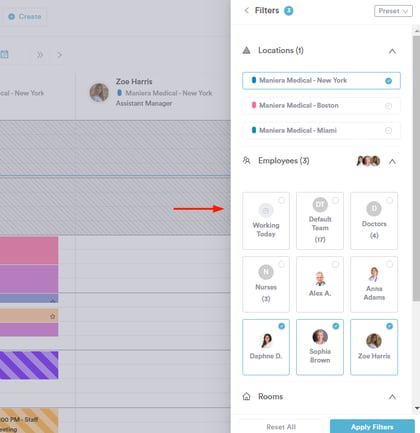
The filter options will appear on the right side of the screen, where you can configure them to your preference. The available filters are:
- Locations: Select your preferred location.
- Employees: Choose the employee(s) whose calendar you want to view.
- Rooms: Select the room(s) to display on the calendar.
- Statuses: Filter by appointment status to view only appointments with the selected status.
- Services: Choose the service(s) you want to see in the calendar.
Once you've set the filters, ensure to click the ''Apply filters'' button on the bottom right corner of the screen.
Step 4: Create Calendar Preset
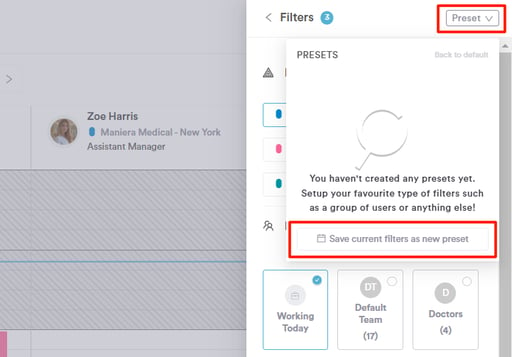
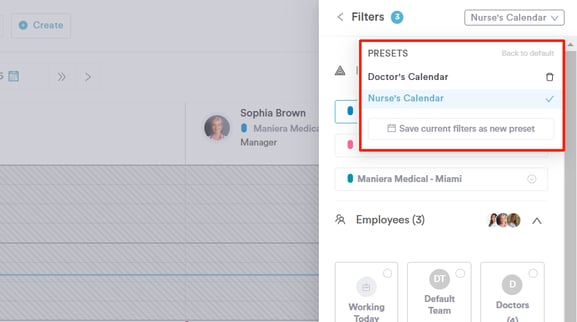
Once you've configured the calendar settings, navigate to the ''Preset'' button in the top right corner of the screen. Clicking this opens your list of presets — click Save current filters as new preset to save the filters you've just applied.
Step 5: Add Preset Name
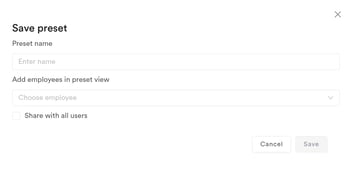
The Save preset window opens. Enter a Preset name, optionally choose staff under Add employees in preset view, and tick Share with all users if your whole team should be able to use it. Then click Save.
The filter is now created. You can find it at the top right corner of the screen when view and clicking it will display the calendar with the applied filters.
NOTE: To rename a preset, change its staff, share it or delete it, see How to Edit Calendar Presets.
Was this guide helpful? Let us know by voting below - your feedback helps us write clearer articles.
For more guides, browse the related articles below or use the search bar at the top of the page. You can also watch our video learning series, the Pabau Academy, or visit the Support page for additional help.