
How to Create an Email Template and Assign It to the General Group
Step 1: Navigate to Setup
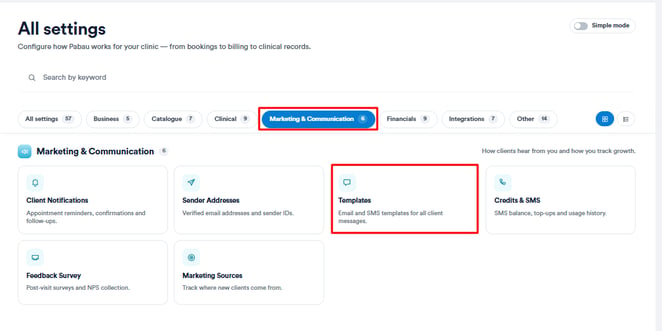
Start by logging into your Pabau account using your login credentials. Then, navigate to Setup located on the bottom left corner of the sidebar menu. Click the Marketing & Communications section. This action will reveal the Templates tab.
Step 2: Create a New Template
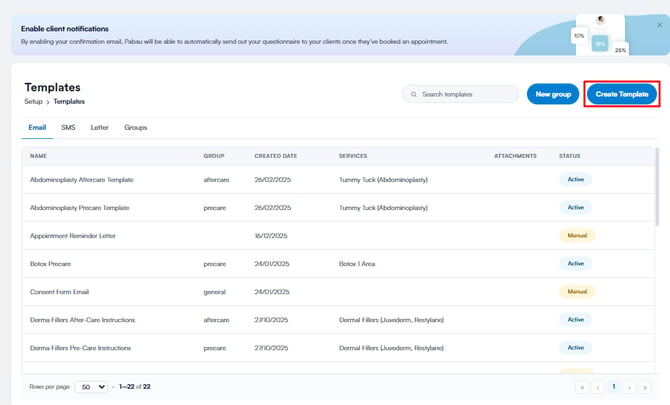
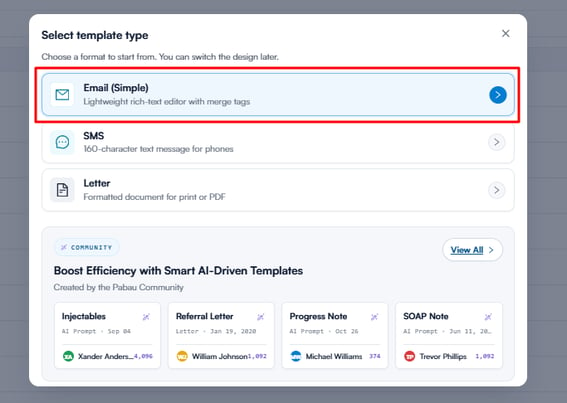
Click the "Create Template" button. You will be prompted to choose the type of template — select "Email."
Step 3: Input Template Details
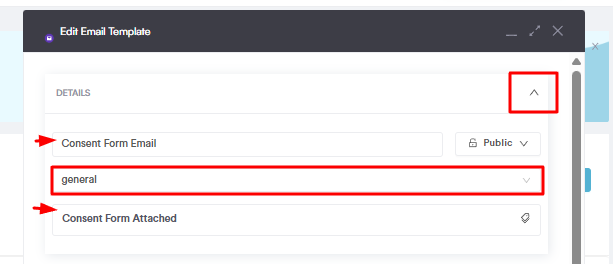
Click the arrow on the far right of the Details tab to expand it and fill in the following fields:
- Template name – Enter an internal name for your template.
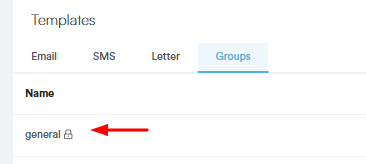
- Template group – Select "General" from the dropdown. This ensures the template appears when sending an email from the client card.
- Subject – Add the subject line that will appear in the email when sent.
NOTE: The “General” group is a default system group in Pabau. It is pre-created, cannot be edited, renamed, or deleted.
Step 4: Write the Template Body
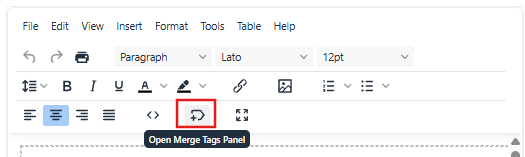
Write the body of your email. To include appointment details such as the client's name, appointment date, or service, click the merge tag icon in the editor toolbar and select the relevant tags.
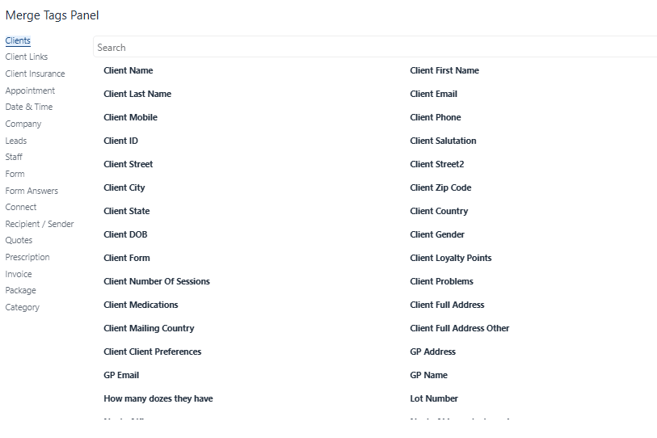
A pop-up window will appear listing all available merge tags.
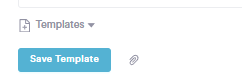
Once you are happy with the content, click Save Template.
NOTE: For more information on merge tags in Pabau refer to these relevant articles ->
How to Send the Email Template From the Client Card
Step 1: Access the Client Card
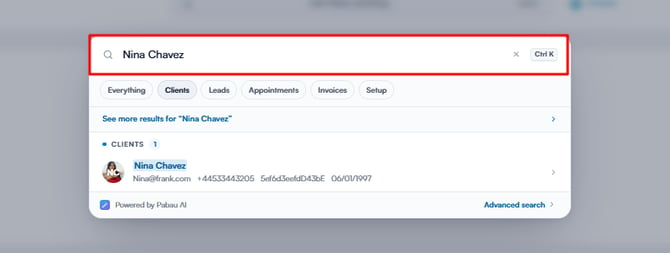
Navigate to the top of the screen and type your client's name in the search bar. Click on their profile from the search results.
Step 2: Click the "Create" Button
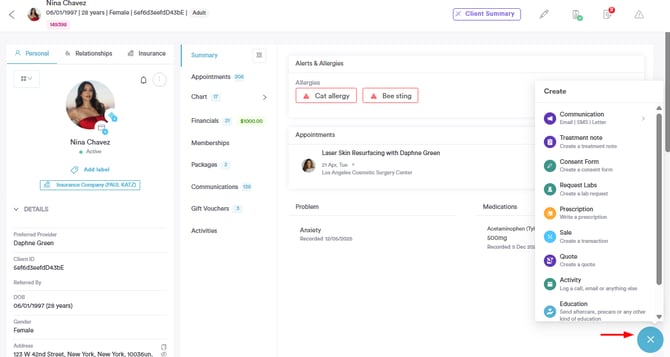
Once inside the client card, click the "Create" button in the bottom right corner, represented as a blue plus sign, to reveal the available actions.
Step 3: Select "Communications"
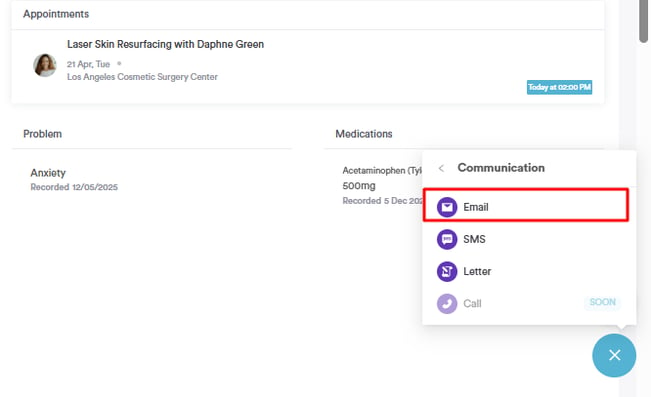
Click "Communications", then select "Email" from the dropdown.
Step 4: Select Your Template
A pop-up will appear where you can compose your email. Click "Templates" in the bottom left corner.
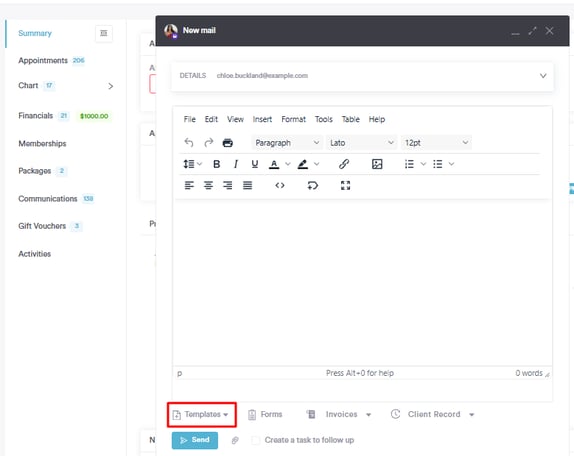
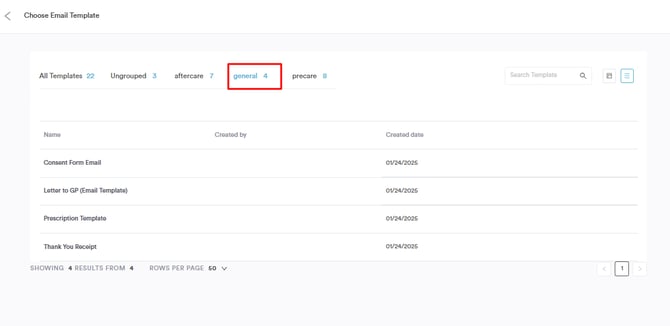
Then switch to the "General" tab to find your template. Select it and it will populate the email body.
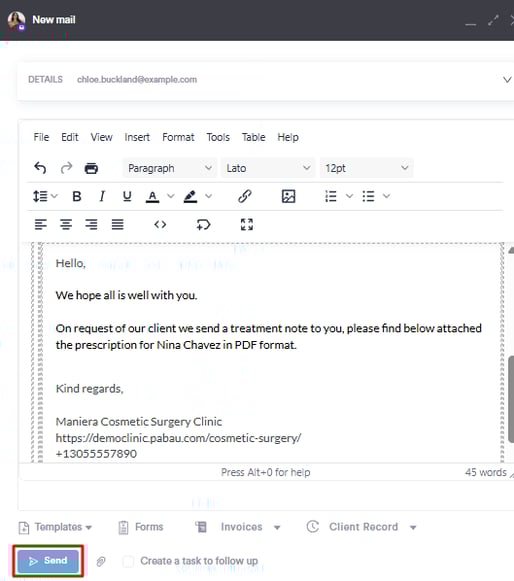
Make any final changes and click "Send".
By following these steps, you can easily send an email to a client from the client card using a template.
Why does Send not work when my template uses appointment merge tags?
If the email contains appointment merge tags (such as the appointment date or service) but no appointment is linked, Pabau blocks the send so the client never receives an email with blank details. A red message appears briefly: "This message uses appointment merge tags but no appointment is linked. Link an appointment so the tags fill in before sending."
To fix it, open Link an appointment in the Attach row above the email body, choose the appointment from Appointments for this client, then click Send again. The merge tags update to that appointment's details.
NOTE: When you start a new email, Pabau automatically links the client's appointment for today, if they have one. On any other day you need to link the appointment yourself. Invoice merge tags work the same way — link an invoice before sending.
If the Send button is greyed out instead, hover over it: it tells you what is missing, such as "Add at least one recipient" or "Wait for attachments to finish preparing".
Was this guide helpful? Let us know by voting below - your feedback helps us write clearer articles.
For more guides, browse the related articles below or use the search bar at the top of the page. You can also watch our video learning series, the Pabau Academy, or visit the Support page for additional help.