
How to Create an Email Template and Assign It to the General Group
Step 1: Navigate to Setup
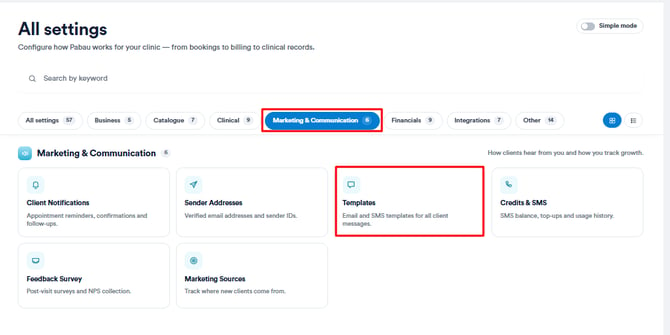
Start by logging into your Pabau account using your login credentials. Then, navigate to Setup located on the bottom left corner of the sidebar menu. Click the Marketing & Communications section. This action will reveal the Templates tab.
Step 2: Create a New Template
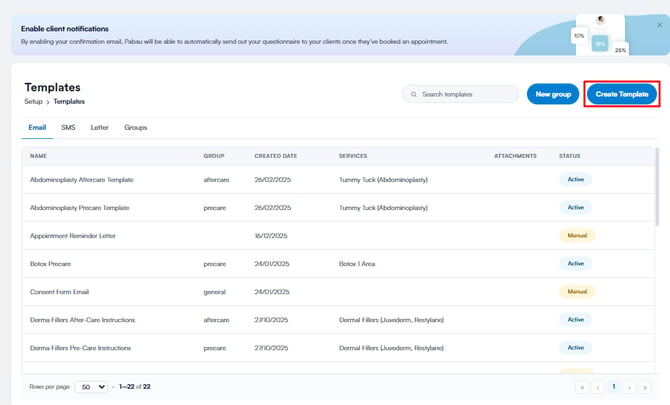
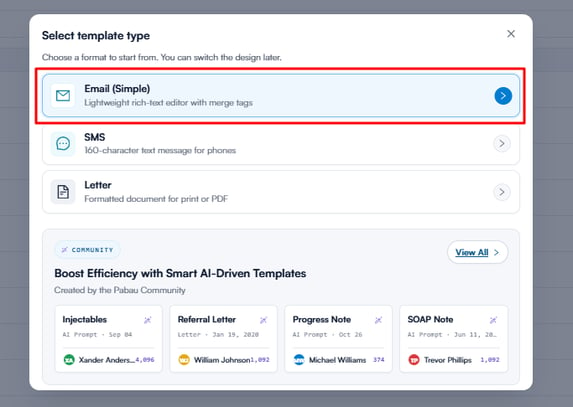
Click the "Create Template" button. You will be prompted to choose the type of template — select "Email."
Step 3: Input Template Details
Click the arrow on the far right of the Details tab to expand it and fill in the following fields:
- Template name – Enter an internal name for your template.
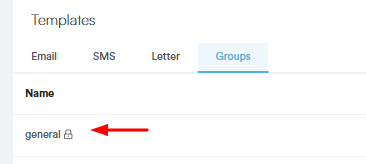
- Template group – Select "General" from the dropdown. This ensures the template appears when sending an email from the client card.
- Subject – Add the subject line that will appear in the email when sent.
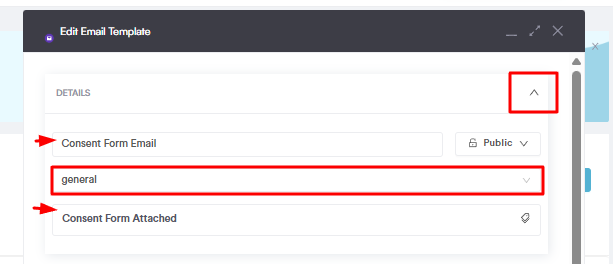
NOTE: The “General” group is a default system group in Pabau. It is pre-created, cannot be edited, renamed, or deleted.
Step 4: Write the Template Body
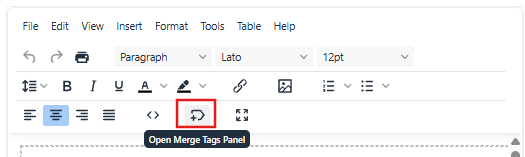
Write the body of your email. To include appointment details such as the client's name, appointment date, or service, click the merge tag icon in the editor toolbar and select the relevant tags.
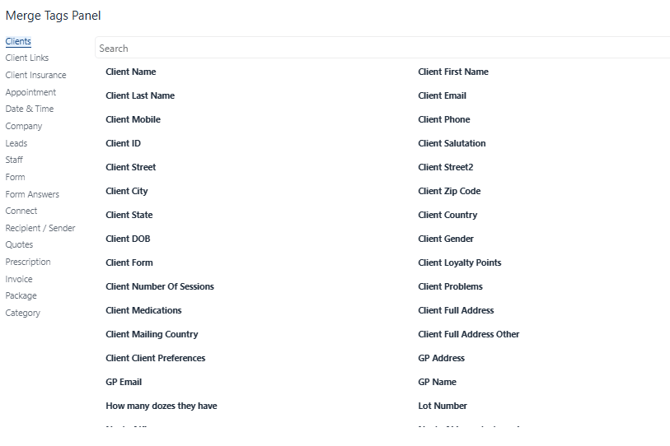
A pop-up window will appear listing all available merge tags.
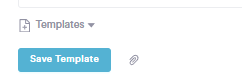
Once you are happy with the content, click Save Template.
NOTE: For more information on merge tags in Pabau refer to these relevant articles ->
How to Send the Email Template From the Client Card
Step 1: Access the Client Card
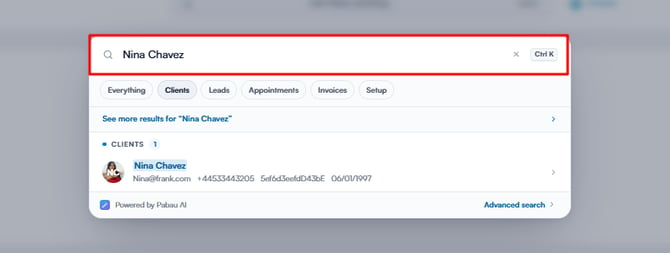
Navigate to the top of the screen and type your client's name in the search bar. Click on their profile from the search results.
Step 2: Click the "Create" Button
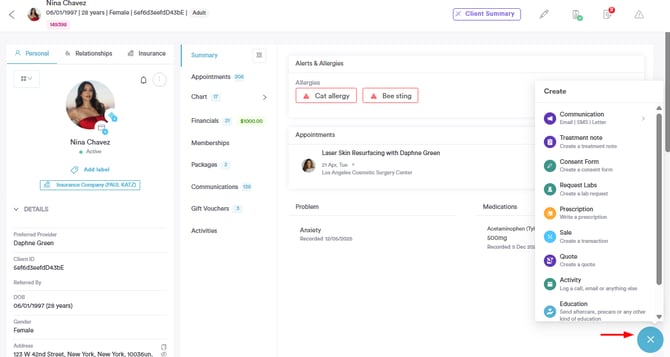
Once inside the client card, click the "Create" button in the bottom right corner, represented as a blue plus sign, to reveal the available actions.
Step 3: Select "Communications"
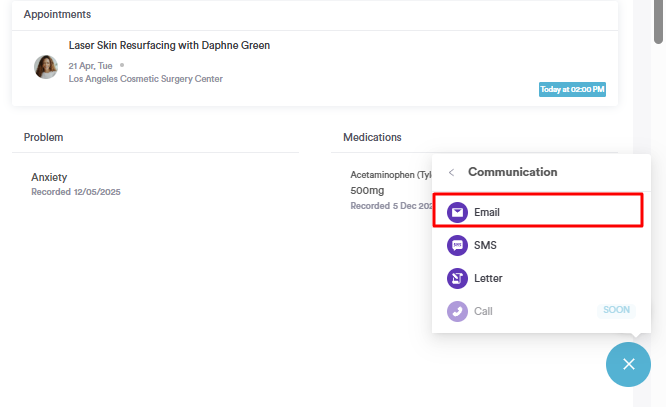
Click "Communications", then select "Email" from the dropdown.
Step 4: Select Your Template
A pop-up will appear where you can compose your email. Click "Templates" in the bottom left corner.
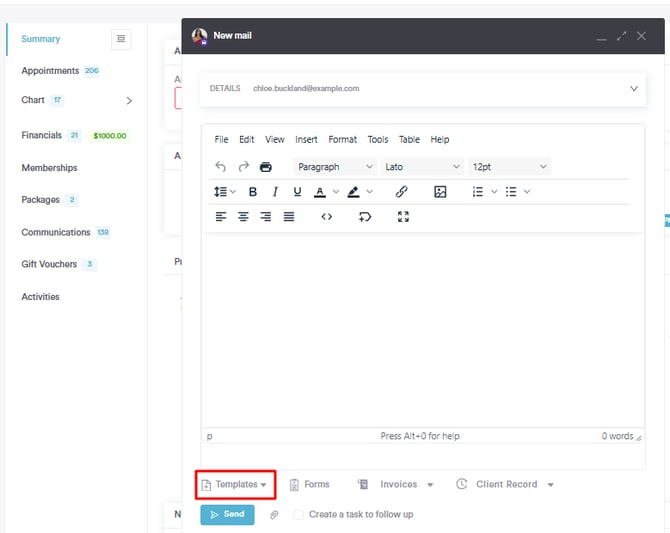
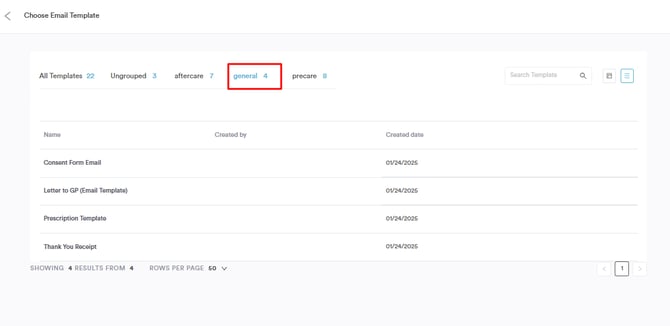
Then switch to the "General" tab to find your template. Select it and it will populate the email body.
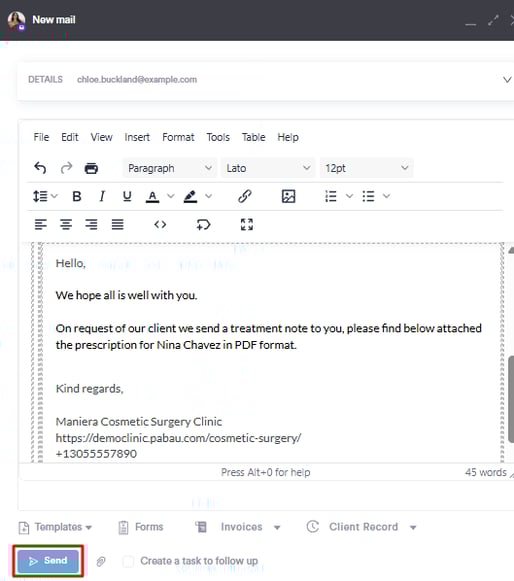
Make any final changes and click "Send".
By following these steps, you can easily send an email to a client from the client card using a template.
For more guides, refer to related articles below, select additional guides, or use the search bar at the top of the page. These guides will help you get the most out of your Pabau account.
Additionally, to help you fully utilize and understand your Pabau account, we recommend exploring additional guides and resources offered at the Pabau Academy. It offers in-depth video tutorials and lessons, offering a holistic learning experience that can equip you with the essential skills for achieving success with Pabau.