
When you're already on a client's card, you can start a referral for them in two clicks, and find their referrals again later in their Documents, without going to the Referrals page.
NOTE: Referrals are available when Letters is switched on for your clinic. See How to Enable Letters.
Step 1: Start a Referral From the Client Card
Search for the client in the search bar at the top of the screen and open their client card.
- Click Actions at the top of the left-hand panel.
- Choose New Referral.
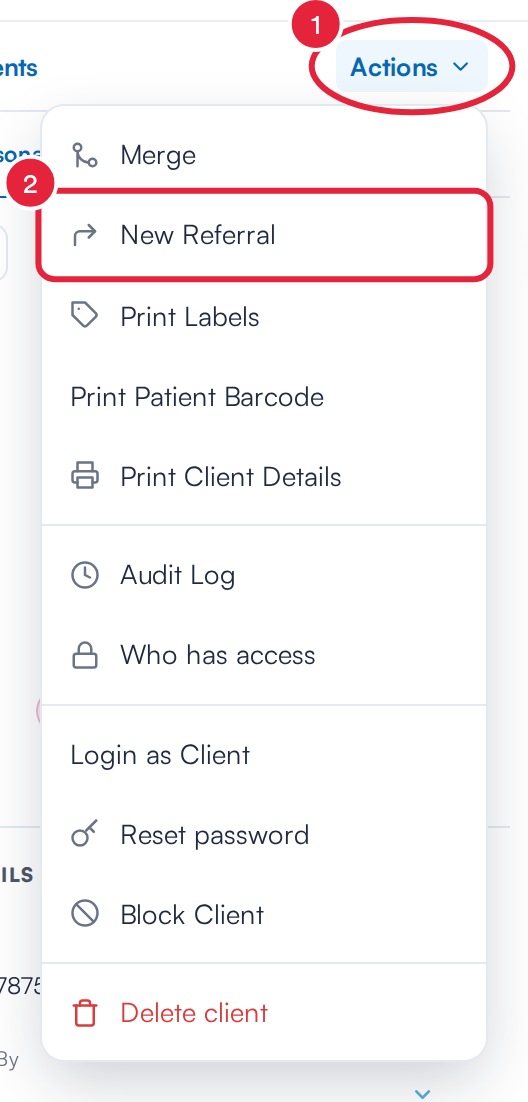
New Referral sits in the client card's Actions menu
Step 2: Complete the Referral
The referral page opens with the client already chosen under Client. Fill in who the referral is going to, the instructions, the reason and the details to share, then click Save, or Send and Send as Email. For each part of the page, see How to Create a New Referral.
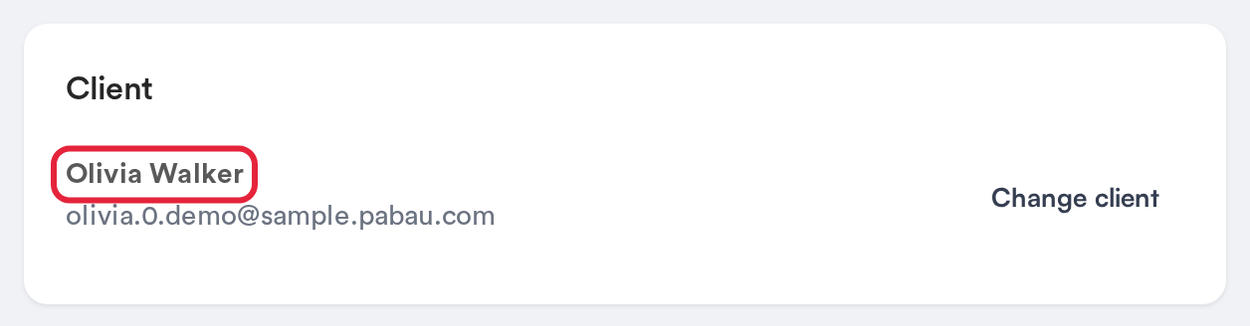
The client is filled in for you
Step 3: Find the Client's Referrals in Their Documents
On the client card, click the EMR tab (Chart for US clinics), then the Documents card. The client's referrals are listed with their documents, marked Referral and titled with the referral number and the reason, for example Referral #0001 — Specialist dermatology opinion, with the date it was created.
- Click the referral to open it.
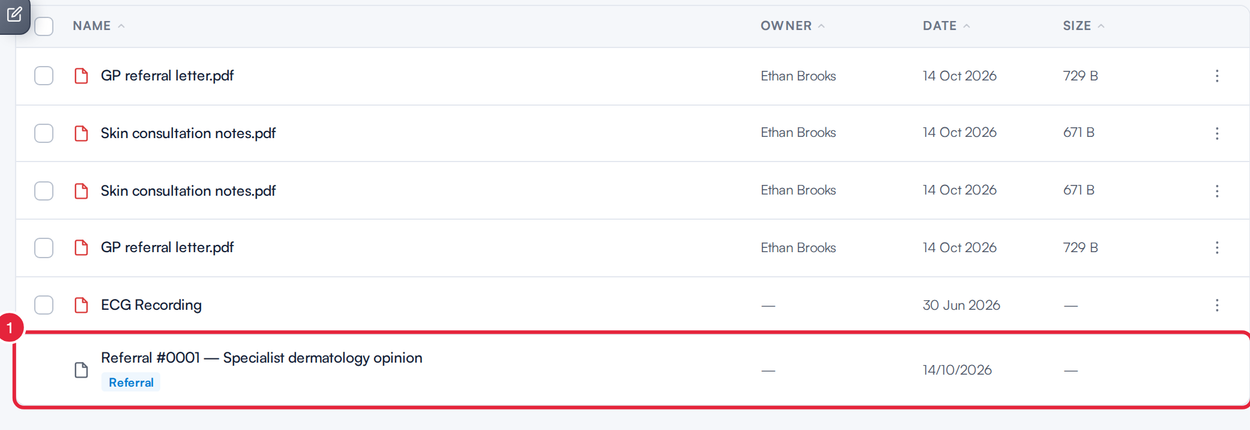
A referral listed in the client's Documents
NOTE: Referrals show at the top level of Documents, not inside folders, and they're left out when you tick documents for bulk actions such as Download or Move to folder. If you can't find an older referral here, look on the Referrals page (More → Referrals), which lists every referral your clinic has made.
Step 4: Read or Update the Referral
The referral opens in a Referral window on top of the client card, so you don't lose your place. It shows the referral's number and the date it was created, the Instructions for the recipient and, under Document, the referral itself.
- To change the instructions, edit the text and click Save.
- Close the window with the × to return to the client's documents.
To change a referral's status, such as Accepted or Discharged, use the Referrals page: in the left sidebar click More, then Referrals.
What's next?
Was this guide helpful? Let us know by voting below - your feedback helps us write clearer articles.
For more guides, browse the related articles below or use the search bar at the top of the page. You can also watch our video learning series, the Pabau Academy, or visit the Support page for additional help.