
When a new team member will perform the same treatments as a colleague, you don't have to tick every service by hand. Copy from on their Services tab copies a colleague's service selection in one go, so you can check it, adjust it and save.
Step 1: Open the Team Member's Services
- Go to Team and click the name of the team member you're setting up.
- Click the Services tab, then click Copy from at the top right.
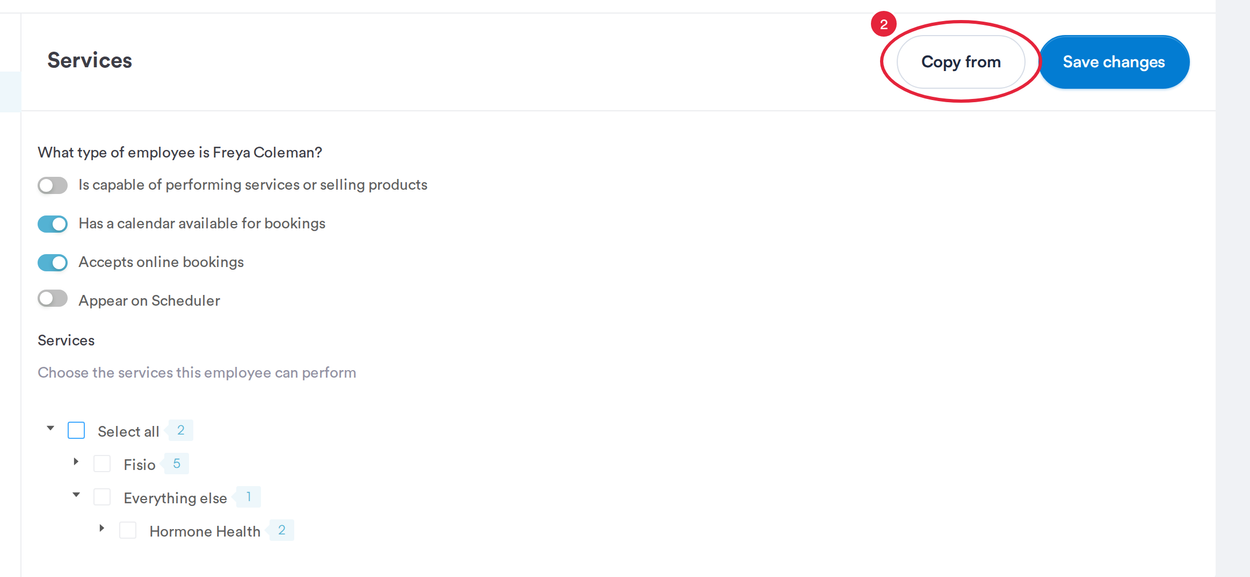
Copy from is next to Save changes on the Services tab
Step 2: Choose the Colleague to Copy
- In Copy services from another employee, type a name or email address into Search team members.
- Click the colleague whose services you want to copy.
- Click Copy services.
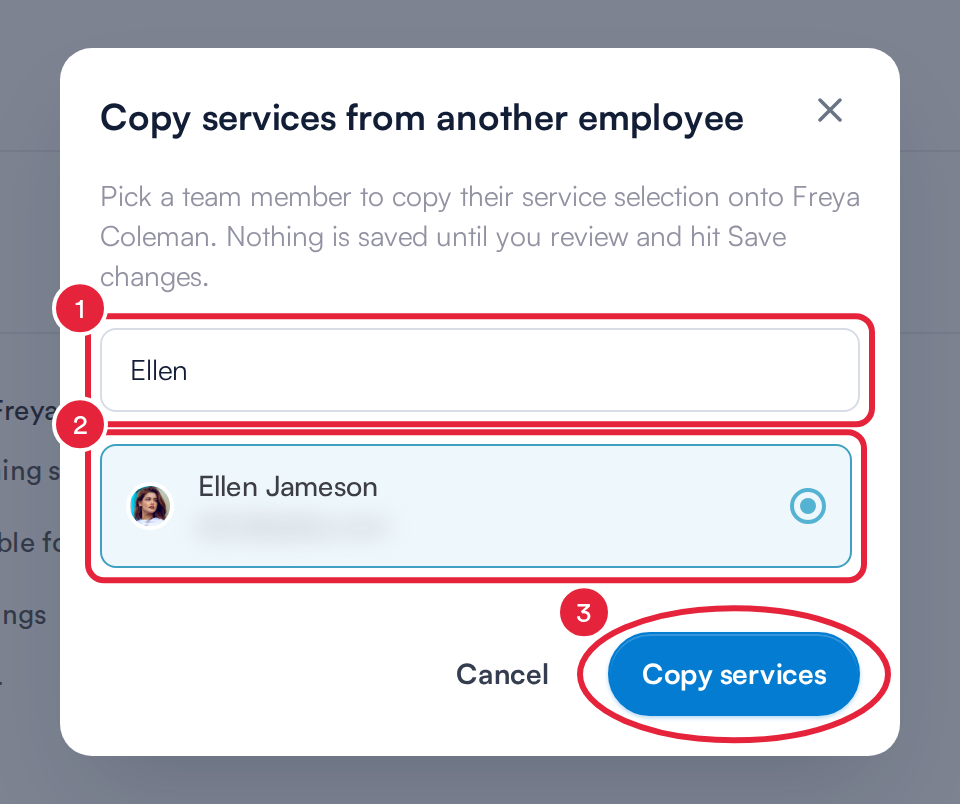
Search for the colleague, select them, then click Copy services
Step 3: Review and Save
- The service list now shows the colleague's selection, and a message confirms Copied <name>'s services. Review and save to apply. Open the categories to check the individual services, and tick or untick any that should be different for this team member.
- Click Save changes.
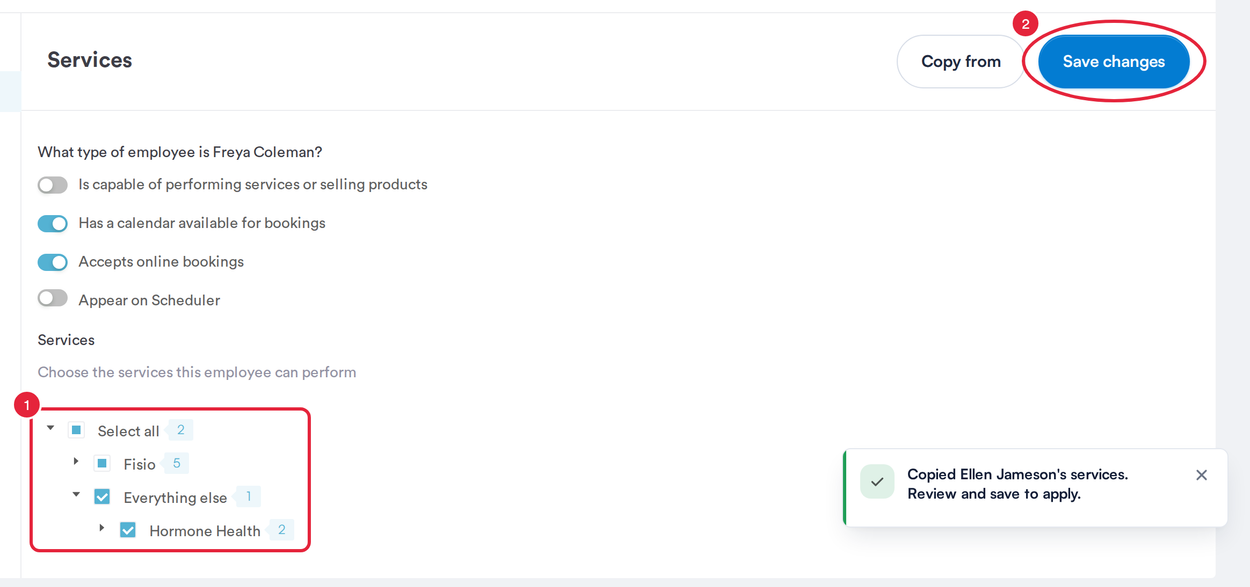
Check the copied ticks, then click Save changes
IMPORTANT: Copying replaces the team member's current ticks with the colleague's. Services the colleague doesn't perform are unticked. Nothing is saved until you click Save changes, so if you copied from the wrong person, copy again or leave the page without saving.
NOTE: Only the service list is copied. The settings above it, such as Has a calendar available for bookings and Accepts online bookings, stay as they are for this team member.
What's next?
Questions? Reach us any time via the in-app chat. We're happy to help.
Was this guide helpful? Let us know by voting below - your feedback helps us write clearer articles.
For more guides, browse the related articles below or use the search bar at the top of the page. You can also watch our video learning series, the Pabau Academy, or visit the Support page for additional help.