
NOTE: Cases is part of the Care Plus plan. If you do not see Cases under Clients in the sidebar, speak to your account manager about upgrading.
Sometimes a case turns out to be a different kind of case than first thought - for example, a general query that develops into a formal complaint. Converting the case moves it onto the correct type's workflow without losing any of the information already logged, so you don't have to delete it and start over.
Step 1: Open the Case and Click Convert Case
Go to Clients → Cases, open the case, and click Convert Case in the top-right.
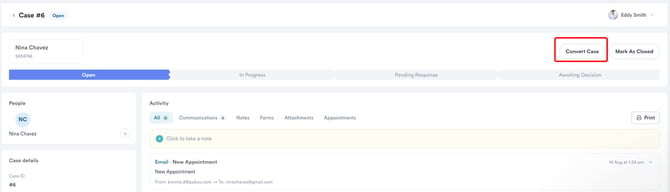
Step 2: Choose the New Type and Category
Select the New Case Type, then a Reporting Category from that type, and click Convert.
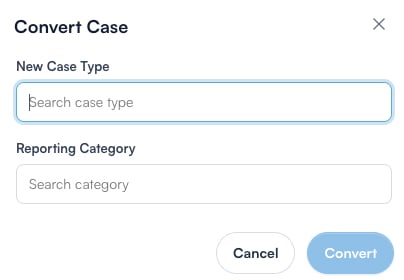
Pick the new case type, then a reporting category from it
IMPORTANT: Converting moves the case onto the new type's workflow, so its stage is reset to the start of that workflow. Its notes, documents and people are kept.
NOTE: A reporting category is required. Without one you will see "Please select a reporting category."
By following these steps, you have successfully reclassified a case under the correct type, with its notes, documents, and people carried over.
Was this guide helpful? Let us know by voting below - your feedback helps us write clearer articles.
For more guides, browse the related articles below or use the search bar at the top of the page. You can also watch our video learning series, the Pabau Academy, or visit the Support page for additional help.