
Step 1: Navigate to Cases
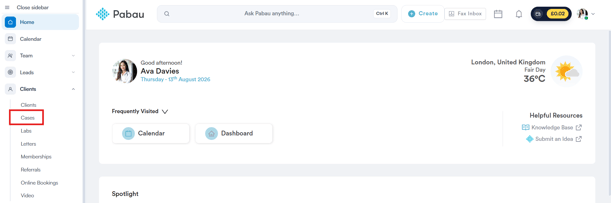
Start by logging into your Pabau account using your login credentials. In the left-hand sidebar, expand Clients, then click Cases.
Step 2: Open Case Settings
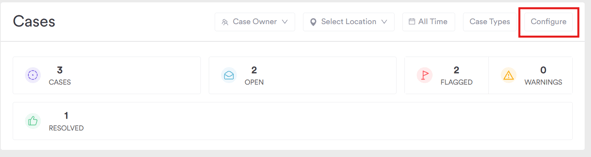
Click Configure, next to Case Types, to open Case Settings.
Step 3: Set the Key Performance Indicators
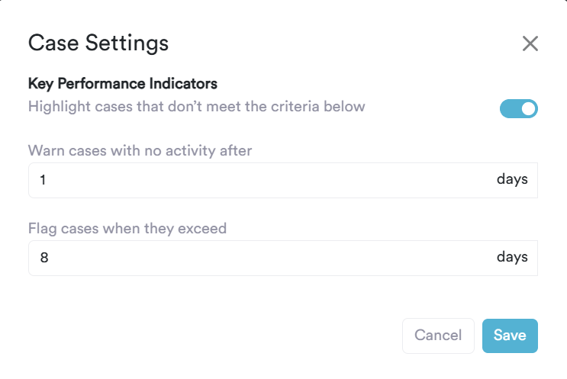
The Case Settings window holds the thresholds that drive the Flagged and Warnings counts:
- Master toggle — "Highlight cases that don't meet the criteria below." Switch this on to activate the flagging and warning behavior.
- "Warn cases with no activity after [N] days" — once a case has gone this many days without any activity, it's listed under Warnings.
- "Flag cases when they exceed [N] days" — once a case has been open longer than this many days, a flag icon appears next to its Case ID, and it's counted under Flagged.
Step 4: Save Your Settings
Click Save to apply your changes, or Cancel to discard them. Once saved, the Flagged and Warnings counts and filters on the Cases page update automatically to reflect any cases that now meet — or no longer meet — the configured criteria.
NOTE: These settings apply account-wide, across all case types — they aren't configured per case type. To customise the categories, stages, or outcomes for a specific type of case, see how to manage Case Types instead.
By following these steps, you can configure the SLA thresholds that keep your team on top of open and stalled cases in Pabau.
Was this guide helpful? Let us know by voting below - your feedback helps us write clearer articles.
For more guides, browse the related articles below or use the search bar at the top of the page. You can also watch our video learning series, the Pabau Academy, or visit the Support page for additional help.