
Insurers rarely pay every penny: an excess, a co-payment or a treatment outside the policy leaves a shortfall the client has to pay. Pabau can ask clients billed to an insurer to keep a payment card on file before their appointment, remind them if they haven't, and prompt your team at checkout. When a shortfall comes back on the insurer's remittance, the saved card is ready to charge.
NOTE: This is a payment card for shortfalls, not a photo of the client's insurance membership card. It needs Insurance Billing and online card payments set up for your clinic. Changing the insurer and the messages needs access to Setup.
Step 1: Switch On Card Collection for the Insurer
- Go to Setup → Third Parties and click the insurer.
- Open the Settings tab.
- Make sure Collect card details for shortfalls is on. It is on for every insurer unless you switch it off.
- Under Charge shortfalls, choose how a saved card is used once a shortfall is billed to the client:
- Automatic: Charge the saved card automatically when an invoice is reissued to the client. This is the default.
- Manual: Staff charge the saved card from the shortfall invoice.
- Click Save.
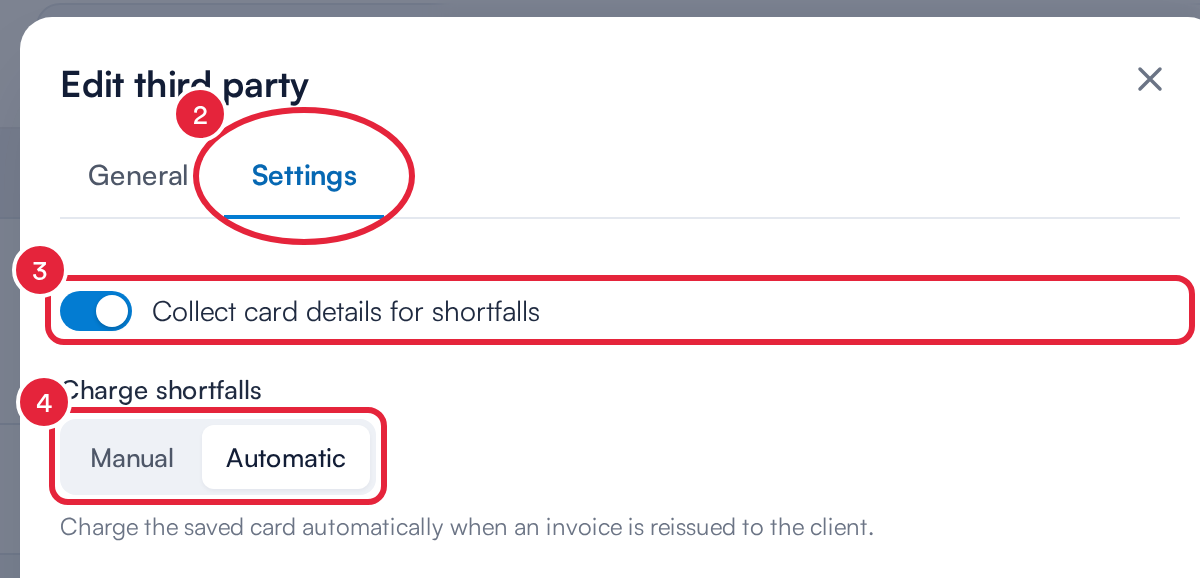
Card collection is set per insurer
TIP: Switching Collect card details for shortfalls off for an insurer stops the card request email, both reminders and the checkout prompt for clients billed to that insurer.
Step 2: Know What Your Clients Receive
With collection on, a client billed to the insurer who has no usable card on file gets:
| Message | When it goes |
|---|---|
| Insurance card request (email) | When an insurer-billed appointment is booked with email confirmation selected. It asks the client to add a card, with a link to do it. |
| Insurance card reminder: first email | 72 hours before the appointment, if it was booked at least 72 hours ahead. |
| Insurance card reminder: final email | 24 hours before the appointment, if it was booked at least 24 hours ahead. It tells the client their appointment may be cancelled if they don't add a card. |
Clients who already have a usable saved card get none of these. A client with several appointments in the same window gets one of each reminder, not one per appointment.
Step 3: Find the Messages in Notification Messages
- Go to Setup → Notification Messages.
- Find Insurance card request, sent when the appointment is booked.
- Find Insurance card reminder, which holds both reminders.
- Click Edit template on the one you want to change.
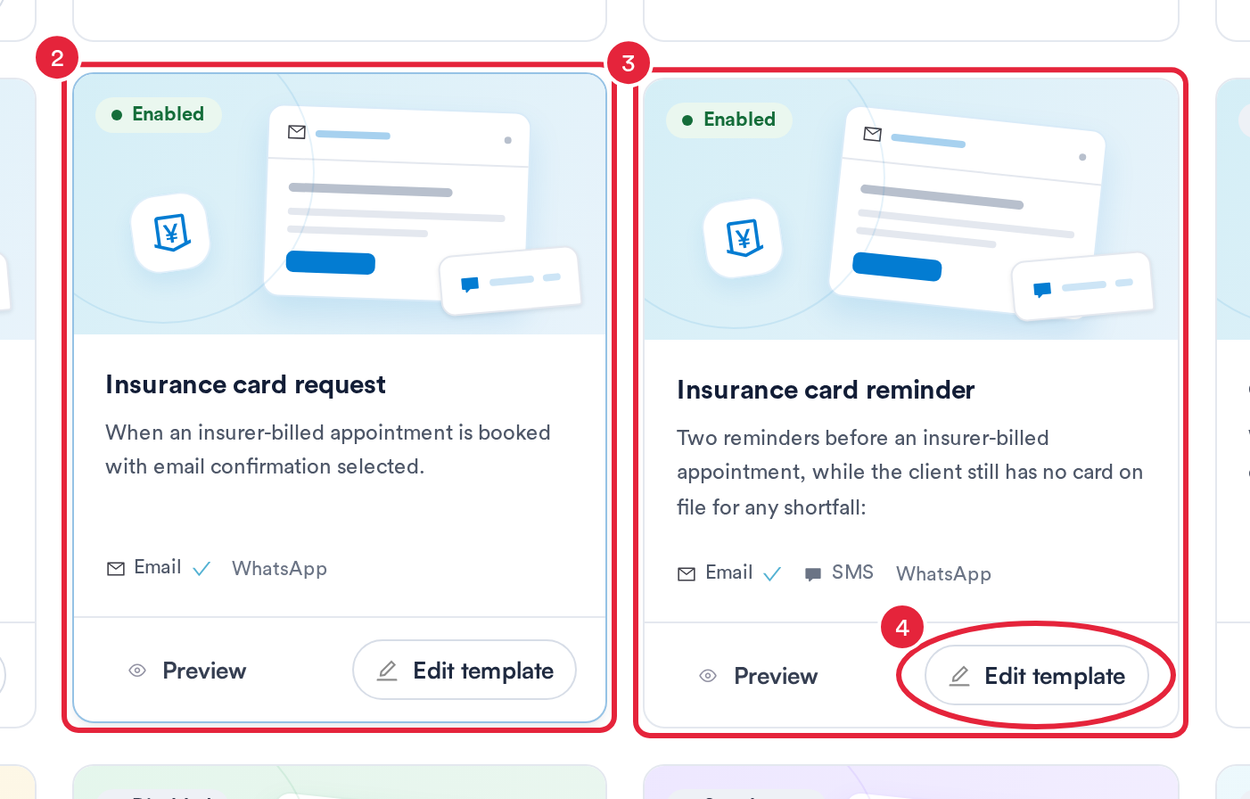
The card request and the reminders have their own tiles
Step 4: Edit the Reminder Wording and Channels
- Click How it’s sent to see when each reminder goes out.
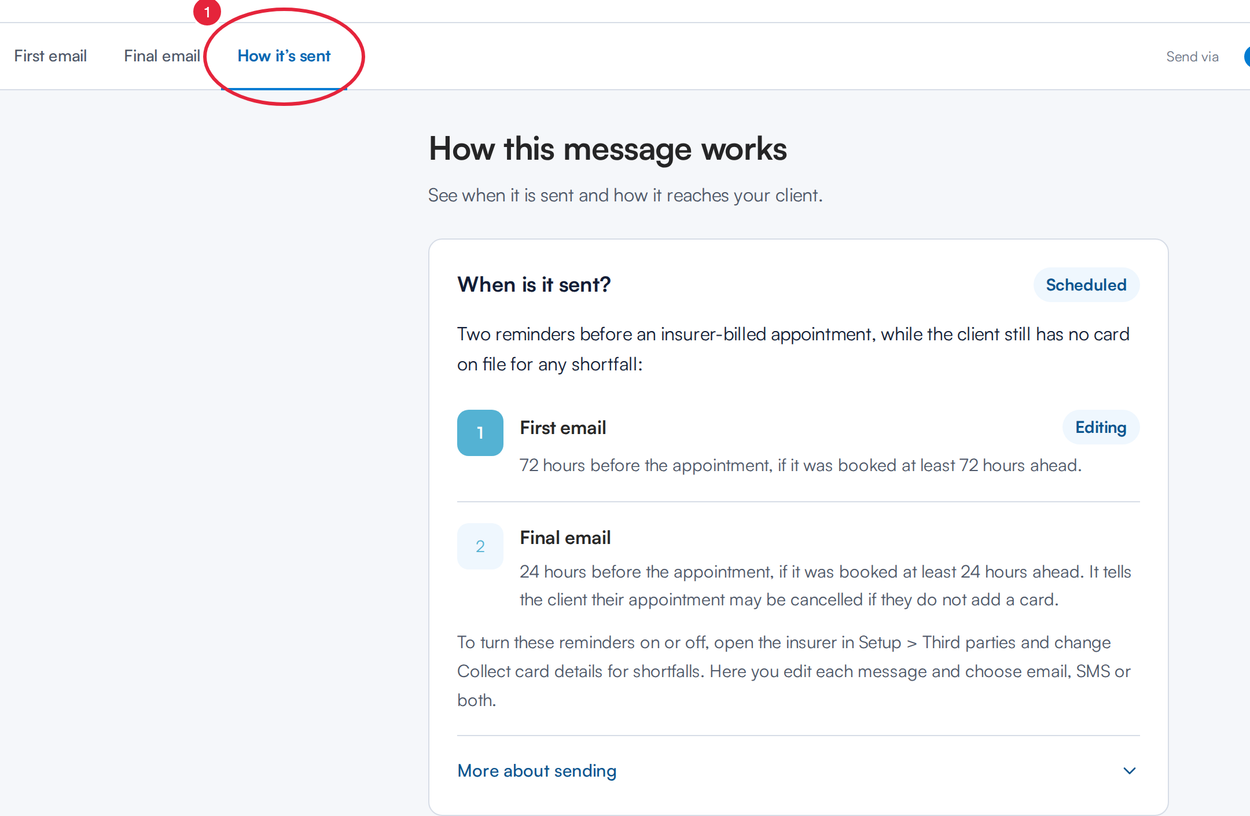
Two reminders: 72 hours and 24 hours before
- Pick the tab for the message you want to edit: First email or Final email. Each has its own settings.
- Use the Send via switches to send it by Email, SMS or both. The text message includes the link to add a card.
- Edit the wording on the right under Edit template, checking the live preview as you go.
- Click Save changes. Then do the same on the other tab if you want to change it too.
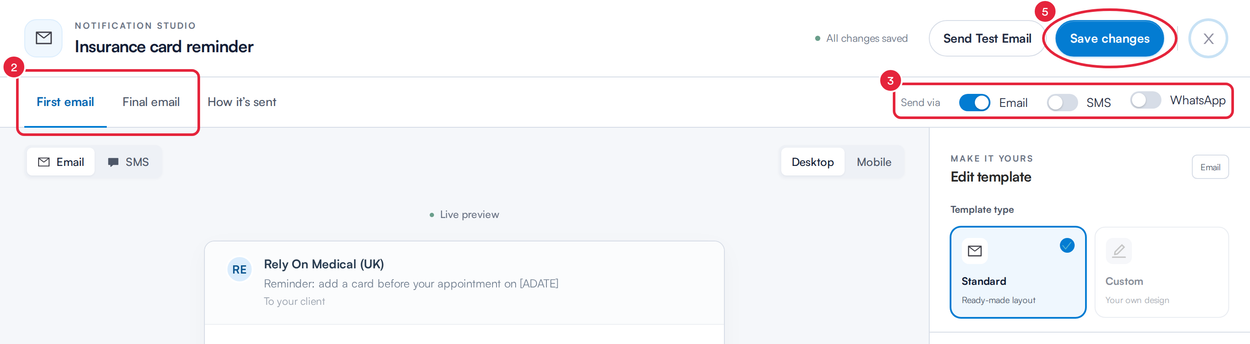
Each reminder has its own wording and channels
NOTE: Text messages for the reminders are off until you switch on SMS. The reminders themselves are switched on and off on the insurer (Step 1), not here.
Step 5: Save a Card at Checkout
When you take payment for a sale billed to an insurer that collects cards, and the client has no card on file (or their card has expired), Pabau asks you to Save a card for any shortfall, noting which insurer the invoice is billed to. Nothing is charged today. Save the client's card, or click Skip. Either way, Pabau won't ask again for the same client and insurer while you're still in that checkout.
What Happens When a Shortfall Comes In
When you process the insurer's remittance and reissue a shortfall to the client, Pabau uses the card on file: with Automatic it charges the card straight away; with Manual you confirm each charge. Clients without a usable card are emailed a payment link instead, as long as they have an email address on file.
What's next?
- How to record insurer payments with remittances
- Insurance Guide Part 3 (UK): Connect appointments to insurance in Pabau
- How to Set Up Reminder Emails and SMS
Was this guide helpful? Let us know by voting below - your feedback helps us write clearer articles.
For more guides, browse the related articles below or use the search bar at the top of the page. You can also watch our video learning series, the Pabau Academy, or visit the Support page for additional help.