
The Compliance section of Business Details lists the security and record-keeping controls Pabau offers, grouped by the framework each one supports: HIPAA, GDPR, CQC and NF525 (French fiscal rules for invoices and payments). Use it to see which controls are always on, switch on the ones your clinic wants, and check which of them Pabau enforces today.
WARNING: Switching controls on doesn't by itself make your clinic compliant with any regulation, and it isn't a certification. Most of the NF525 controls are not enforced yet (Step 3), so check your obligations with your own adviser.
Step 1: Open Compliance in Business Details
- Go to Setup, open Business Details and click Compliance in the list on the left. The section reads Choose the regulatory controls your clinic commits to. Filter by framework to see what each one helps you satisfy.
- Use the filter to show All controls or only those for HIPAA, GDPR, CQC or NF525. Each option shows how many controls it covers.
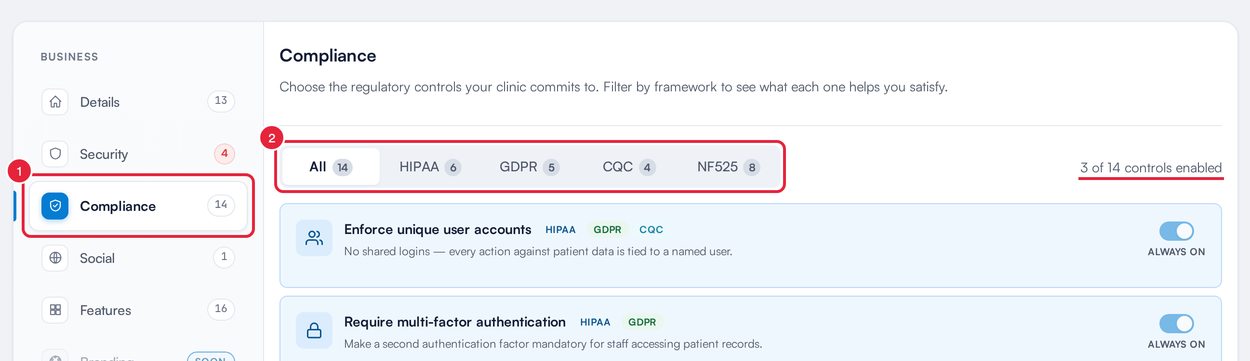
The Compliance section and its framework filter
The summary on the right, for example 3 of 14 controls enabled, counts the controls that are switched on. A control marked Not enforced yet isn't counted, even when it's switched on.
Step 2: Read Each Control Before You Switch It On
Each control shows its name, the frameworks it supports and a short description. The NF525 controls also have a line underneath saying what changes for your staff once it's on, for example "Staff can no longer move a payment to a different invoice."
Controls marked Always on (Enforce unique user accounts, Require multi-factor authentication and Full patient-record audit log) are listed for reference and can't be switched off. Switching on one of the other HIPAA, GDPR or CQC controls records what your clinic commits to on this page; it doesn't change any other setting. Sign-in settings such as two-factor authentication are in the Security section of Business Details.
Step 3: Check Which Controls Are Enforced
- A Not enforced yet badge means the control records your clinic's choice but doesn't change how Pabau behaves yet.
- Lock payments to their invoice has no badge: it is enforced. Once it's on, a recorded payment stays attached to the invoice it was taken against. Staff can no longer move a payment to a different invoice; to correct one, they reverse it and take it again against the right invoice.
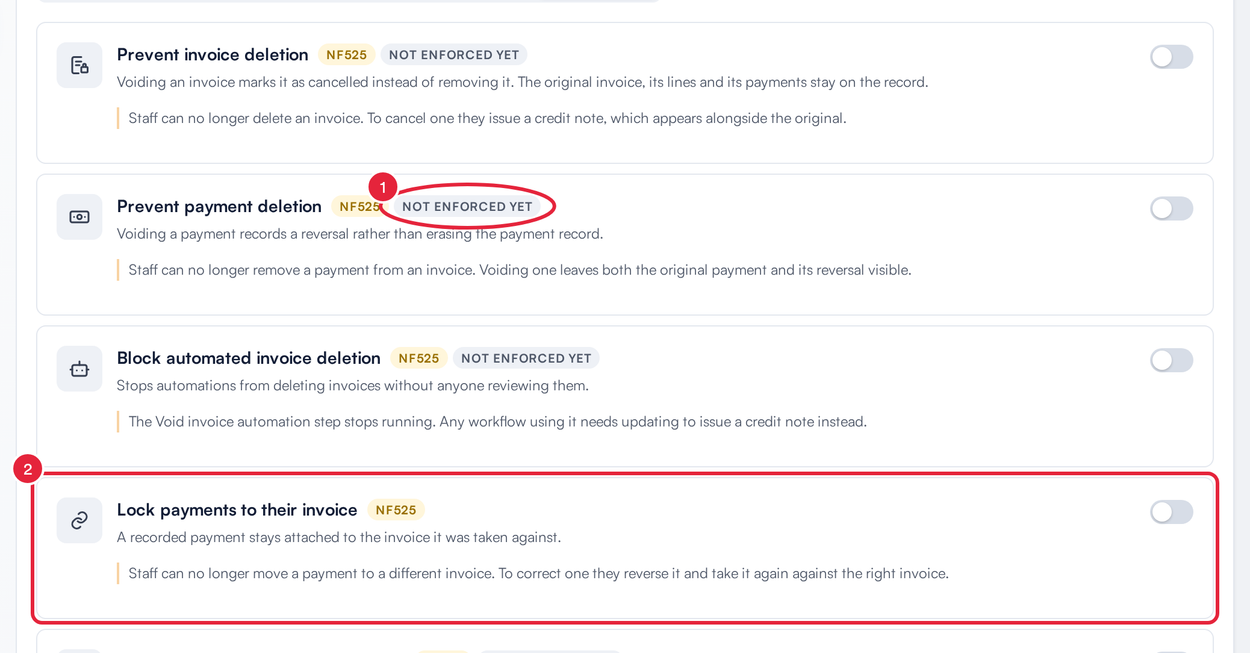
NF525 controls, with one marked Not enforced yet and the enforced Lock payments to their invoice
The NF525 controls are Prevent invoice deletion, Prevent payment deletion, Block automated invoice deletion, Lock payments to their invoice, Require permission to void or refund, Enforce refund and credit limits, Freeze issued invoices and Restrict invoice changes to the app. Only Lock payments to their invoice is enforced at the moment.
Step 4: Switch a Control On and Save
- Click the switch on the right of the control. A bar appears at the bottom: You have unsaved compliance changes.
- Click Save. Pabau confirms with Compliance settings saved. Click Cancel instead to undo your changes.
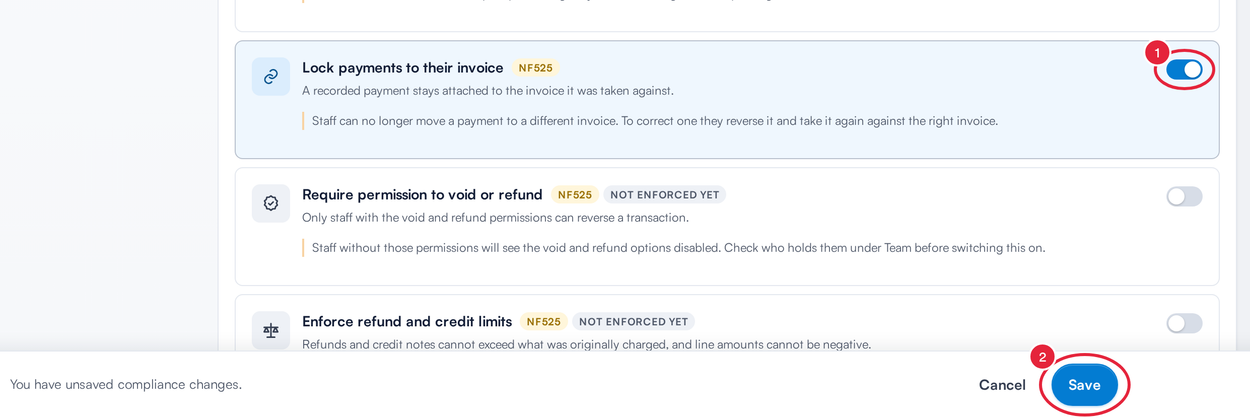
Save your compliance changes from the bar at the bottom
IMPORTANT: Read the note under a control before switching it on. Some ask you to check something first: Require permission to void or refund says to check who holds the void and refund permissions under Team, and Restrict invoice changes to the app says to check your integrations.
What's next?
Was this guide helpful? Let us know by voting below - your feedback helps us write clearer articles.
For more guides, browse the related articles below or use the search bar at the top of the page. You can also watch our video learning series, the Pabau Academy, or visit the Support page for additional help.