
NOTE: This guide covers the new Online Bookings and Client Portal, which are being rolled out to clinics in phases. If your screens look different, your account may still be on the classic version — message us via the in-app chat and we will help.
In this article, you will learn which parts of a client’s health record you can show in the client portal — medical history, medications, allergies, prescriptions, GP details and vitals — and what clients are allowed to change themselves. Lab results have their own guide: How to Show Lab Results in the Client Portal.
Step 1: Choose Which Health Pages Clients See
Click Setup in the sidebar, choose Online presence and click Client Portal. On the Essentials tab, scroll to the clinical features, click a card and switch Status on or off. Changes are saved as soon as you flip a switch. For a tour of the whole page, see How to Set Up the New Client Portal.
| Feature | What clients see | What clients can change |
|---|---|---|
| Medical history | The contact details you hold for them, and your default Medical History form (the one set as default in Setup → Forms), filled in with their last answers. | They can update the form and send it back to you, and correct their name and mobile number. |
| Medications | The medication on their record, including medicines on prescriptions you have issued. | Nothing — this page is read-only. |
| Allergies | The allergies on their record, with type, reaction and severity. Severe allergies are highlighted at the top. | Add, edit and remove allergies — only if you allow it (see Step 2). |
| Prescriptions | Every completed prescription on their record, to read and print. Drafts are never shown. | Send you a prescription request — only if you allow it (see Step 4). |
| GP details | The GP practice on their record, with its contact details. | Add a GP — by searching My clinic's directory or the Pabau Network, or by typing the practice details — or remove one. |
| My vitals | Readings your team recorded in treatment forms (see Step 6). | Nothing — this page is read-only. |
NOTE: Medications and Allergies sit under Medical history. If you turn Medical history off, they are hidden too.
Step 2: Decide Whether Clients Can Edit Their Allergies
- On the Allergies card, switch Status on to show the page.
- Under Feature settings, switch Allow clients to add or edit allergies on or off. When it is off, the page is read-only.
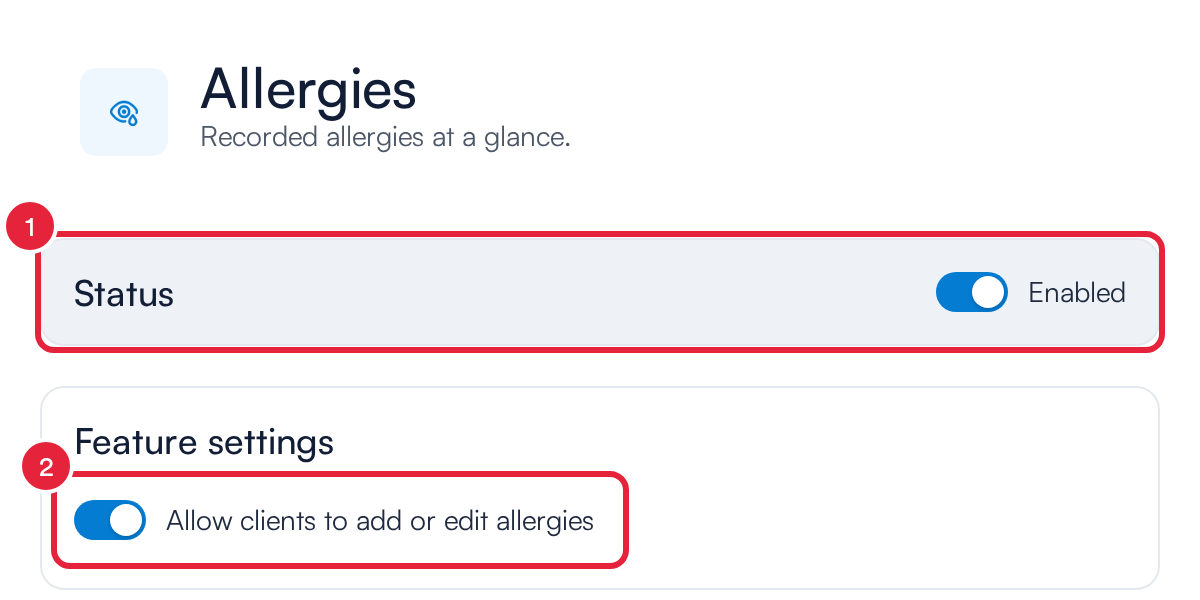
The Allergies card: Status and Allow clients to add or edit allergies
Step 3: What Clients Can Do on the Allergies Page
When editing is allowed, clients can:
- Click Add allergy to record a drug allergy, a non-drug allergy, or No Known Drug Allergies, with its severity and reaction.
- Click ⋯ next to an allergy to choose Edit details or Remove allergy.
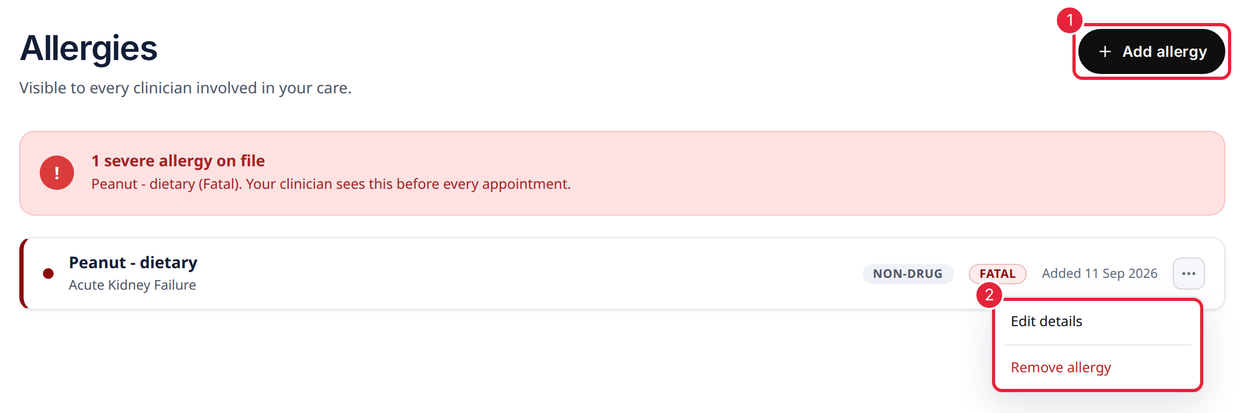
The client’s Allergies page
IMPORTANT: Changes clients make here go straight onto their client card. That includes editing or removing an allergy your team recorded. If you would rather clients told you about changes instead, switch Allow clients to add or edit allergies off.
Step 4: Decide Whether Clients Can Order Prescriptions
- On the Prescriptions card, switch Status on to show the page.
- Under Feature settings, switch Allow clients to order prescriptions on or off.
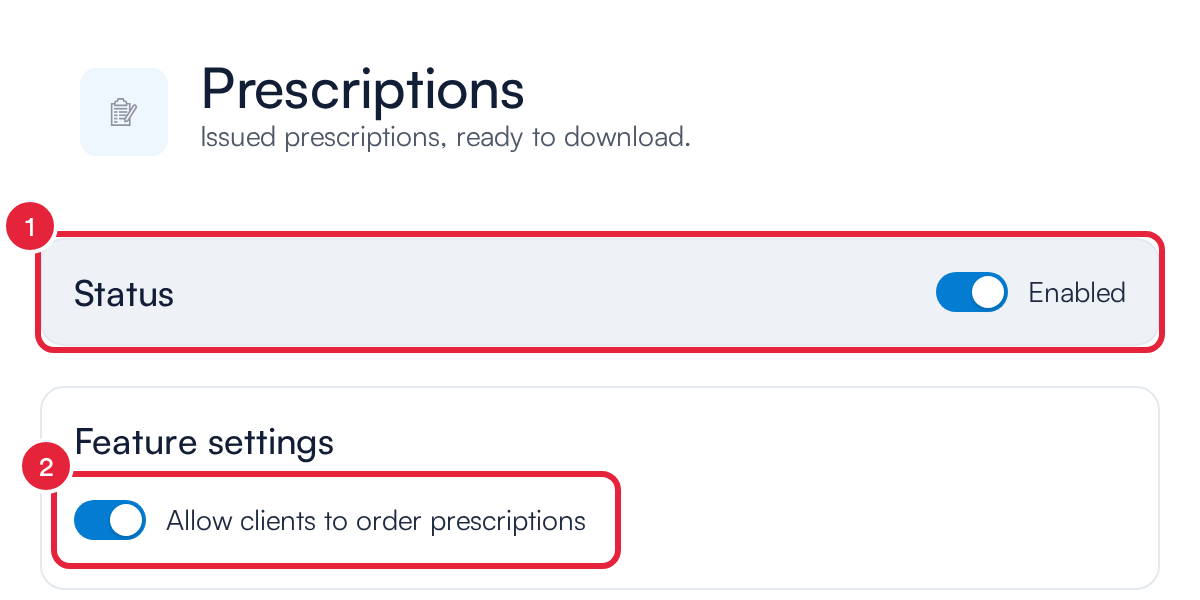
The Prescriptions card: Status and Allow clients to order prescriptions
IMPORTANT: Prescription requests are delivered to your Pabau Engage inbox, on the client’s conversation. If your clinic does not use Pabau Engage, switch Allow clients to order prescriptions off.
Step 5: What Clients See on the Prescriptions Page
- If ordering is allowed, clients click Order prescription, confirm their details, then describe the prescription, dose and quantity they need and click Submit request. A request does not issue anything — a prescriber reviews it.
- Clients can open any completed prescription to read it, and click Print to print a copy.
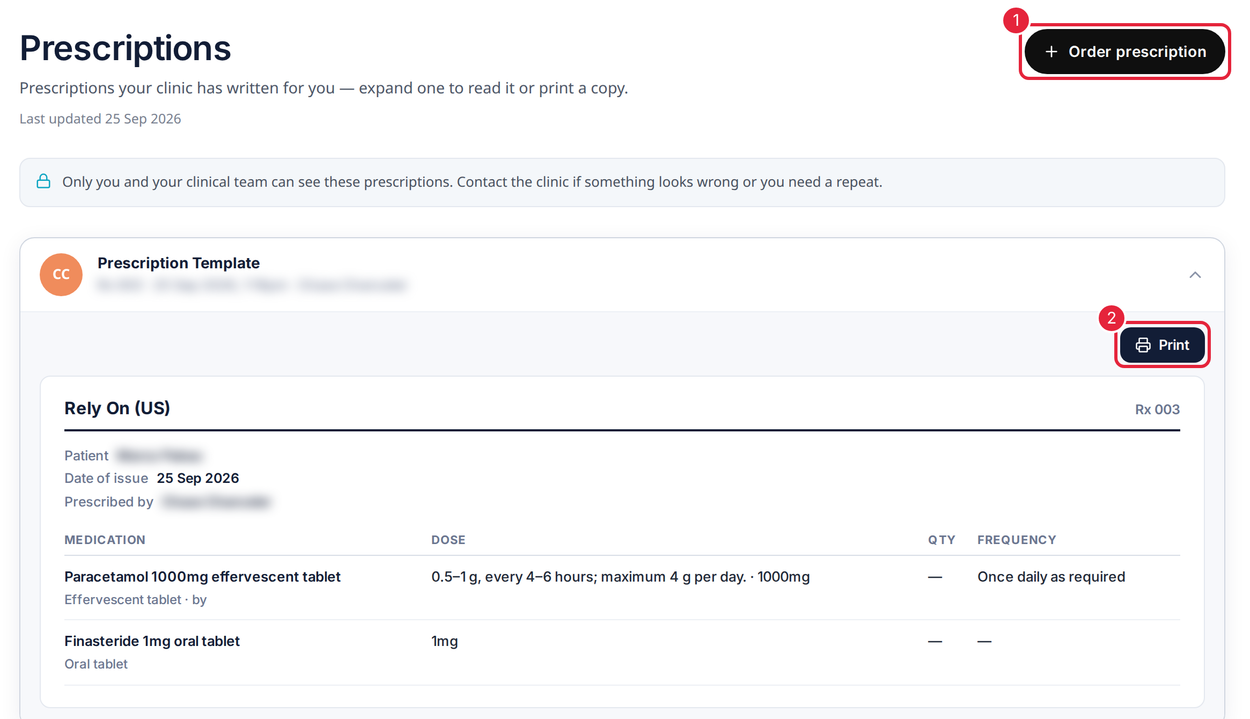
The client’s Prescriptions page
Step 6: Show Clients Their Vitals
My vitals shows clients the readings your team recorded in treatment forms — weight, height, BMI, temperature, blood pressure, pulse, respiratory rate and oxygen saturation — with their latest readings at the top and earlier ones below. These are the same readings as the vitals on the client card. Readings in forms restricted to specific staff are left out.
- On the My vitals card, switch Status on. It stays off until you do.
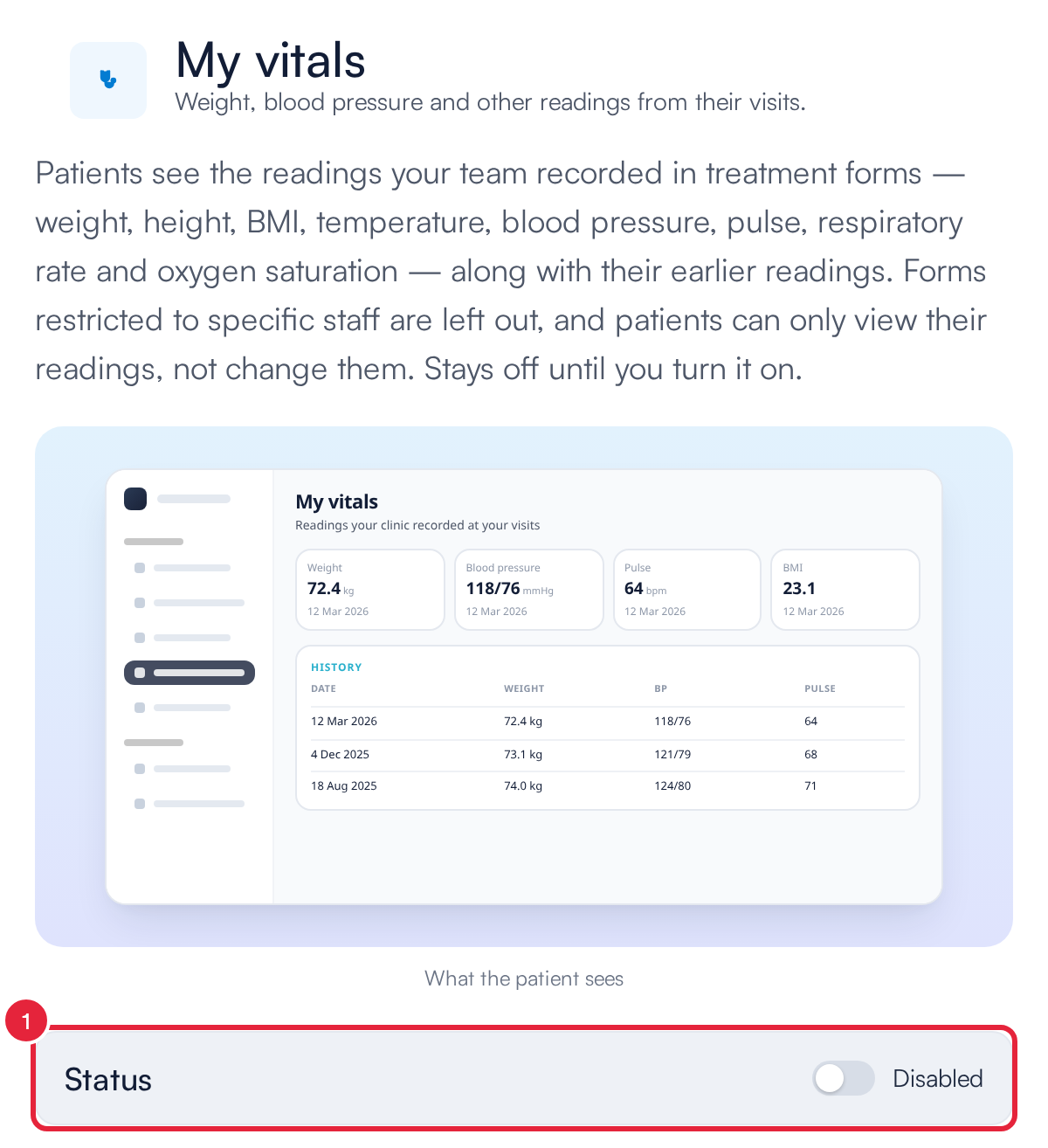
The My vitals card, with a preview of what the client sees
What's next?
- How to Show Lab Results in the Client Portal — shared results, and letting clients import their own.
- How to Set Up the New Client Portal — every portal feature, your branding and how to share the portal link.
- How to Manage Allergies in the Client Card (New Client Card) — review allergies on the client card.
Questions? Reach us any time via the in-app chat — we’re happy to help.
Was this guide helpful? Let us know by voting below - your feedback helps us write clearer articles.
For more guides, browse the related articles below or use the search bar at the top of the page. You can also watch our video learning series, the Pabau Academy, or visit the Support page for additional help.