
Step 1: Navigate to Money
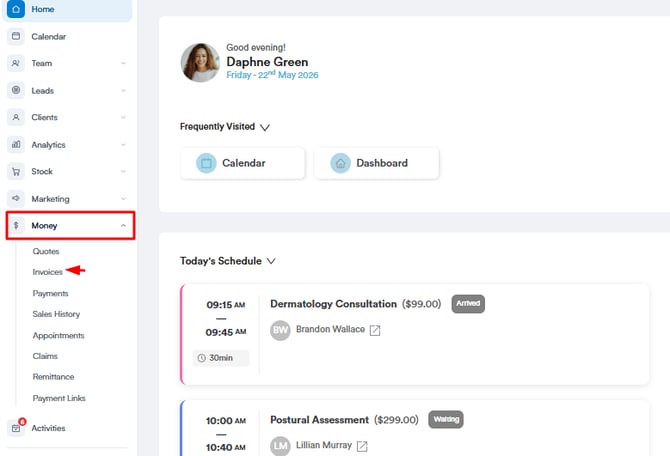
Once logged into Pabau, expand the Money tab on the left sidebar menu and click Invoices to get started.
All invoices will be displayed on the Invoices page, and the Sync Xero column will be added automatically upon integration with Xero.
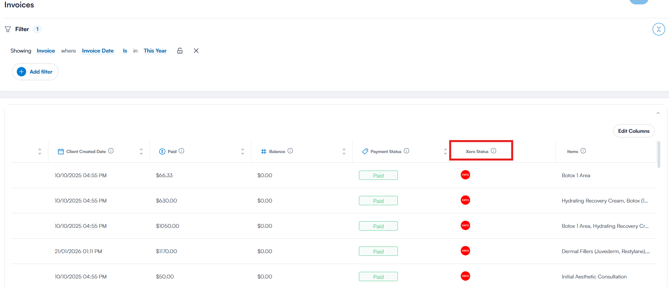
The icon on the Sync Xero column indicates the status of the invoice.
- Gray Icon- Syncing is in progress
- Red Icon- The Invoice is not synced
- Blue Icon- Invoice has been successfully synced
Step 2: Navigate to the Client Card
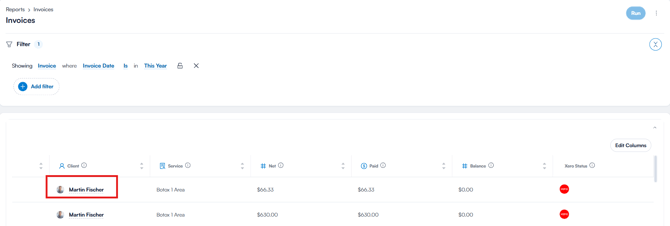
To view a client card, you can either click on the client name from the invoices listed on the invoices page or navigate to the search bar at the top of the page and type at least three letters of the client's name. Pabau will filter the results as you type.
Step 3: Switch to the Financials Tab
After selecting the client, you will find the "Financials" tab in the client card. This tab contains a record of all payments made by the client. Click on the invoice number to show all invoice details.
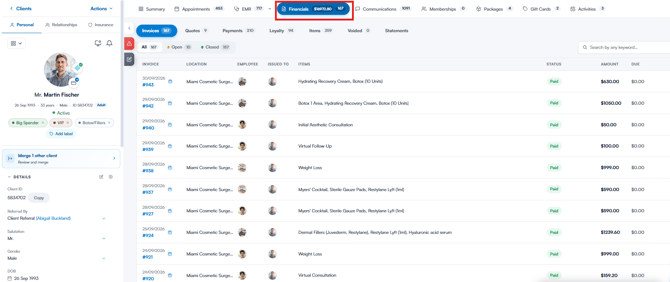
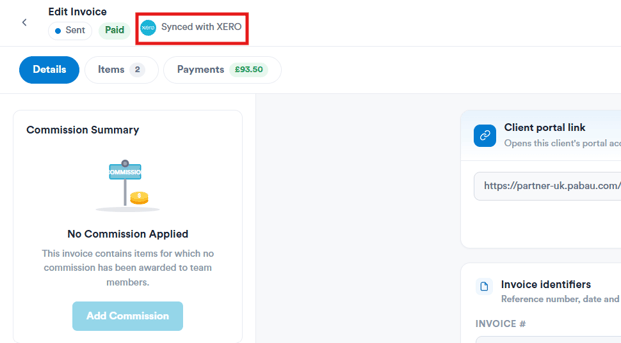
You can view the Sync Xero icon at the top left corner of the invoice. If you hover over it, it will display its syncing status.
Step 4: Verify Syncing Status
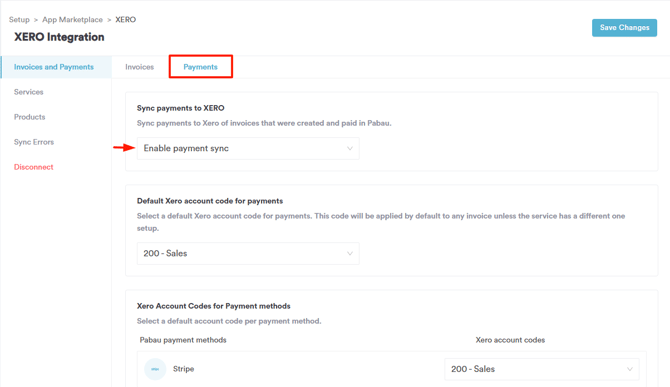
Under the Payments tab, ensure that the "Sync payments to XERO" option is enabled. If all settings are correct and invoices are not syncing, please escalate these cases to customer support for further investigation.
NOTE: After the invoice is raised, it may take 3-5 minutes for the update to complete and for the invoice to appear on the Xero platform
Was this guide helpful? Let us know by voting below - your feedback helps us write clearer articles.
For more guides, browse the related articles below or use the search bar at the top of the page. You can also watch our video learning series, the Pabau Academy, or visit the Support page for additional help.