
When a clinician asks why their AI Scribe note is taking a while, or why it failed, the answer is in the session's processing history. Audit logs shows every step AI Scribe went through for each session: when it was created, when it moved from transcribing to structuring the note, any errors, and any automatic retries. This guide shows you how to find a session's history and read it.
NOTE: Only admins can see Audit logs. Clinicians without admin access won't see the button.
Step 1: Open the Audit Logs
- Go to Clients → AI Scribe. On the right of the Sessions view, under Tools, click Audit logs.
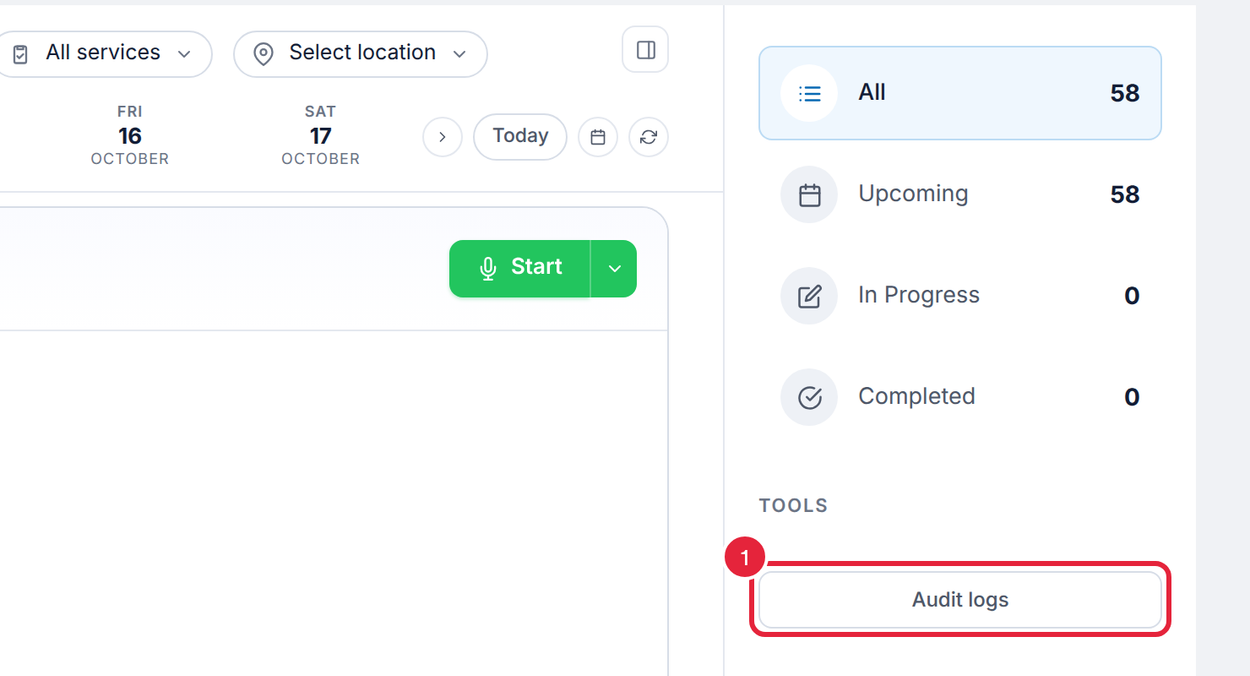
Audit logs is under Tools on the Sessions view
Step 2: Find the Session
The Audit logs panel lists sessions with the most recent activity first. It's live: new events appear as they happen, so you can leave it open while a note is being processed. Each session shows:
- The client's name and where the session is now, for example Complete, Structuring or Failed.
- A short session reference, the clinician, and how it was captured: In-person, Dictation or Upload.
- How many events it has, how many errors and retries (if any), and the date and time range of its activity.
- Click All employees to show only one clinician's sessions. You can search the list of names.
- Click All time to narrow the dates.
- Click the arrow on the right of a session to show its events.
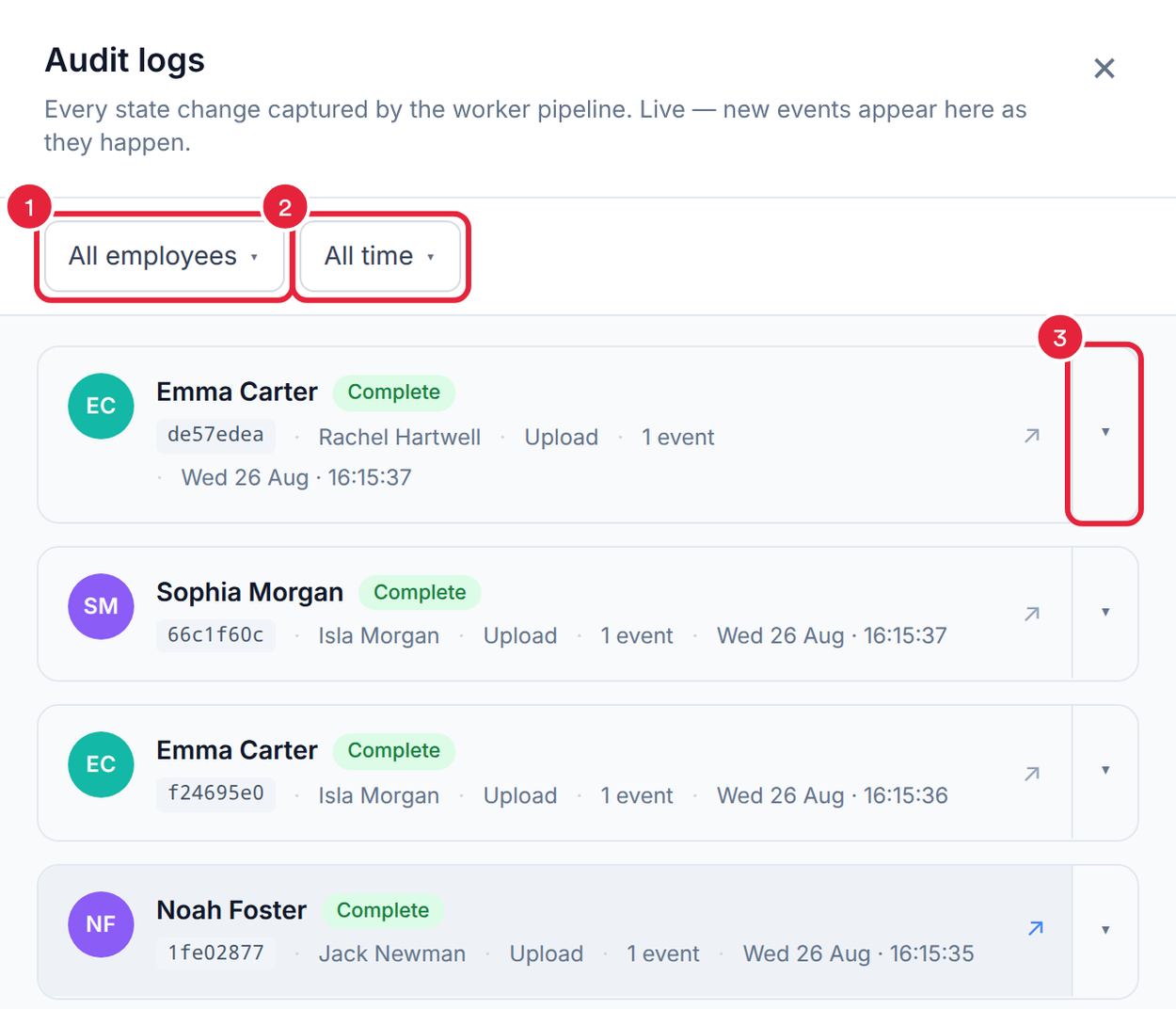
Filter by clinician or date, then expand a session
The date filter offers All time, Today, This week, This month, This year and Custom range. Pick one and click Apply.
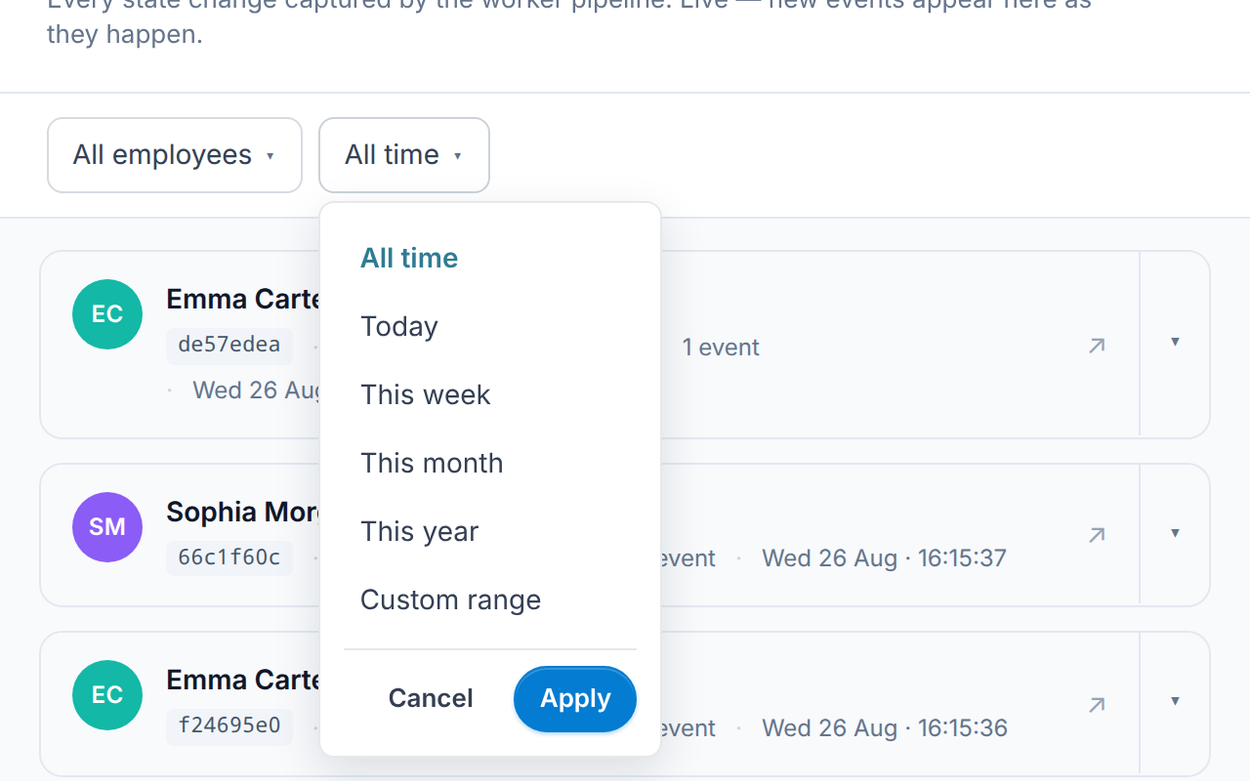
Choose a date range and apply it
Step 3: Read the Session's Events
Events are listed newest first, each with the time it happened:
- Session created: the session started, with how it was captured.
- Step changed: the session moved to its next stage, shown as from → to, for example transcribing → structuring. The stages are uploading, transcribing, cleaning, identifying speakers, structuring and complete (or failed). Where it applies, you'll see how many transcript lines and note sections there were.
- Error: something went wrong, with the reason.
- Auto-retry scheduled: AI Scribe will try again by itself, for example Attempt 2/3 — retrying in 5 min.
- Error cleared: a later attempt got past the error.
- Worker claimed and Worker released: Pabau's processing service picking the session up and handing it back between stages. You don't need to do anything about these.
- Click the arrow (↗) next to the session to open it in AI Scribe.
- Click the arrow on the right again to hide the events.
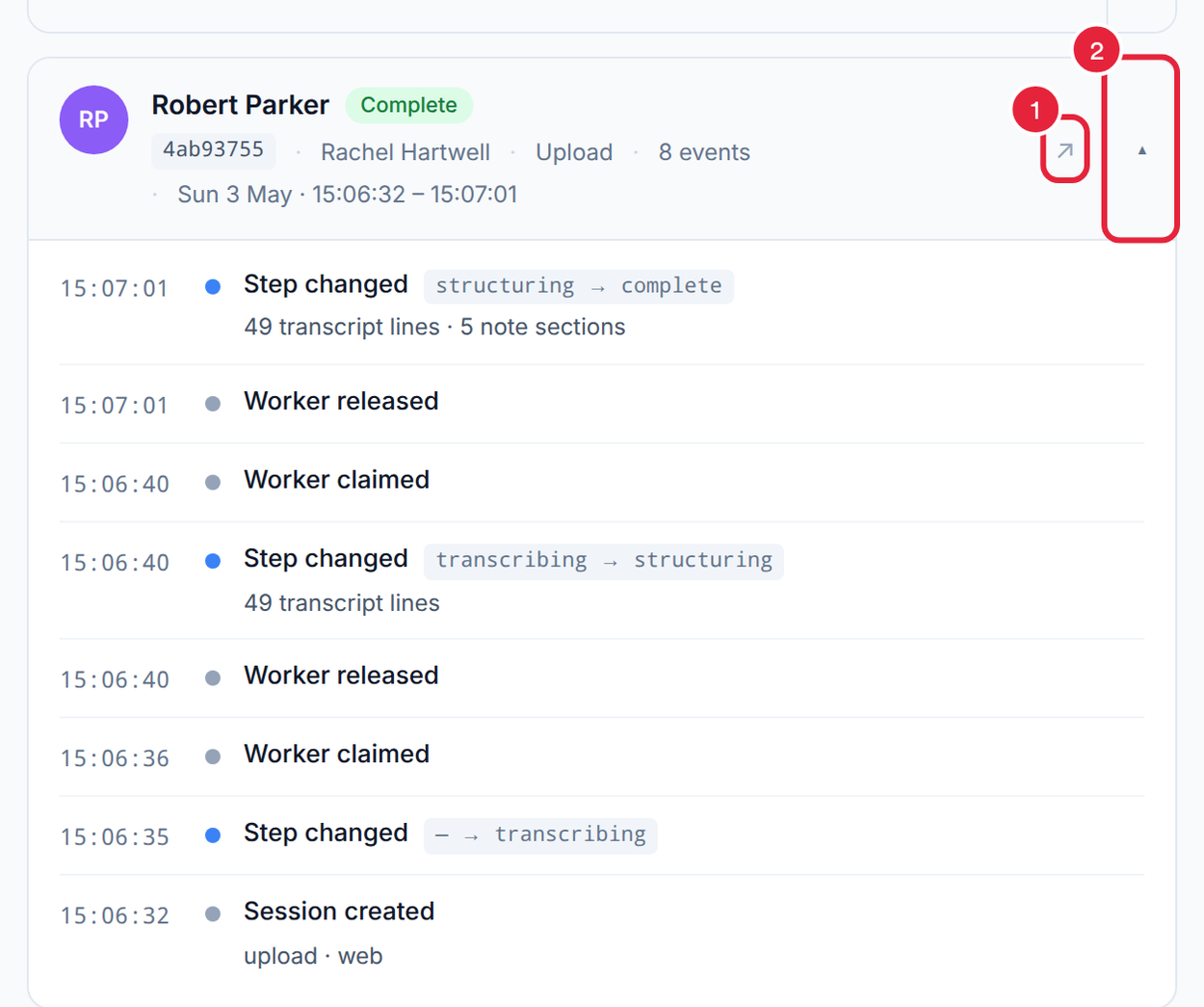
A session that went from upload to a finished note in under a minute
TIP: If a session no longer exists (for example, it was deleted), its card can't be opened, but its history stays in the log.
Step 4: Work Out What Happened
- A late note: look at the last Step changed event to see which stage the session is on and how long it has been there.
- An error followed by Auto-retry scheduled: AI Scribe is retrying by itself. It makes up to three attempts, so there's nothing to do yet.
- A session that ended as Failed: open it and click Try again (or Start a new recording if the recording never finished uploading). If it still won't finish, message us via the in-app chat with the client's name and the time of the session.
What's next?
Questions? Reach us any time via the in-app chat. We're happy to help.
Was this guide helpful? Let us know by voting below - your feedback helps us write clearer articles.
For more guides, browse the related articles below or use the search bar at the top of the page. You can also watch our video learning series, the Pabau Academy, or visit the Support page for additional help.