
This article covers the new Client Card, available to selected clinics from August 2026. If your Client Card looks different, see the How to Cancel an Appointment from the Client Card (Classic) guide instead.
Step 1: Navigate to the Client Card
Start by logging in to your Pabau account using your login credentials. Then click the search bar at the top of the page and type at least three letters of the client’s name. Pabau will filter the results as you type.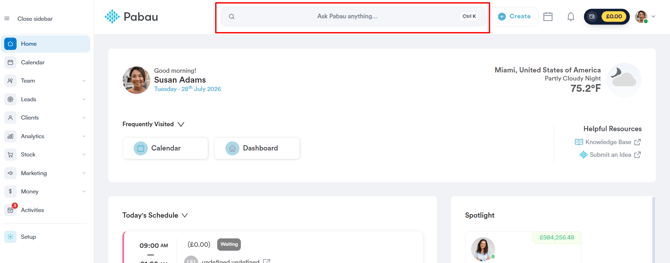
Step 2: Open the Appointments Tab
After selecting the client, click on the "Appointments" tab at the top of the client card. This tab lists every appointment scheduled for the client.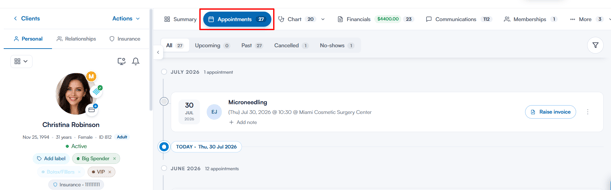
Step 3: Locate the Appointment to Cancel
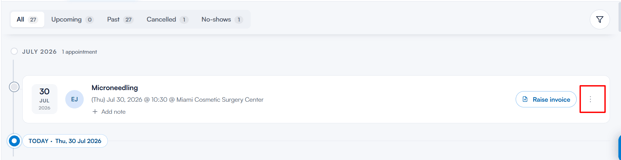
Find the appointment you would like to cancel and click on the three-dot menu on the far right side of the appointment.
Step 4: Select "Cancel Appointment"
A menu will appear with the actions you can take on this appointment. Select "Cancel appointment".
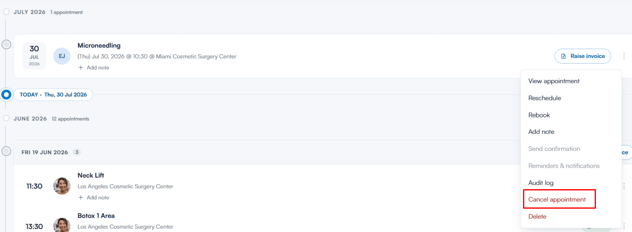
NOTE: Cancelling requires the "Can cancel appointments" user permission - without it, the option appears greyed out. To learn how to cancel appointments directly from the calendar, please consult this article.
Step 5: Select a Cancellation Reason
You will be prompted to select a cancellation reason before proceeding with the cancellation. You can also add an optional comment explaining why the appointment was cancelled, and tick "Notify client by email" or "Notify client by SMS" to let the client know. When you are ready, click "Cancel appointment".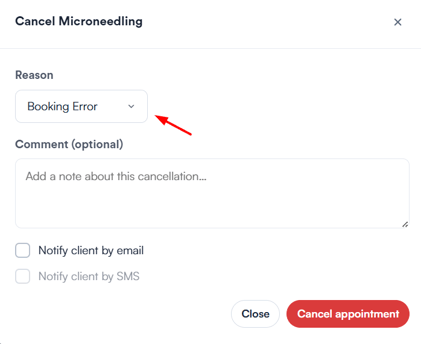
NOTE: If a notification option is unavailable, the matching cancellation notification is switched off for your account.
Once the cancellation is successful, the appointment displays a "Cancelled" status next to the service name, and it moves under the "Cancelled" tab, where you can reinstate it later if needed.

By following these steps, you can successfully cancel an appointment from the client card.
Was this guide helpful? Let us know by voting below - your feedback helps us write clearer articles.
For more guides, browse the related articles below or use the search bar at the top of the page. You can also watch our video learning series, the Pabau Academy, or visit the Support page for additional help.