
NOTE: This guide describes the new booking page and client portal. Your clinic decides which options you see, so some of the steps below may look slightly different or be skipped.
NOTE: You will need to sign in to buy anything in the store — see How to Use Your Client Portal (New Client Portal). If your clinic has more than one location, choose the one you are buying for first.
Step 1: Open the Store
On your clinic’s booking page, click Memberships, Packages or Gift Card in the menu at the top. You can switch between the store tabs at any time.
Step 2: Buy a Membership
Browse the plans (filter by monthly or annual) and click See what’s included to view the perks. Choose a plan, enter your card and click Start membership. Any joining fee is charged with your first payment.
NOTE: Memberships renew automatically on your billing date. You can pause or cancel any time from the Memberships page of your client portal.
Step 3: Buy a Package
A package is a set number of sessions, paid for once, at a lower price per session. Choose a package, pick the number of sessions if there is a choice, and pay. You can book your first session straight away, or later from your account.
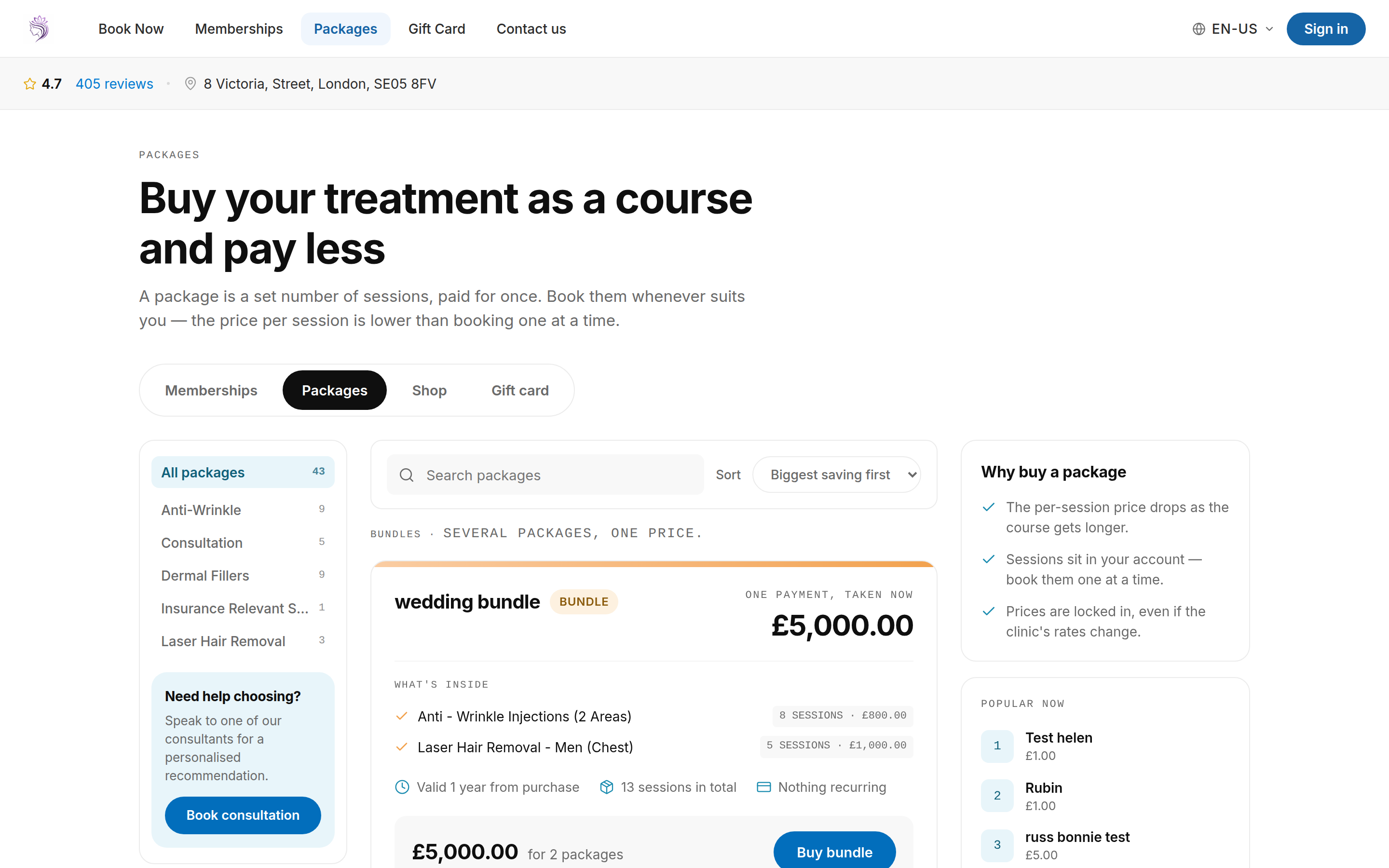
The Packages tab of the online store
Step 4: Buy a Gift Card
- Amount — choose an amount or enter your own.
- Design — choose a card design.
- Who it’s for — enter the recipient’s name and email, and add a message if you like.
- Delivery — email it to the recipient, or to yourself to pass on.
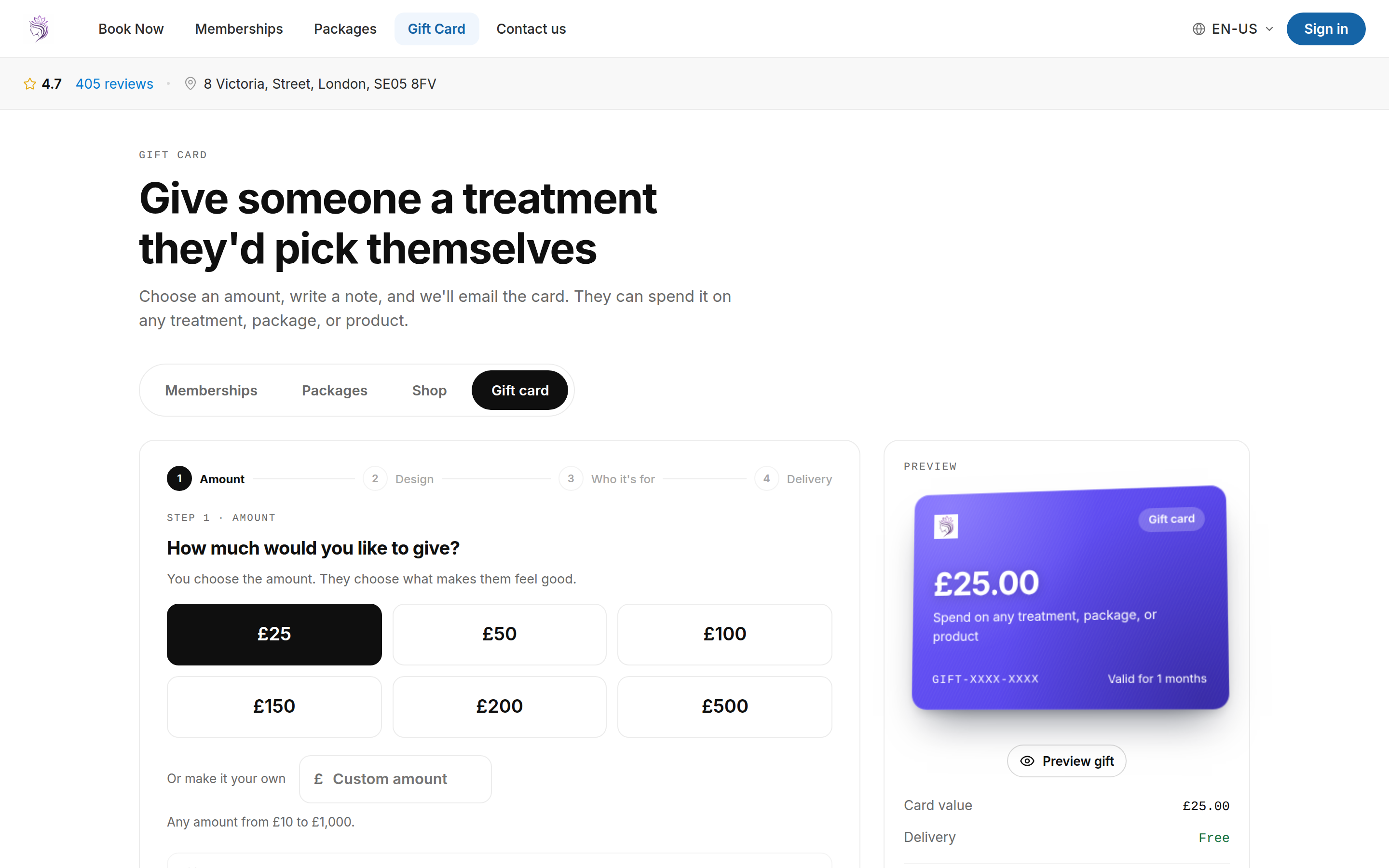
Buying a gift card: amount, design, who it’s for and delivery
The recipient gets an email with the gift card and its code, which they can use online or at the clinic.
Step 5: Use a Gift Card or Promo Code
At checkout, enter your gift card or promo code in the box provided and click Add code.
What's next?
Ready to book? See How to Book an Appointment Online (New Booking Page). To manage what you have bought, see How to Use Your Client Portal (New Client Portal).
Questions? Reach us any time via the in-app chat — we’re happy to help.
Was this guide helpful? Let us know by voting below - your feedback helps us write clearer articles.
For more guides, browse the related articles below or use the search bar at the top of the page. You can also watch our video learning series, the Pabau Academy, or visit the Support page for additional help.