
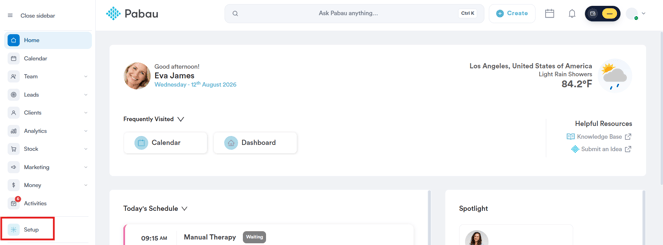
Step 1: Navigate to Setup
Start by logging into your Pabau account using your login credentials. In the left-hand sidebar, click Setup.
Step 2: Open Services
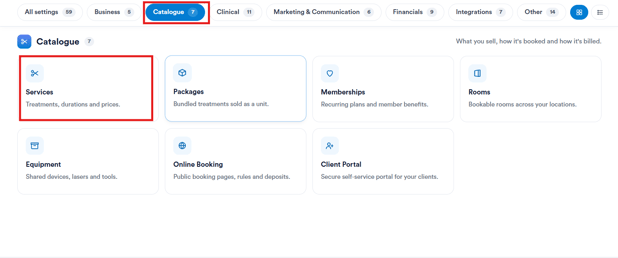
On the Setup page, select the Catalogue category from the row of setting groups along the top, then click Services.
Step 3: Select the Services to Edit
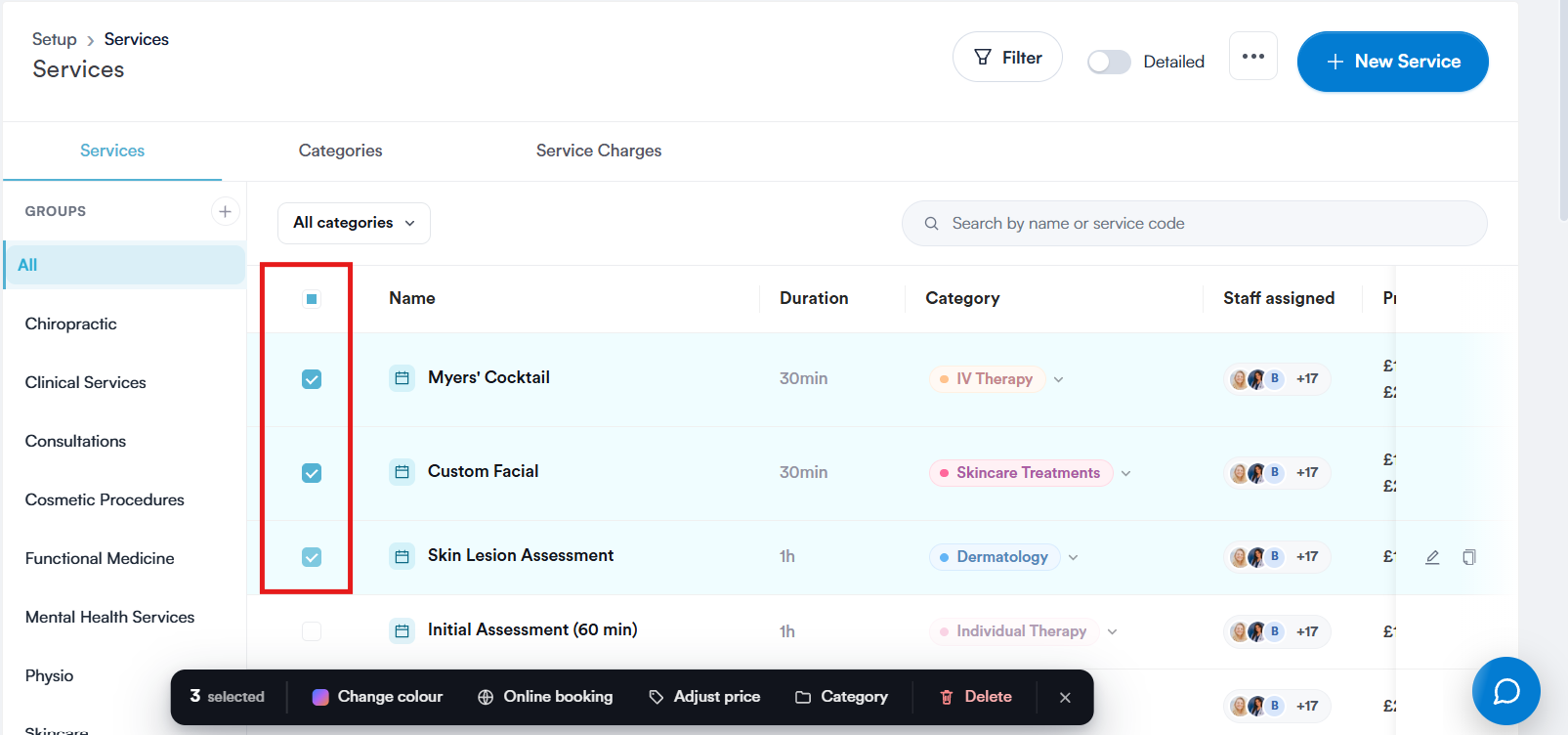
On the Services page, tick the checkbox next to each service you want to edit. You can select as many as you need from the list — you're not limited to services in the same category.
Step 4: Choose a Bulk Action
Once you've selected at least one service, a toolbar appears at the bottom of the screen showing how many services are selected, along with the available bulk actions:

- Change colour — update the calendar colour for all selected services at once.
- Online booking — turn online booking on or off for the selected services.
- Adjust price — change the price across all selected services in one go.
- Category — move the selected services into a different category.
- Delete — remove all selected services (with a confirmation prompt).
Click the action you need, make your changes, and they'll apply to every service you selected.
NOTE: Click the × at the end of the toolbar at any time to clear your selection without making a change.
By following these steps, you can update multiple services at once in Pabau, instead of editing them one by one.
Was this guide helpful? Let us know by voting below - your feedback helps us write clearer articles.
For more guides, browse the related articles below or use the search bar at the top of the page. You can also watch our video learning series, the Pabau Academy, or visit the Support page for additional help.