
Step 1: Navigate to Reports
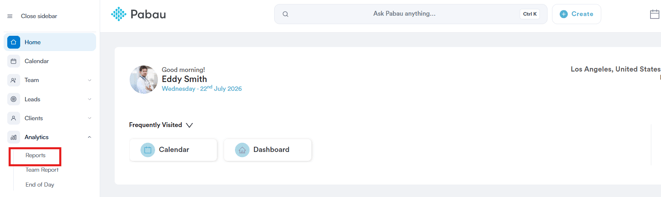
Log in to your Pabau account, navigate to the left sidebar menu, and click on Analytics, then Reports.
Step 2: Open the Consultation Conversions Report
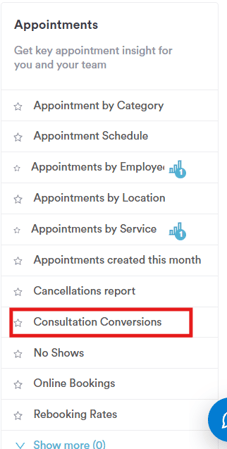
Under the Appointments category on the left, click on "Consultation Conversions."
Step 3: Understand the Filter Sentence
This report uses two filters joined by "and," meaning both conditions must be true for an appointment to appear:
Showing Appointment where Appointment date is in This month and Appointment where Service contains consult
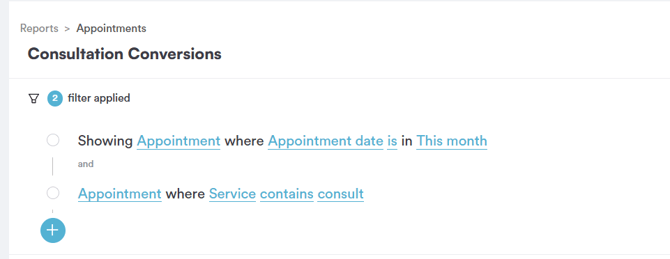
Click on the "+" icon to add another filter, or click on any underlined word to change it.
Step 4: Choose the Object
Clicking on the object name (e.g. "Appointment") opens a dropdown with the available objects to report on:
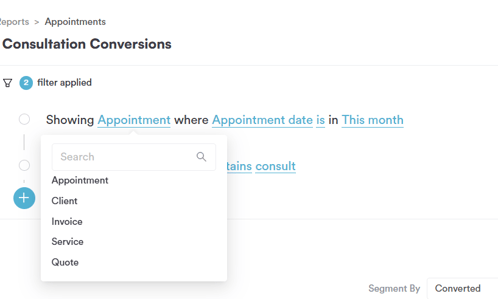
- Appointment — individual bookings on the calendar.
- Client — client profiles in your database.
- Invoice — billing records generated from sales.
- Service — the treatments or services offered by your clinic.
- Quote — quotes created for clients.
Step 5: Choose the Field
Clicking on the field name opens a dropdown of the fields available for the Appointment object. This report uses two different field types:
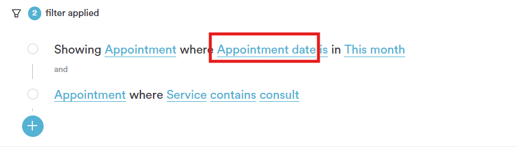
- Appointment date — a date field. Other date-type fields available for the Appointment object include Appointment Location, Appt With, Created by, Created date, Duration, and Service etc.
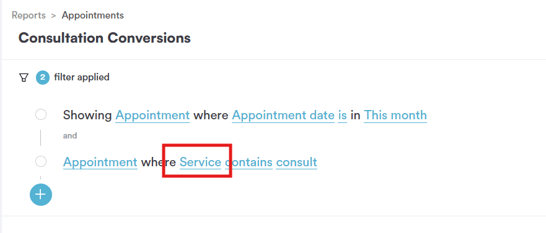
- Service — a text field showing the name of the service booked for the appointment.
Step 6: Choose the Operator
The operators available depend on the field type selected. This report demonstrates both a date field and a text field:
For a date field like "Appointment date":
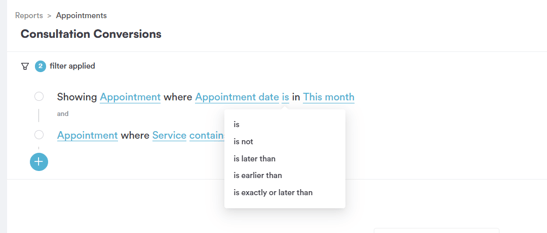
- is — matches appointments where the date falls within the selected value.
- is not — excludes appointments where the date falls within the selected value.
- is later than — matches appointments scheduled after the selected value.
- is earlier than — matches appointments scheduled before the selected value.
- is exactly or later than — matches appointments scheduled on or after the selected value.
- is now until — matches appointments scheduled between the current moment and the selected value.
- is empty — matches appointments where no date has been set.
- is not empty — matches appointments where a date has been set.
For a text field like "Service":
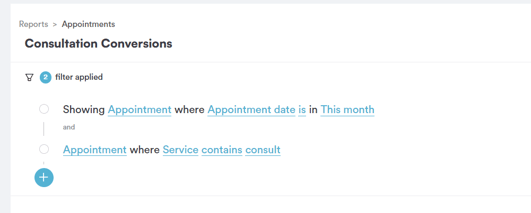
- contains — matches appointments where the service name includes the given text anywhere within it (e.g. Service contains "consult" would match "Consultation," "Free Consult," or "Post-Op Consult").
Step 7: Choose the Value
For a date field like "Appointment date," clicking on the value opens a dropdown of preset date ranges under "Favourite intervals":
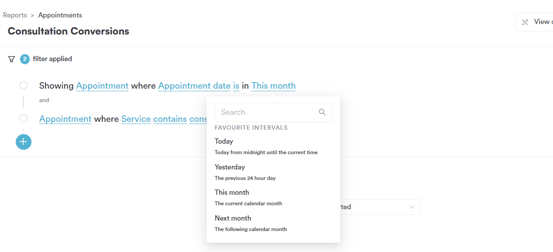
- Today — today, from midnight until the current time.
- Yesterday — the previous 24-hour day.
- This month — the current calendar month.
- Next month — the following calendar month.
Was this guide helpful? Let us know by voting below - your feedback helps us write clearer articles.
For more guides, browse the related articles below or use the search bar at the top of the page. You can also watch our video learning series, the Pabau Academy, or visit the Support page for additional help.