
Step 1: Navigate to Reports
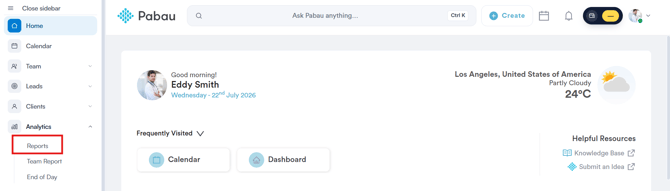
Log in to your Pabau account, navigate to the left sidebar menu, and click on Analytics, then Reports.
Step 2: Open the Appointments Created This Month Report
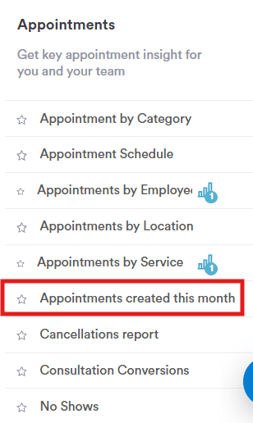
Under the Appointments category on the left, click on "Appointments created this month."
Step 3: Understand the Filter Sentence
By default, the report shows:
Showing Appointment where Created date is in This month
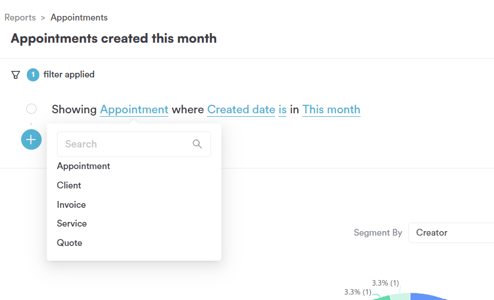
- Object — the type of record the report pulls data from.
- Field — the specific piece of data on that object you want to filter by.
- Operator — how the field is compared to the value (e.g. is, is not, is later than).
- Value — the specific thing you're checking for.
Click on the "+" icon to add a new filter, or click on any underlined word to change it.
Step 4: Choose the Object
Clicking on the object name (e.g. "Appointment") opens a dropdown with the available objects to report on:
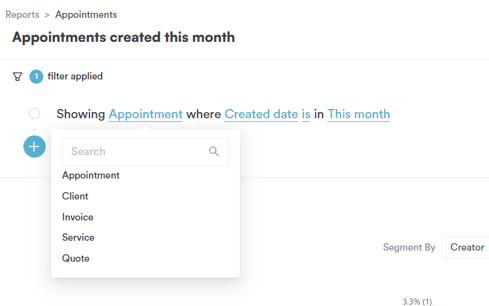
- Appointment — individual bookings on the calendar.
- Client — client profiles in your database.
- Invoice — billing records generated from sales.
- Service — the treatments or services offered by your clinic.
- Quote — quotes created for clients.
Step 5: Choose the Field
Clicking on the field name (e.g. "Created date") opens a dropdown of the fields available for the Appointment object:
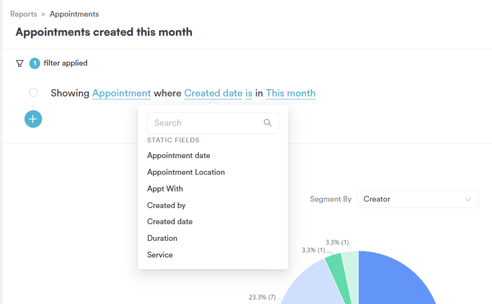
- Appointment date — the date the appointment is scheduled for.
- Appointment Location — the clinic or location the appointment takes place at.
- Appt With — the staff member the appointment is booked with.
- Created by — the staff member who created the appointment record.
- Created date — the date the appointment record was created in Pabau. This is what distinguishes this report from others: it filters by when the record was created, not by when the appointment itself takes place.
- Duration — the length of the appointment.
- Service — the service booked for the appointment.
- Price — the price of the appointment.
- Appointment Status — the current state of the appointment (e.g. Waiting, Arrived, Complete, No Show, Running Late, Cancelled).
- Cancellation reason — the reason given if the appointment was cancelled.
- Email Confirmation — whether an email confirmation was sent for the appointment.
- SMS Confirmation — whether an SMS confirmation was sent for the appointment.
- Confirmed — whether the appointment has been confirmed.
- Issued To — who the appointment record was issued to.
- Repeat Appointment — whether the appointment is part of a repeating series.
- Rebook — whether the appointment resulted in a rebooking.
- Requested — whether the appointment was specifically requested.
- Appointment ID — the unique identifier of the appointment record.
- Review Score per Appointment — the review score left for that specific appointment.
- Review Comment — the written review comment left for the appointment.
- Online Booking — whether the appointment was booked through online booking.
- Appointment Date/Time — the combined date and time of the appointment.
- Converted — whether the appointment (e.g. a consultation) converted into a further booking.
- Notes — any notes recorded on the appointment.
- Cancelled Date — the date the appointment was cancelled.
- Cancelled By — who cancelled the appointment.
- Cancellation comment — any comment left when the appointment was cancelled.
- Team — the team associated with the appointment.
- Secondary Person — a secondary staff member associated with the appointment.
- Appointment Price List — the price list applied to the appointment.
- Case Name — the case the appointment is linked to, if applicable.
- Auth Code — an authorization code associated with the appointment.
- Room — the room the appointment is booked in.
- Equipment — any equipment booked for the appointment.
- Form(s) Completed — whether required forms have been completed for the appointment.
- Custom fields — any custom fields configured for appointments in your account.
Step 6: Choose the Operator
Clicking on the operator (e.g. "is") opens a dropdown of comparison options. For a date field like "Created date," the available operators are:
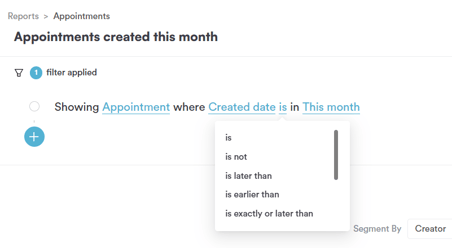
- is — matches records where the created date falls within the selected value.
- is not — excludes records where the created date falls within the selected value.
- is later than — matches records created after the selected value.
- is earlier than — matches records created before the selected value.
- is exactly or later than — matches records created on or after the selected value.
- is exactly or earlier than — matches records created on or before the selected value.
- is now until — matches records created between the current moment and the selected value.
- is empty — matches records where no created date has been set.
- is not empty — matches records where a created date has been set.
Step 7: Choose the Value
Clicking on the value (e.g. "This month") opens a dropdown of preset date ranges under "Favourite intervals":
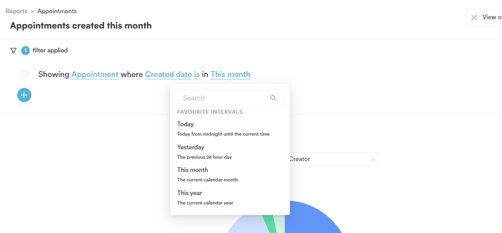
- Today — today, from midnight until the current time.
- Yesterday — the previous 24-hour day.
- This month — the current calendar month.
- Next month — the following calendar month.
You can also use the search bar at the top of the dropdown to find a specific date range not shown in the favourites list.
By following these steps, you can build a filtered view of appointments based on when they were created in Pabau, rather than when they're scheduled to take place.
Was this guide helpful? Let us know by voting below - your feedback helps us write clearer articles.
For more guides, browse the related articles below or use the search bar at the top of the page. You can also watch our video learning series, the Pabau Academy, or visit the Support page for additional help.