
NOTE: Plans is switched on clinic by clinic. If you can't find Plans in your sidebar, message us via the in-app chat and we'll help.
A treatment plan brings together everything you recommend for a client, such as services, packages, products and resources, with prices. You send it to the client, and they can accept, sign and pay for it online. In this article, you will learn how to build a treatment plan, set its prices and send it.
Step 1: Choose What to Build
On the Plans page, click Build plan. Under What would you like to build?, choose the kind of plan:
- Treatment plan: services, packages and products with prices. This is the plan most clinics send, and the one this guide covers.
- Supplement plan: supplements with dosing, priced from your stock. It opens the client's Add supplements window.
- Nutrition plan: a meal plan with energy and macro targets. It opens the nutrition plan builder on the client card.
- IV infusion plan: a course of infusions built from your IV templates.
- Exercise programme: home exercises with sets, reps and dates.
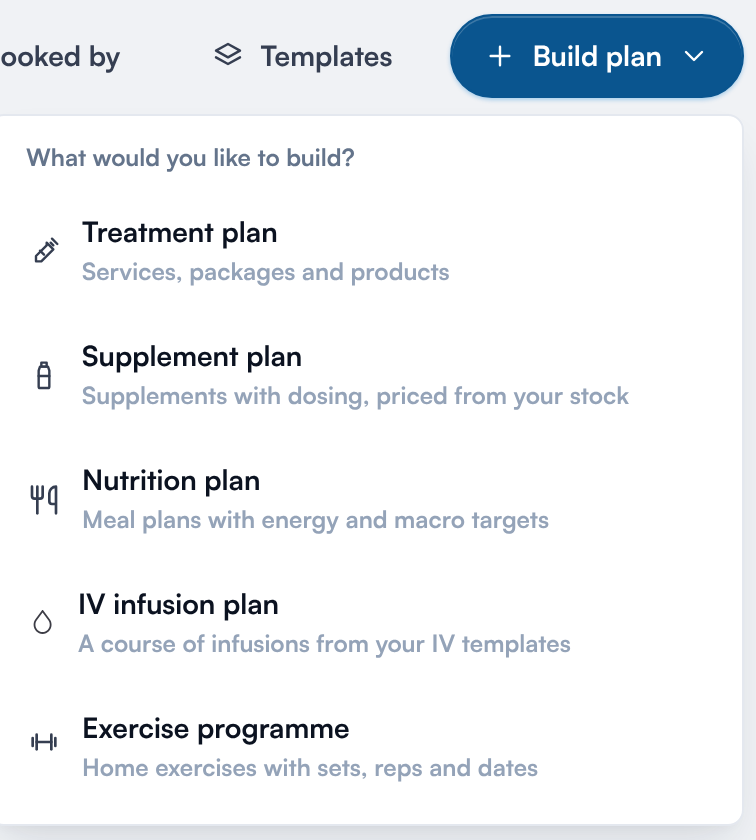
Choose the kind of plan
TIP: Only the plan types your clinic offers appear here. You can switch types on and off in Plans Settings.
Step 2: Choose the Client
Type at least 3 characters of the client's name or email and click the client. The number beside each client shows how many plans they already have. To build a plan for someone new, click Create a new client.
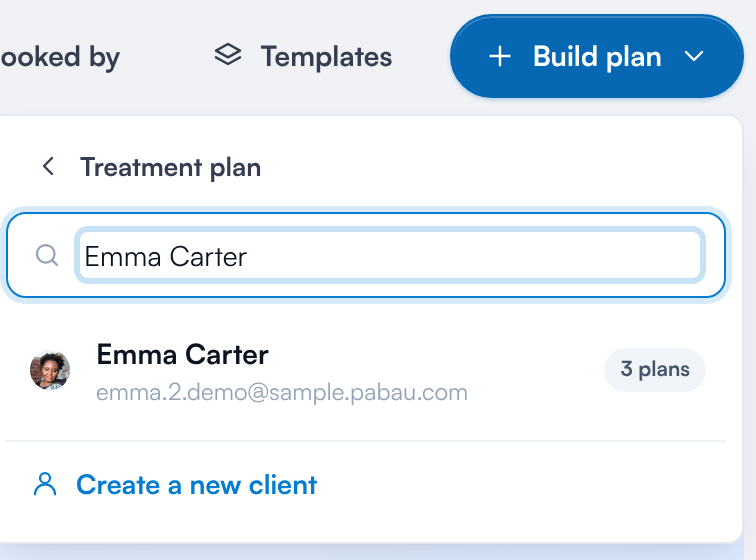
Pick the client
NOTE: Without a Care Plus subscription, a clinic can create up to five plans. Supplement plans and plans moved across from quotes don't count. After that, Pabau offers you the upgrade.
Step 3: Apply a Template or Start From Scratch
The builder opens with your Templates. Click Apply on a template to fill the plan from it, or click Start from scratch for an empty plan. You can apply a template later from the Message card too. See How to Create and Use Plan Templates.
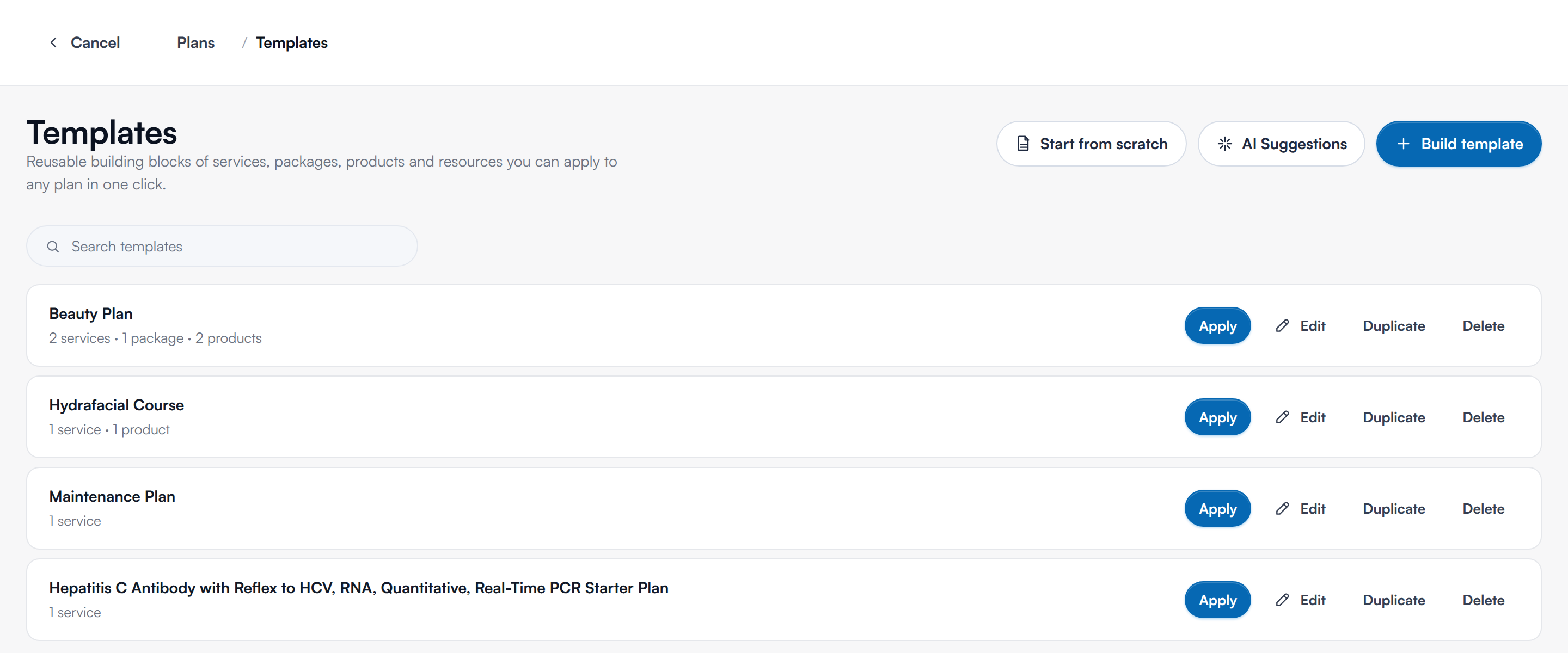
Start from a template
Step 4: Fill In the Plan Settings
The builder shows the plan on the left and the Plan summary on the right. Under Plan settings:
- Plan name: the name the client sees.
- Expires after: from 15 to 365 days, or No expiry. An unpaid plan with nothing booked becomes Expired after this, and can't be paid until you extend it.
- Location: starts at your own location. Change it if the client will be seen elsewhere.
- Print template: the layout the plan prints with. Manage opens your print templates.
- Allow booking: the client can book the plan's visits online straight after buying it.
- Request signature: the client draws their signature when they accept the plan online.
- Take payment online: the client pays when they accept online. Switch it off to let them accept and sign online, then take payment in Pabau. Payment amount sets Full payment or Allow partial, which lets the client pay any amount and the rest later.
If your print template is translated, a Language field also appears. It sets the language of the printout, email, SMS and portal link. The Appointment button at the top right links the plan to one of the client's appointments.
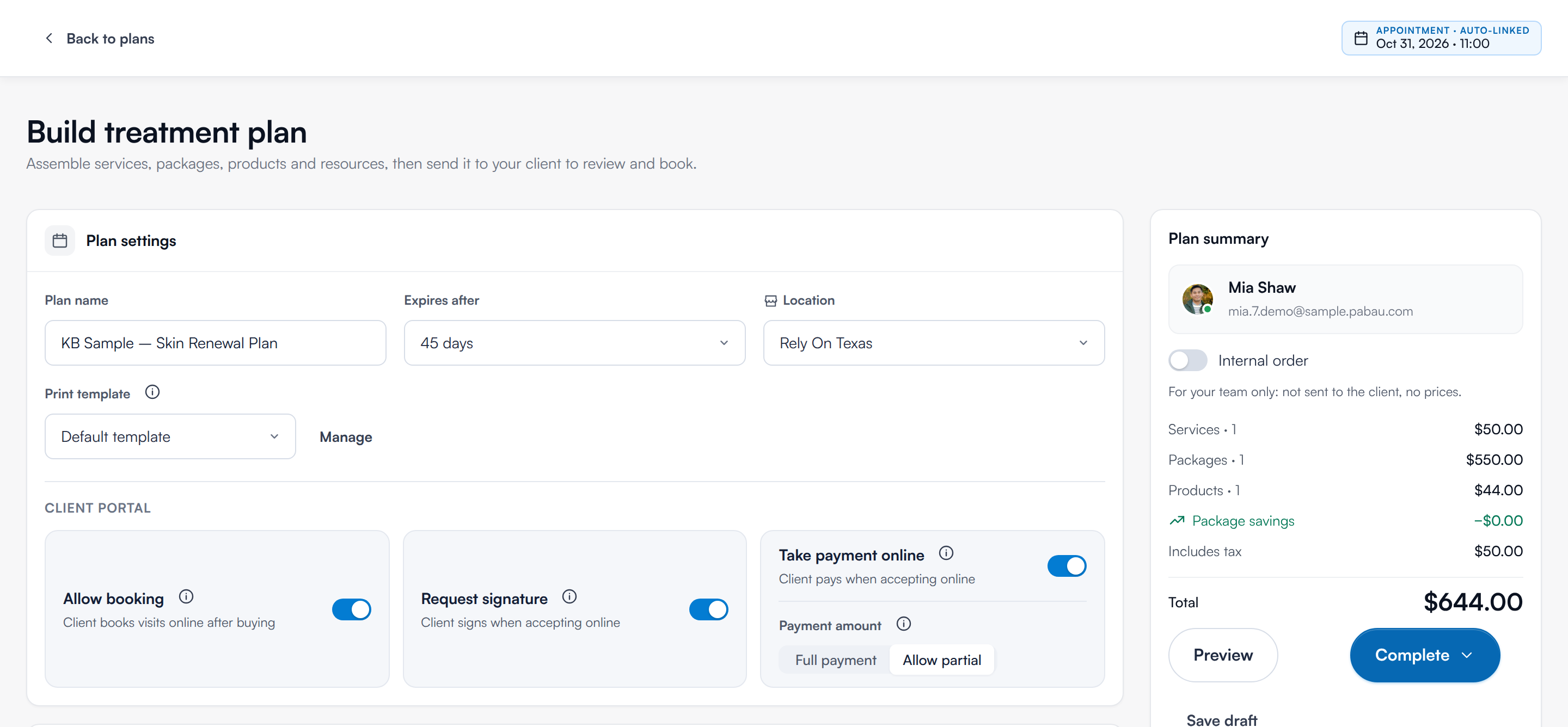
The plan builder
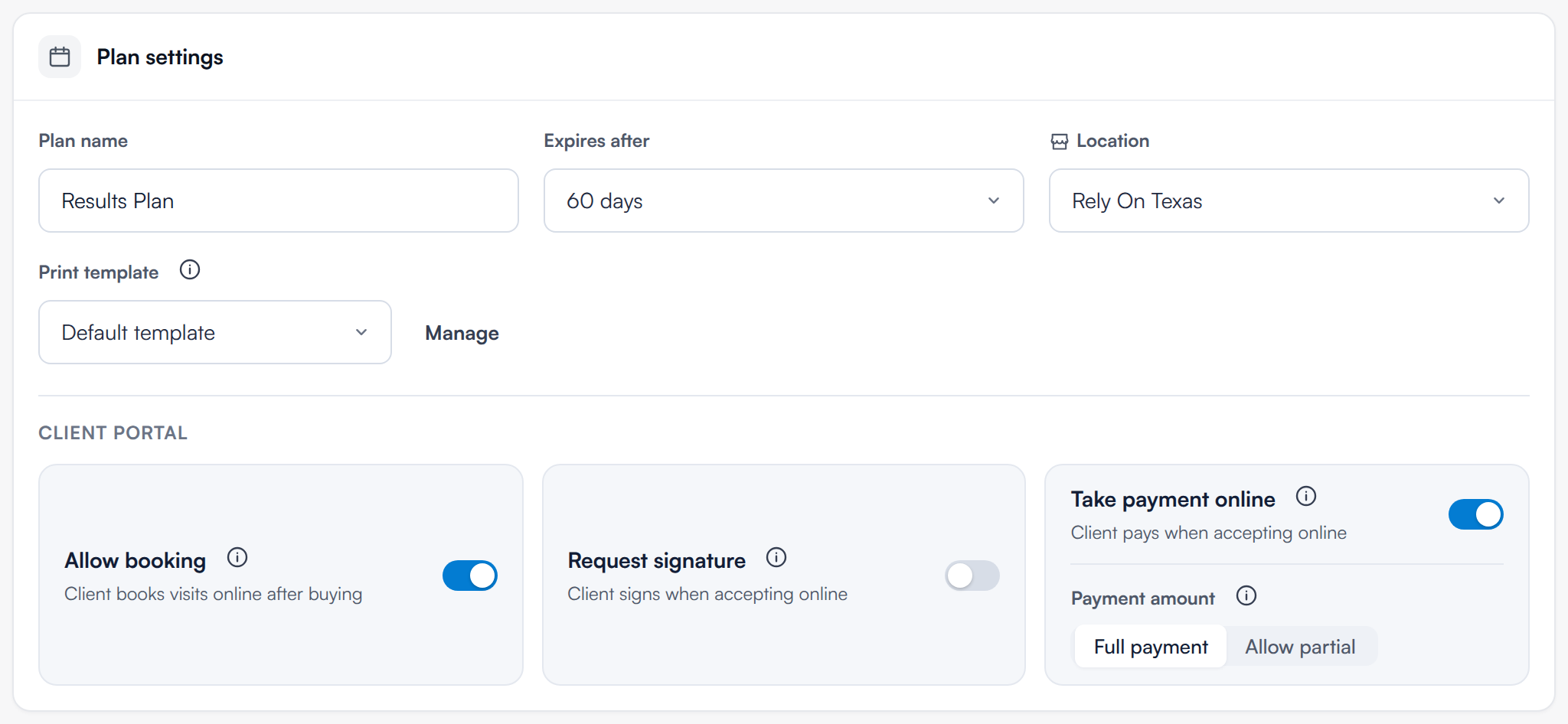
Plan settings
Step 5: Write Your Message
Choose who the plan is from in Plan from, then edit the Message to client. Use + Add merge tags to insert details such as the client's name, or + Add a macro to insert saved text.
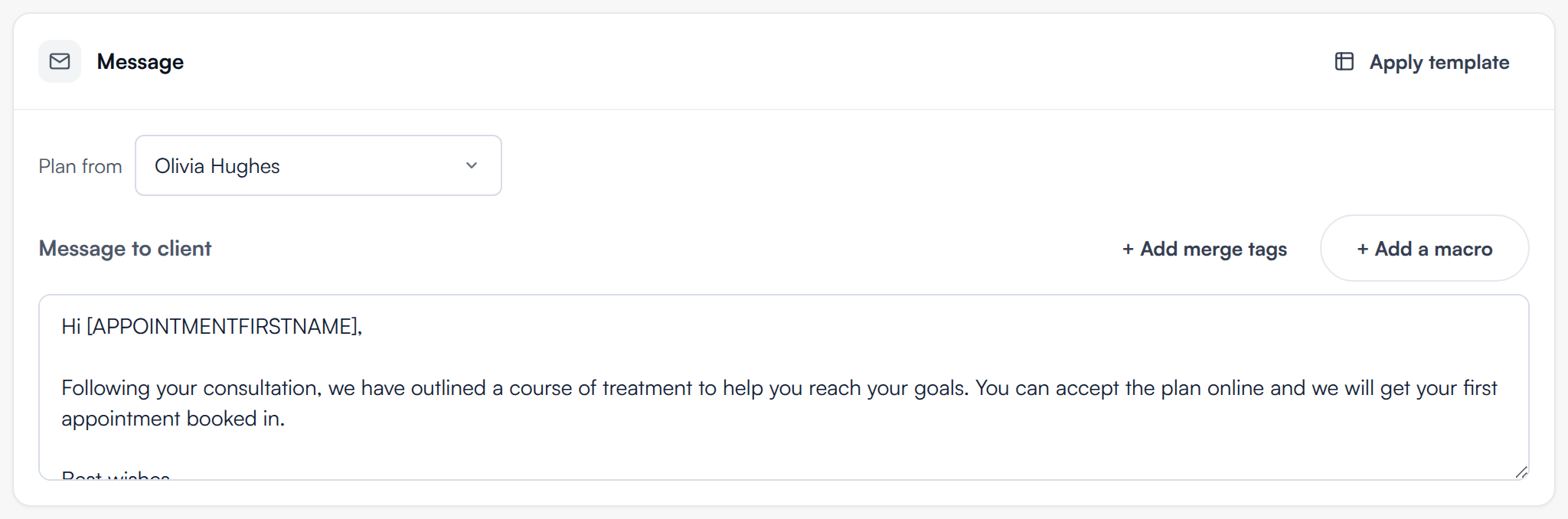
The message to your client
Step 6: Add an Assessment (Optional)
On the Assessment card, click Add assessment, choose a completed treatment form and click Add assessment. It is included as a page in the client's plan.
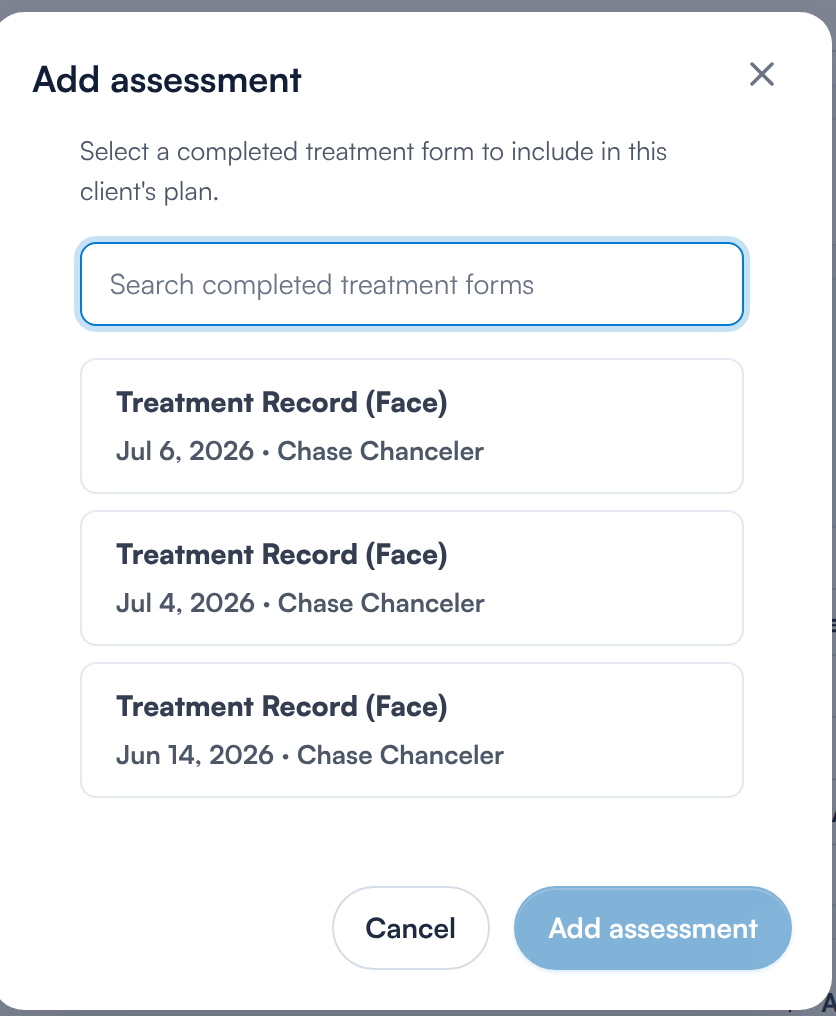
Add a completed form
Step 7: Offer Options or Phases (Optional)
The Options & phases card lets you shape the plan:
- Offer a choice: build up to three treatment options for the client to compare. Only the option they choose is charged.
- Add phase: arrange treatments into steps. A phase can require a clinician review before the client can book it.
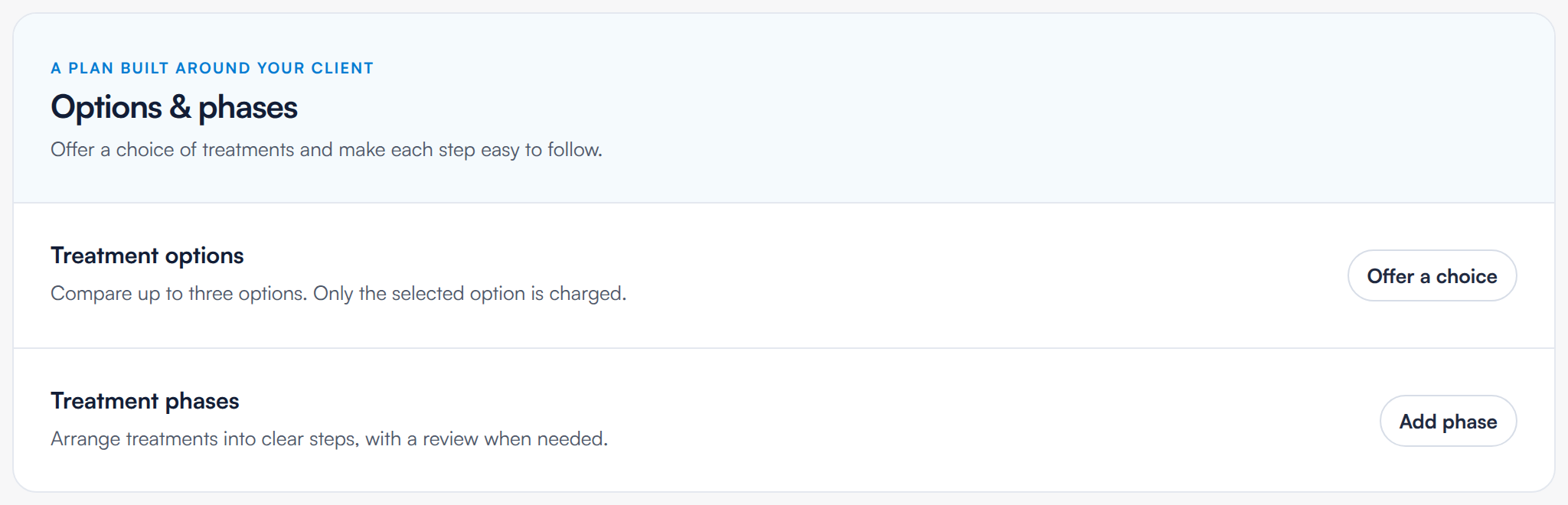
Options and phases
Step 8: Add Services
On the Services card, click Add services. Search, or pick a category, then click + beside each service and click Done. Use the location menu at the top to see the services and prices for another location.
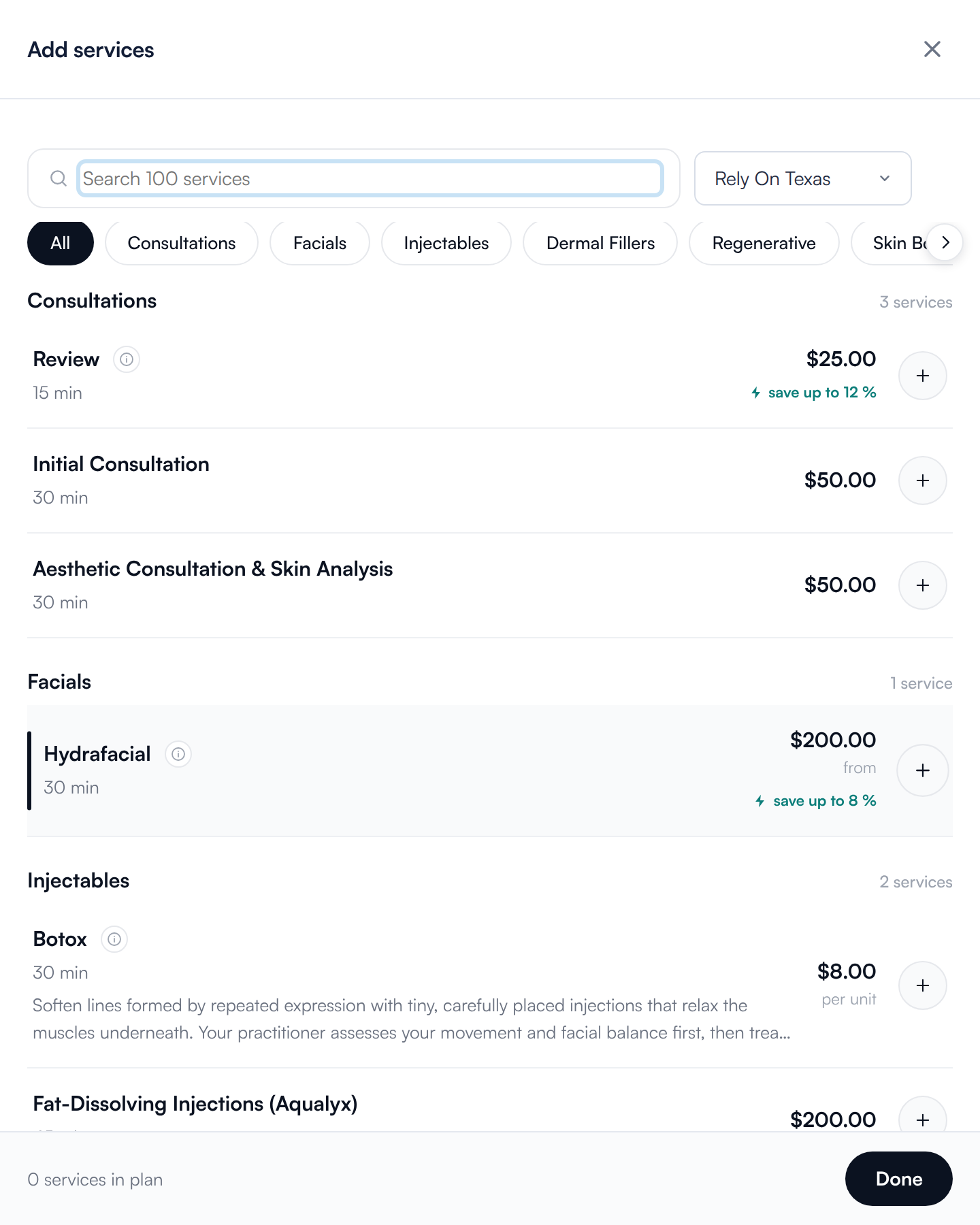
Add services
For each service, set:
- Sessions and Provider: a team member, Any available or Let client choose.
- Price each: the price of one session on this plan.
- Allow client to remove: switch off to stop the client removing the service before accepting.
- Timing: Let client decide, or Suggest a date and choose Suggested timing (Within X days, Every X days, Every X weeks, X times a week or Custom date with a Frequency). The suggested session dates appear below.
- Edit note: a note about this service for the client.
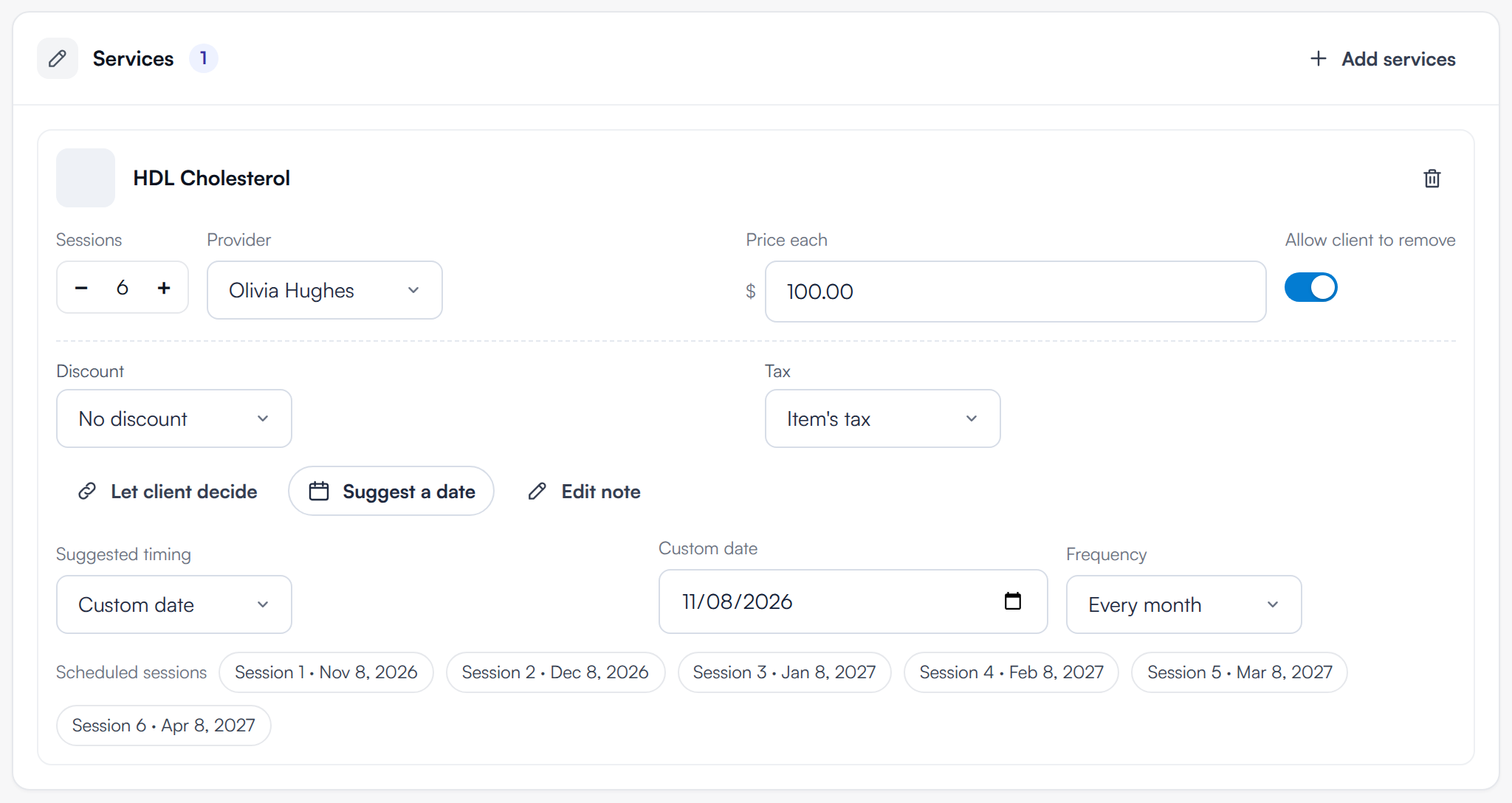
Setting up a service
Step 9: Set Each Line's Price, Discount and Tax
Every service, package and product line has its own price, Discount and Tax:
- Discount: No discount, one of your clinic's discounts, or Custom discount for a percentage or amount off.
- Tax: Item's tax (the tax set on the service or product), No tax, or another of your tax rates.
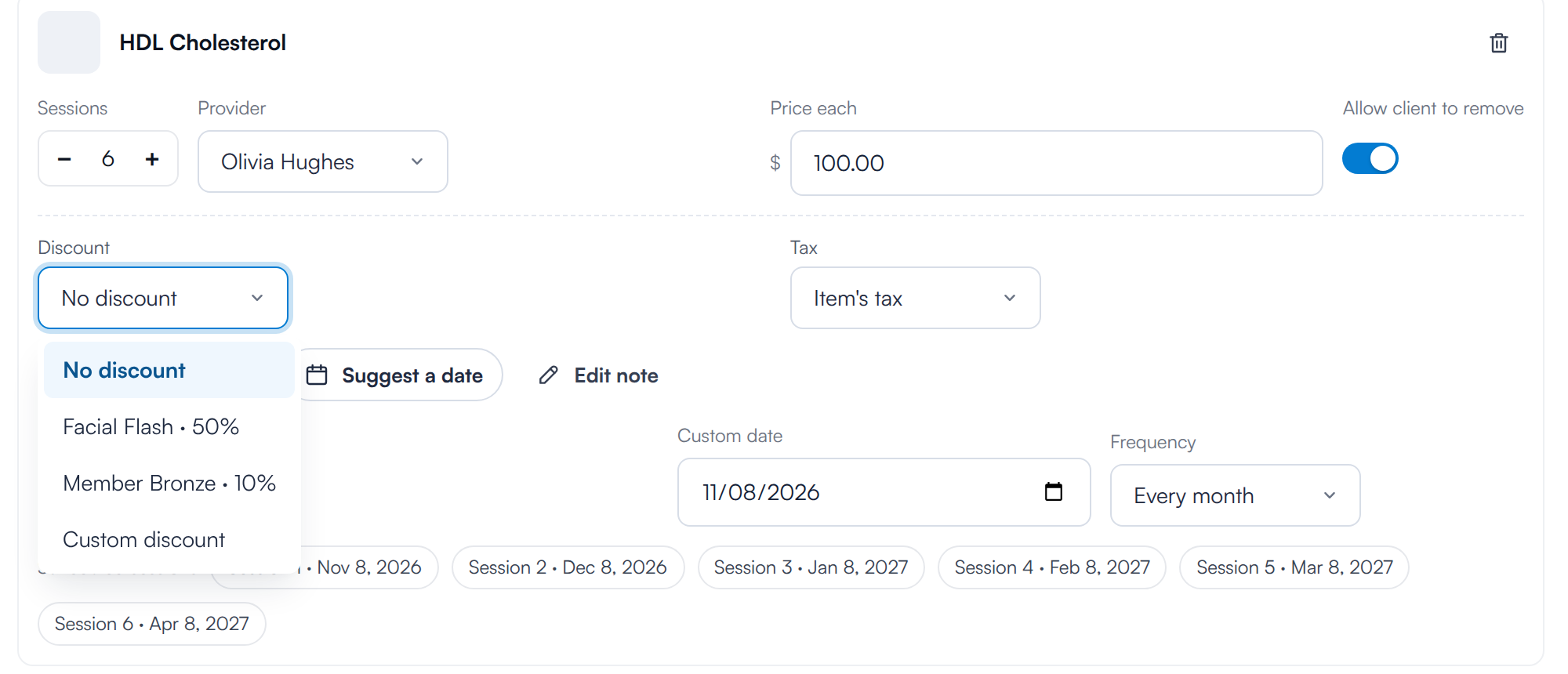
Line discount and tax
Step 10: Add Packages and Products
Click Add packages to add courses and packages. Set the QTY, PRICE, Allow client to remove, Discount and Tax for each.
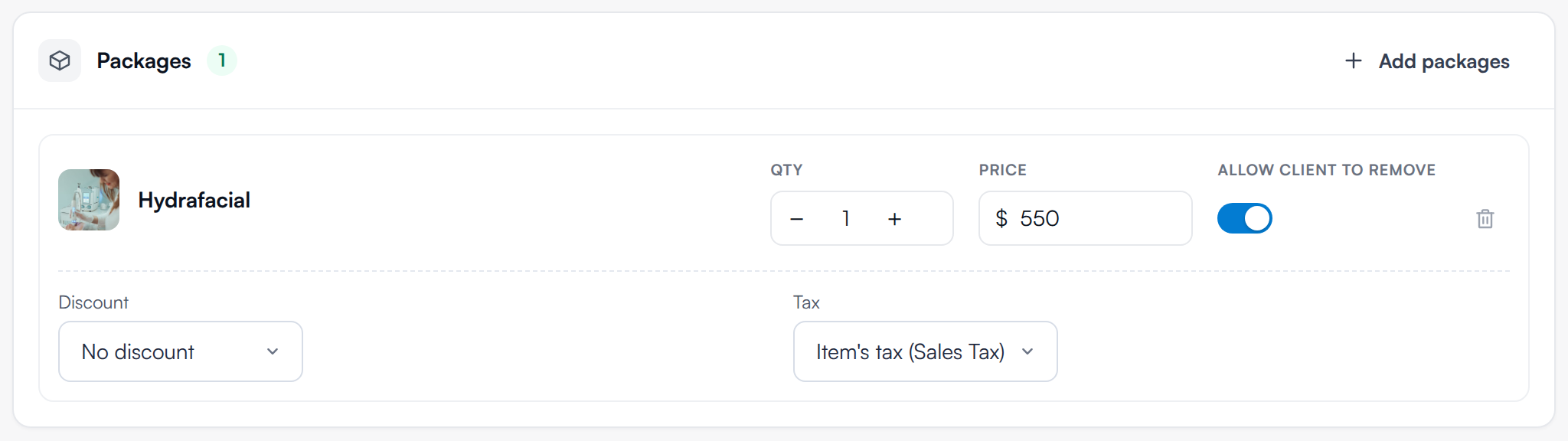
A package on the plan
Click Add products to recommend retail products. Choose the Location, search, tick each product (its stock is shown) and click Add.
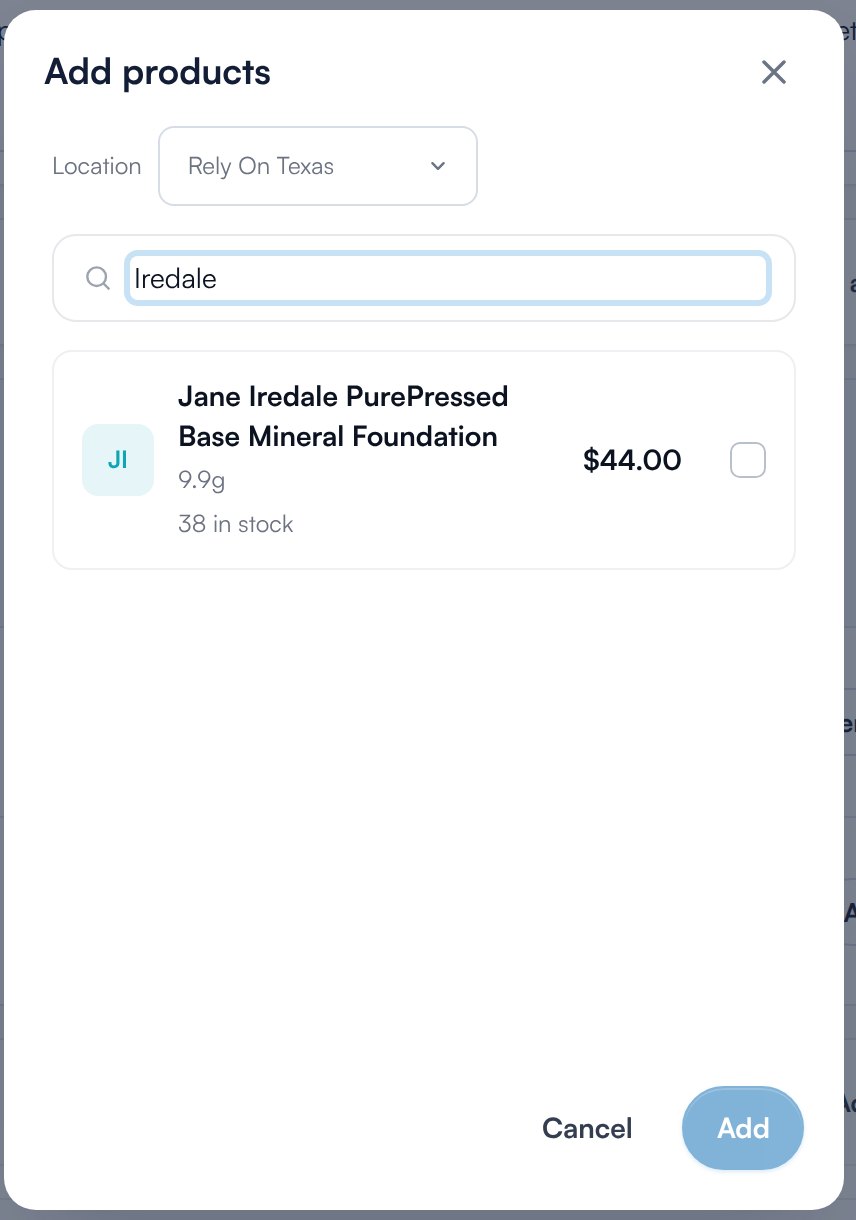
Add products
Step 11: Add Resources
On the Resources card, click Upload files to attach files, such as aftercare advice, that the client can download from their plan. Pabau waits for any upload to finish before it saves the plan.

Resources
Step 12: Check the Summary and Preview the Plan
The Plan summary shows the client, the totals for services, packages and products, any package savings, discounts and tax, and the Total. Switch on Internal order only for a staff-only order: it is never sent to the client and carries no prices.
Click Preview to see the plan exactly as the client will. The buttons in the preview are for show only.
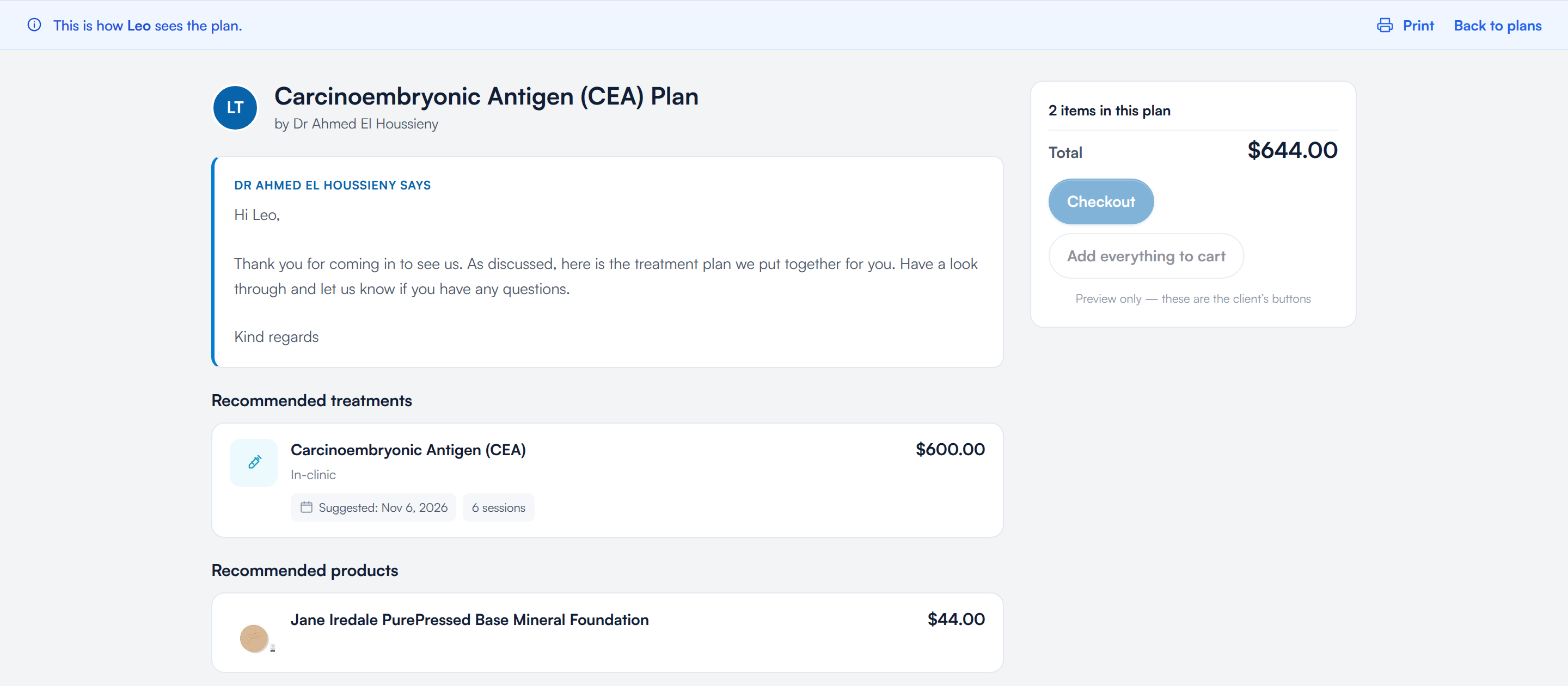
Previewing the client view
Step 13: Save a Draft or Complete the Plan
- Save draft saves the plan as a Draft. The client can't see it yet.
- Complete opens a menu: Send to client, Take payment to take payment at the clinic now, and Bill card on file when the client has a saved card. See How to Take Payment for a Plan and Book the Visits.
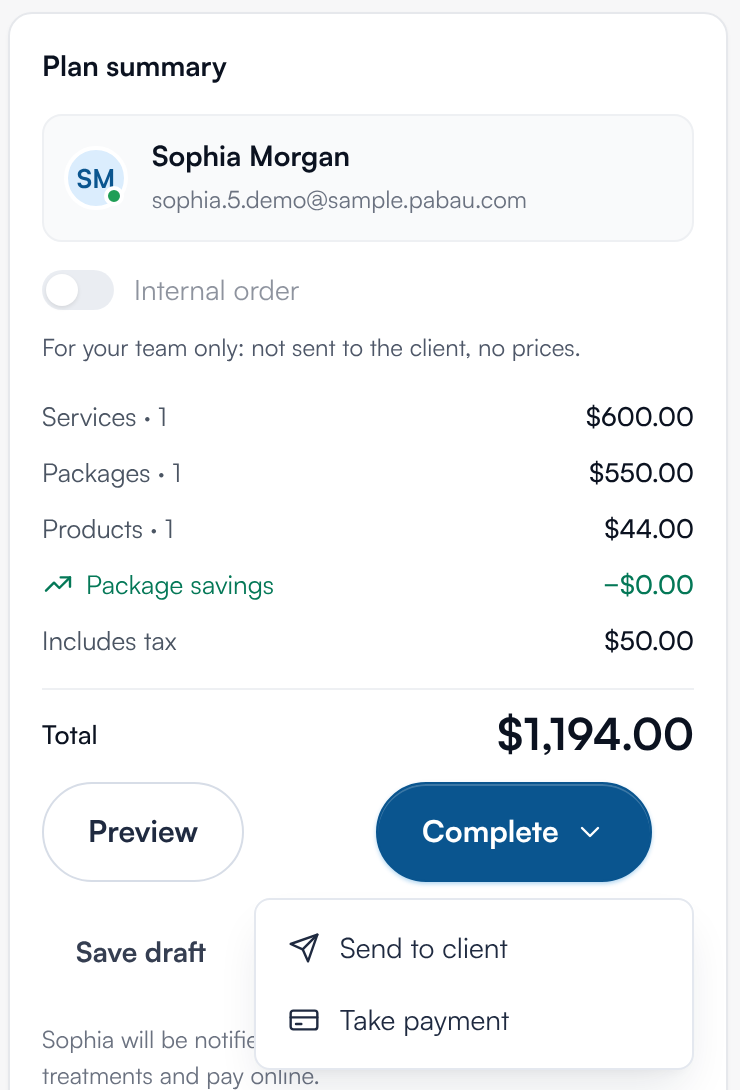
Complete the plan
Step 14: Send the Plan by Email or SMS
Choose Complete and then Send to client. Pabau saves the plan and shows a summary; click Send. In Send plan to client:
- Tick Email, SMS or both. If the client has no email address or mobile number on file, that channel can't be used.
- Check What [client] will receive on the right. It uses your clinic's plan template.
- Click Send.
The plan moves from Draft to Proposed and is also available in the client portal. To send it again later, open the plan and click Resend, or use Send in the row menu.
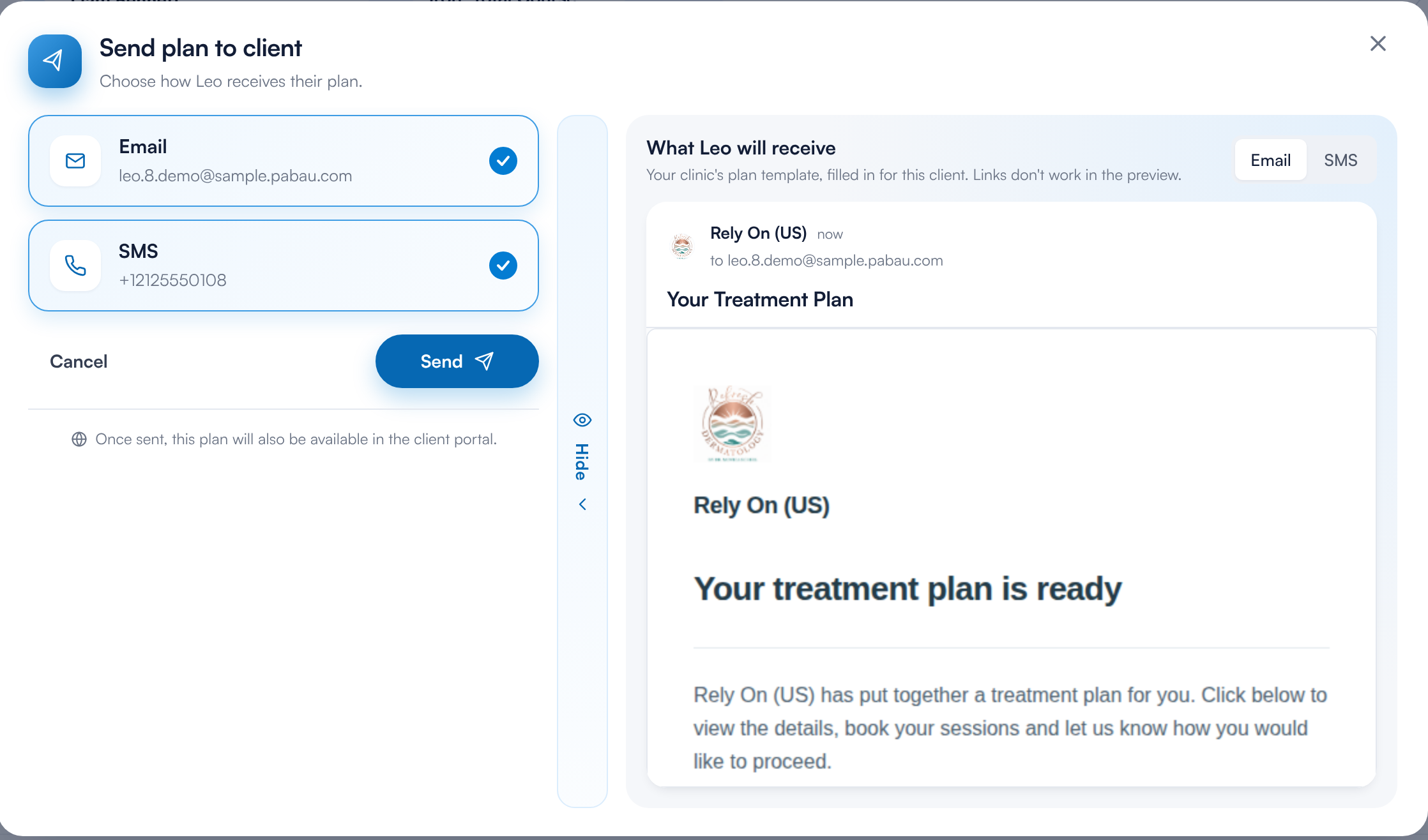
Sending the plan
Step 15: Share a Link Instead
To hand the client a link yourself, click ⋯ on the plan's row and choose Share link, then click Copy. The link works for 30 days, and anyone who has it can see the plan, so only send it to the client.
If the plan is still a draft, you are asked to publish it first. Click Publish plan and the plan becomes Proposed.
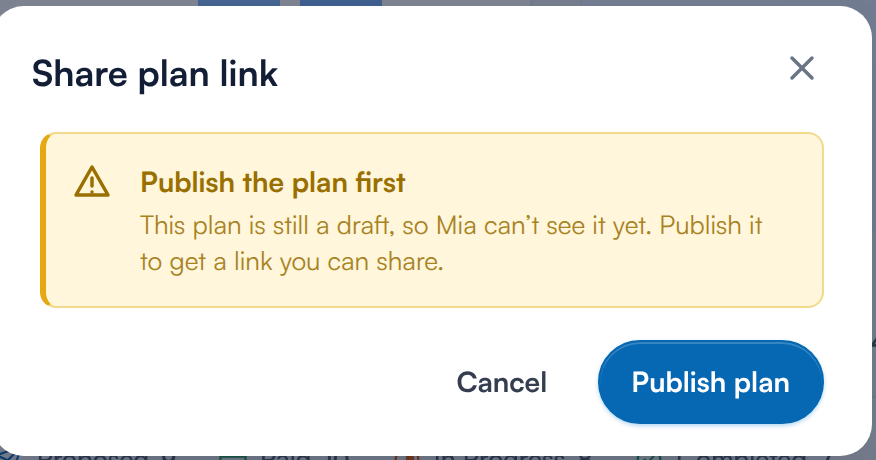
Publish a draft before sharing
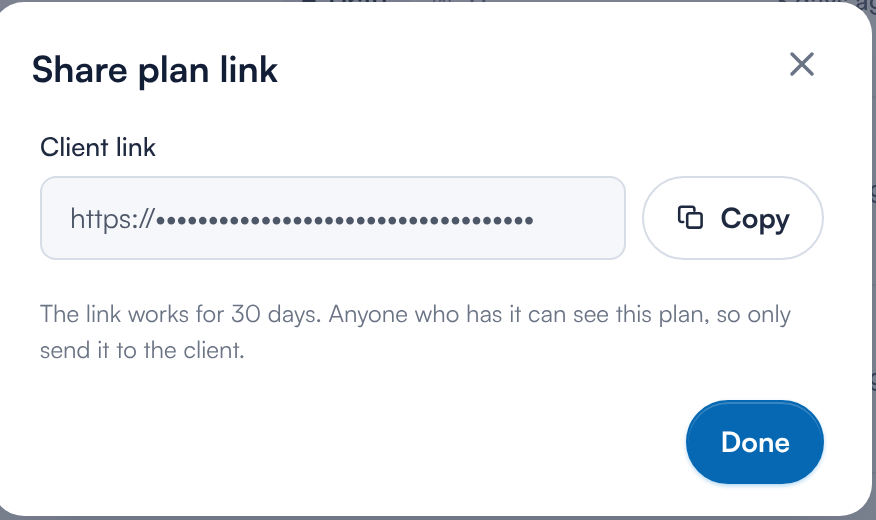
Copy the client link
What's next?
- How Clients View, Sign and Pay for a Treatment Plan: what the client sees when they open, sign and pay for the plan.
- How to Take Payment for a Plan and Book the Visits: take payment at the clinic and book the visits.
- How to Create and Use Plan Templates: save your common plans as templates.
Questions? Reach us any time via the in-app chat. We're happy to help.
Was this guide helpful? Let us know by voting below - your feedback helps us write clearer articles.
For more guides, browse the related articles below or use the search bar at the top of the page. You can also watch our video learning series, the Pabau Academy, or visit the Support page for additional help.