
When a service has a payment schedule, the client pays a percentage of the price when you book and the rest is charged to their card automatically before the appointment. Pabau sets this up for you while you book: it works out today's payment and the balance date, then opens the Point of Sale with the payment plan already filled in.
NOTE: This feature is being rolled out to clinics gradually. If you don't see it in your account yet, message us via the in-app chat.
NOTE: The service needs a payment schedule first. See How to Set Up a Payment Schedule for a Service. Payment schedules charge the client's card, so your clinic needs Pabau Pay (Stripe) connected.
Step 1: Start the Appointment
In the Calendar, click a free time in the column of the team member you're booking with. In the panel that opens, search for the client and click their name.
- Choose the service that has a payment schedule. It appears under Services with its time, team member and price.
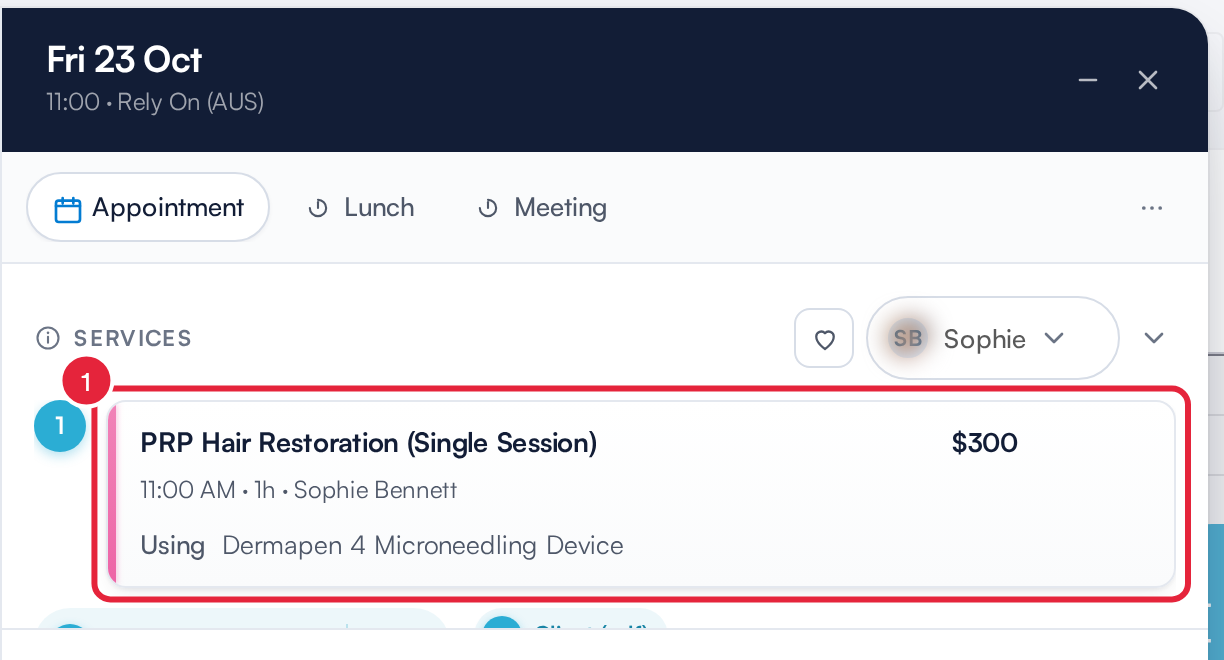
A service with a payment schedule added to the appointment
Step 2: Check the Payment Schedule
Scroll down to Payment Policy. When a service on the appointment has a payment schedule, the section is labelled Payment schedule and shows the timeline in place of the usual deposit choice:
- The timeline shows Upfront payment with its percentage and amount, taken Today. Below it, the balance is Charged to the client's card on its due date, for example 7 days before the appointment. The last line is the Appointment itself.
- To book without the schedule this time, tick Don't set up the payment schedule. Nothing is then taken for those services at booking, and the usual payment policy choice comes back.
- When you're happy, click Book and set up payment plan.
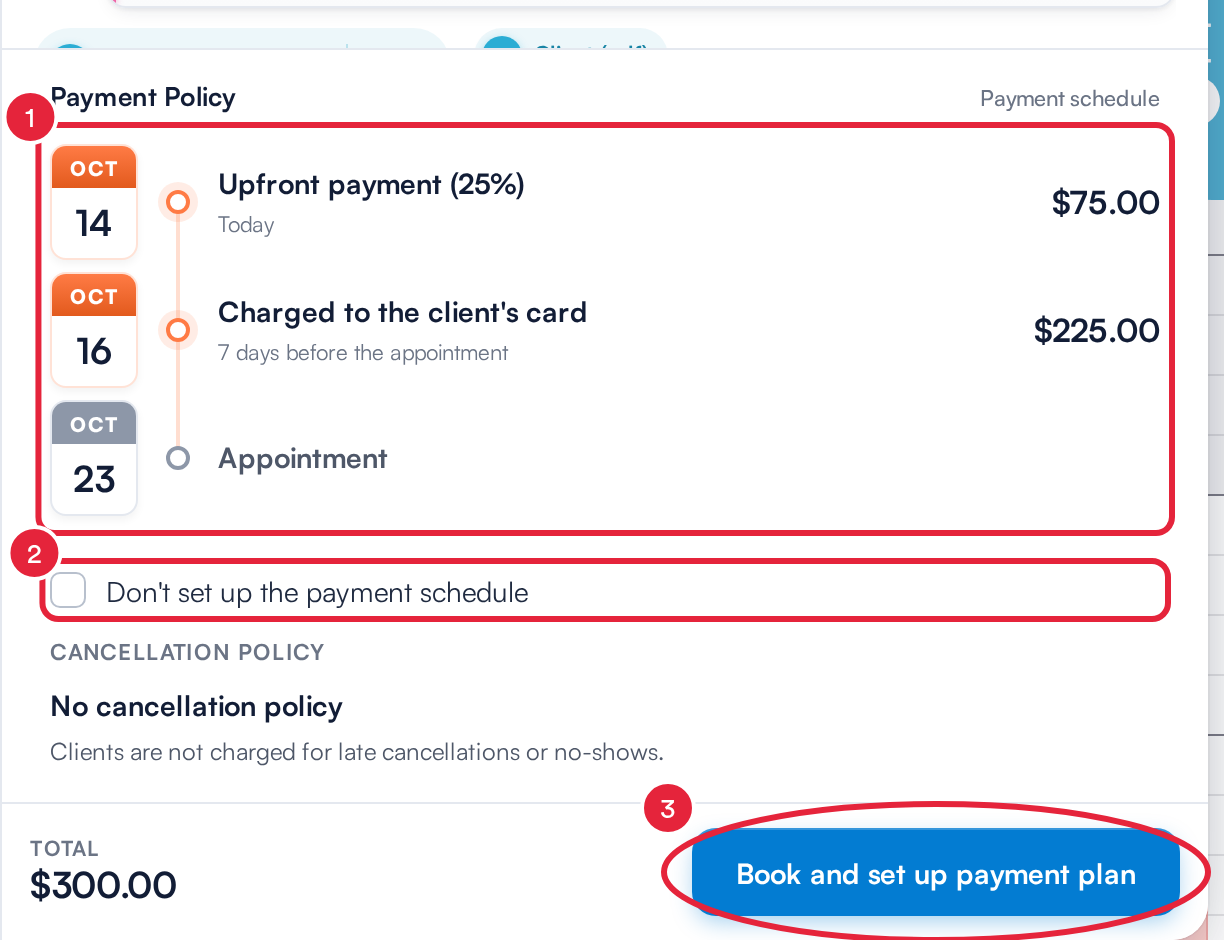
25% today, and the balance charged to the card 7 days before the appointment
TIP: If another service on the same appointment has its own deposit, that deposit is added to today's payment.
Step 3: Review the Payment Plan
The appointment is saved, and the Point of Sale opens on the payment screen with the Payment plan window already filled in.
- Check the two payments: Upfront, due today, and Balance, due on the date from the schedule. The Schedule summary on the right shows each payment and the total.
- Under Card details, choose Charge card on file if the client has a card saved, or Use a different card and enter the cardholder name and card.
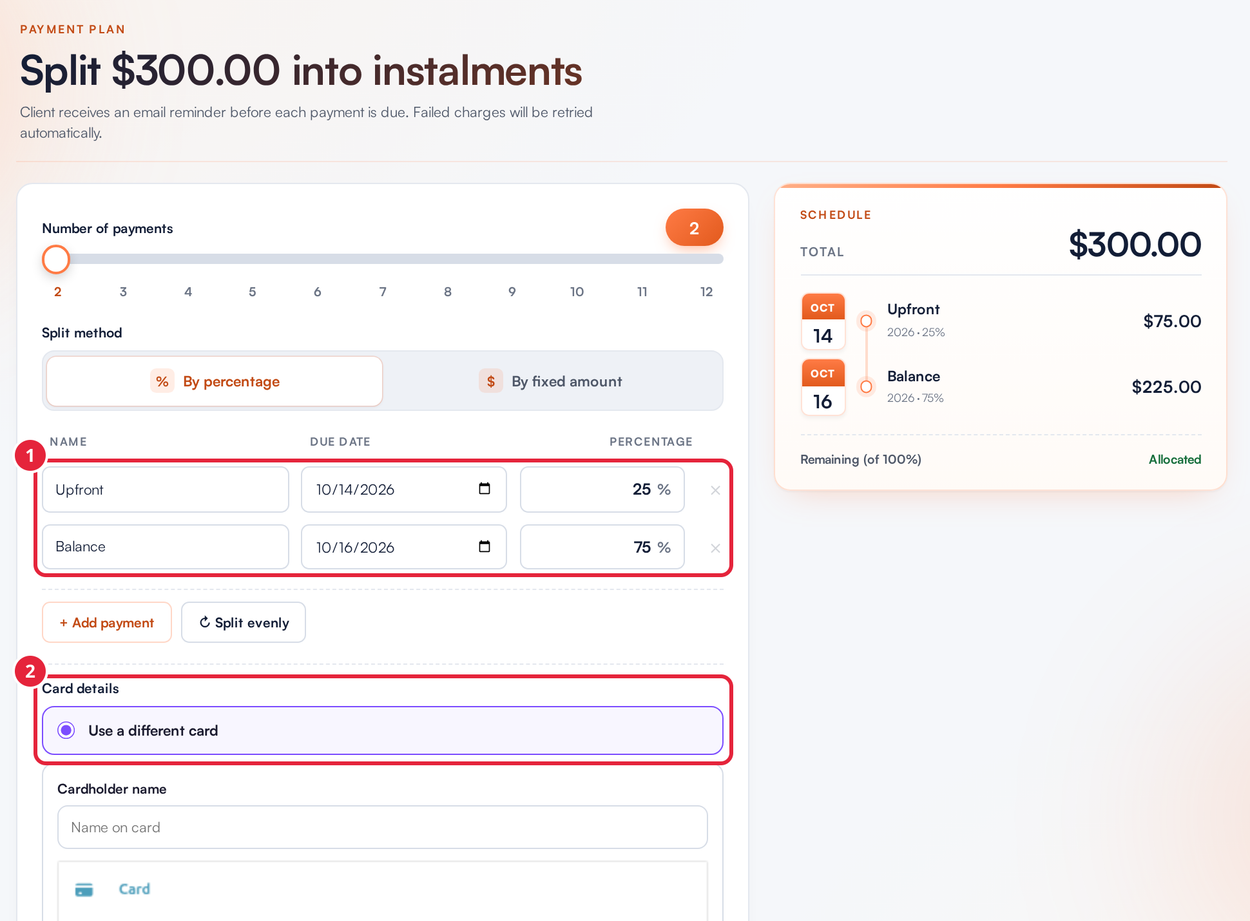
The payment plan arrives filled in from the service's schedule
Step 4: Set Up the Plan
Click Set up plan (the button shows the total). When you see Payment plan set up successfully, the sale is created and the plan is running: the upfront payment is taken today and the balance is charged to the same card on its due date.
IMPORTANT: The appointment is saved before the Point of Sale opens. If you close the Point of Sale without setting up the plan, the appointment stays booked with nothing paid and no payment plan. Take payment for it before the appointment, for example from the Calendar.
Booking Close to the Appointment
If the appointment is inside the balance window, for example booked 6 days ahead when the balance is due 7 days before, there's no time to schedule the balance. The section shows Full payment and explains that the balance is already due, and the button changes to Take payment with the full amount. Click it to book and take the whole price in the Point of Sale as a normal sale.
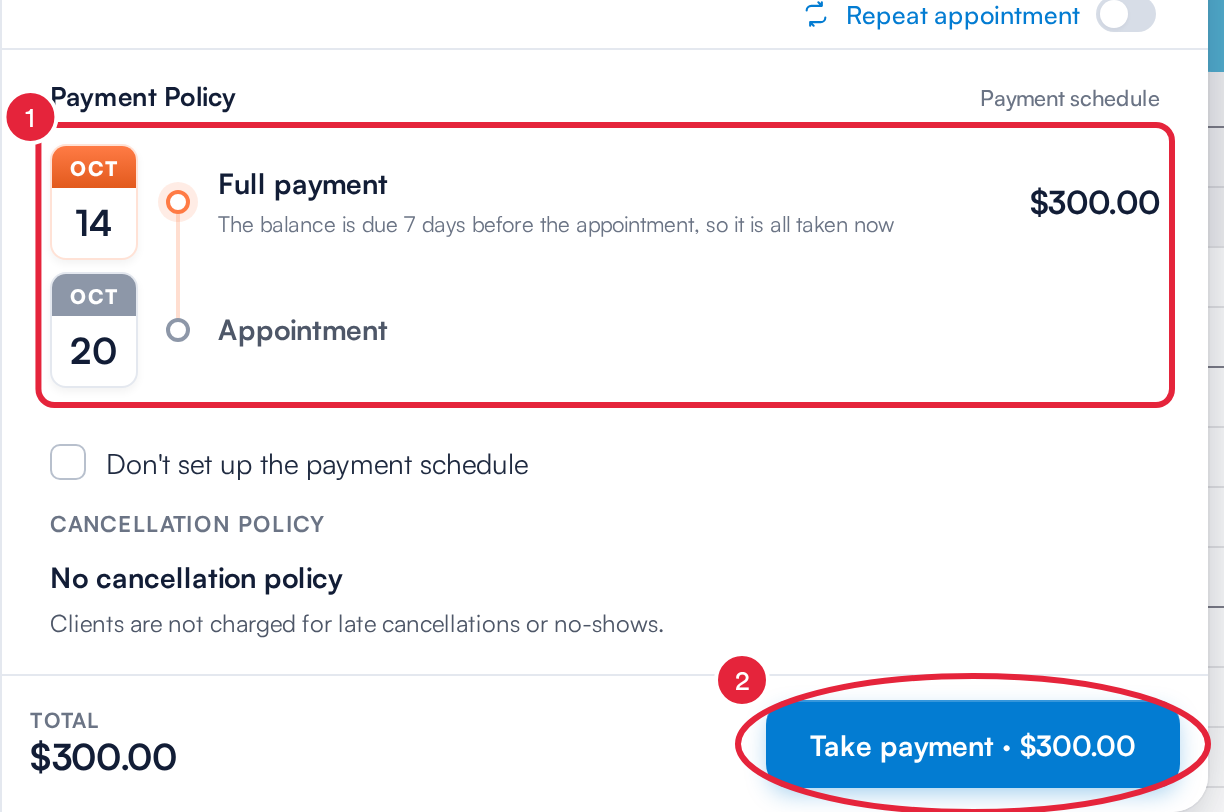
Inside the balance window the whole price is taken at booking
When the Schedule Can't Be Used
Sometimes a payment schedule can't be set up for an appointment. The Payment Policy section then explains why in place of the timeline, and nothing is taken for those services when you book:
- Pabau Pay isn't connected. Payment schedules charge the client's card through Stripe.
- A price on the booking is set at checkout, for example a service priced by a pricing rule.
- The schedule takes nothing at booking. A payment plan needs a first payment, so set an upfront percentage on the service in Setup.
NOTE: Payment schedules apply to appointments your team books in the Calendar. Online bookings are not put on a schedule: they take the service's usual deposit.
What's next?
- How to Set Up a Payment Schedule for a Service
- How to Set Up a Payment Plan in Point of Sale
- How to Process Deposit Payments When Booking in the Calendar
- How to Take a Deposit or Save a Card When Booking (New Booking Panel)
Was this guide helpful? Let us know by voting below - your feedback helps us write clearer articles.
For more guides, browse the related articles below or use the search bar at the top of the page. You can also watch our video learning series, the Pabau Academy, or visit the Support page for additional help.