
Assigning gives every conversation an owner, so nothing sits waiting for "someone" to answer. This article shows you how to assign conversations, find the unassigned ones, and keep an eye on a teammate's queue.
Step 1: Assign from the Conversation Header
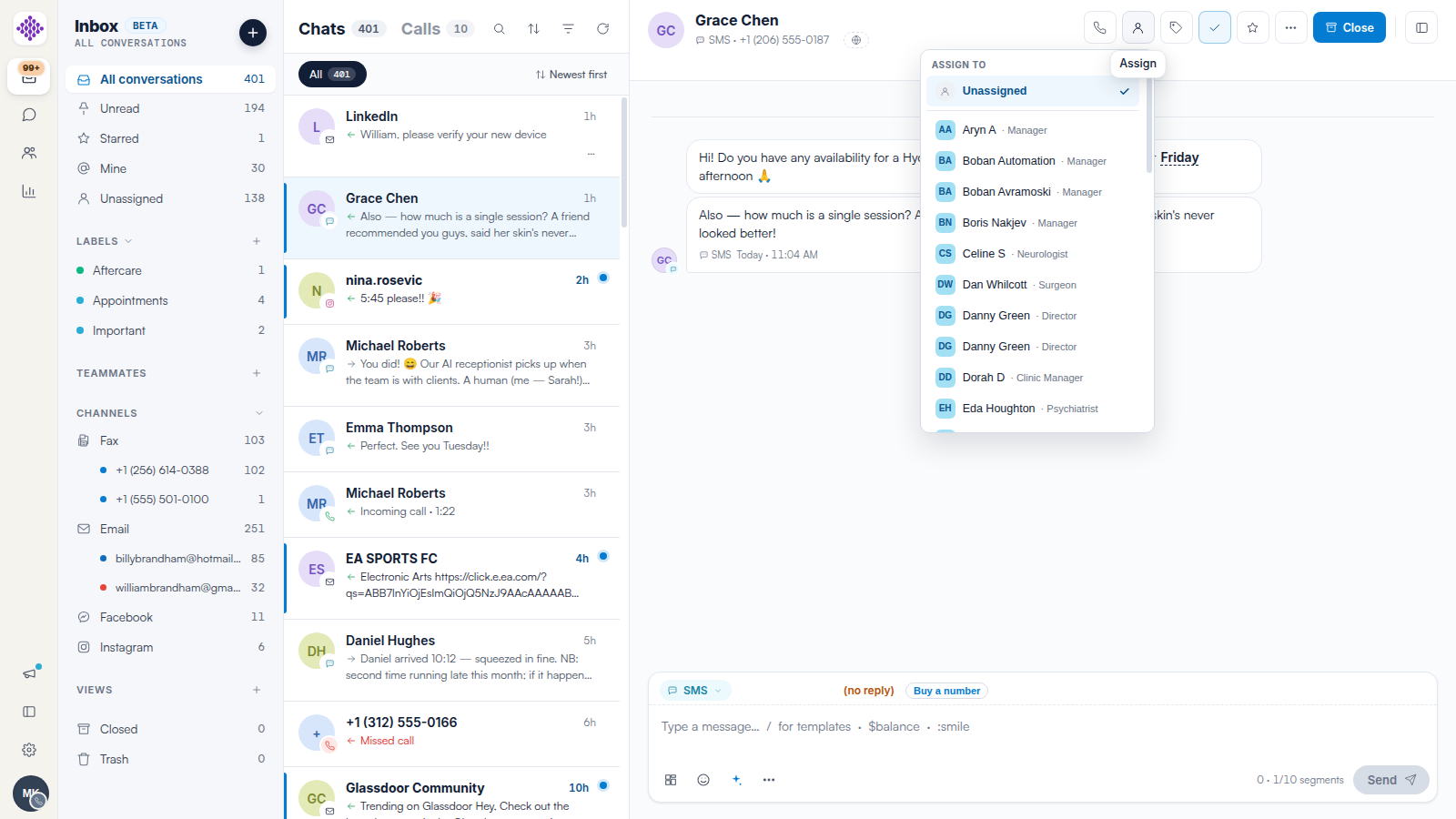
Open a conversation and click the Assign icon in the header (it shows the current assignee's initials once assigned). Pick a team member from the list — each entry shows their role — or choose Unassigned to release the conversation back to the pool.
Step 2: Work the Unassigned Queue
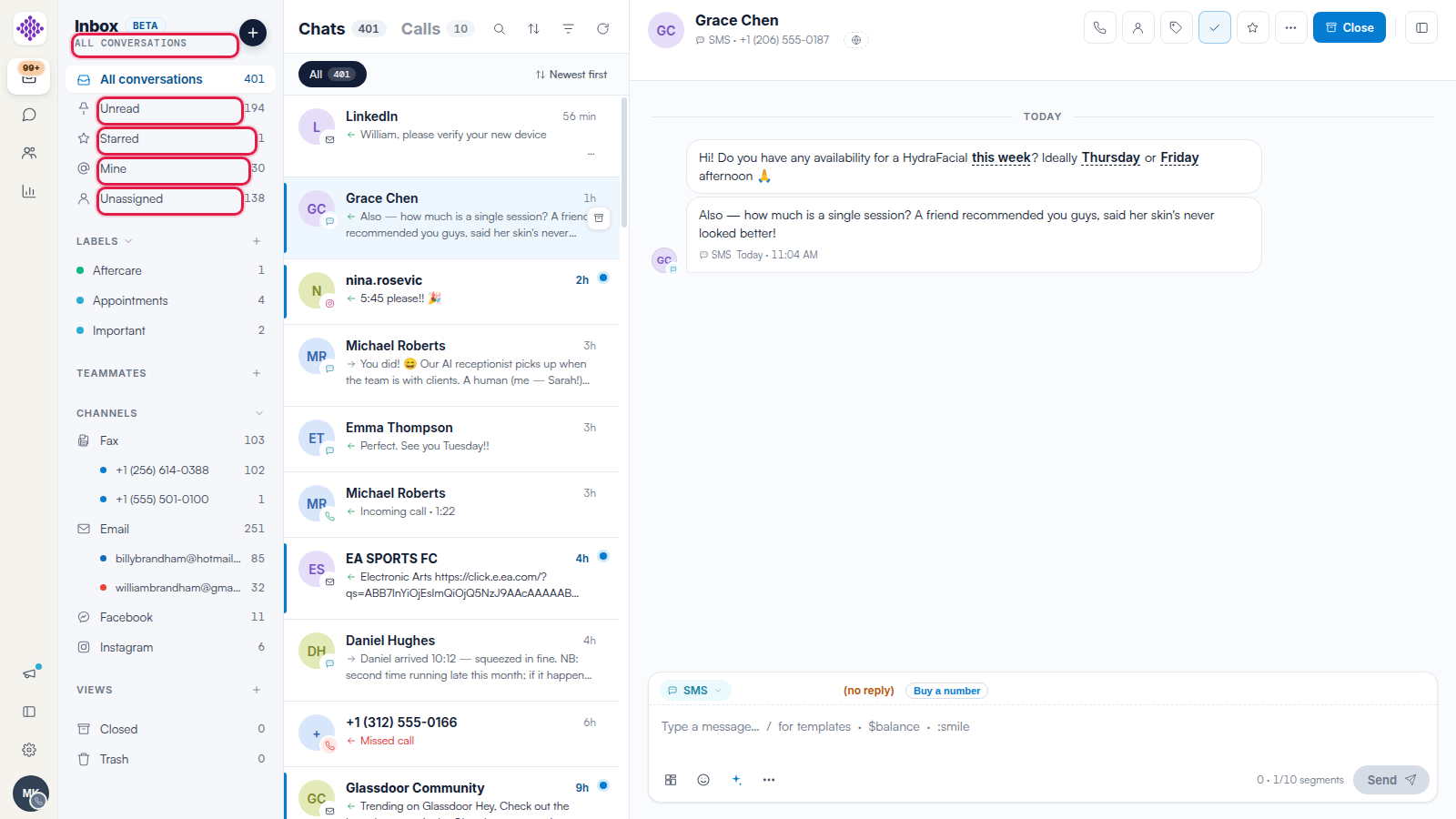
The Unassigned filter in the sidebar shows every conversation without an owner, with a live count. The Mine filter shows the conversations assigned to you.
Step 3: Pin a Teammate
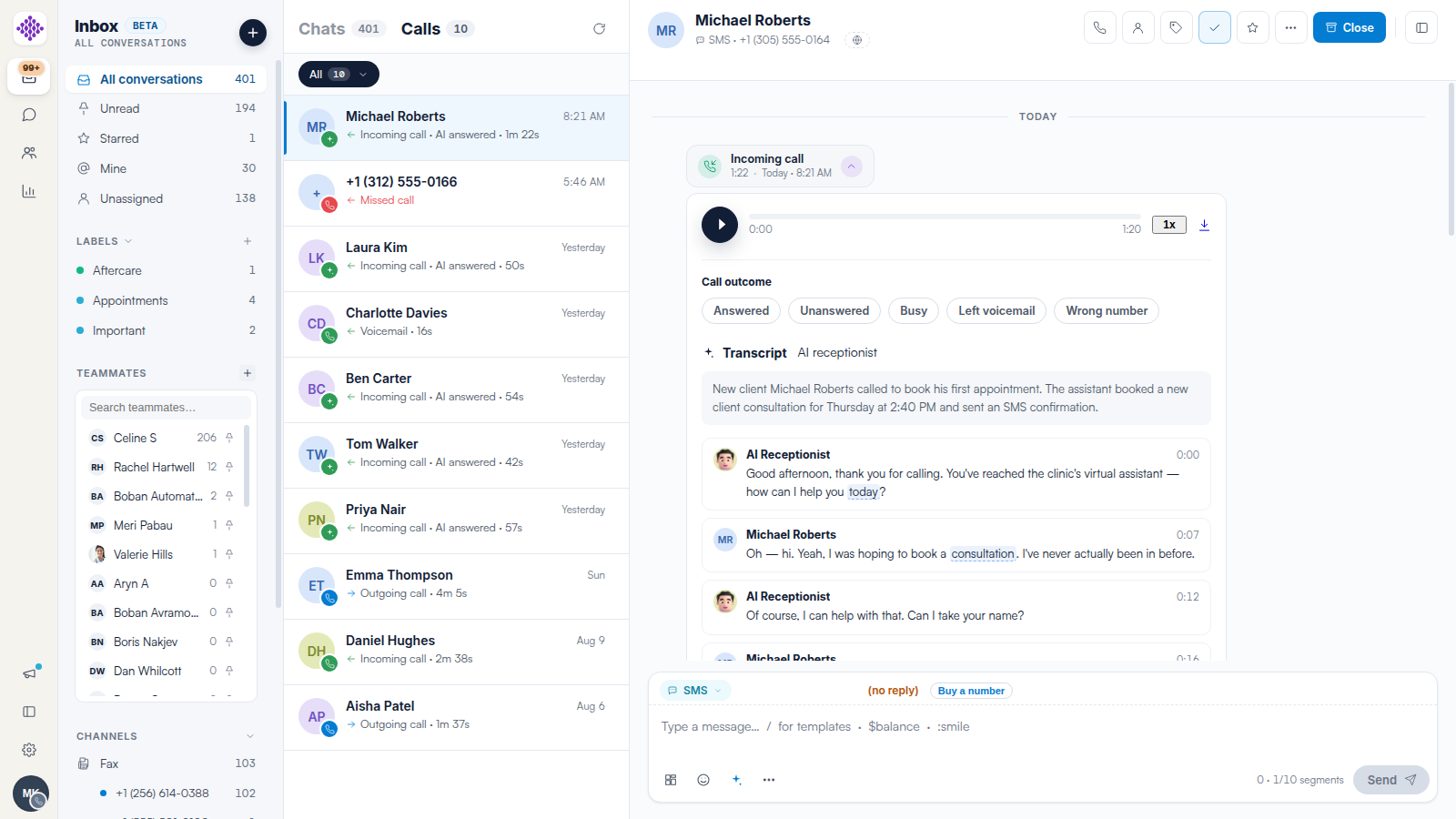
To watch a colleague's queue — say, while covering their shift — hover Teammates in the sidebar, click the +, and pick the teammate. Their name stays pinned in your sidebar with a count of their assigned conversations; click it to see their queue.
TIP: Assignment can happen automatically: the conversation-routing builder’s Assign to staff action routes new conversations to the right person the moment they arrive — see our Conversation Routing: Auto-Route Incoming Messages in Engage article.
Related Articles
We suggest reading our Conversation Routing: Auto-Route Incoming Messages in Engage article to automate assignment.
For more guides, refer to related articles below, select additional guides, or use the search bar at the top of the page. These guides will help you get the most out of your Pabau account.
Additionally, to help you fully utilize and understand your Pabau account, we recommend exploring additional guides and resources offered at the Pabau Academy.