
Since Pabau does not include a built-in Preferred Provider field, you can capture this preference by creating a custom field and adding it directly to the client card. This is a two-step process — you'll create the field once, then fill it in on individual client cards as needed.
Create the Custom Field
Step 1: Navigate to Custom Fields
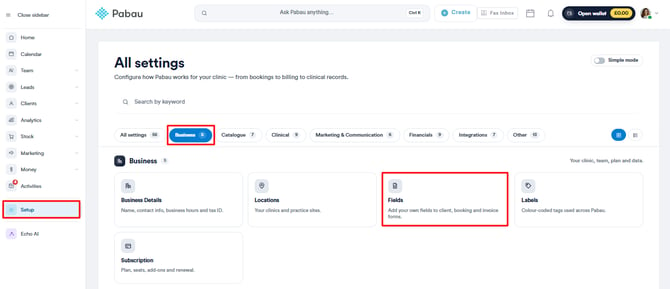
Log into your Pabau account and click on Setup in the left sidebar. Under the Business section, you'll find the Fields tab.
Step 2: Add a New Field
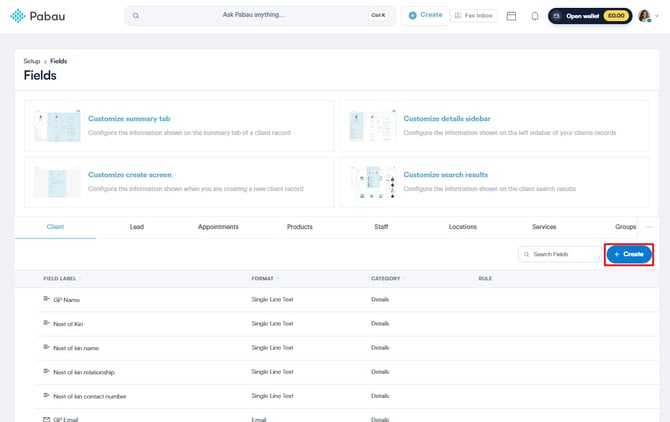
Click + Create in the top right corner. A configuration panel will appear.
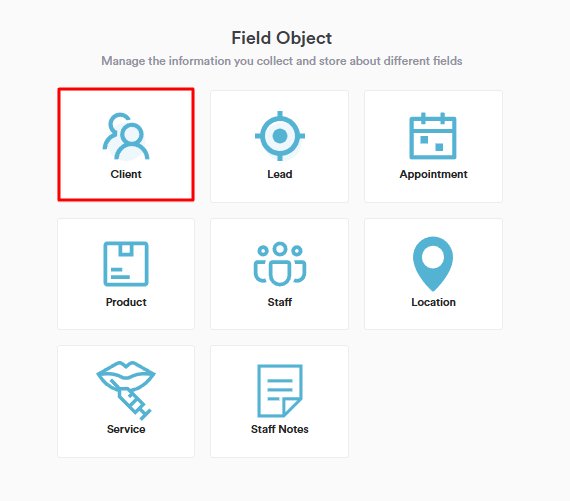
You will be prompted to select the field object, in this case, select 'Client' so the field appears in the client card.
Step 3: Configure the Field
Fill in the following details:
Basic Information
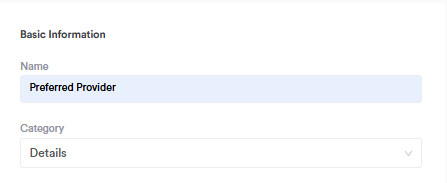
- Name: Enter Preferred Provider
- Category: Select Details — this places the field under the Details tab of the client card, where personal preferences are stored
Field Properties
You will see a set of toggles. We recommend the following settings for this field:

- Always visible in client detail view — turn this on so the field is always displayed on the client card, even when empty. This reminds staff to fill it in if it hasn't been set yet.
- Appears in add client views — turn this on so staff can capture the preferred provider at the point of creating a new client, not just after the fact.
- Hide this field from the Pabau GO app — leave this off unless you do not want mobile app users to see or edit this field.
- Required — leave this off. Not every patient will have a preference, so making it mandatory would block client creation unnecessarily.
- Important — this is optional. Turning it on flags the field visually on the client card. You may find this useful if preferred provider is a critical detail for your clinic's workflow.
Field Type
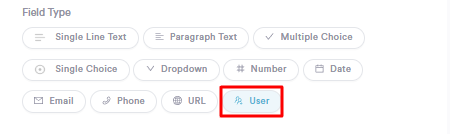
Select User from the field type options at the bottom of the panel. The User type automatically pulls in a list of your active Pabau team members — meaning staff can select a practitioner directly from your real team list without you having to manually add or maintain names. This is more accurate and easier to keep up to date than a manual dropdown.
Step 4: Save the Field
Click Save at the top right corner of the screen. The Preferred Provider field will now appear on all client cards in your account.
NOTE: This step only needs to be completed once. Once the field is saved, it is available on every client card automatically.
Assign a Preferred Provider to a Patient
Step 1: Open the Client Card
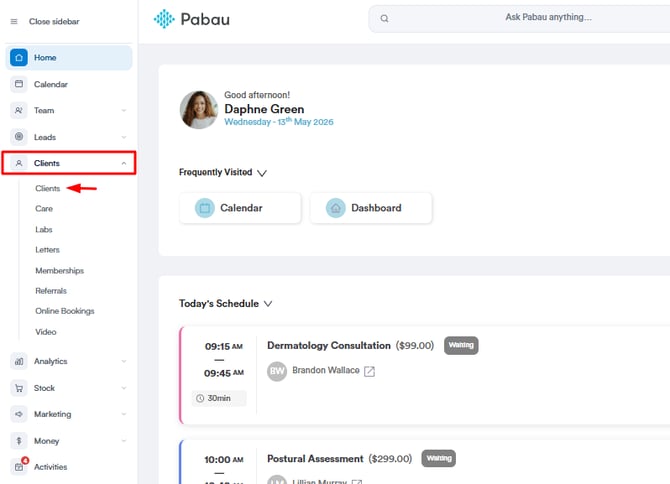
Click on Clients in the left sidebar and search for the patient by name or ID. Click their name to open their client card.
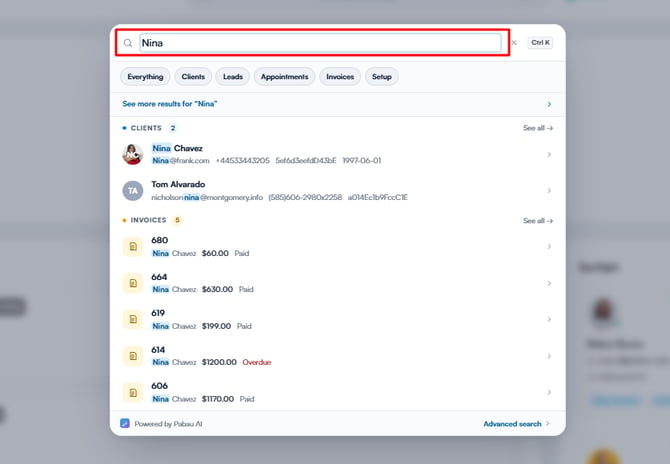
Alternatively, use the search bar at the top of the screen and type in the client's name so it will show up in the search results, and click on the client name to open their client card.
Step 2: Review Client Details
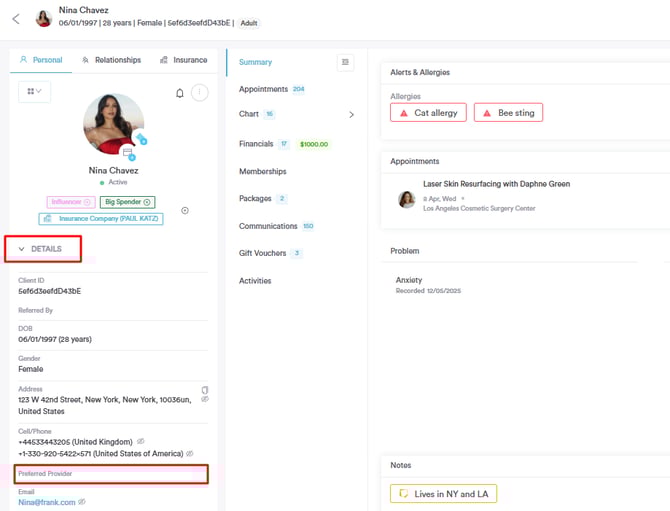
Inside the client card, navigate to Details. Scroll down to the Custom Fields section — you will see the Preferred Provider field created in Part 1.
Step 3: Select the Practitioner
Click the Edit Preferred Provider dropdown.
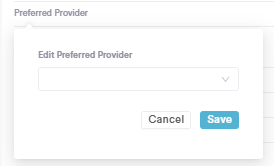
This will reveal all available staff member names and you can select the relevant practitioner from the list or type in their name on the search bar for quick access.
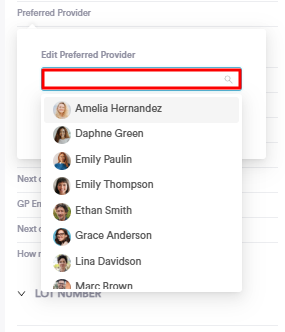
Step 4: Save
Click Save. The preferred provider is now recorded on the patient's card and is visible to any staff member who opens their record.
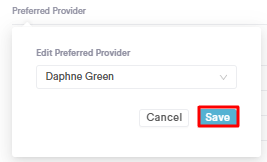
Step 5: Customize Fields
If you want this field to be displayed at the top, click the 'Customize fields' button and use the drag and drop option to place this field wherever you'd like.
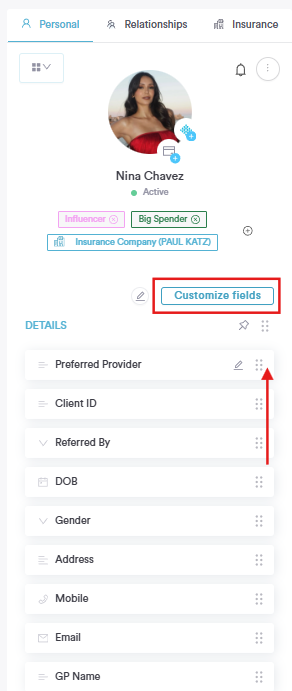
The, scroll down and click 'Done' to save the changes.

By following these steps, you can easily record the client's preferred practitioner in their client card.
Add a Client Note So the Preference Shows at Booking
Filling in the custom field is great for storing the preference on the client record — but when staff are making a booking in the calendar, they may not think to check the Details tab. Adding a client note ensures the preferred provider preference surfaces automatically at the point of booking, so nothing gets missed.
Step 1: Open the Client Card
Click on Clients in the left sidebar and search for the patient by name or ID. Click their name to open their client card.
Alternatively, use the search bar at the top of the screen and type in the client's name so it will show up in the search results, and click on the client name to open their client card.
Step 2: Navigate to the Notes Tab
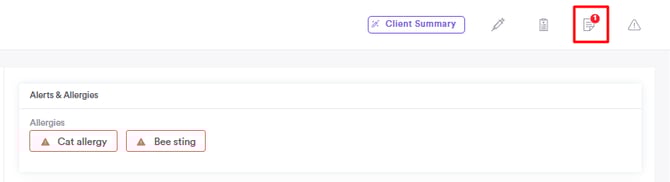
Inside the client card, click on the Notes icon at the top right corner.
Step 3: Add a New Note
In the note field, on the 'Client's' tab, enter the preferred provider preference clearly and concisely so it is immediately readable at a glance — for example:
Preferred Provider: Dr Sarah Chen — always book with her where possible.
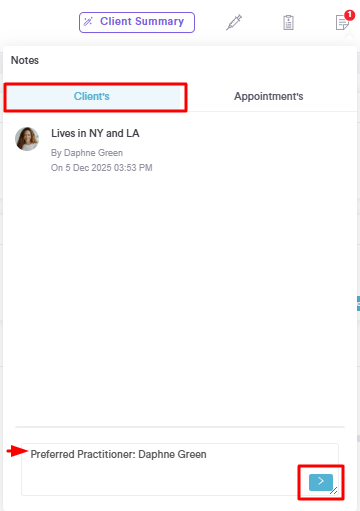
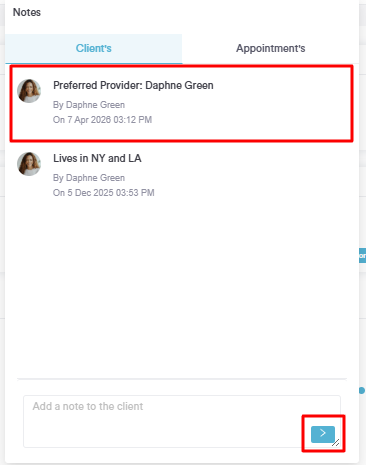
Click the arrow icon. The note is now attached to the client record.
Step 4: View the Note When Booking in the Calendar
When creating a new appointment for this client in the calendar, click on the client's name in the booking modal to open their details panel.
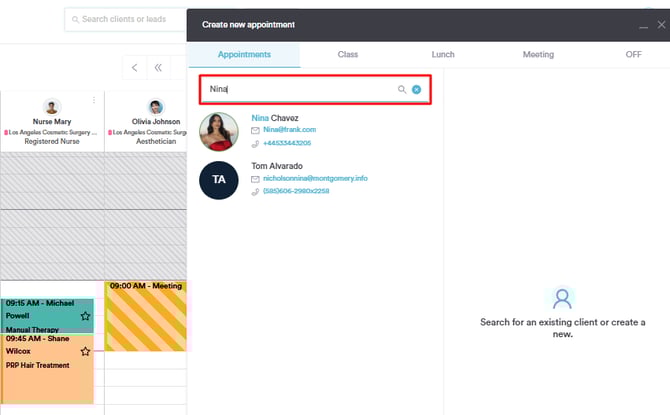
Any saved client notes will appear here — giving the staff member booking the appointment a quick, visible reminder of the patient's preferred provider before confirming the booking.
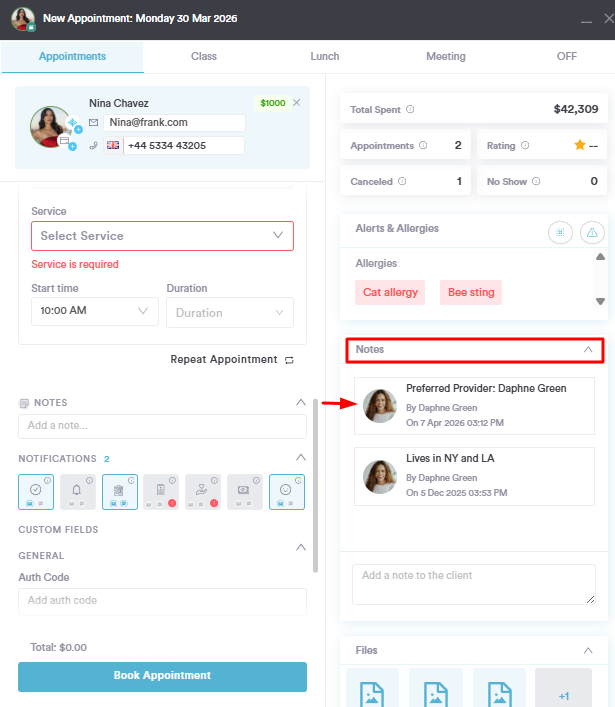
By following these steps, you can easily spot the client's preferred provider when booking an appointment in the Calendar.
For more guides, refer to related articles below, select additional guides, or use the search bar at the top of the page. These guides will help you get the most out of your Pabau account.
Additionally, to help you fully utilize and understand your Pabau account, we recommend exploring additional guides and resources offered at the Pabau Academy. It offers in-depth video tutorials and lessons, offering a holistic learning experience that can equip you with the essential skills for achieving success with Pabau.