
Step 1: Navigate to the Point of Sale (POS)
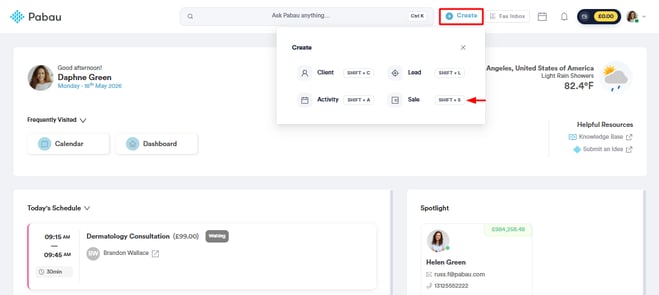
Start by logging into your Pabau account using your login credentials. Then, access the point of sale by navigating to the "Create" button at the top of the page. Then, click "Sale." Proceed to perform a sale as you usually would.
Step 2: Open the discount options
Once you've selected the client and items to sell, click the ... button at the bottom of the cart, next to Clear, and select Edit discount.
/Screenshot%202.png?width=290&height=467&name=Screenshot%202.png)
A searchable dropdown will appear, listing all discounts the staff member is allowed to apply. Select a discount to apply it to every item in the cart.
/Screenshot%203.png?width=290&height=368&name=Screenshot%203.png)
NOTE: The discount only affects items currently in view. Items added afterward will not automatically receive the discount.
Step 3: Apply a discount to a single item
To discount one item instead of the whole cart, click the service or product in the cart. Select a discount from the Discount dropdown, then click Save.
/Screenshot%20(1)-1.png?width=627&height=353&name=Screenshot%20(1)-1.png)
The Discount line in the cart summary updates with the total amount deducted.
By following these steps, you can successfully apply a discount in the point of sale.
For more guides, refer to related articles below, select additional guides, or use the search bar at the top of the page. These guides will help you get the most out of your Pabau account.
Additionally, to help you fully utilize and understand your Pabau account, we recommend exploring additional guides and resources offered at the Pabau Academy. It offers in-depth video tutorials and lessons, offering a holistic learning experience that can equip you with the essential skills for achieving success with Pabau.