
NOTE: This guide covers the new Online Bookings and Client Portal, which are being rolled out to clinics in phases. If your screens look different, your account may still be on the classic version — message us via the in-app chat and we will help.
LinkedIn is a natural place to reach corporate clients, partners and referrers. Adding your booking link to your profile and company page means anyone who finds you there can book in a few clicks.
In this article, you will learn how to create a booking link for LinkedIn, copy it, and add it to your LinkedIn account.
Share Your Booking Link on LinkedIn
You can share your main booking link, but a tailored link is better: it can open straight on a treatment you are promoting, and it shows you how many bookings came from LinkedIn.
Step 1: Create a Link for LinkedIn
Go to More → Online Bookings (or Setup → Online presence → Online Bookings), click the Share tab, then click Create a tailored link.
- Enter a Link name, such as “LinkedIn profile”.
- Set the Channel to Social.
- Optionally, choose a Location, an Employee or one or more Services to send clients straight there.
- Click Create booking link.
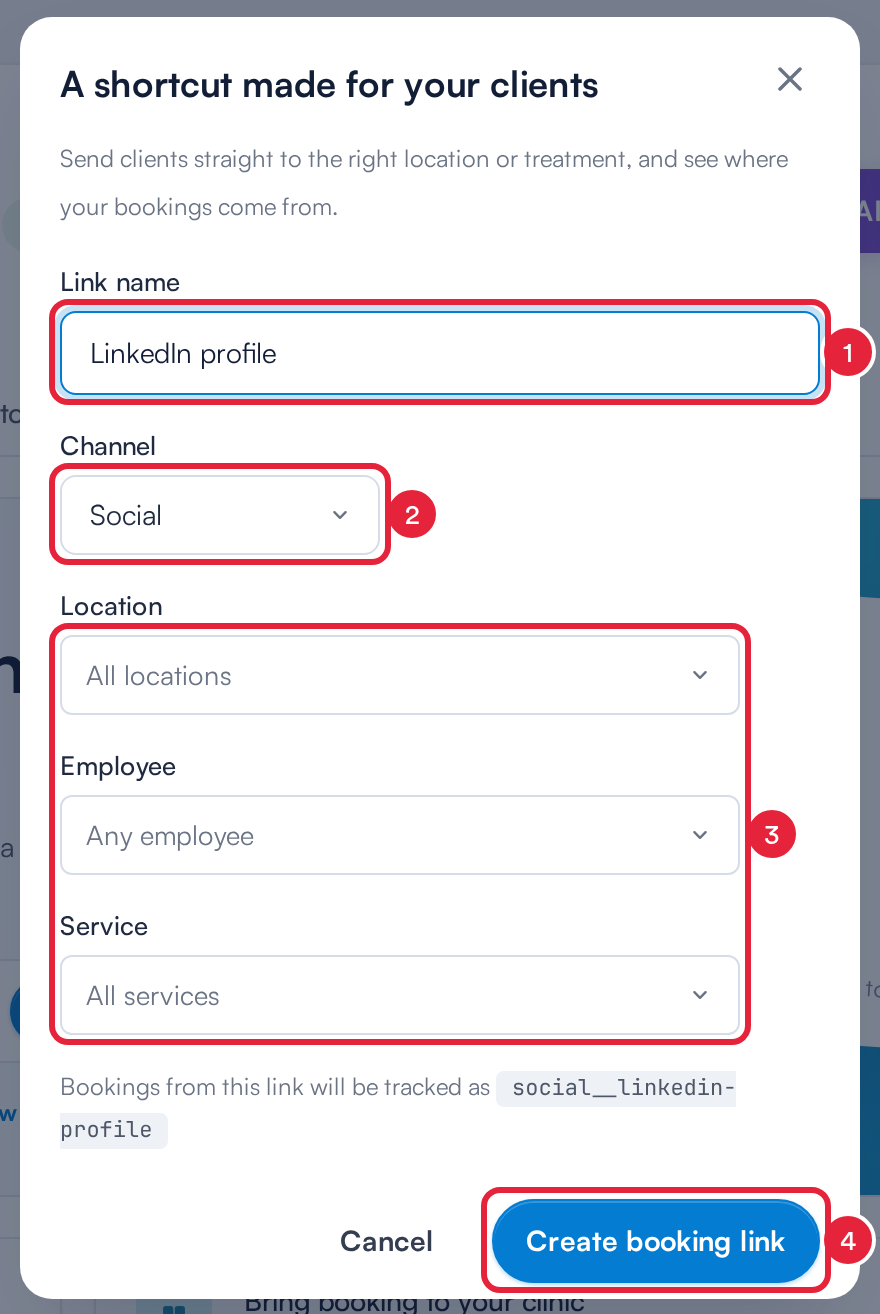
Creating a booking link for LinkedIn
Step 2: Copy Your Link
Scroll down to Your booking links on the same tab and click the copy button at the end of your new link’s row (2).
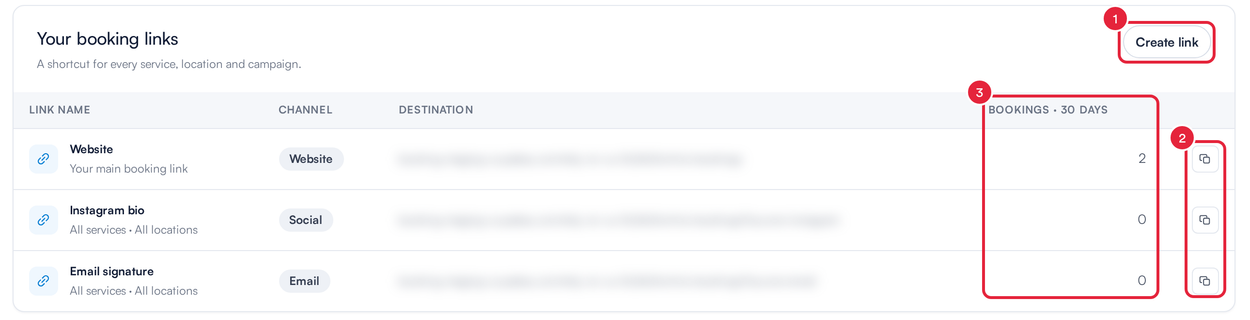
Your booking links
Step 3: Add the Link to LinkedIn
Paste your link in one or more of these places:
- Your profile — on your LinkedIn profile, open your Contact info, edit it and add your booking link as a website.
- Your company page — as a page admin, edit the page and add your booking link as the page’s website or custom button.
- Posts — paste the link into a post or article. LinkedIn shows a preview of your booking page.
NOTE: LinkedIn changes its menus from time to time. If an option has moved, check LinkedIn’s own help pages for “add a website to your profile”.
TIP: Back on the Share tab, Bookings · 30 days (3) shows how many bookings your LinkedIn link has brought in.
If you use a link-in-bio page such as Linktree, add your booking link there as one of your links instead.
What’s next?
- Share your link on other networks: Facebook, Instagram, X (Twitter), YouTube.
- Make links for emails, flyers and campaigns: How to Create a Custom Link for Online Bookings.
- Add a booking button to your website: How to Add Online Booking to Your Website.
Questions? Reach us any time via the in-app chat — we’re happy to help.
Was this guide helpful? Let us know by voting below - your feedback helps us write clearer articles.
For more guides, browse the related articles below or use the search bar at the top of the page. You can also watch our video learning series, the Pabau Academy, or visit the Support page for additional help.