
This function is useful when staff members are unable to submit their own request - such as in the case of unexpected absence - or when managers or admins need to enter leave centrally for scheduling purposes.
Step 1: Navigate to the Leave Tracker
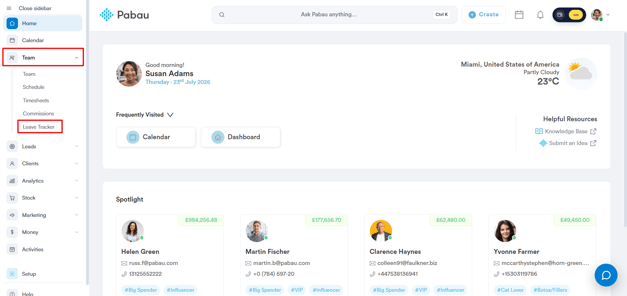
Log in to your Pabau account, and in the left sidebar menu, go to Team, then click on "Leave Tracker".
Step 2: Start a New Leave Request
From the Leave Tracker, there are two ways to begin:
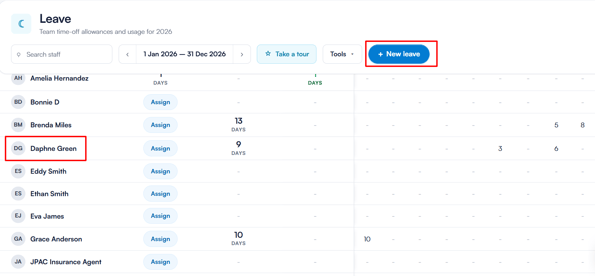
- Click "+ New leave" in the top-right corner, then select the employee from the dropdown.
- Or click directly on a staff member's name in the list, which opens the "Add leave" form with that employee already selected.
Step 3: Fill in the Leave Details
In the "Add leave" form, complete the following:
- Leave Type — Choose from Vacation, Sick Leave, or Compassionate Leave, or click "More" to see additional leave types.
- Location — Confirm or select the clinic location.
- Date Range — Set the start and end date. The system will show the total days and working days, along with the leave hours (total or broken down daily).
On the right side, the "See who else is on leave" panel shows a calendar for the selected location, so you can check who else is off during the same period before confirming.
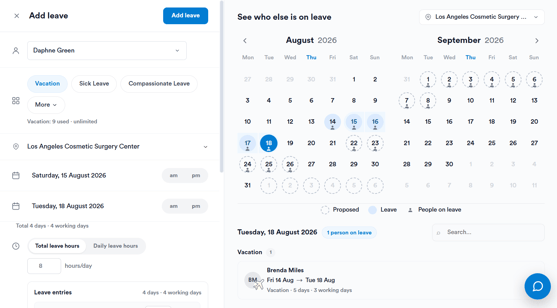
After adding the details, click "Add leave" to proceed with the request.
NOTE: If the staff member already has appointments booked during the leave period, a "Clashing Shifts" window will open, allowing you to review the overlapping appointments before deciding how to proceed. Available options are:
- Do Nothing — shifts remain unchanged
- Permanently delete — shifts are removed
Select an option, then confirm with Approve.
What happens next
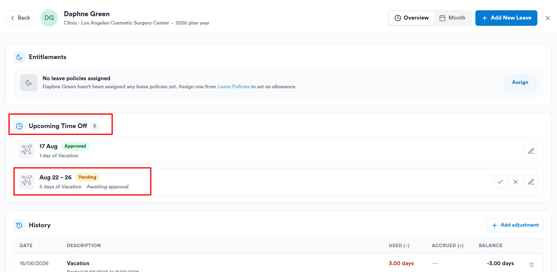
Once the leave has been added the request will be visible in:
- The Leave Tracker, awaiting approval.
- The employee's Leave Profile, under their leave history for approval.
By following these steps, you can successfully submit a leave request on behalf of a team member.
For more guides, refer to related articles below, select additional guides, or use the search bar at the top of the page. These guides will help you get the most out of your Pabau account.
Additionally, to help you fully utilize and understand your Pabau account, we recommend exploring additional guides and resources offered at the Pabau Academy. It offers in-depth video tutorials and lessons, offering a holistic learning experience that can equip you with the essential skills for achieving success with Pabau.