
When your clinic is connected to NABIDH, every prescription you issue is sent to the Dubai Health Authority. DHA rejects a medication line that is missing a dose, a frequency, a route or a fixed duration. Pabau checks each medication against those rules while you write the prescription, so you can fix a line before you issue it rather than after DHA turns it down.
NOTE: These checks appear only when your clinic has an active NABIDH connection (see NABIDH Guide Part 2). You’ll see a NABIDH badge at the top of the prescription. For the full prescribing steps, see How to Create a Prescription (New Client Card).
Step 1: Add a Medication
- On the client card, click Create (the + button) and choose Prescription. Search for the medication and click it to add it. The Dubai Drug Code tab in the search bar searches the DHA drug list directly.
- Each medication card shows its NABIDH status: NABIDH ✓ when it passes, or NABIDH · 4 issues (for example) when DHA would reject it.

The badge tells you whether the line is ready for NABIDH
Step 2: Fix the Highlighted Fields
The medication opens for editing when you add it. You can reopen it at any time by clicking its card.
- The strip at the top reads Not NABIDH-ready — fix the highlighted fields before saving. It also shows the Dubai Drug Code the order will carry. If Pabau can’t match the medication to one, it says so and a fallback code is sent instead.
- Every field NABIDH needs is outlined in red, with a message underneath. Fill them in:
- Dose must start with a number, such as 500mg. Add a unit, or make sure a Format is set.
- Frequency must be one NABIDH recognises, such as twice a day or at night. Click the field to pick from the suggestions.
- Route, such as by mouth.
- Duration must be a fixed length, such as 5 days.
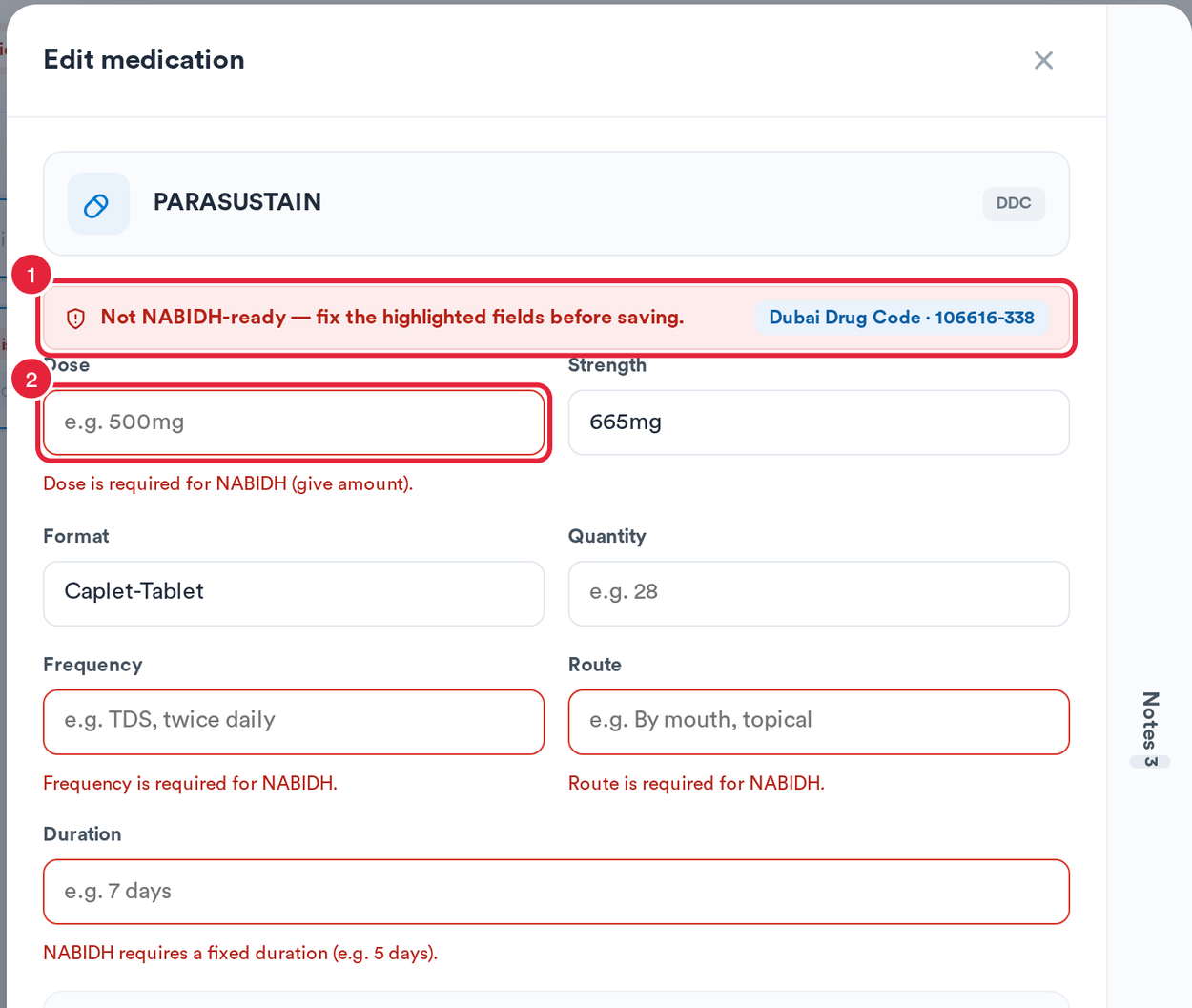
Red outlines show what NABIDH still needs
Save medication stays greyed out until every highlighted field is fixed.
Step 3: Check the Line Is Ready
- When every field passes, the strip turns green: NABIDH-ready — this medication will sync to the Dubai HIE. (The Dubai HIE is Dubai’s health information exchange, NABIDH.) Click Save medication, and the card shows NABIDH ✓.
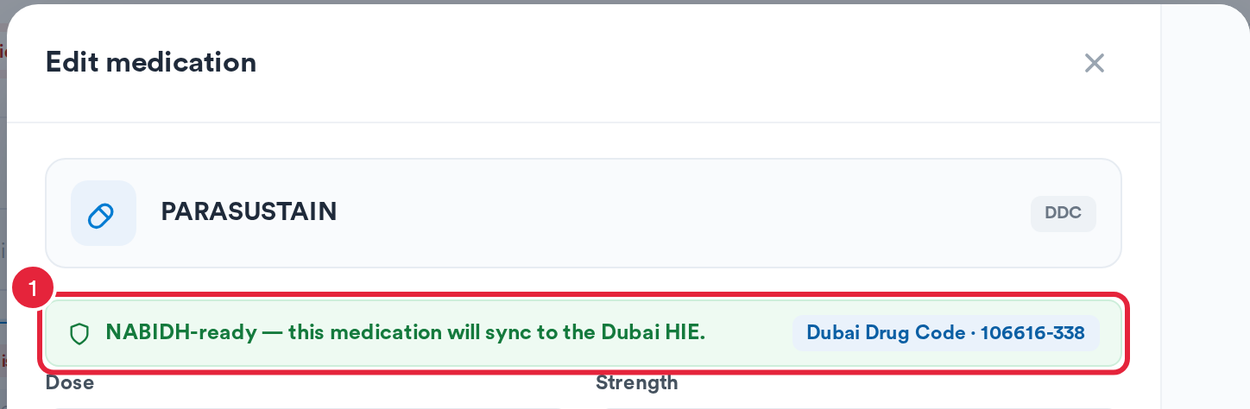
A green strip means DHA will accept this line
Step 4: Issue the Prescription
Issue & sign prescription stays greyed out while any medication on the prescription still has NABIDH issues. Once every card shows NABIDH ✓, issue and sign the prescription as usual.
After it’s issued, the prescription is sent to NABIDH with one order for each medication. The prescriber needs their own 8-digit DHA licence number on file (see NABIDH Guide Part 3). A prescription that is still waiting for medical approval isn’t sent: its delivery in the connection’s log asks you to approve it, then retry the delivery.
TIP: Prescriptions are one of only three NABIDH triggers your clinic can switch off, with Letters and Form answers. See NABIDH Guide Part 4.
What's next?
- How to Create a Prescription (New Client Card)
- NABIDH Guide Part 4: Choose Which Events Are Sent to NABIDH
- NABIDH Guide Part 6: NABIDH Error Codes and Delivery Statuses
Was this guide helpful? Let us know by voting below - your feedback helps us write clearer articles.
For more guides, browse the related articles below or use the search bar at the top of the page. You can also watch our video learning series, the Pabau Academy, or visit the Support page for additional help.