
Data Sync keeps your Pabau records in step with the other tools your clinic already uses. When a client is created, edited or deleted in Pabau, Data Sync automatically pushes that change to a connected system — such as your CRM or accounting platform — in near real time, so you never have to re-key the same details in two places.
This guide explains what the tool does, how a sync flows from Pabau to the connected system, and how to read the delivery log when you want to check that everything is working. For step-by-step setup of a specific connector, see the dedicated guide for that connector (for example, the Microsoft Dynamics 365 Business Central integration).
Note: Data Sync is part of the Data Hub. You'll find it under Data Hub > Data Sync. You need administrator access to add, edit or pause a connector.
Where to find Data Sync
Open the Data Hub from the main menu and select the Data Sync tab. Each connector you've set up appears as a card showing its status, when it last synced successfully, how many deliveries failed in the last 24 hours, and how many are currently queued.
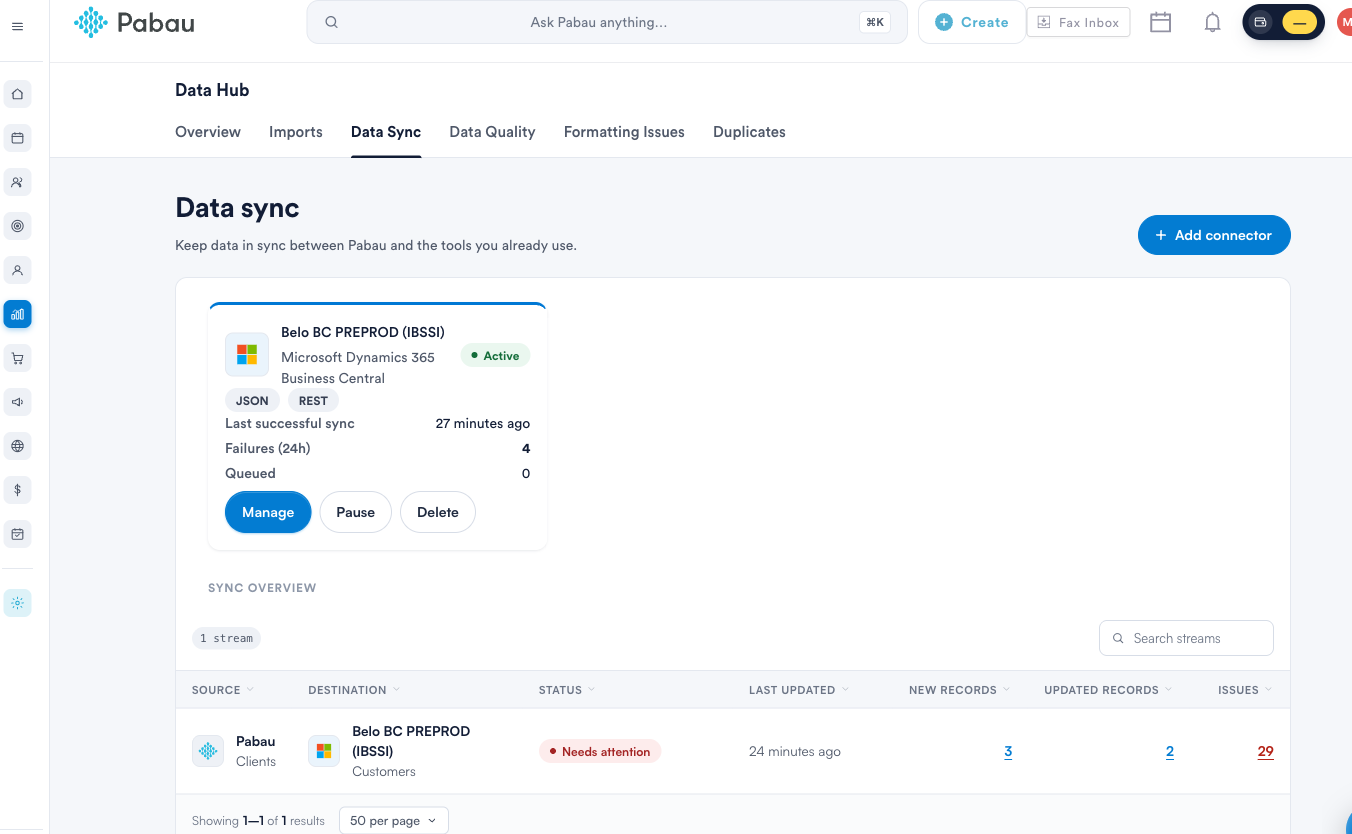
From a connector card you can:
- Manage — open the connector's settings, triggers, field mapping and delivery log.
- Pause — temporarily stop sending. Changes made while paused are not queued for later; they're simply not sent.
- Delete — remove the connector, its triggers and its mappings. Delivery history is kept for audit.
Adding a connector
Select Add connector to see the connectors available to your clinic. Choose a destination and select Set up to start the guided setup.
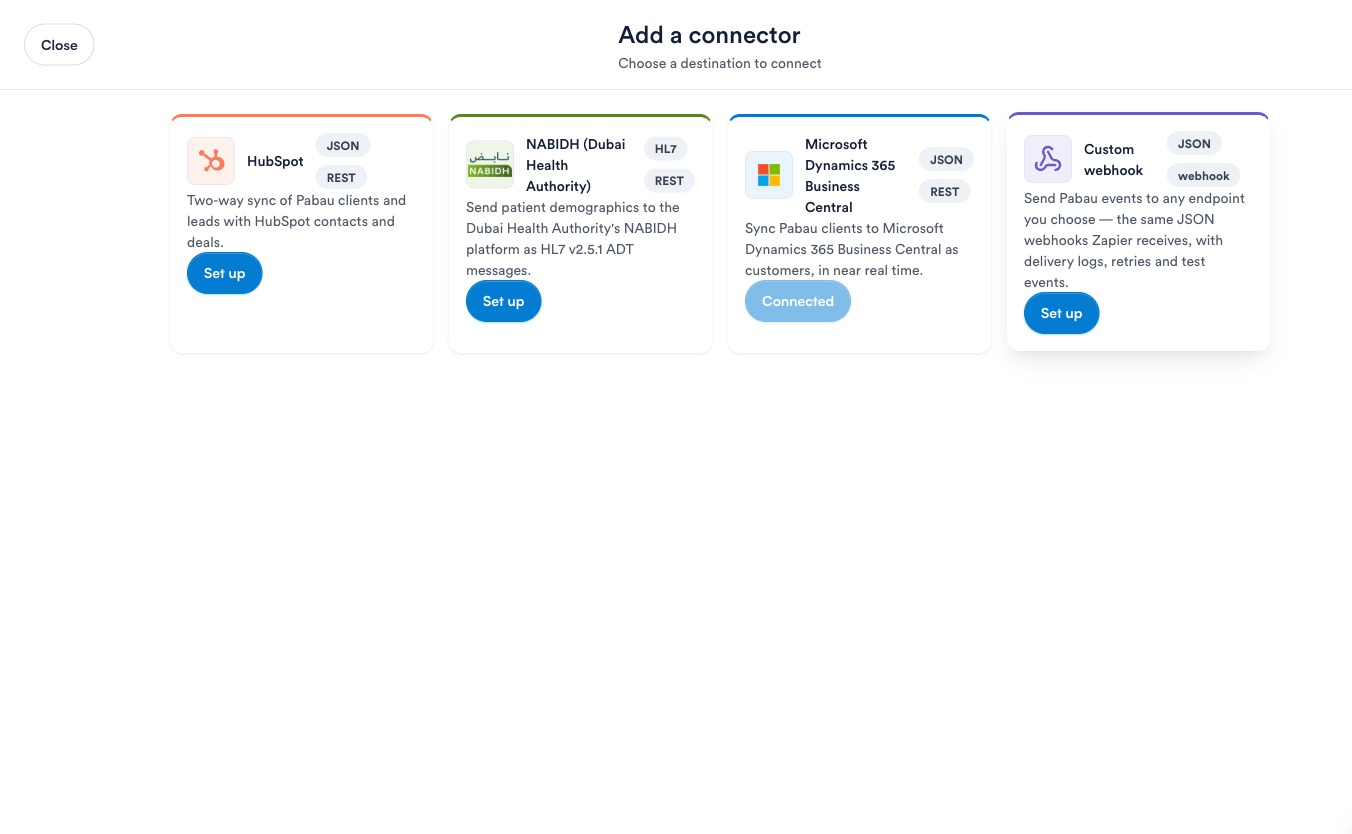
Pabau currently offers these connectors:
- HubSpot — two-way sync of Pabau clients and leads with HubSpot contacts and deals.
- GoHighLevel — two-way sync of Pabau clients with GoHighLevel contacts, plus appointment and lead-outcome tags for marketing-agency workflows.
- Shopify — pushes your Pabau stock levels to your Shopify store when retail products are sold at the point of sale.
- Microsoft Dynamics 365 Business Central — sync Pabau clients to Business Central as customers, in near real time.
- NABIDH (Dubai Health Authority) — send patient demographics to the DHA's NABIDH platform as HL7 messages.
- Custom webhook — send Pabau events to any endpoint you choose, using the same JSON webhooks that tools like Zapier receive, with delivery logs, retries and test events.
Tip: Some connectors allow only one connection per clinic. If a connector already has a connection, its tile shows Connected and can't be added twice — open the existing one with Manage instead.
The four setup tabs
Every connector is configured through the same four tabs. You move through them with the Next button, and you can return to any tab later from Manage.
1. Settings
Where your updates are sent and how your clinic is identified when they arrive. These details come from the onboarding pack supplied by the connected system's provider. Once you've entered them, use Test connection to check everything is reachable before you go live. Credentials are stored encrypted and are never shown again — to change them, you paste new values.
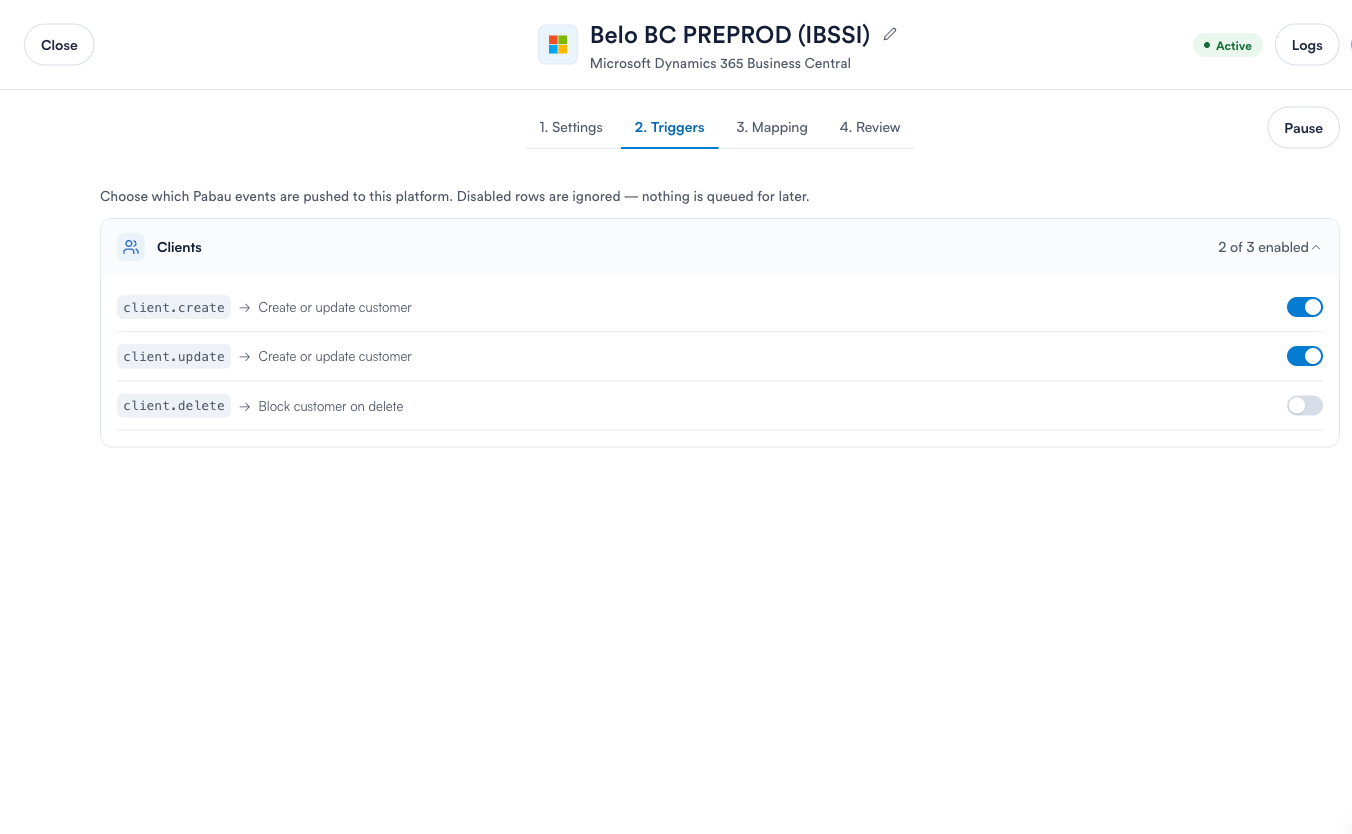
2. Triggers
Which Pabau events are pushed to the connected system. Each trigger maps a Pabau event (such as client.create or client.update) to an action on the other side. Turn a trigger off and that event is simply ignored — nothing is queued for later.
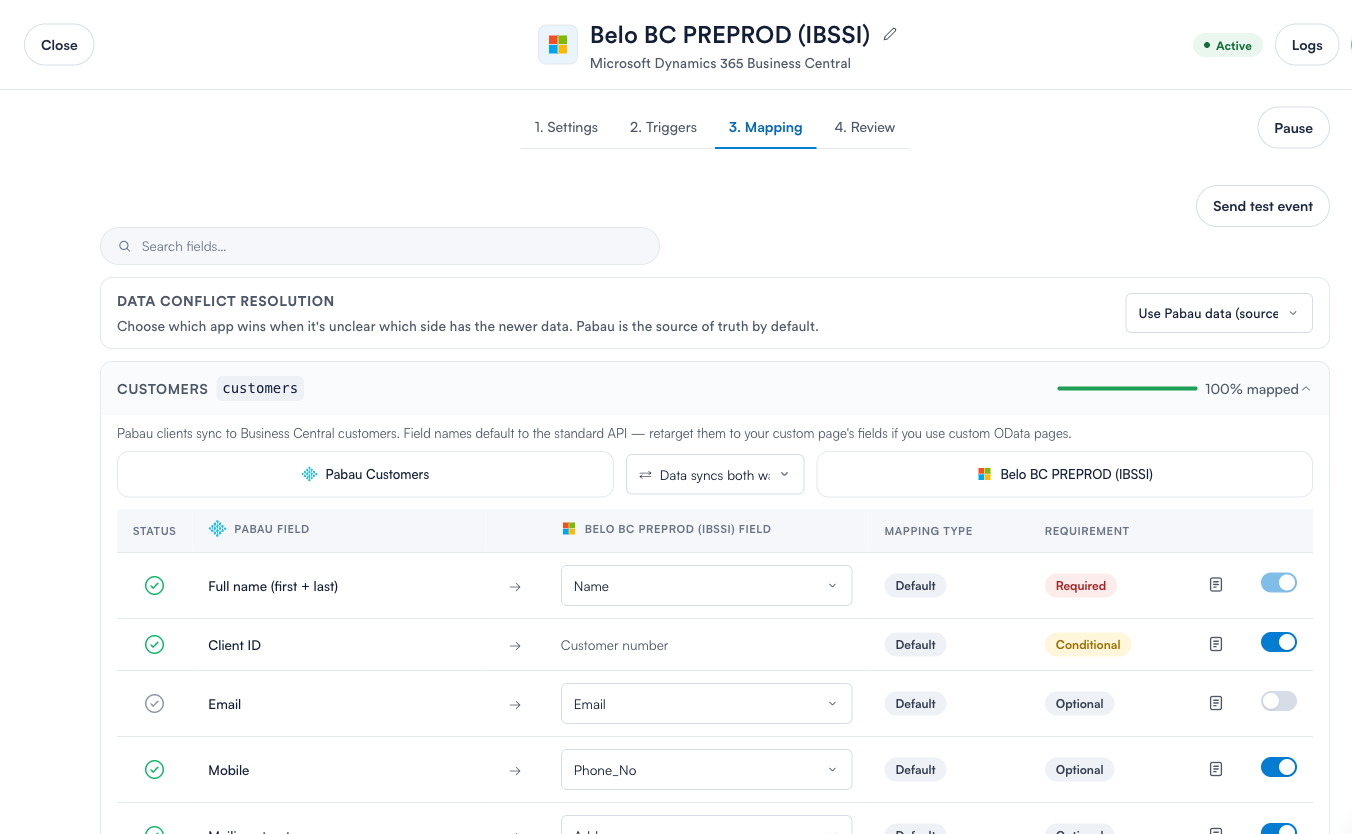
3. Mapping
Which Pabau field goes to which field in the connected system. Each row shows the Pabau field, the direction of the sync, the destination field, and whether the field is required, conditional or optional. Turn a row off to stop that field syncing. The Data conflict resolution setting decides which side wins when it's unclear which has the newer data — Pabau is the source of truth by default.
4. Review
A final summary of the connection before you activate it.
Sending a test event
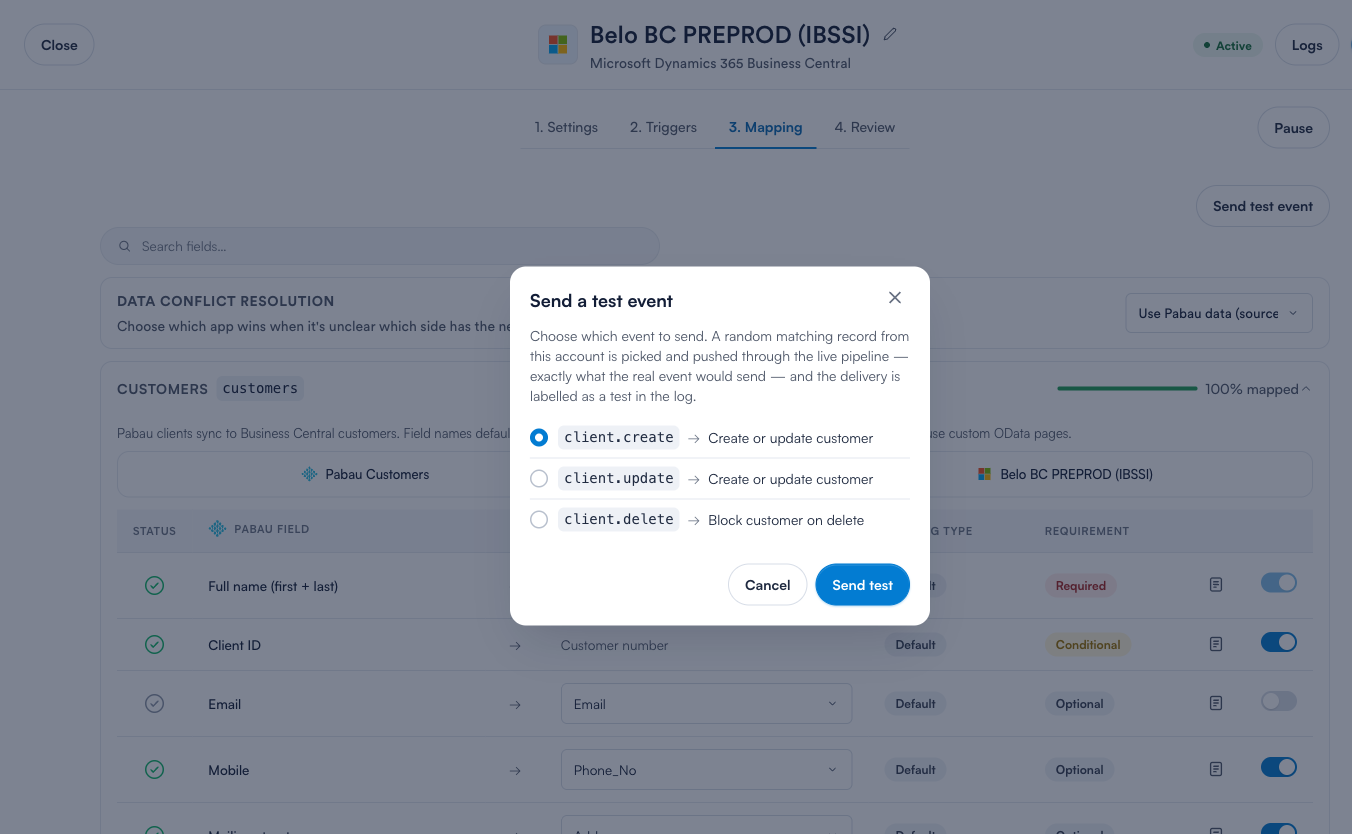
From the Mapping tab you can select Send test event to check the whole pipeline end to end. Pabau picks a random matching record from your account and pushes it through the live pipeline — exactly what a real event would send — and labels the delivery as a test in the log. This is the safest way to confirm a new connector is wired up correctly.
Reading the delivery log
Select Logs from any connector to see every delivery — one row per event Pabau tried to send. You can filter by status, object, trigger or date, search by record or correlation ID, hide test events, turn on Live to watch deliveries as they arrive, and export the list to CSV. A summary at the top groups the last 24 hours of errors by type.
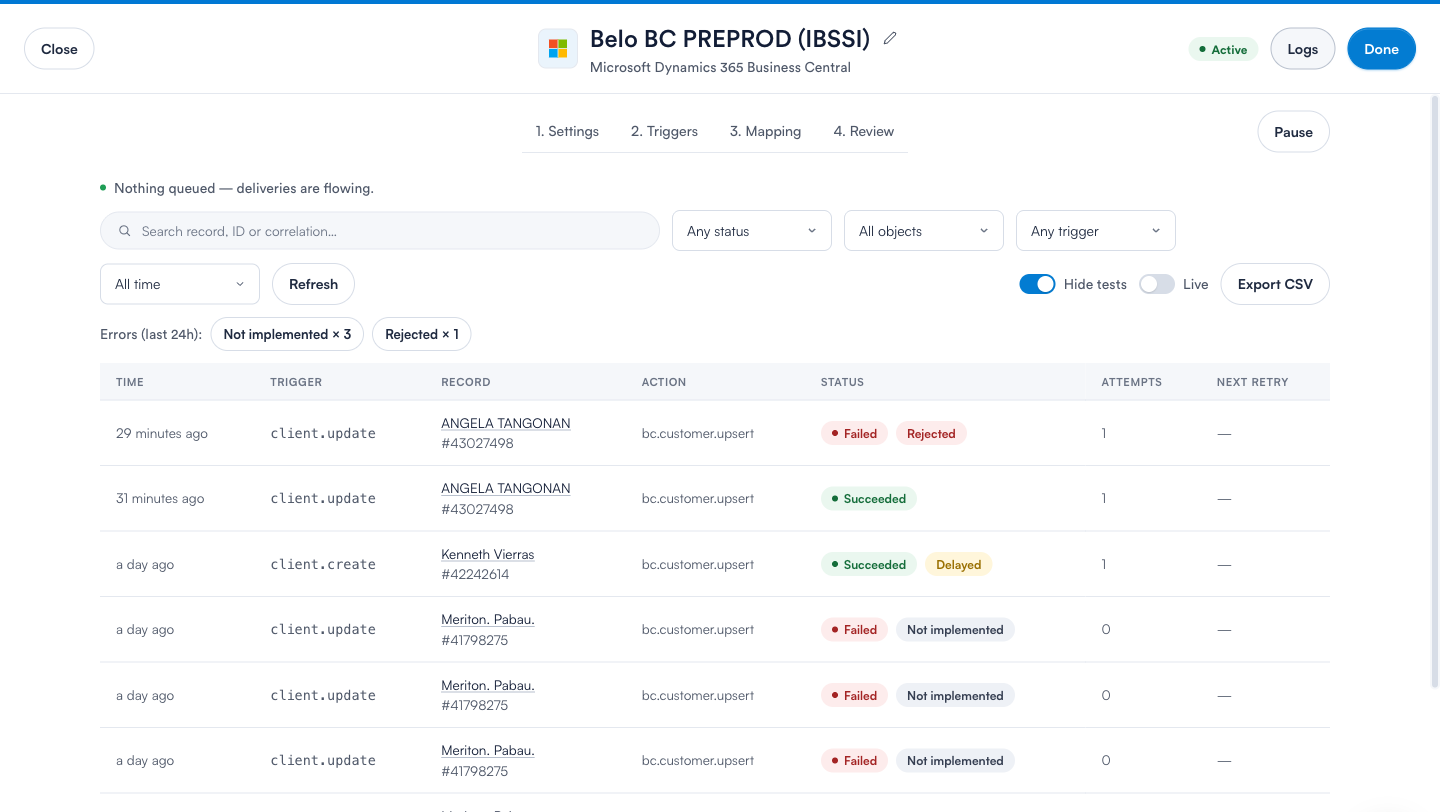
Each delivery shows one of these statuses:
- Succeeded — the change reached the connected system and was accepted.
- Succeeded (Delayed) — it succeeded, but waited more than five minutes in the queue before its first attempt (usually a connector waking up after a quiet period).
- Queued / Processing — accepted by Pabau and waiting to be sent, or in flight right now.
- Failed (retrying) — a temporary problem; Pabau will retry automatically (see below).
- Failed — a permanent problem that won't succeed without a change on your side or the connected system's side. The reason is shown as a short label such as Rejected or Not implemented.
How retries work
Not every failure is permanent. Pabau automatically sorts failures into two kinds:
- Temporary — a network error, a rate limit (the connected system asked us to slow down), or a server error (a 5xx response) on the other side. Pabau retries these on a widening schedule (about 30 seconds, then one minute, then two, and so on) for up to 8 attempts before giving up.
- Permanent — the connected system rejected the request outright (a 4xx response, such as invalid data). Retrying wouldn't help, so Pabau marks it failed straight away and shows you the reason.
Note: Pausing a connector doesn't lose data going forward — but changes made while it's paused are not queued and won't be sent when you resume. Use the Link existing records or test-event tools to reconcile after a pause, or ask your provider how best to backfill.
Inspecting a single delivery
Select any row in the log to open its full detail. Here you'll see the Pabau record it came from, the destination record it targeted, the correlation ID (useful when raising a support ticket), the mapping version used, and every attempt — including the exact request Pabau sent and the exact response it received back.
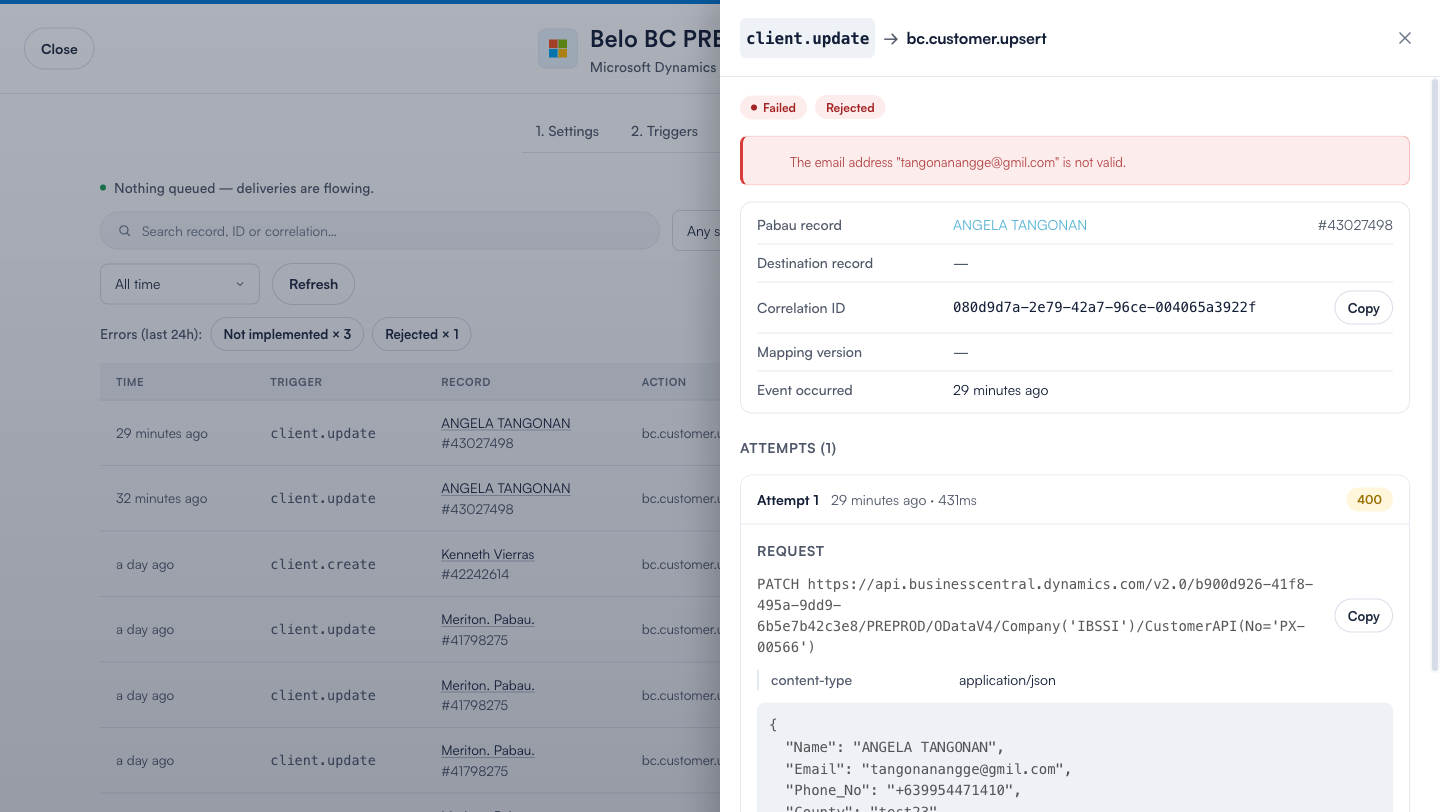
From this panel you can also re-send a failed delivery in one of two ways:
- Replay original payload — re-send exactly what was sent the first time. Use this when the failure was on the other side and the data itself was fine.
- Sync latest data — rebuild the request from the record's current values and send that. Use this when you've since corrected the data in Pabau.
Tip: When you contact support about a sync problem, copy the Correlation ID from the delivery detail. It lets us trace the exact request and response without any guesswork.
Related articles
- How the Microsoft Dynamics 365 Business Central integration works
- How the GoHighLevel integration works
- How the Shopify integration works
- How the HubSpot integration works