
NOTE: This guide covers the new Online Bookings and Client Portal, which are being rolled out to clinics in phases. If your screens look different, your account may still be on the classic version. Message us via the in-app chat and we will help.
When you send a treatment plan, your client opens it from their email, text message or client portal. In this article, you will learn how to show plans in the client portal, and what your client sees when they view, accept, sign and pay for a plan.
Step 1: Show Plans in the Client Portal
Go to Setup and open Client Portal. Click the My Plans card to see whether it is Enabled. Click Choose plan types to choose the plan types you offer on the Plans page: the Treatment switch there decides whether clients see treatment plans in the portal. See Plans Settings.
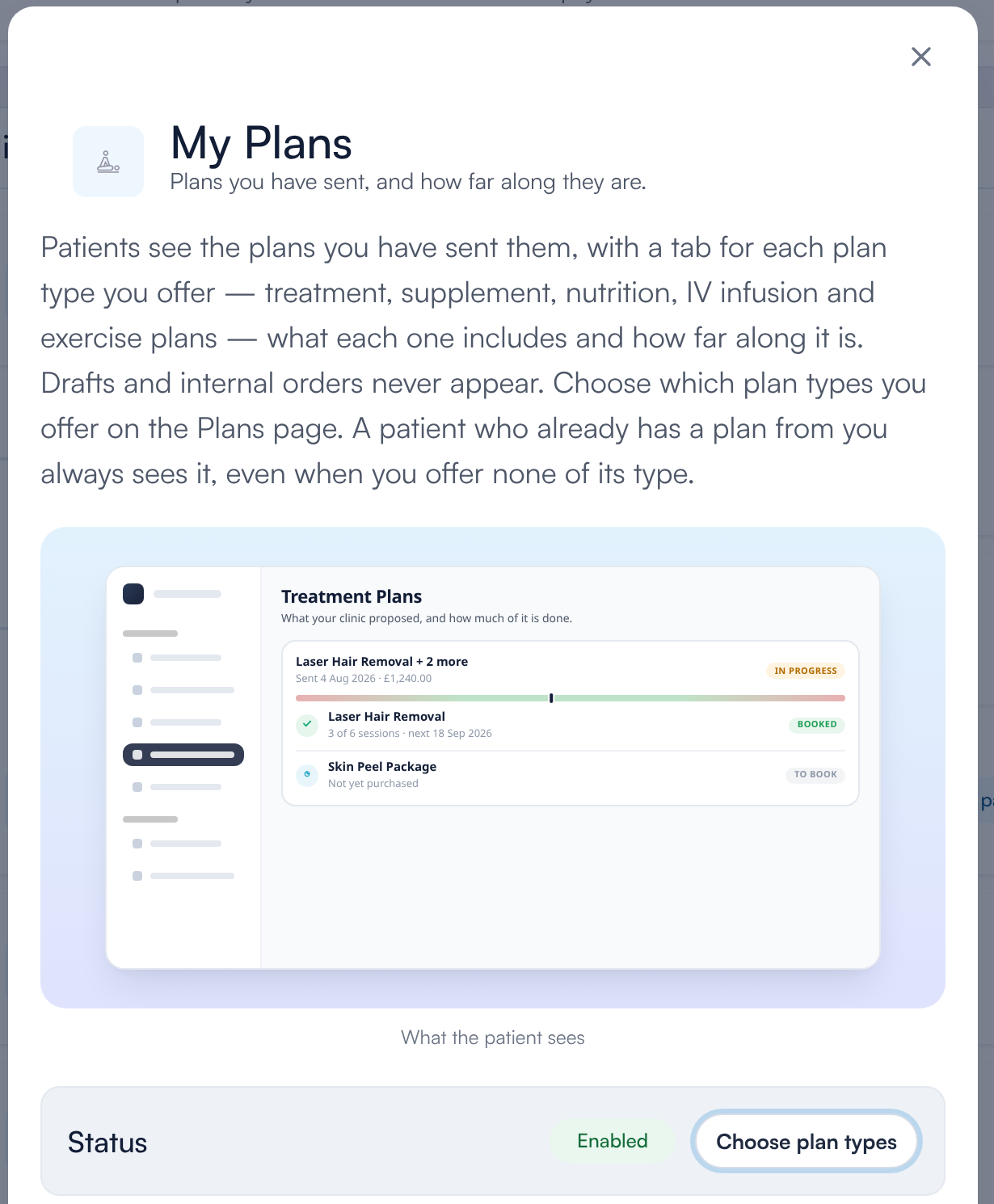
The My Plans card in Client Portal settings
NOTE: Clients only see plans you have sent them or published. Drafts and internal orders never appear in the portal.
Step 2: How the Client Receives Their Plan
When you send a plan, the client gets an email and/or a text message with a link to their plan, in the language you chose. You can also copy a share link and give it to them yourself. See How to Build and Send a Treatment Plan.
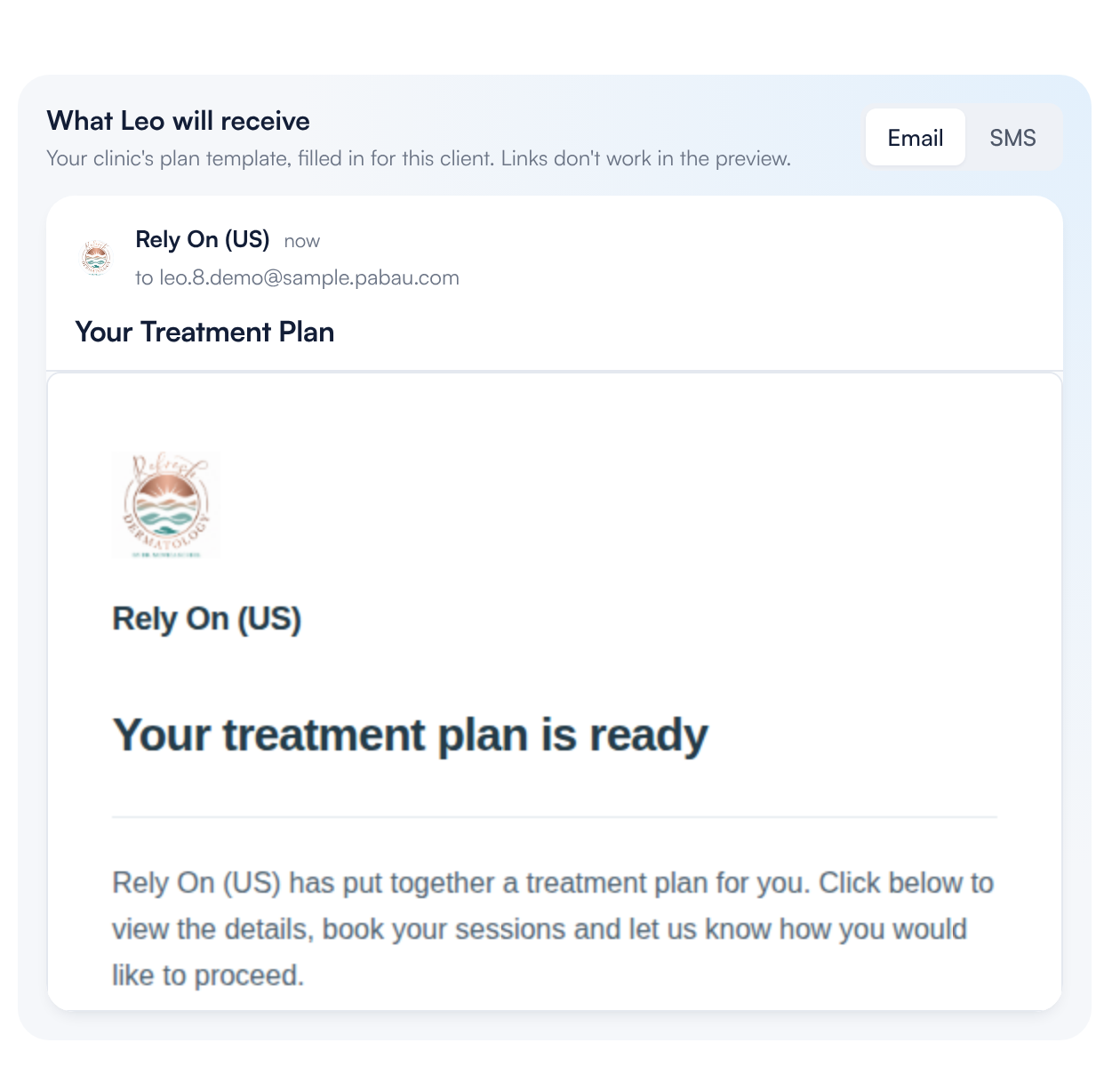
The email your client receives
Step 3: The Intro Page
If your plan has an intro page, the client first sees a welcome page with their name on the cover. They click Open your plan, or Skip to plan. You design this page in your plan template. See How to Create and Use Plan Templates.
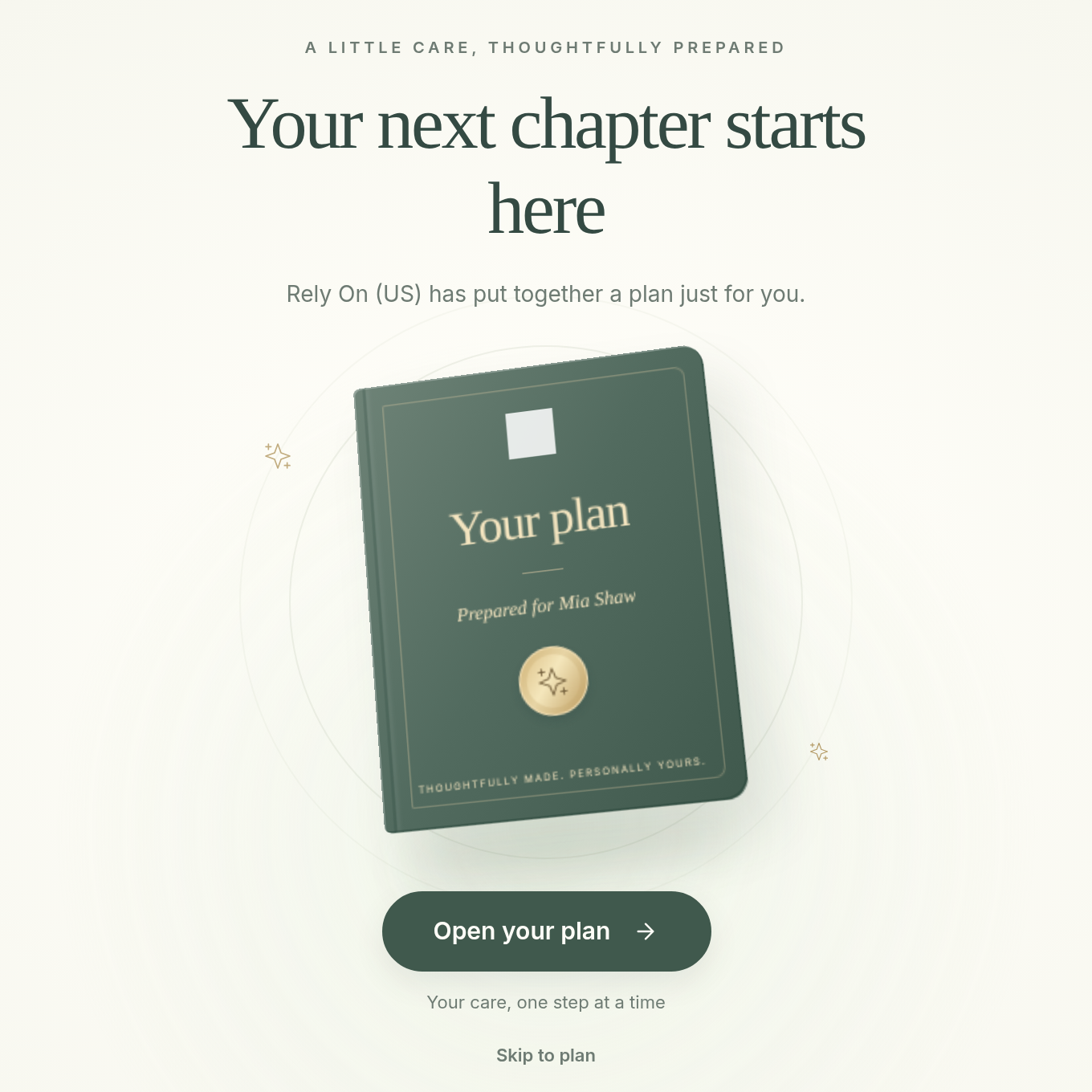
The intro page
Step 4: Reading the Plan
The plan shows your message, then the recommended treatments, packages and courses, and products, each with its price. Any resources you added can be downloaded, and the client can Print the plan.
While the plan is still open, the client can click Remove next to anything they don't want, unless you switched off Allow client to remove for that line. If you offered treatment options, they choose one.
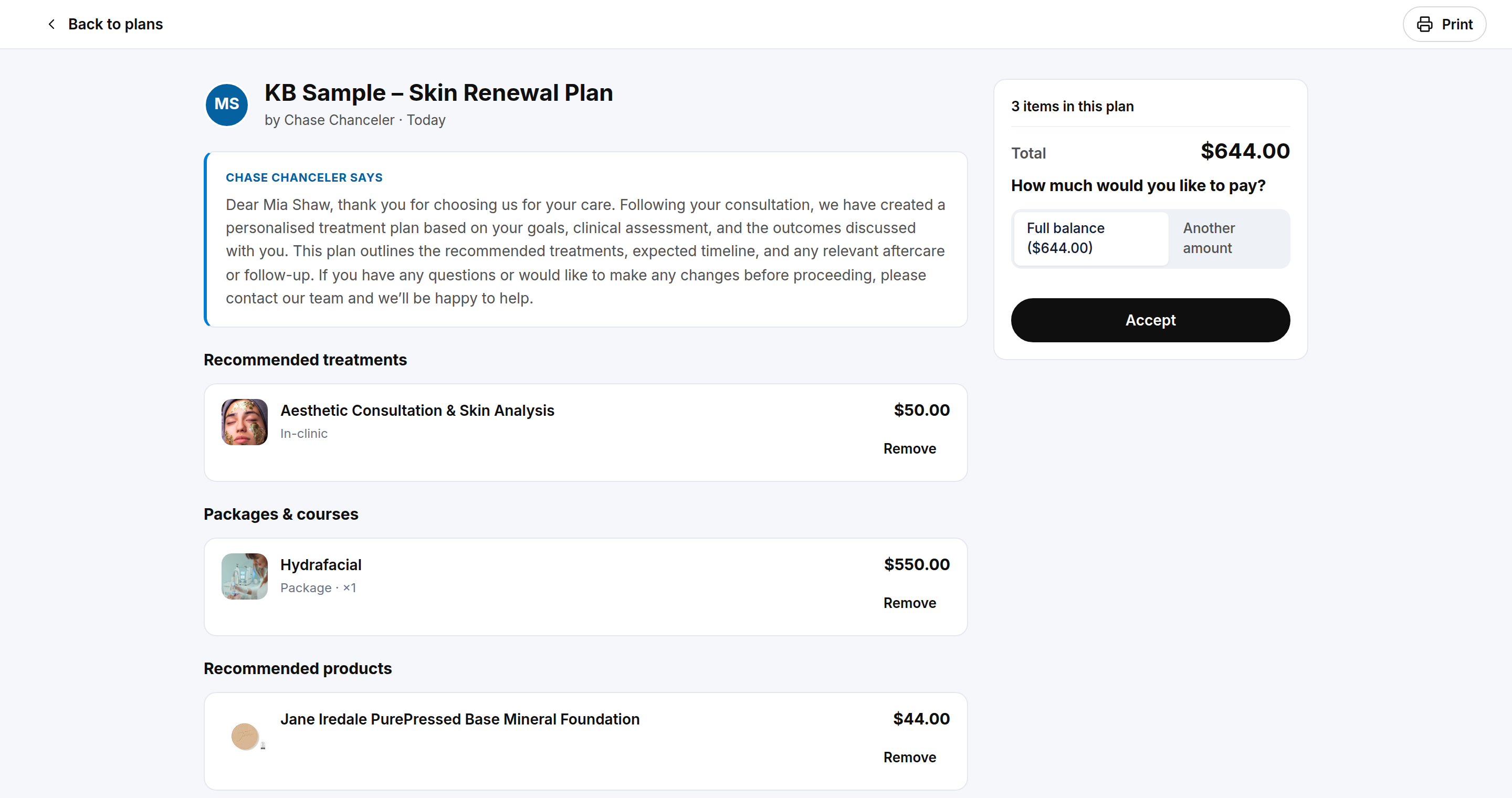
The plan as your client sees it
Step 5: Accepting the Plan
The panel on the right shows the total. If you chose Allow partial, the client is asked How much would you like to pay? and picks Full balance or Another amount. They then click Accept.
If you switched off Take payment online, the client accepts (and signs, if asked) and sees You'll pay for this plan at the clinic. You then take payment in Pabau. See How to Take Payment for a Plan and Book the Visits.
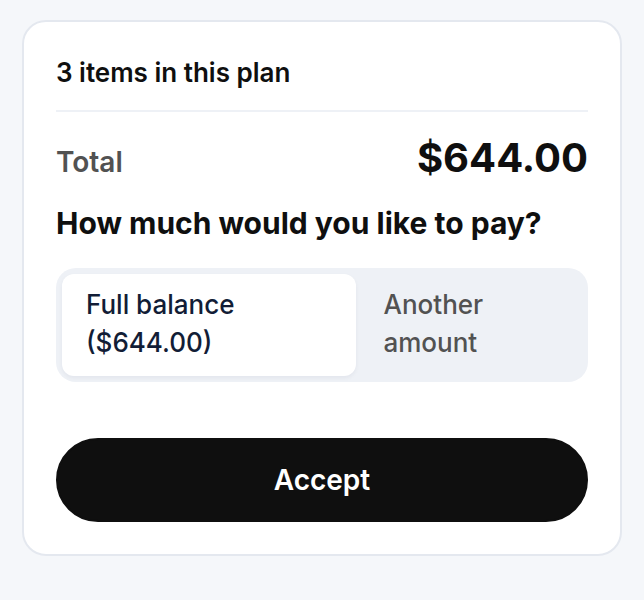
Choosing how much to pay
Step 6: Signing the Plan
If you switched on Request signature, clicking Accept opens Sign your plan. The client draws their signature and clicks Sign and accept.
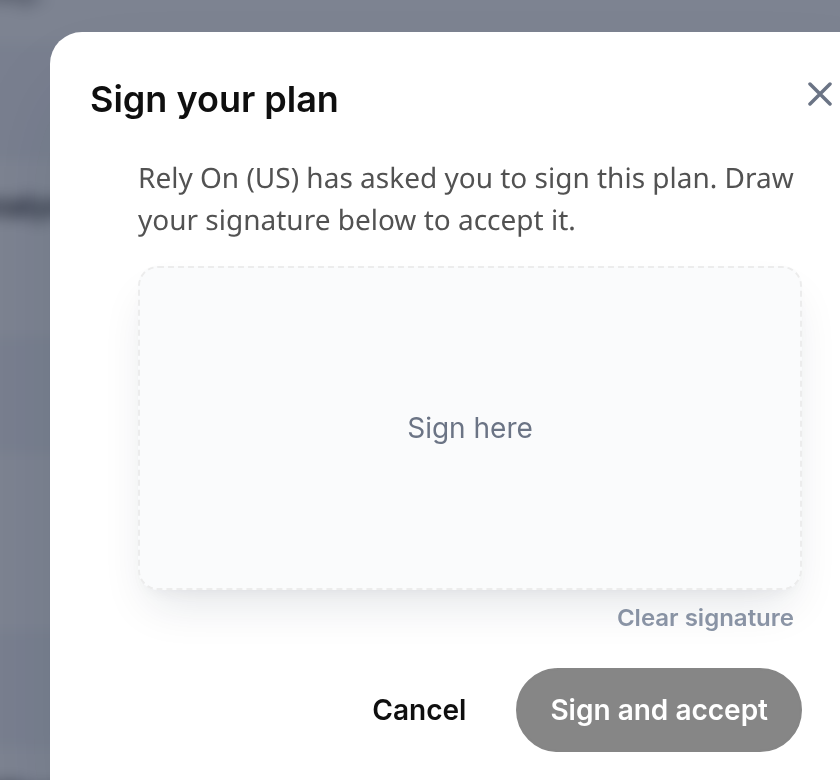
Signing the plan
The signature is saved with the plan. It appears under Client signature on the client's plan, on the plan in Pabau and on the printout.
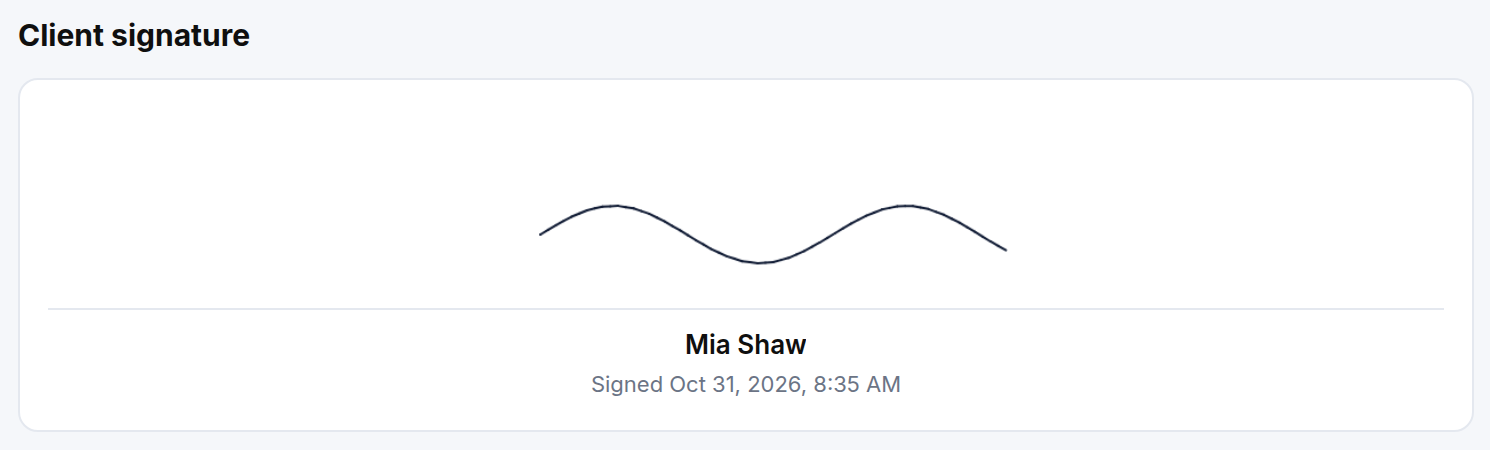
The signed plan
Step 7: Paying for the Plan
Accepting creates the invoice for the plan. The client clicks Pay for plan and pays by card. When the payment goes through, they see their confirmed plan and, if you allowed booking, a Book appointments button to choose times for their visits.
If they paid part of the plan, they see how much is paid and how much is left, and can pay the rest at any time. Packages and bookings unlock once the plan is paid in full.
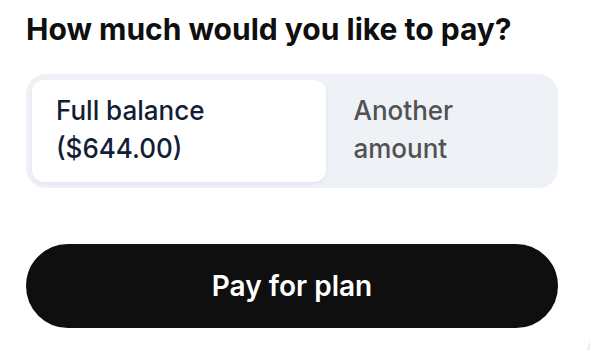
Paying for the plan
IMPORTANT: Once a plan has expired, clients can still view it but cannot accept or pay for it. They are asked to contact you to extend it.
NOTE: If you combined several plans, the client sees that the plan is combined with others and pays for them together in one checkout.
Step 8: What Clients See in My Plans
Signed-in clients find their plans under My Plans in the portal menu, with a tab for each plan type you offer. The Treatment tab lists every treatment plan you have sent them, and they can filter by Open, In progress and Completed.
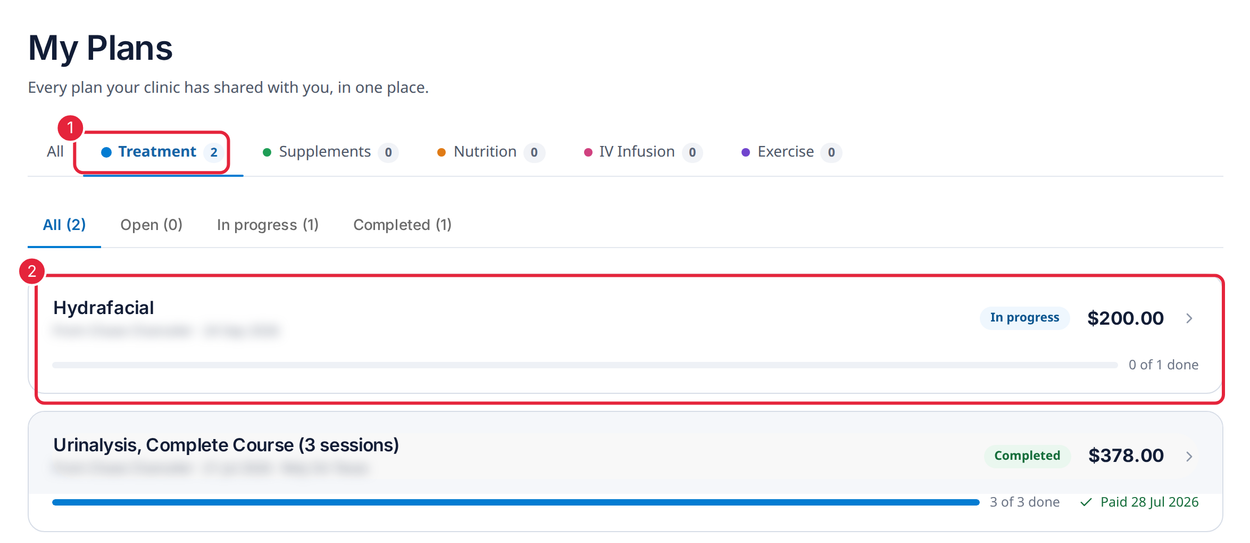
My Plans in the client portal
When a client opens a plan, they see how far along it is, the date it was paid and What's included: each treatment with its sessions and their status, such as Completed, Booked or Date suggested. Progress updates automatically from the client's appointments and packages. On a paid plan, Book a visit lets them book the next session when you allow booking.
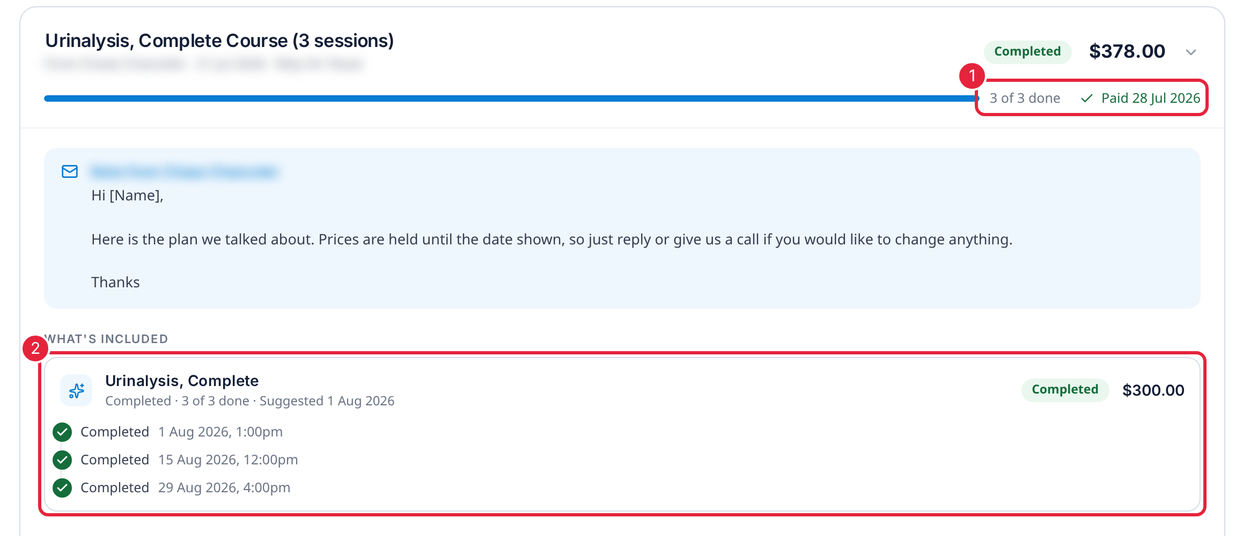
A plan's progress, payment and treatments
What's next?
- How to Build and Send a Treatment Plan: build and send a plan.
- How to Take Payment for a Plan and Book the Visits: take payment at the clinic and book the visits.
- How to Set Up the New Client Portal: every portal feature, your branding and how to share the portal link.
Questions? Reach us any time via the in-app chat. We're happy to help.
Was this guide helpful? Let us know by voting below - your feedback helps us write clearer articles.
For more guides, browse the related articles below or use the search bar at the top of the page. You can also watch our video learning series, the Pabau Academy, or visit the Support page for additional help.