
This guide sets up a GE Voluson 730 to send its images to Pabau.
NOTE: Before you start, install and pair Pabau Imaging Link on a clinic computer, then open Equipment → Add equipment → A machine on the network. Keep the Address, Port and AE title from the card headed Give these to your X-ray engineer to hand. Steps 1 to 3 of Setting up your Ultrasound System walk you through this.
Step 1: Open the DICOM Configuration
- Press Utilities at the top right of the screen, then System Setup.
- Open the Dicom tab and press DICOM Configuration.
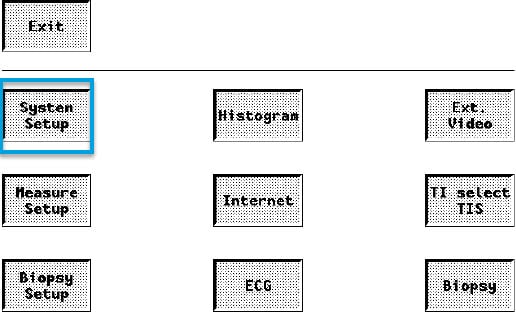
Utilities → System Setup
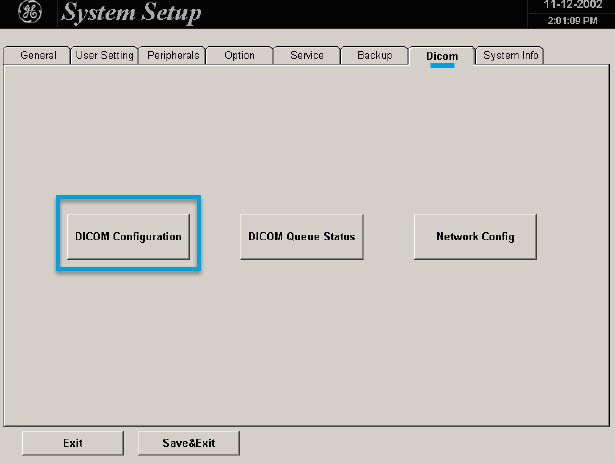
Dicom tab → DICOM Configuration
Step 2: Add Pabau as a Store Destination
- Press Add.
- Set Services to
STOREand fill in:
- Alias:
Pabau - AE Title: the AE title from Imaging Link, typed exactly, for example
PABAU-RECEPTION - IP Address: the Address from Imaging Link, for example
192.168.1.25 - Port: the Port from Imaging Link, usually
11112
Press Save.
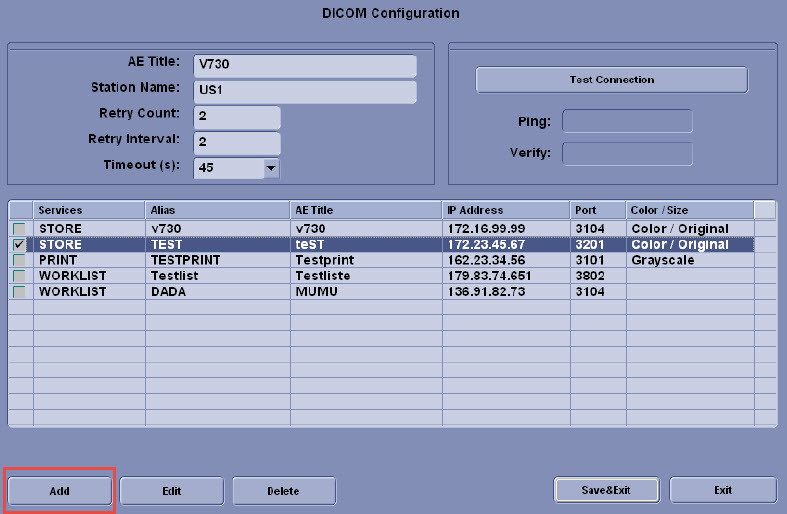
The DICOM Configuration list: press Add
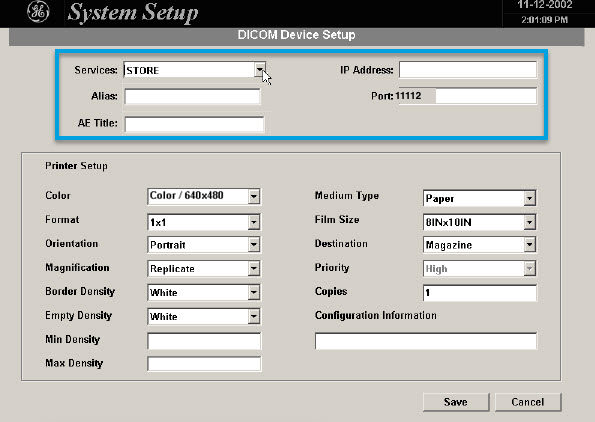
DICOM Device Setup with Services set to STORE
Step 3: Test the Connection and Approve the Machine
- On the machine, select the Pabau destination and press Test Connection. A good connection shows Normal for both Ping and Verify.
- In Imaging Link, A machine got in touch appears. Give the machine a name you will recognise, such as
Ultrasound Room 1, and click Yes, accept its images.
IMPORTANT: Until you click Yes, accept its images, the test passes but every image the machine sends is refused. If the test fails, see Imaging Link Port, AE Title & IP Address.
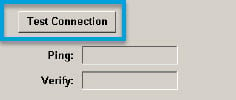
Test Connection runs Ping and Verify
Step 4: Send a Test Image
Select the images to send, open the DICOM Storage dialog and choose Send 2D (or Send 3D for volumes) with Pabau as the destination. The image appears in Pabau under Imaging → Queue, ready to file to the patient with File to a patient.
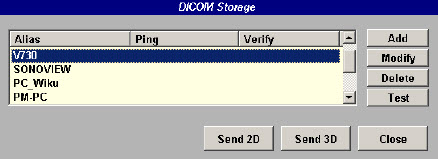
The DICOM Storage dialog: Send 2D or Send 3D
TIP: Press F1 on the Voluson 730 to open its built-in manual if a screen looks different.