
Before a payer will accept electronic claims, send you electronic remittances (ERAs) or answer eligibility checks, many payers want your practice to enroll with them through Claim.MD. Enrollment is one enrollment per payer and service, so a payer can be active for claims while its ERA enrollment is still being approved. In this article, you will learn how to see where each payer stands, start an enrollment, and record enrollments you already have.
NOTE: Insurance billing is currently available for practices in the United States. Before you start, connect Claim.MD, complete your billing profile and link your payers. See Insurance Guide Part 1.
Step 1: See Where Each Payer Stands
Go to Setup → Claims and open Claim.MD. Then:
- Select the Payers tab.
- The summary at the top counts your payers by status: Not enrolled, Partially enrolled, Fully enrolled, Not available (the payer does not support electronic transactions) and insurers not linked yet.
- Click the button on a payer’s row to open its enrollment details. The button says Start enrollment, Complete enrollment or View, depending on where the payer stands.
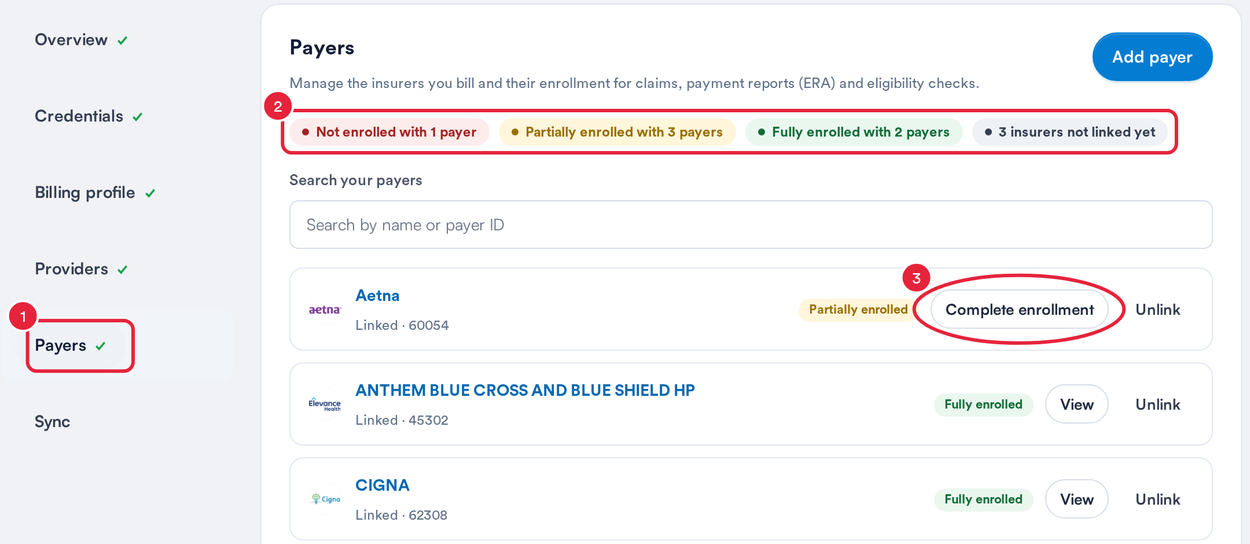
The Payers tab with each payer’s enrollment status
TIP: An insurer showing Find payer is not linked to Claim.MD yet, so it cannot be enrolled. Link it first with Find payer, or add a new payer with Add payer.
Step 2: Start or Record Each Enrollment
The enrollment panel shows the payer’s three services, Eligibility, Claim filing and ERA payment reports, with a progress bar across the top.
- Each service shows its status (see the table below).
- For a service marked Enrollment required, click Enroll. The payer’s Claim.MD enrollment form opens in a new tab. Fill it in and submit it there.
- If you are already enrolled with this payer, for example through your previous billing system, click Already enrolled instead.
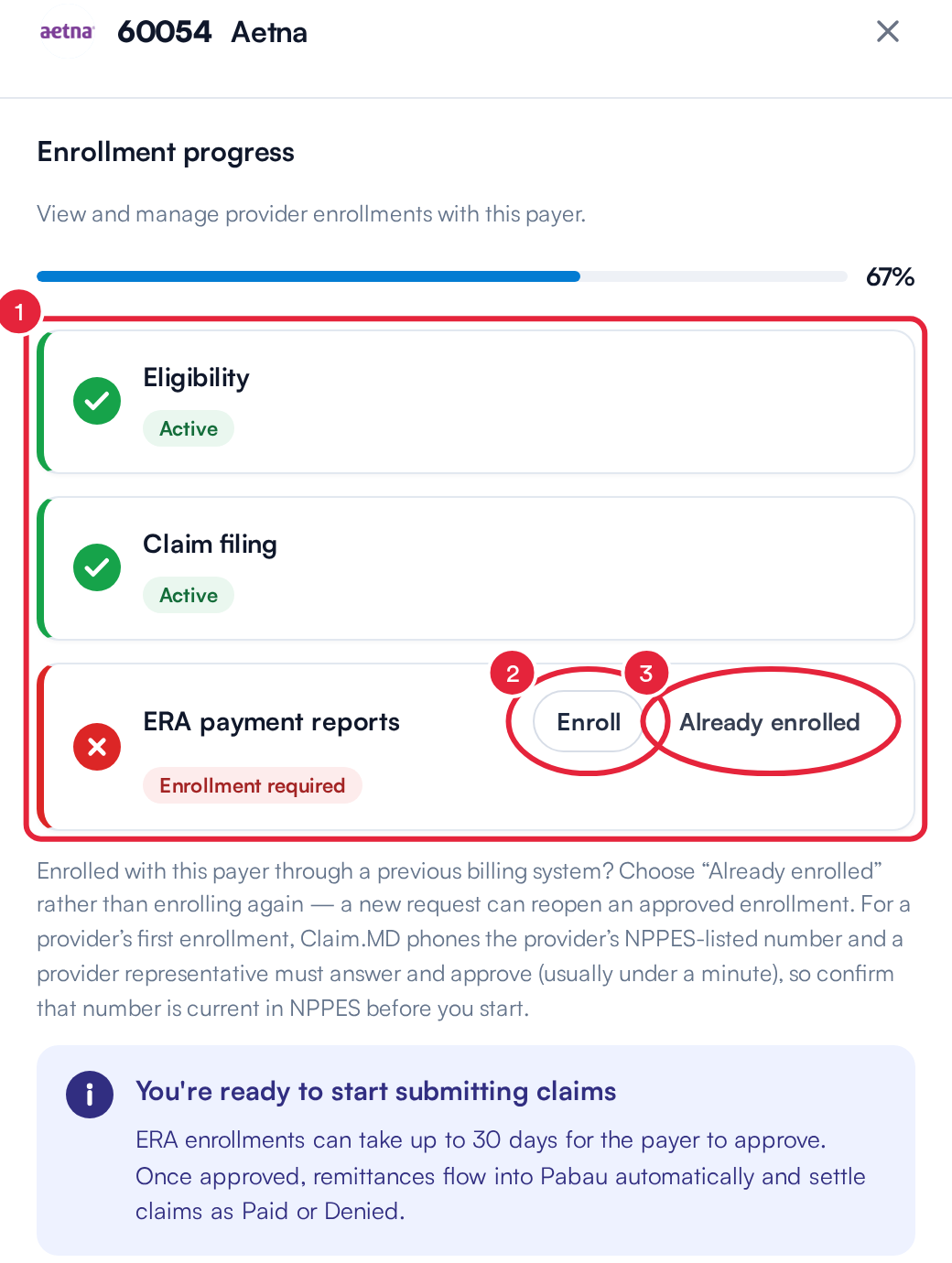
A payer’s enrollment panel: Enroll or Already enrolled
WARNING: Do not click Enroll for a payer you are already enrolled with. A new enrollment request can reopen an approved enrollment and pause your claims or payments with that payer. Use Already enrolled instead.
IMPORTANT: The first time a provider enrolls, Claim.MD phones the number listed for that NPI in the national provider registry (NPPES). Someone who can approve on the provider’s behalf must answer and approve the call, which usually takes under a minute. Check the number in NPPES is current before you start.
| Status | What it means | What to do |
|---|---|---|
| Active | The service is live with this payer. Some payers do not need an enrollment for a service, so it shows as active straight away. A service you recorded with Already enrolled shows “enrolled outside Pabau”. | Nothing. |
| Processing | You submitted an enrollment and the payer has not approved it yet. The date it was submitted is shown. | Wait for the payer, and check progress in the Claim.MD portal. When Claim.MD shows it approved and Pabau still says Processing, click Mark active. |
| Enrollment required | The payer needs an enrollment before this service works. | Click Enroll, or Already enrolled if you enrolled elsewhere. |
| Not available | The payer does not offer this service electronically. | Nothing. Use paper or the payer’s own portal for this service. |
| Unknown | Pabau could not load this payer’s live details. | Click Refresh payer details in the panel. |
Step 3: Start Submitting Claims
As soon as Claim filing is active or processing, the panel shows You're ready to start submitting claims. Many payers accept claims before the ERA enrollment is approved.
ERA enrollments can take up to 30 days for the payer to approve. Once approved, remittances arrive in Pabau and settle your claims as paid or denied.
Who Is Enrolled
Under Enrolling entity, the panel shows who the enrollment is for. Enrollments are made for the billing entity (your group NPI and Tax ID) from your billing profile.
If a practitioner bills under their own NPI and Tax ID (set on their profile under Setup → Claims → Claim.MD → Providers), Claim.MD treats them as a separate provider with separate enrollments. An Enrolling as menu then appears at the top of the panel, so you can choose the practice or that practitioner before you enroll.
NOTE: Requirements vary by payer. Some accept claims with no enrollment at all, some enroll you for ERA automatically once you start submitting, and some take several weeks. Claim.MD shows each payer’s requirements in its payer list.
What's next?
- Insurance Guide Part 1: Set up the insurance essentials in Pabau
- Request eligibility and benefits report
- Automatic checks for new remittances (ERAs)
- How long does it take to process ERA and claims?
Was this guide helpful? Let us know by voting below - your feedback helps us write clearer articles.
For more guides, browse the related articles below or use the search bar at the top of the page. You can also watch our video learning series, the Pabau Academy, or visit the Support page for additional help.