
The Deposits report lists every deposit your clinic has taken to secure a future appointment. Each row is a card payment taken through Pabau (Stripe), shown alongside the appointment it protects and the invoice it was paid against — so you can see the service, staff member, and client right next to the money collected.
NOTE: This is a read-only report for viewing and reconciling only. Nothing here changes a booking, invoice, or payment.
How to find it
Step 1: Open Reports
Log in to your Pabau account. In the left sidebar, hover over Analytics and click Reports. The reports catalogue opens, with every report you have access to.
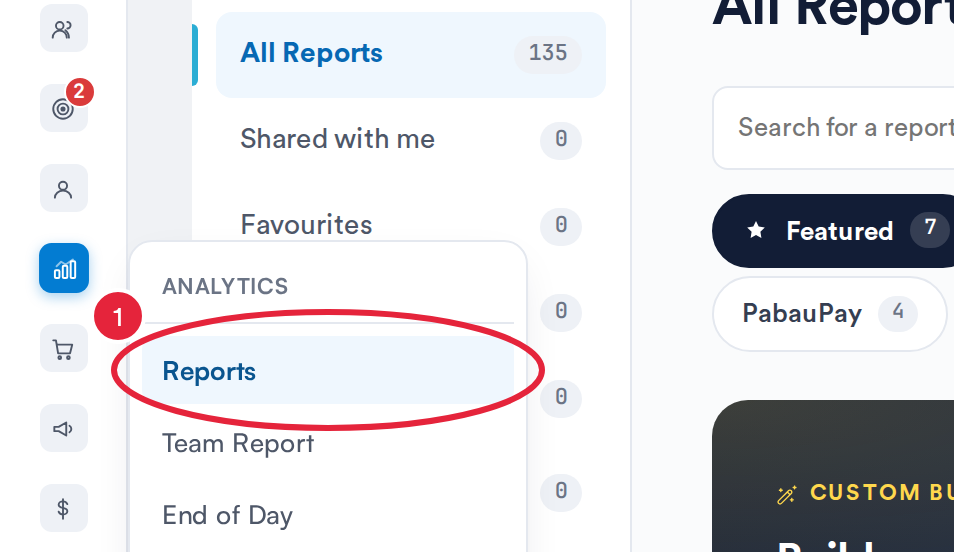
Analytics → Reports opens the reports catalogue
Step 2: Open the Report
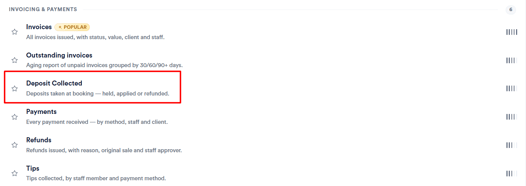
Click the Sales & Finance tab, then click Deposit Collected in the Invoicing & payments section to open the report. You can also type the report’s name in Search for a report.
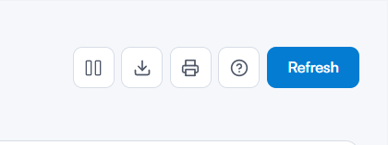
Toolbar controls
| Button | What it does |
|---|---|
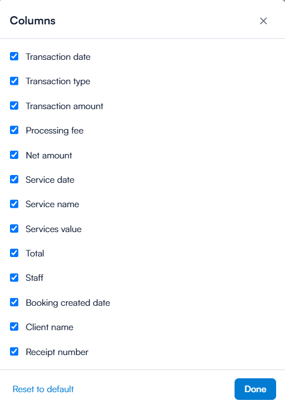
| Columns | Choose which columns appear. Your selection is remembered for next time. |
| Export | Downloads the entire filtered set — every page in the chosen date range, not just the rows on screen — as a CSV file. |
| Prints in landscape so the wide table isn't clipped. | |
| Help | Opens an in-app help panel with the same definitions covered in this article. |
| Refresh | Reloads the data. |
Filters
- Dates – Scopes the report to deposits taken within a date range. Defaults to the last 30 days when the report opens.
- Location – Narrows the report to a single clinic site.
- Search – Free-text search by client name, service, staff member, or receipt number.
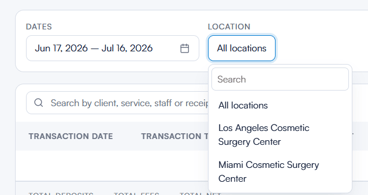
NOTE: "All locations" means all the locations that staff member is allowed to see, not necessarily every site on the account. You'll only ever see deposits for branches you have permission to access — this is the same access rule the Analytics Payment report uses, so the two always agree.
Understanding the report
What counts as a "deposit"
A row only appears when all of the following are true:
- The payment was a completed card charge taken through Pabau — abandoned or failed attempts are excluded.
- The amount charged was greater than zero.
- The charge was taken against a deposit invoice (the "ACC…" style deposit receipt), not a regular full-sale payment.
So this report doesn't list every card payment — only genuine deposits. Regular sale payments belong in the Sales/Payments reports.
The table columns
| Column | What it shows |
|---|---|
| Transaction date | Date and time the deposit was charged, shown in your clinic's timezone. |
| Transaction type | Always "Deposit" on this report. |
| Transaction amount | The gross amount the client was charged. |
| Processing fee | The card processing fee (Stripe), shown as a negative figure. |
| Net amount | What the clinic actually received after the processing fee. |
| Service date | Date and time of the appointment the deposit secures. |
| Service name | The service(s) booked. |
| Services value | The estimated value of the booked service(s). |
| Total | The full appointment value the deposit secures — not the deposit amount. |
| Staff | The staff member the appointment is booked with. |
| Booking created date | When the booking was made. |
| Client name | The client who paid the deposit. Click it to open that client's card in a pop-up. |
| Receipt number | The invoice/receipt reference for the deposit. |
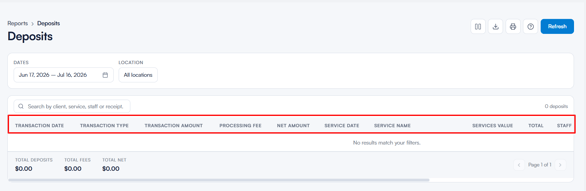
Please note:
- Processing fee / Net amount – these show the actual Stripe figures for recent deposits, but for older deposits (taken before Pabau began recording exact Stripe figures), the report falls back to an estimate based on the configured fee percentage. Fee and net are worked out independently, so occasionally one is exact and the other is an estimate.
- Total – this shows the full appointment value, not the deposit itself. For example, if a client pays a £50 deposit on a £325 treatment, Total shows £325 — the deposit amount is in the Transaction amount column.
- Receipt number – if this shows "No payment linked (pi_…)" instead of a normal reference, it means the money was taken in Stripe but a matching Pabau payment record was never written back, so the only reference held is Stripe's own charge ID. This is a flag to check in Stripe, not a report error.
The footer totals
At the bottom, the report sums the whole filtered set — every page in the date range, not just what's on screen:
- Total Deposits – gross amount collected.
- Total Fees – total processing fees.
- Total Net – total received after fees.
All amounts use your clinic's account currency, so everything reads in one consistent currency symbol.
Clicking into a deposit
- Clicking anywhere on a row (except the client name) opens the Analytics Payment report for that specific deposit, in a new tab.
- Clicking the client name opens that client's card in a pop-up.
By following these steps, you can use the Deposits report to see exactly which deposits have been taken, what they secure, and how they reconcile with your Stripe payouts.
Was this guide helpful? Let us know by voting below - your feedback helps us write clearer articles.
For more guides, browse the related articles below or use the search bar at the top of the page. You can also watch our video learning series, the Pabau Academy, or visit the Support page for additional help.