
Step 1: Access Calendar
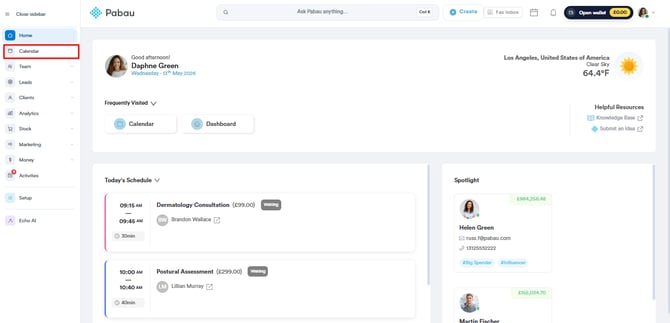
First, log in to your Pabau account, and in the left sidebar menu, click on Calendar.
Step 2: Access Calendar Settings
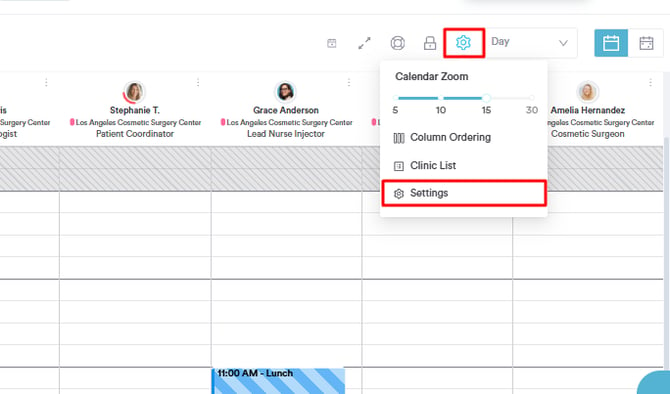
To reach the Calendar settings, click on the cogwheel icon located in the top right corner, then choose "Settings."
Once you're in Calendar Settings, you can select where you want to make changes:
-
Configuration: Determine which day marks the beginning of your workweek and set the start and end times for each day. Choose the size of the timeslots available for booking appointments on the calendar. Additionally, choose whether you want appointments to be automatically marked as completed once an invoice is raised.
-
Appointment settings: Choose which of the client notifications should be sent or scheduled by default when booking appointments. Additionally, select whether you wish to allow overlapping appointments.
-
Appearance: Customize which appointment details will be displayed in the appointment creation menu and in the appointment tooltip. To change the information displayed, click on Edit and check or uncheck the available fields.

The fields you select in the appointment tooltip tab will be displayed when hovering over an appointment in the calendar.

Within the General section of the Appearance tab, opt to display staff initials instead of full names in the calendar view. Additionally, you can hide client last names and appointment times.
In the "Font size" section, select the desired size for the letters displayed in your calendar.
Once you've adjusted the calendar settings to your preference, simply click "Save Changes" located in the top right corner.
With these steps, you can easily customize your calendar settings to fit your workflow.
Can I book appointments shorter than 15 minutes?
Yes. The appointment lengths you can pick when booking go up in steps of your calendar's Time slot size. If the shortest length you can choose is 15 minutes, your time slot size is set to 15 minutes.
To book 5- or 10-minute appointments, go to Calendar → cogwheel icon → Settings → Configuration, set Time slot size to 5 minutes or 10 minutes, and click Save Changes. The options are 5, 10, 15, 20 and 30 minutes.
NOTE: The time slot size applies to everyone in your clinic, not just you. It also changes the calendar grid: each row of the day view represents this many minutes, so a smaller slot size makes the day taller.
Where this comes from: when you pick a service, the length is preselected from that service's own duration, even if it is shorter than one slot. To change a service's default length, edit the service in your services list.
What's next?
Was this guide helpful? Let us know by voting below - your feedback helps us write clearer articles.
For more guides, browse the related articles below or use the search bar at the top of the page. You can also watch our video learning series, the Pabau Academy, or visit the Support page for additional help.