
The Microsoft Dynamics 365 Business Central integration keeps your Pabau clients in step with the customer records in Business Central. When you create or edit a client in Pabau, the change is pushed to Business Central automatically — as a customer create or update — in near real time, so your finance team always sees the same client details you do.
This is a connector inside Pabau's Data Sync tool. If you're new to Data Sync, read How Data Sync works in Pabau first for the general concepts (triggers, mapping, the delivery log and retries). This guide covers everything specific to Business Central.
Note: The connector syncs the client / customer object. It sends Pabau clients to Business Central; it does not sync invoices, appointments, products or financial transactions. You need administrator access in Pabau to set it up.
What the connector does
- Creates a Business Central customer when a client is created in Pabau.
- Updates the matching customer when a client is edited in Pabau.
- Optionally blocks the customer in Business Central when a client is deleted in Pabau (blocking is recommended over deletion, and is off by default).
- Optionally creates new Pabau clients from Business Central customers (off by default — best left off for large customer books).
Before you start — what you need from your IT team
Business Central authenticates Pabau using a Microsoft Entra ID app registration (a "service-to-service" or S2S connection). Your Business Central administrator needs to provide:
- Directory (tenant) ID — the Entra ID directory of your Business Central tenant.
- Application (client) ID — the Entra ID app registration granted Business Central API access.
- Client secret — the secret for that app registration.
- Company ID — the Business Central company GUID (from the companies endpoint).
- The environment name (for example Production, or the name of a sandbox).
Your IT team must also grant the app registration permission to read and write customers via the Business Central API, and grant admin consent for it in Entra ID. If your tenant publishes its own custom customer web service (custom OData pages) instead of the standard API, you'll also need the company name and customer page name used to address that service.
Tip: Ask your Business Central provider for the "integration onboarding pack." It contains exactly the values above. Keep the client secret secure — you only ever paste it into Pabau once, and it's stored encrypted.
Step 1: Connection settings
In Data Hub > Data Sync, select Add connector, choose Microsoft Dynamics 365 Business Central, and select Set up. On the Settings tab, fill in the fields your IT team supplied.
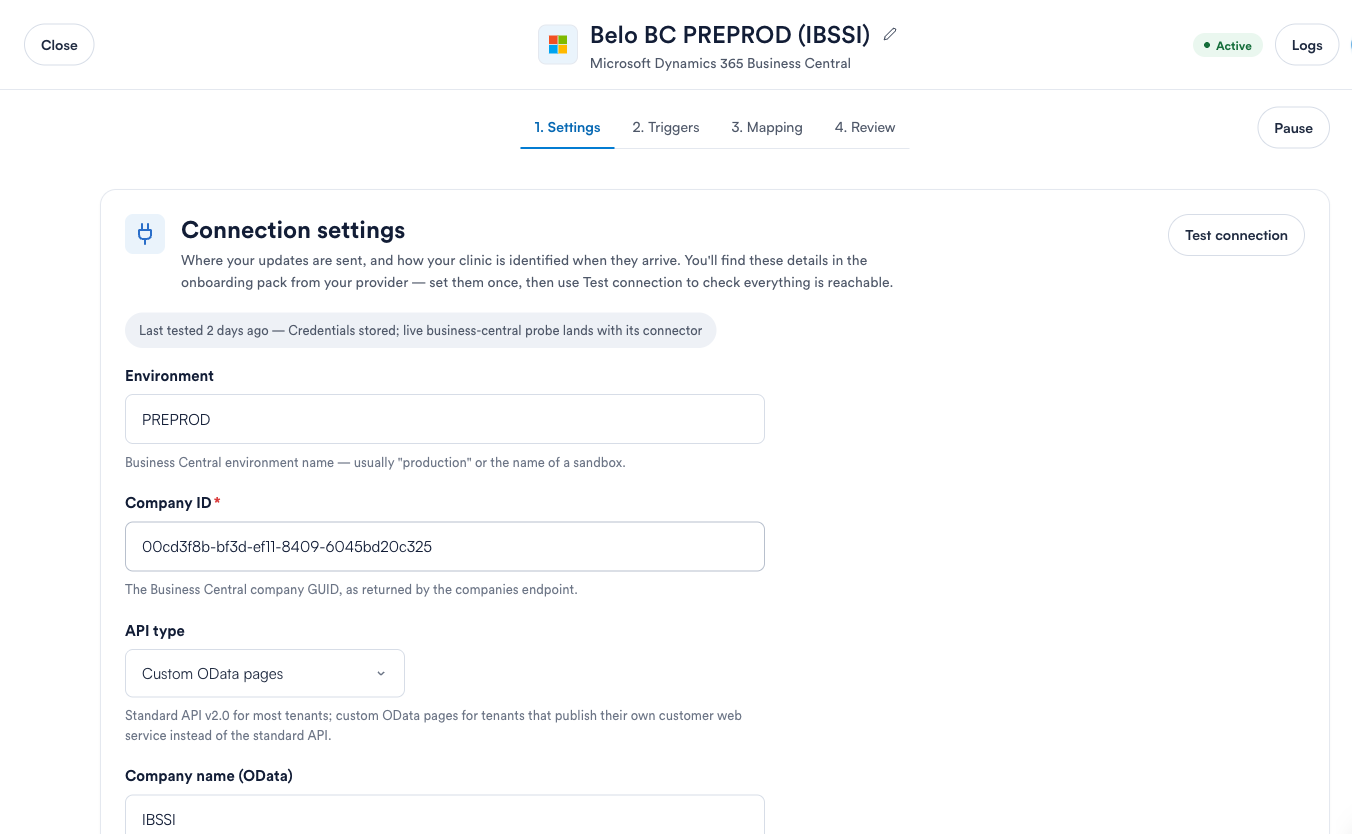
The settings you'll see:
- Environment — the Business Central environment name, usually production or a sandbox name.
- Company ID — the Business Central company GUID.
- API type — Standard API v2.0 for most tenants, or Custom OData pages for tenants that publish their own customer web service.
- Company name (OData) and Customers page name (OData) — required only for custom OData pages, e.g.
Company('IBSSI')andCustomerAPI. - Customer number — Automatic lets Business Central assign the customer number; Generate from Pabau id builds the number from the Pabau client id (required on tenants whose integration user can't run the number series).
- Customer number prefix — the prefix for generated numbers (up to 10 characters), e.g.
ZPAB. - On client delete — Block the customer (recommended) or Delete the record (only if your Business Central permissions allow deletion).
- Create on first update — when on, editing a client that has never synced creates the customer in Business Central instead of skipping it.
- Create new clients from Business Central customers — when on, Business Central customers that match no existing client are created as new Pabau clients (maximum 25 per poll). Leave off for large customer books.
- API base URL — an optional override for sovereign clouds or proxies; leave blank otherwise.
Enter the three credentials (tenant ID, client ID, client secret) in the Credentials section, then select Test connection. Pabau stores the credentials encrypted and confirms they've been saved.
Step 2: Triggers
On the Triggers tab, choose which Pabau events are pushed to Business Central. For this connector the client events map like this:
client.create→ Create or update customerclient.update→ Create or update customerclient.delete→ Block customer on delete
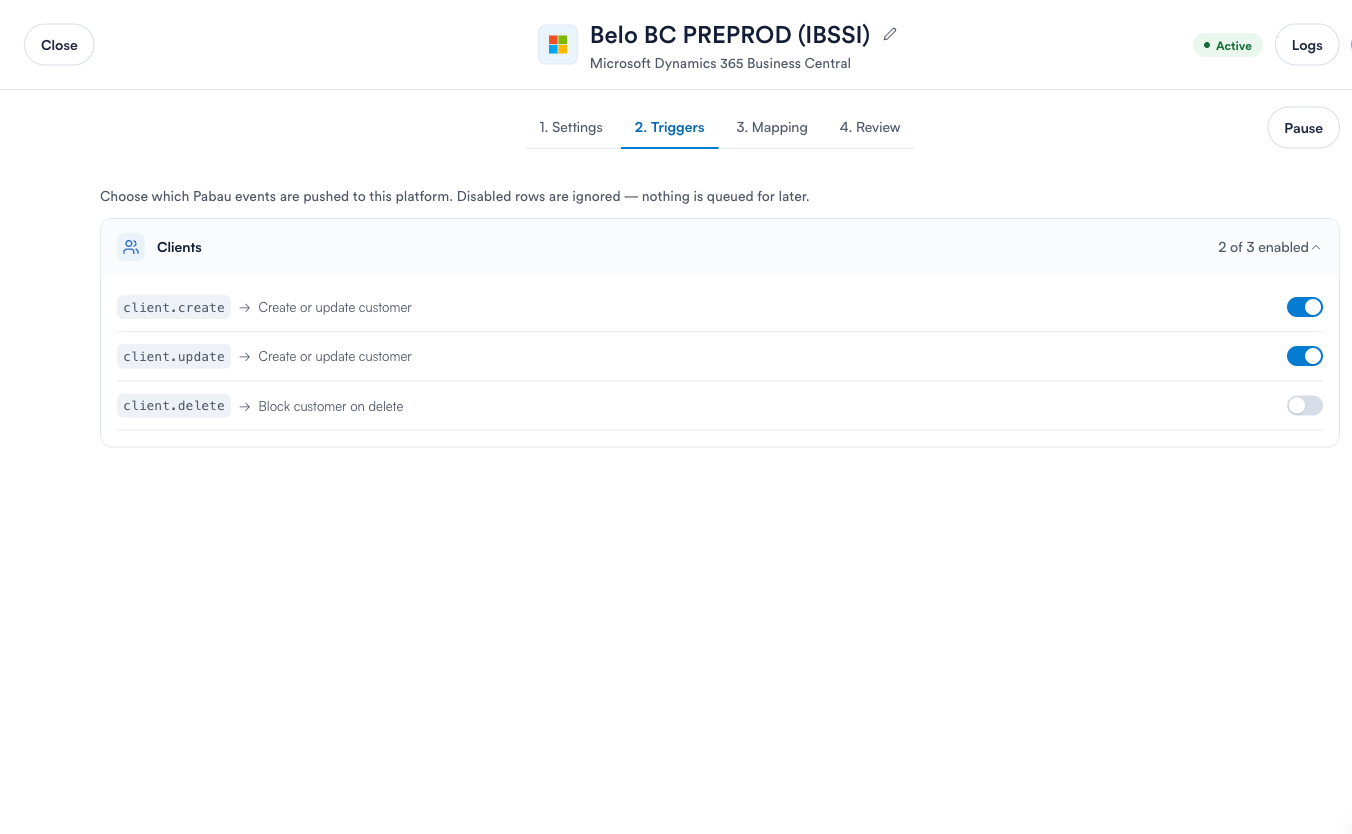
Note: client.delete is off by default. Turn it on only if you want a deleted Pabau client to block the corresponding Business Central customer, and only if your Business Central permissions allow the block operation.
Step 3: Field mapping
On the Mapping tab, expand Customers to see how Pabau client fields map to Business Central customer fields. Field names default to the standard API — if your tenant uses custom OData pages, retarget each destination field to your custom page's field name using the dropdowns.
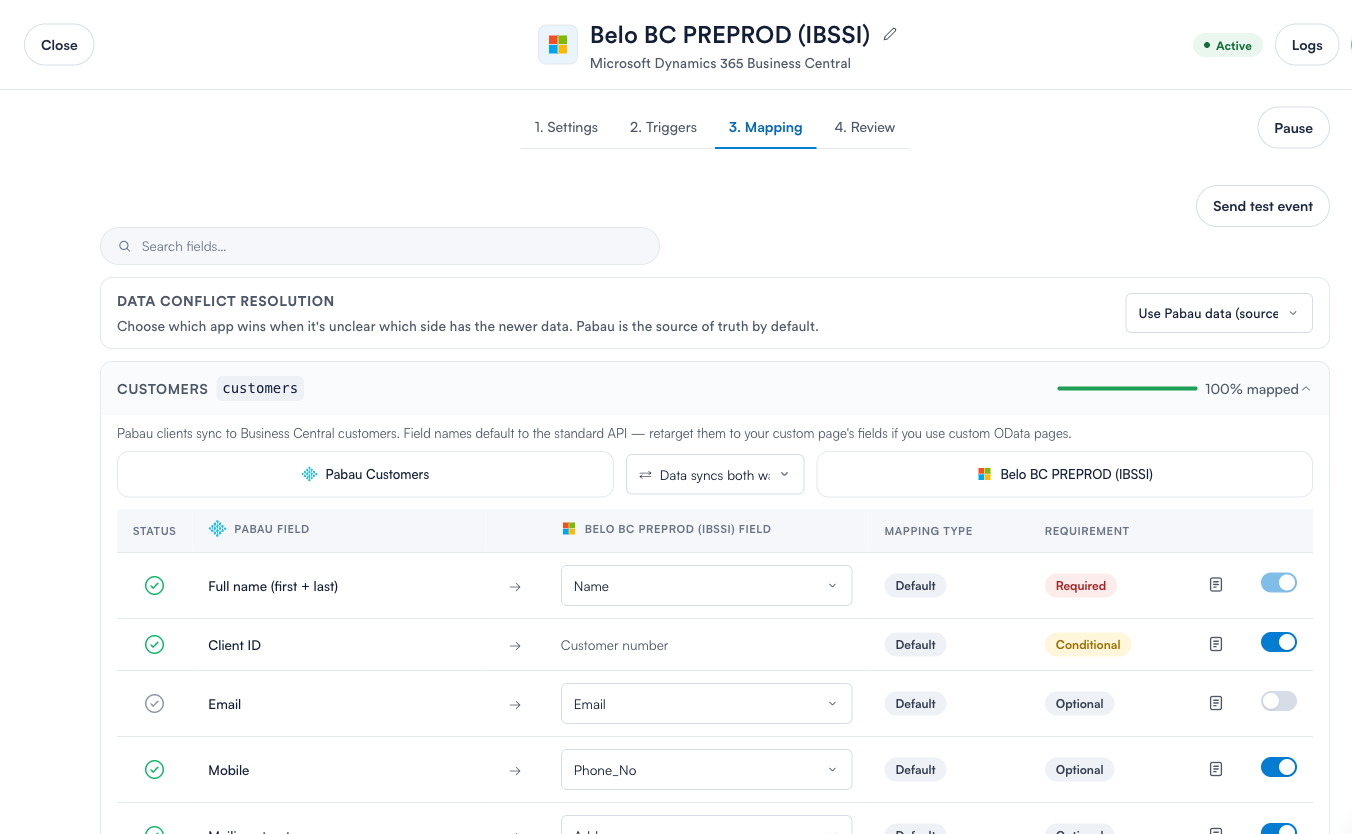
The default mapping is:
- Full name (first + last) → Name (required)
- Client ID → Customer number (used when "Generate from Pabau id" is set)
- Mobile → Phone number
- Mailing street → Address
- Mailing city → City
- Mailing county → County
- Mailing postcode → Post code
- Email → Email (optional — see the note below)
Important: Turn a field off if your Business Central tenant rejects writes to it. Business Central applies an update as a single request, so if one mapped field is rejected the entire update fails — including the fields that would have been fine. If a specific field (for example Email) is consistently rejected by your tenant's validation, switch it off in the mapping until your IT team resolves it on the Business Central side.
Step 4: Link existing records (recommended before go-live)
If you already have customers in Business Central and clients in Pabau for the same people, run Link existing records before you rely on the sync. It matches records that already exist on both sides and links them, so future edits update the right record instead of creating duplicates. It only writes links — it never creates or changes records on either side — and it always runs as a dry run first so you can review a full report before anything is linked.
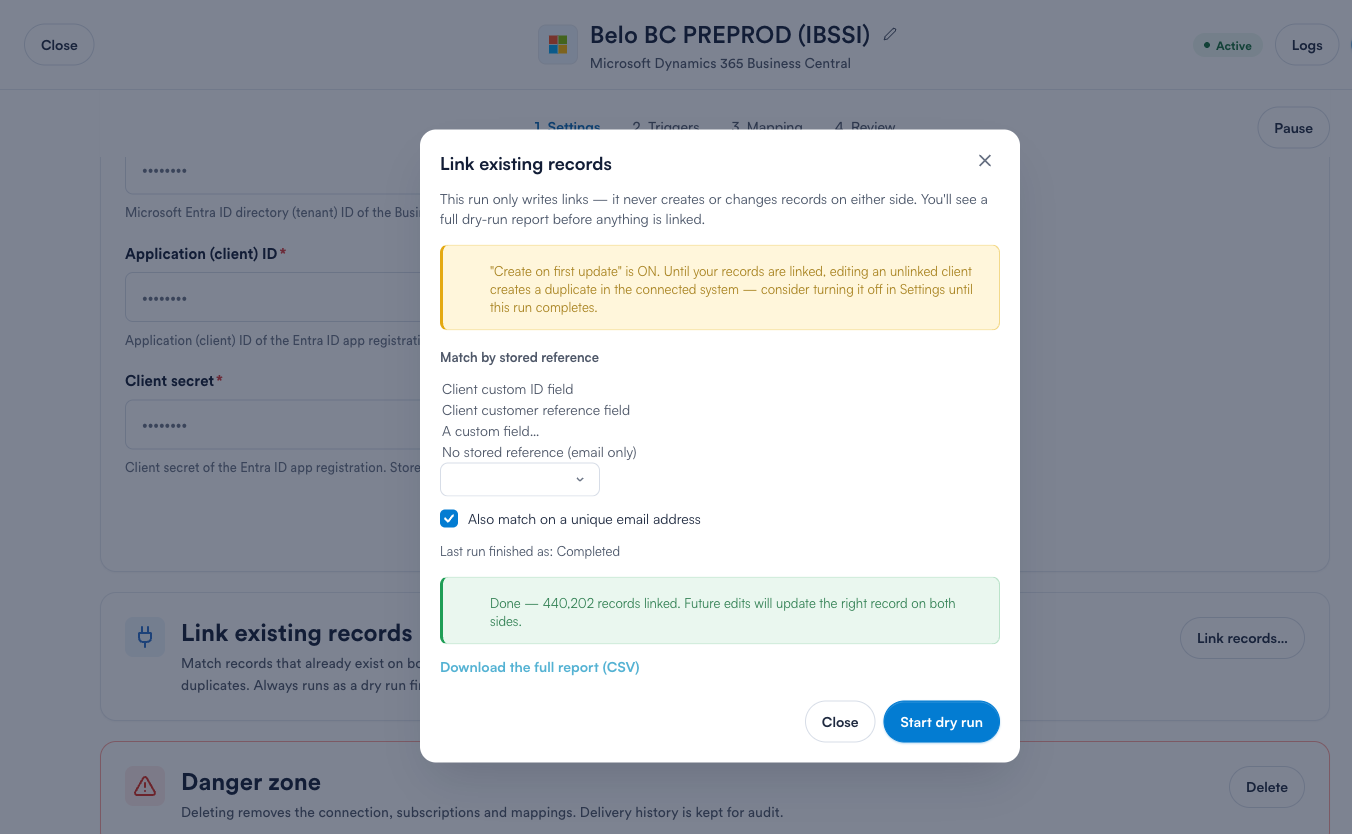
You choose how records are matched — by a stored reference (such as the client's custom ID or customer reference field) and, optionally, by a unique email address as a fallback. The dry run produces a downloadable CSV report showing how many records matched, how many were ambiguous (left unlinked on purpose), and how many were unmatched. When you're happy, confirm the run to write the links.
Important: If Create on first update is on while your books are still unlinked, editing an unlinked client will create a duplicate customer in Business Central. Consider turning it off in Settings until the linking run has completed, then turn it back on.
Step 5: Test it end to end
On the Mapping tab, select Send test event, choose client.create or client.update, and select Send test. Pabau picks a real client, pushes it through the live pipeline, and records the result in the log labelled as a test. Open the Logs to confirm it succeeded, then check the customer appears (or is updated) in Business Central.
Troubleshooting: reading failures in the delivery log
Open Logs on the connector to see every delivery. Select any failed row to see the exact request Pabau sent, the response Business Central returned, and the correlation ID.
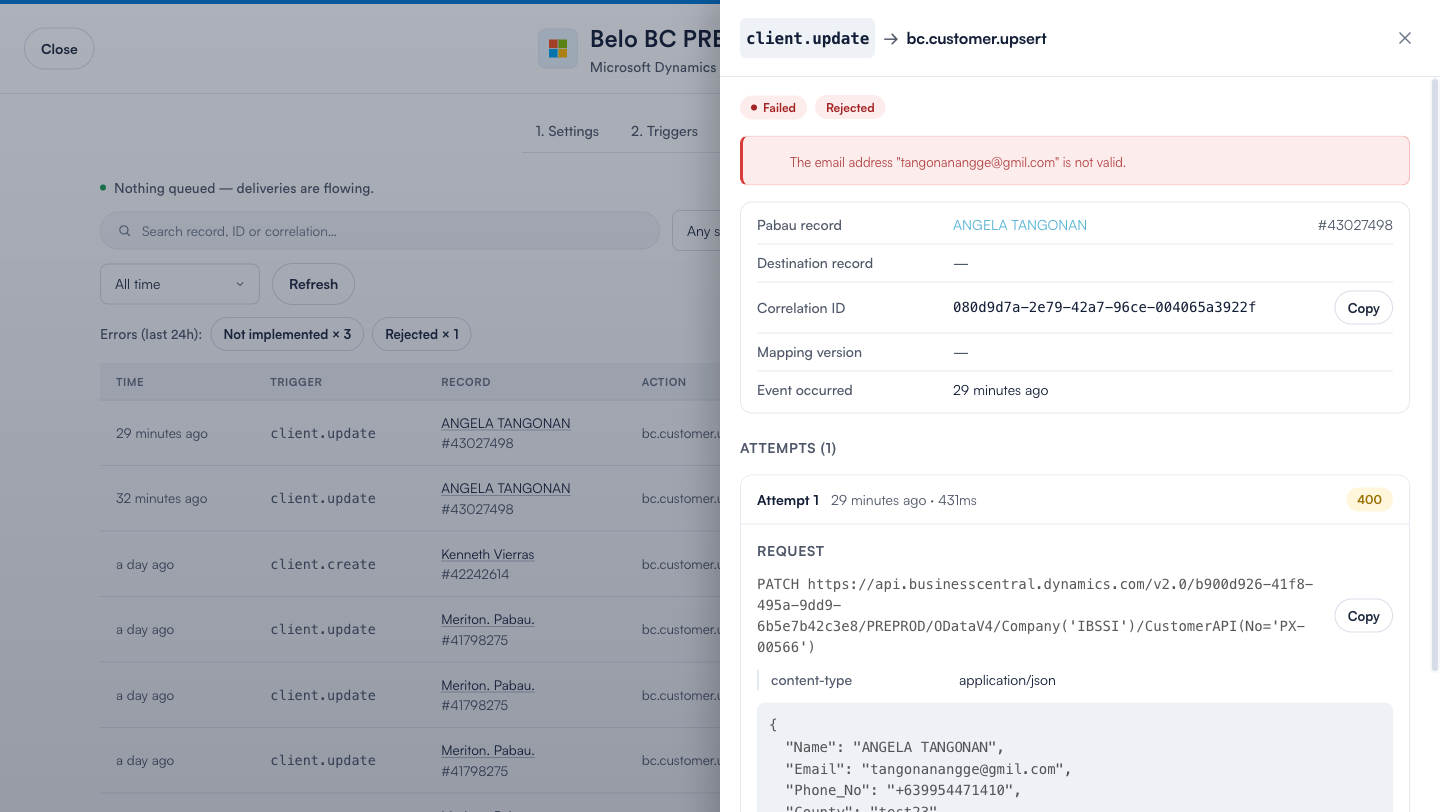
The most common outcomes, and what they mean:
Rejected (HTTP 400)
Business Central refused the data. The response message tells you exactly why — for example, "The email address … is not valid." This is a permanent failure (Pabau won't retry it) because retrying the same data would fail again. Fix the data in Pabau, or ask your IT team to relax the validation in Business Central, then re-send with Sync latest data. If a whole field is always rejected, turn it off in the mapping (see the mapping note above).
Authentication failed (HTTP 401 / 403)
Business Central didn't accept Pabau's credentials, or the app registration isn't permitted to read/write customers. Ask your IT team to confirm the app registration has Business Central API access, that admin consent has been granted in Entra ID, and that the permission sets don't exclude the customer API pages. Re-enter the credentials on the Settings tab if they've been rotated.
Rate limited (HTTP 429)
Business Central asked Pabau to slow down. This is temporary — Pabau backs off and retries automatically. No action needed unless it persists.
Server error (HTTP 5xx)
A problem on the Business Central side. Temporary — Pabau retries automatically on a widening schedule for up to 8 attempts.
Network error
Pabau couldn't reach Business Central at all (a timeout or connection problem). Temporary — Pabau retries automatically.
Not implemented
A rare, temporary state seen only briefly during a Pabau platform update, when the connector's runtime hasn't finished rolling out. It clears itself on the next attempt or the next automatic sweep; if you see it persist, re-send the delivery with Sync latest data or contact support.
Note: After Pabau tries a temporary failure 8 times without success, it stops and marks the delivery failed. You can always re-send it manually from the delivery detail once the underlying problem is fixed.
Re-sending a failed delivery
From a failed delivery's detail panel, choose one of:
- Replay original payload — re-send exactly what was sent before. Use this when the data was fine and the problem was on the Business Central side (for example a permission that has now been granted).
- Sync latest data — rebuild the request from the client's current values and send that. Use this when you've corrected the client's data in Pabau since the failure.
Tip: When raising a support ticket about a Business Central sync, include the Correlation ID from the delivery detail. Business Central also returns its own correlation ID inside the error message — sharing both lets your IT team and Pabau trace the same request from each side.
Related articles
- How Data Sync works in Pabau