
Table of Contents:
1. What the Lights Mean (LED Guide)
2. Payment Sounds
3. Troubleshooting BBPOS WisePOS E Reader
4. Common Issues & Fixes
5. Reader Software Updates
6. Understanding Reader Software Versions
7. Need Help?
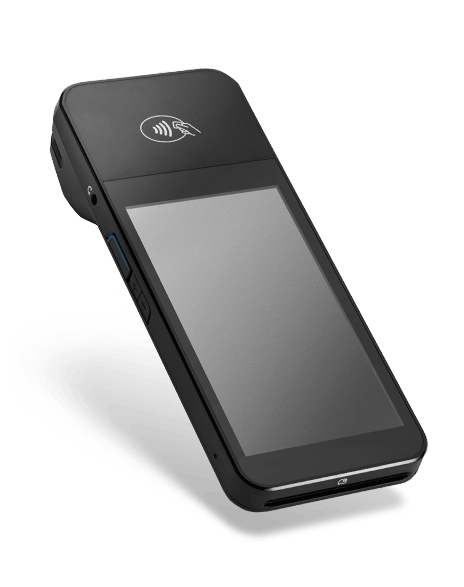
The WisePOS E is a countertop payment reader that works over WiFi or Ethernet and connects seamlessly to Pabau Pay through Stripe.
What the Lights Mean (LED Guide)
The WisePOS E has LED indicators above the display. These help you quickly understand what the device is doing.
-2.png?width=670&height=194&name=image%20(11)-2.png)
Power Status
-
When you hold the power button for 2 seconds, the device powers on.
-
The right LED array will flash briefly to confirm it has turned on.
Battery & Charging
The left LED strip shows battery status:
-
Lights on → Charging or fully charged
-
First LED red → Charging issue (check the cable or outlet)
Reader Status
The right LEDs indicate the device’s operating state:
-
Flashing lights → Bootloader mode
-
Solid red pattern → Reader integrity/tamper issue
-
Flash every 2 seconds → Hardware fault (may need replacing)
Payment Sounds
Here’s what you can expect during a transaction:
| Action | Tap | Chip | Swipe |
|---|---|---|---|
| Success | 1 long high beep | No sound | No sound |
| Failure | 1 long high beep | No sound | No sound |
Troubleshooting the WisePOS E Reader
Before anything else, make sure your network meets the requirements for Stripe Terminal.
If something isn’t working, here are the recommended steps.
How to Run Diagnostics
Use built-in diagnostics to quickly detect connectivity or configuration issues.
How to access Diagnostics:
-
Swipe in from the left edge of the reader’s screen.
-
Tap Settings.
-
Enter passcode → 07139 (default).
-
Select Diagnostics.
The diagnostics page will show:
-
DNS Resolution
-
Stripe Connectivity
-
Terminal Events Connectivity
-
WiFi Strength
-
Battery & Hardware Status
NOTE: If the Stripe Connectivity test fails, the reader will not process payments.
Run the network troubleshooting steps to restore the connection.
Common Issues & Fixes
Reader won’t connect to WiFi
Go to Settings → WiFi Settings
-
Select your network
-
Check signal strength
-
If issues continue, run Diagnostics → Stripe Connectivity
Reader won’t connect via Dock (Ethernet)
-
Both cables must be plugged in before docking the reader
-
Remove the reader and dock it again
-
Run Diagnostics if still not connecting
Reader won’t update
This almost always means it can’t reach Stripe servers.
-
Run Diagnostics → Stripe Connectivity
-
If the test fails → Review your router/network configuration
-
Reboot the reader to trigger an update check
Reader Software Updates
Stripe automatically sends updates to your WisePOS E. These include:
-
Security patches
-
Performance improvements
-
ROM / firmware updates
NOTE:
- The reader restarts every midnight (PCI compliance)
- Leave it plugged in overnight so updates install automatically.
- If unplugged, updates may begin when powered back on
- You can force an update by restarting the reader manually
Understanding Reader Software Versions
The software contains four components:
-
Reader application
-
Firmware
-
Configuration
-
ROM version
You can view all version numbers in Settings → Diagnostics.
Need Help?
If you need any help setting up the card terminal, refer to this guide.
If your reader shows hardware/tamper warnings or repeatedly fails diagnostics, contact Pabau Support with:
-
Reader serial number
-
Screenshot of diagnostics (if possible)