
When appointment dates appear in Engage messages, they are recognised and shown as underlined smart links — so both your team and your clients can see at a glance which date a message refers to. This article explains where you will see them.
Dates in Incoming Messages
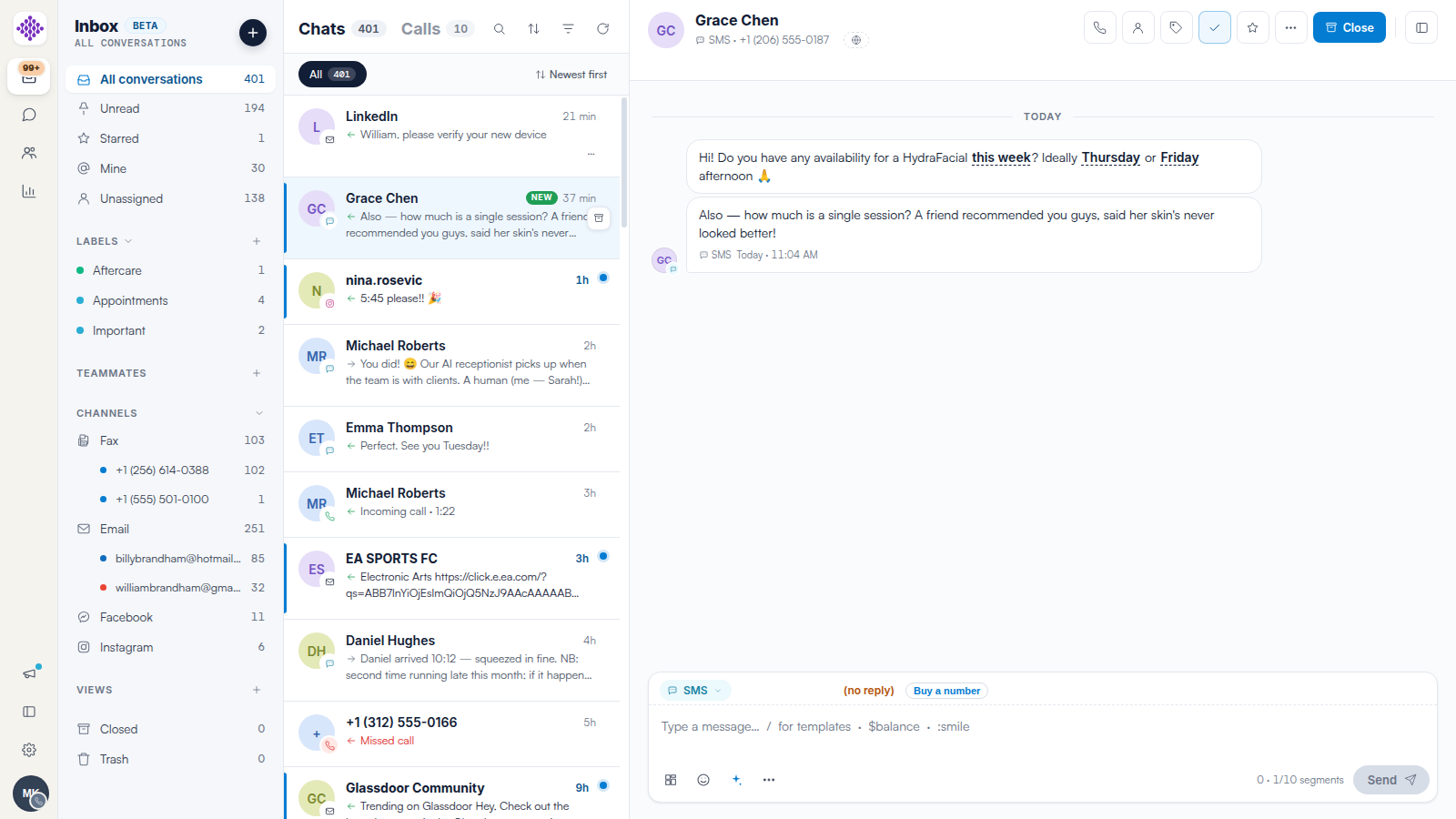
When a client writes "Ideally Thursday or Friday afternoon", the dates are underlined in the conversation. Your team can immediately see the requested day without re-reading the whole thread.
Dates in Outgoing Messages
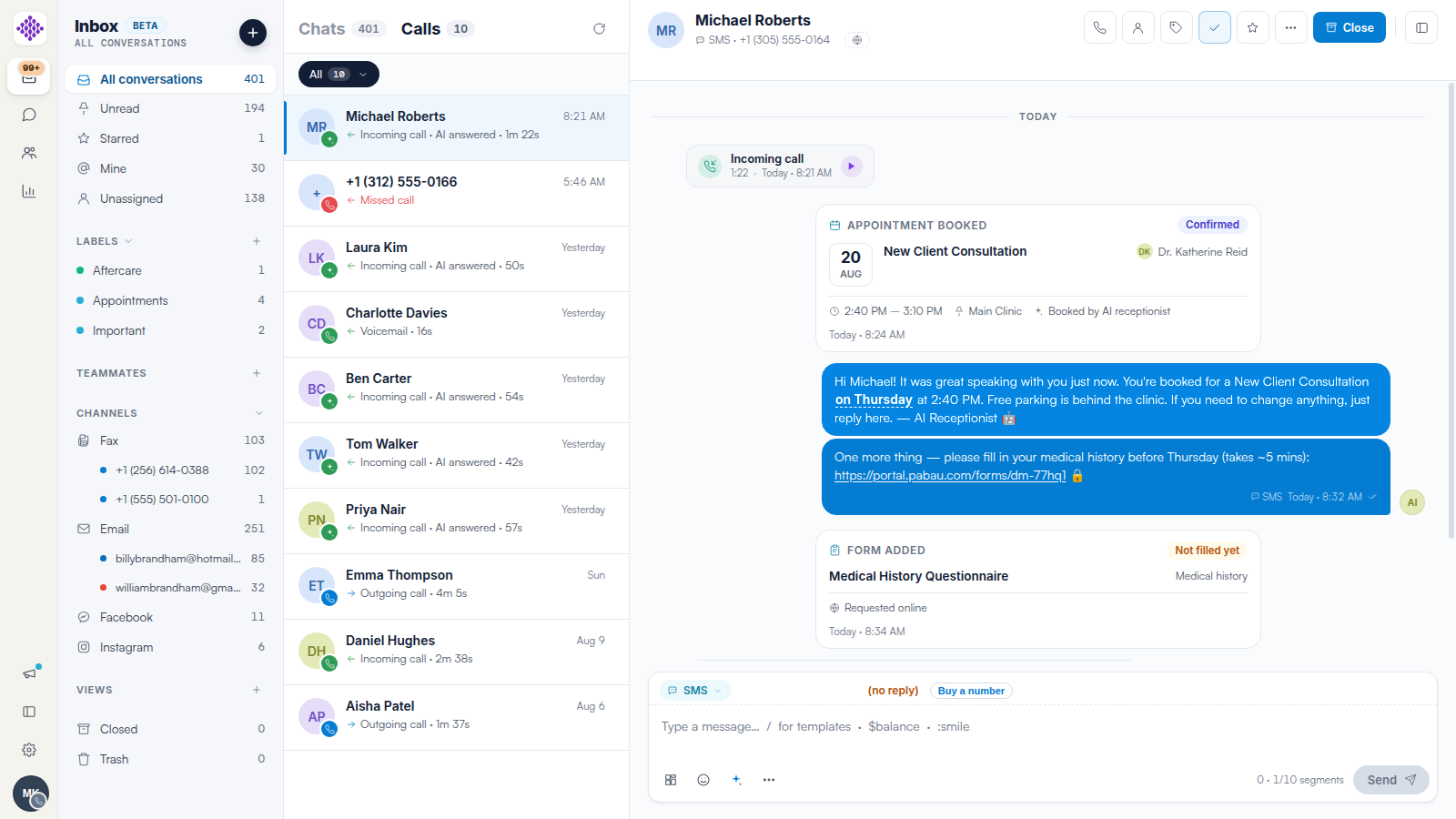
Confirmations your team — or the AI receptionist — sends show the appointment day the same way: "You’re booked for a New Client Consultation on Thursday at 2:40 PM". Together with the Appointment booked card on the timeline, there is never a doubt about what was agreed.
NOTE: The Confirm appointment action in the conversation-routing builder can mark bookings confirmed automatically when clients reply — see our Routing Recipes: CONFIRM and STOP Keywords and Common Setups article.
Related Articles
We suggest reading our What Engage Logs to the Pabau Client Card article for the other cards you will meet on the timeline.
For more guides, refer to related articles below, select additional guides, or use the search bar at the top of the page. These guides will help you get the most out of your Pabau account.
Additionally, to help you fully utilize and understand your Pabau account, we recommend exploring additional guides and resources offered at the Pabau Academy.