
The Accountant Summary report gives you an accounting overview for a chosen date range and location(s), showing how much revenue you've earned alongside how much money you've actually collected — two figures that don't always match, since prepaid items like packages are paid for upfront but only "earned" as clients redeem them over time.
It's the report you (or your accountant/bookkeeper) would use at period-end to reconcile sales against collections and tie everything back to your bank deposits.
How to find it
Step 1: Open Reports
Log in to your Pabau account. In the left sidebar, hover over Analytics and click Reports. The reports catalogue opens, with every report you have access to.
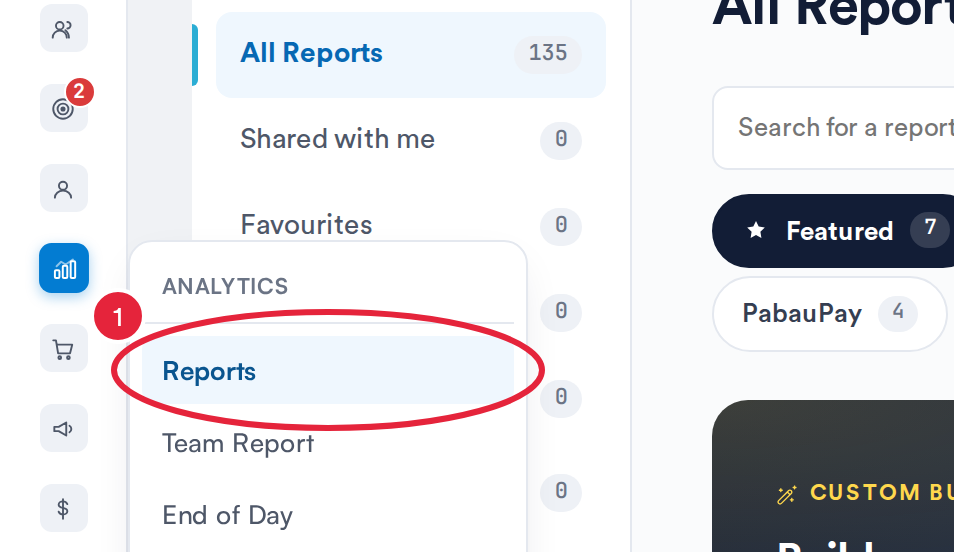
Analytics → Reports opens the reports catalogue
Step 2: Open the Report
Click the Business tab, then click Accountant Summary Report in the Overview section to open the report. You can also type the report’s name in Search for a report.
NOTE: In the app, this report is named "Accountant Summary" — its card in the reports catalog is called "Accountant Summary Report". The report is being rolled out gradually, so the card may not be visible in your catalog yet. If you can’t see it, reach out to our support team to have it enabled for your account.
Filters
- Dates – Choose a quick preset (Today, Yesterday, Last 7/30/90 days) or set a custom range. The maximum range you can select is 90 days.
- Locations – Select one, several, or all locations. This defaults to the primary location of the logged-in staff member, and it's what makes the Cross-Location Redemption figures meaningful.
- Invoice Status – Show All statuses, Open (unpaid/partially paid) only, or Closed (fully settled) only.
- Exc. Tax / Inc. Tax – Toggle whether the Sales/Liability figures show net (before VAT) or gross (including VAT) amounts. Both are on by default, so you see net and gross side by side.
NOTE: The sales side of the report filters by invoice date, while the collections side filters by payment date.

Understanding the report
The report is split into two halves: where your revenue comes from, and how the money actually moved.
Sales and Liability (where revenue comes from)
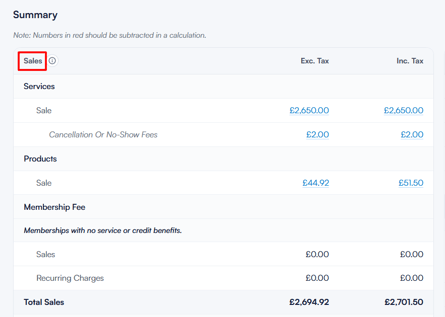
- Sales covers earned revenue — services, products, and membership fees sold within the date range, paid by any method. Cancellation and no-show fees are already included here and are just called out separately for visibility.
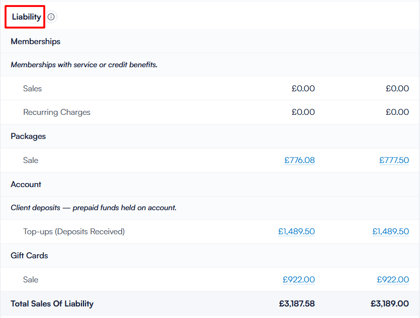
- Liability covers money you've received but haven't earned yet — prepaid memberships, packages, account top-ups, and gift cards. This is deferred revenue that only becomes earned once the client redeems it.
- Other Fees covers chargebacks/disputes, Sales Tax breaks VAT down by rate, and Refunds shows money returned to clients.

NOTE: a membership is counted as a Sale if it was first activated inside your date range, or as a Recurring Charge if it was activated earlier and you're just seeing a renewal payment.
Collections and Redemptions (how the money moved)
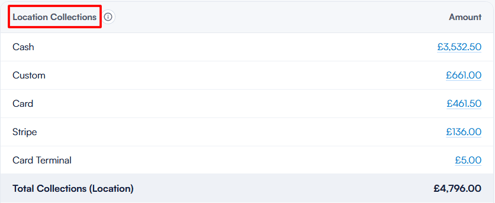
- Location Collections is genuinely new money taken in at the selected location(s) — Cash, Card, Stripe, Bank. This excludes anything paid via Account/Voucher/Package/Membership, so nothing is counted twice.
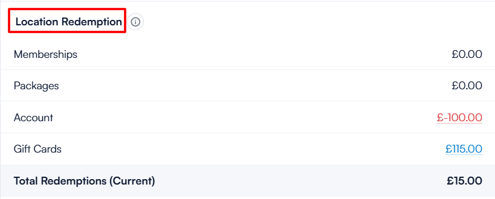
- Location Redemption is the value of prepaid items (memberships, packages, account credit, gift cards) that were redeemed at this location — this is where Liability becomes earned revenue.
- Cross Location Redemption is redemptions where the prepaid item was originally sold at a different location than where it was redeemed.
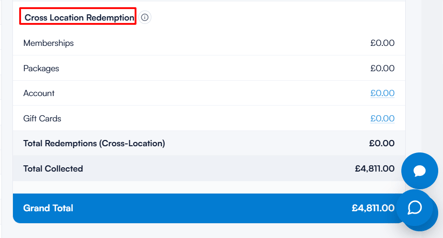
In short: Total Collected = Location Collections (new money) + Redemptions (prepaid items consumed).
Tips, Discounts, Deposits and Collection Deposits
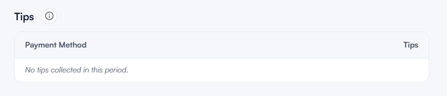
- Tips shows tips collected in the period, by payment method.
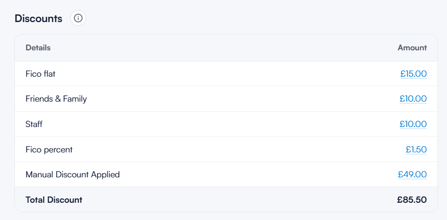
- Discounts lists every discount applied, grouped by type (e.g. Friends & Family, Staff, Manual Discount Applied), with the amount for each.
- Deposits reconciles card-processor payouts (e.g. Stripe) — what was charged, the fee taken, the net amount, and when it landed in your bank.

- Collection Deposits reconciles collections against what was banked, per payment method, so Collections − Processing Fees = Deposits.
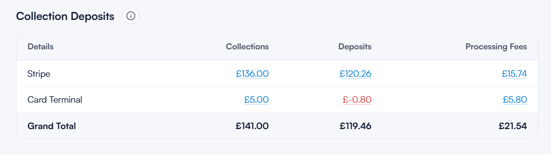
Use the tabs at the top of the report (Summary, Tips, Discounts, Deposits, Collection Deposits) to move between these sections.
Reading the numbers
- Numbers in red are subtractions — refunds and negative adjustments should be deducted, not added.
- Any figure shown in blue is clickable and will show you the individual transactions behind it, so you can always trace a total back to its source.
- Clicking a figure in Disputes opens the Disputes page; clicking a figure in Deposits opens the Payout details screen.
Toolbar controls
| Control | What it does |
|---|---|
| Generates a print-friendly version of the report, respecting your current filters. | |
| Help | Opens contextual help for the report. |
| Refresh | Re-runs the report with the latest data. |
NOTE: Pabau caches figures for speed, so click Refresh after taking new payments to make sure you're seeing current numbers.
A typical month-end workflow
- Set Dates to the period you want to check, and Locations to one site or All.
- Leave Invoice Status on All statuses for a complete picture, or use Closed for settled invoices only.
- Click Refresh to make sure the figures are current.
- Check the Summary: confirm Total Sales + Liability + Sales Tax − Refunds matches your expectations, then compare Total Collected against your takings.
- Use Collection Deposits to match collections to your bank, and Deposits to verify card payouts net of fees.
- Click any figure to see the transactions behind it, or print the report for your records or your accountant.
Key concept to remember:
-
Sales is money you've earned.
-
Liability is money you're holding but haven't earned yet — it becomes earned revenue via Redemption once a client uses their package, membership, gift card, or account credit.
By following these steps, you can use the Accountant Summary report to reconcile your sales, collections, and deposits with confidence.
Was this guide helpful? Let us know by voting below - your feedback helps us write clearer articles.
For more guides, browse the related articles below or use the search bar at the top of the page. You can also watch our video learning series, the Pabau Academy, or visit the Support page for additional help.