
NOTE: Opening the Reports page requires the Can access reports page permission. Building your own reports additionally requires Can create custom reports - without it, the Build a custom report button is visible but greyed out. An admin sets both under Team → Team → Roles → Analytics.
Step 1: Open the Reports Page
Log in to your Pabau account. In the left sidebar, hover over Analytics and click Reports. The Reports page opens straight away.
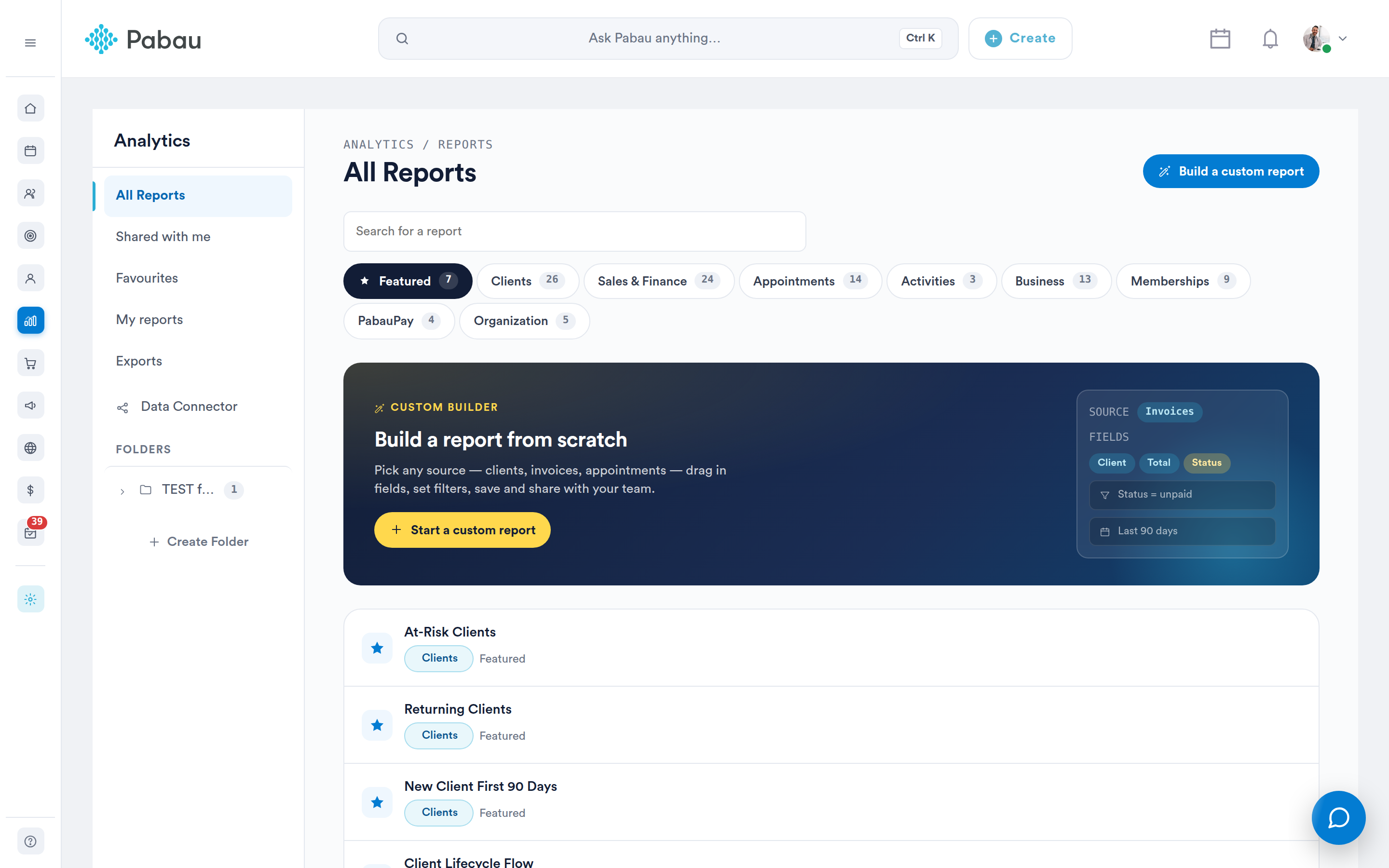
The Reports page: sidebar sections on the left, category tabs across the top
The sidebar is how you switch between different sets of reports. The heading at the top of the page always tells you which set you are looking at.
| Section | What it contains |
|---|---|
| All Reports | Everything you can currently open — reports you built, reports colleagues shared with you, reports shared with everyone, and Pabau’s own ready-made reports. It is not a list of every report in your account: reports a colleague has kept private do not appear here. |
| Shared with me | Reports someone else created and gave you access to. Reports you created yourself are deliberately excluded — those live under My reports. |
| Favourites | Every report you have starred, both your own and Pabau’s ready-made ones. |
| My reports | Only the reports you created. Each row shows when it was last edited. |
| Exports | A link to the Exports page, where files you have exported are generated and downloaded. |
| Data Connector | Coming soon. It describes a planned way to pipe Pabau data into Looker Studio, PowerBI, Tableau or your own warehouse. There is nothing to configure yet. |
| Folders | Your own folders, for grouping the reports you use most. |
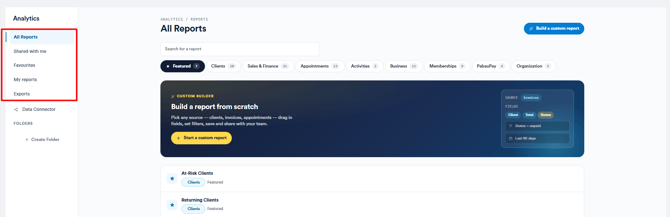
The sidebar switches between different sets of reports
TIP: Shared with me rows have a shorter three-dot menu -Duplicate, Go to and Customize. Renaming, deleting and managing access belong to the report’s owner, so they are not offered to you.
Step 2: Browse by Category
Across the top of the catalogue is a row of category tabs. Each one groups the reports that answer a similar kind of question.
| Tab | What it covers |
|---|---|
| Featured | A small curated set of Pabau’s most valuable reports. It is a hand-picked list, not the most-used ones. |
| Clients | Pipeline, conversions and the clients you have already won — end to end. |
| Sales & Finance | Revenue, invoicing, payments, products and the financial health of your business. |
| Appointments | Appointment insight for you and your team. |
| Activities | Detailed information about your activities. |
| Business | Key data and analysis that makes information accessible. |
| Memberships | Recurring membership plans, billing cycles and member health. |
| PabauPay | Payment processing, payouts and card-network reporting from PabauPay. |
| Organization | Reports across every company connected in your multi-account organization. This tab only appears if your account is part of one. |
NOTE: You will only see the categories your role allows. A category you have no permission for is hidden entirely rather than greyed out, so the row of tabs is shorter for some staff than others - that is expected, not a fault.
The number on each tab counts Pabau’s ready-made reports in that category plus any saved reports of your own that belong to it. Inside the category, the heading beneath the tabs shows a second, smaller number - that one counts only the ready-made reports, which is why the two rarely match.
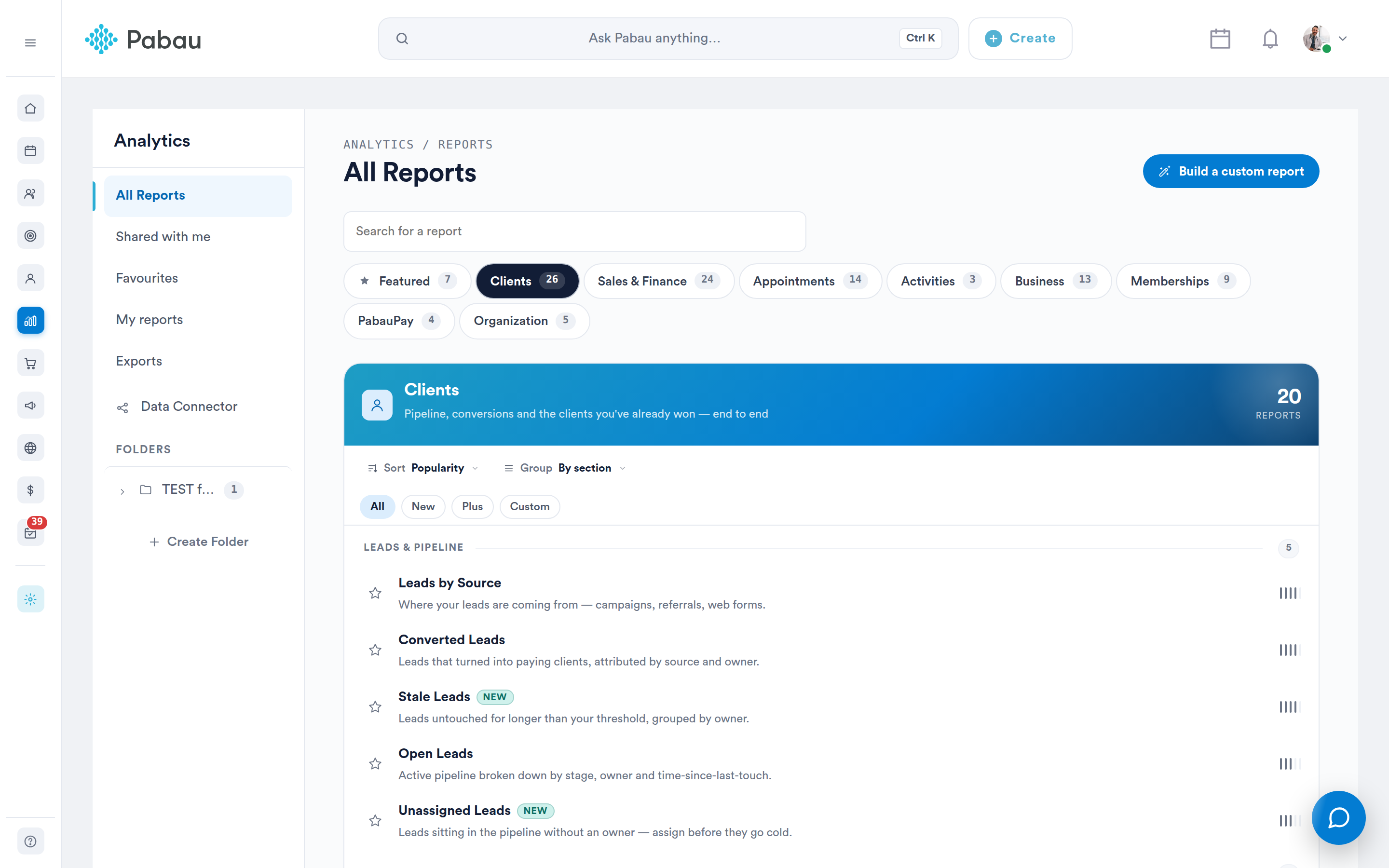
A category tab, with its reports grouped by section
Sorting, grouping and filtering a categoryAbove the report cards are three controls:
- Sort - Popularity, Newest, A → Z or Plus first.
- Group - By section (the default, which splits the category into themed groups such as "Leads & pipeline"), By plan, By status, or Flat list.
- The All / New / Plus / Custom chips - narrow the list to newly added reports, Plus reports, or the reports your team has built.
| Badge | Meaning |
|---|---|
| New | Recently added to Pabau. |
| Popular | Widely used across Pabau clinics. |
| Plus | Part of the Insights Plus set. These are the reports that appear on the Featured tab. |
| Coming soon | Announced but not yet available. The card cannot be opened or starred. |
Step 3: Find a Report Quickly
Use the Search for a report field above the tabs. Searching looks across the whole catalogue, and the result count appears as you type. If nothing matches you will see "No reports match your search" with a Clear search link.
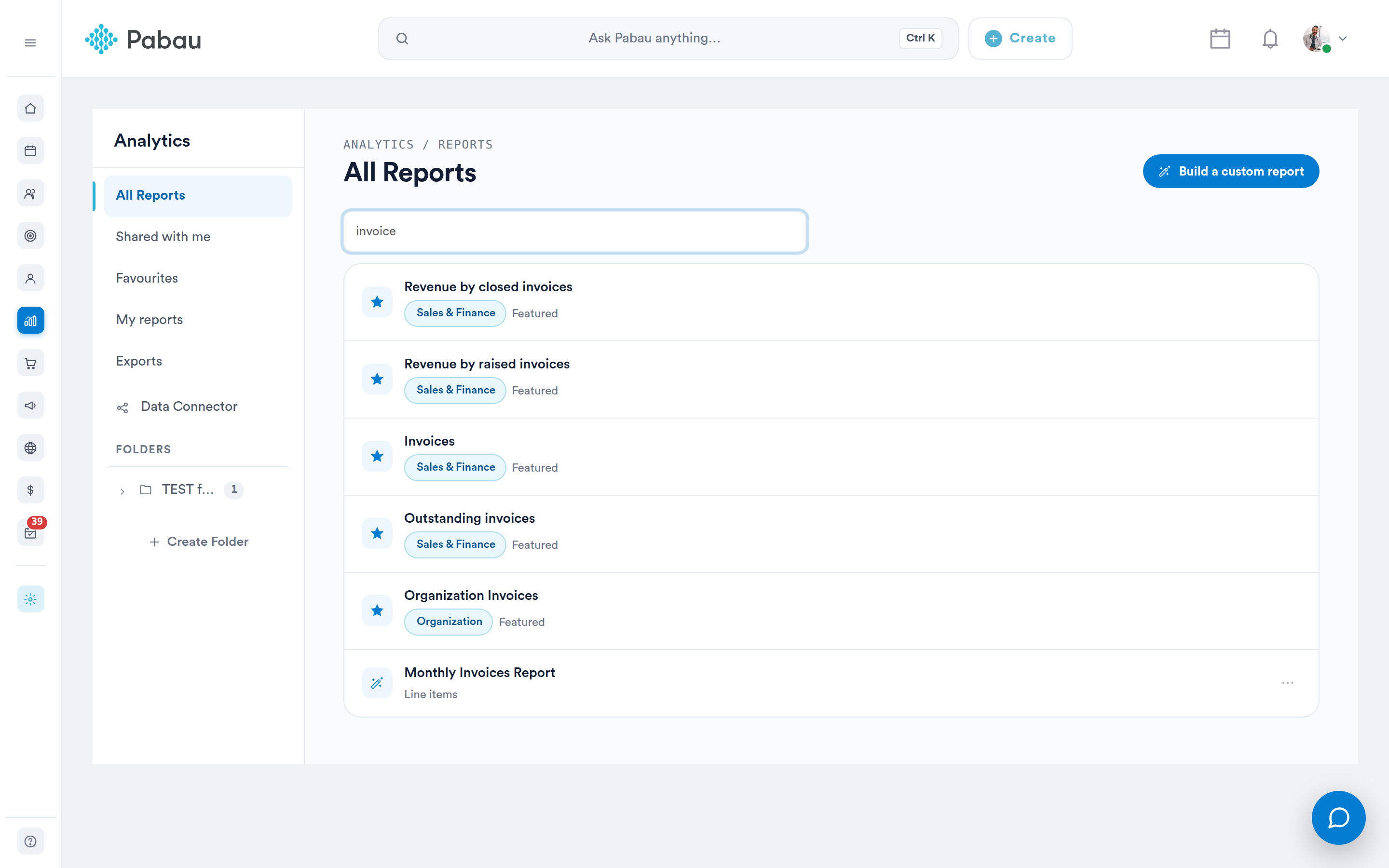
Searching filters the whole catalogue as you type
Recently viewedOn the Featured tab, a Recently viewed strip sits above the report list showing the last ten reports you opened, most recent first.
NOTE: Recently viewed is stored in the browser you are using, per user. It will not follow you to another computer or a private window, and clearing your browser data resets it. This is by design - it is a convenience shortcut, not a record.
Step 4: Organise Reports into Folders
The Folders section at the bottom of the sidebar is yours to structure - for example a "Month-end" folder for finance reports, or one per location. Click Create Folder, name it, and click Save. Each folder’s three-dot menu offers New subfolder, Rename and Delete.
IMPORTANT: Subfolders go one level deep only, and deleting a folder also deletes every subfolder inside it.
Full detail is in How to Organize Reports into Folders.
Step 5: Track Your Exports
Exporting a report generates the file in the background. Click Exports in the sidebar to watch its progress and download it when it is ready.
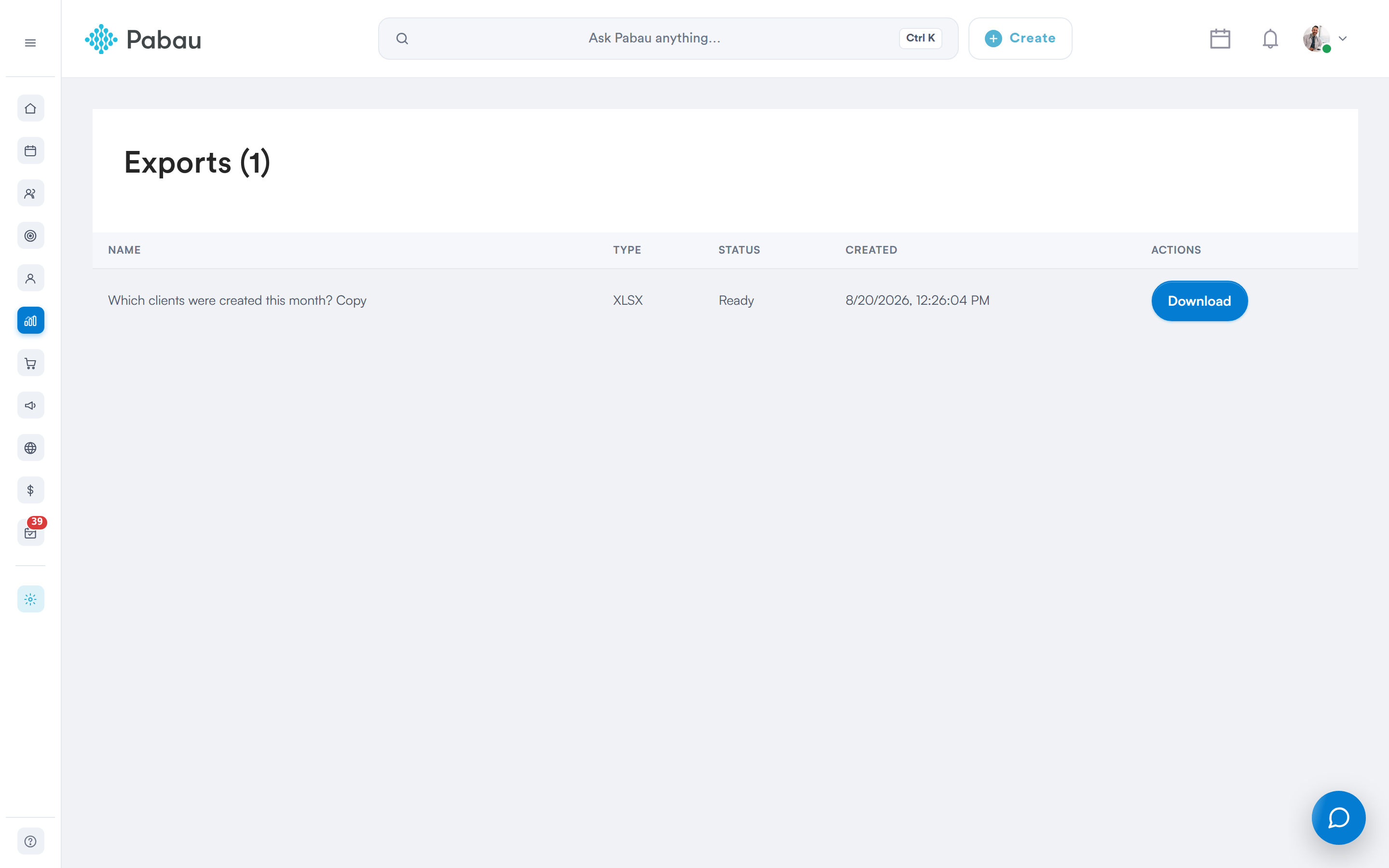
The Exports page: each file is available for one hour
IMPORTANT: An export is available for one hour. After that the file expires and disappears from the list entirely - run the export again to get a fresh copy.
Dashboards are a separate feature with their own page and their own permission. Nothing on the Reports page changes what appears on a dashboard.
Questions? Reach us any time via the in-app chat — we're happy to help.
Was this guide helpful? Let us know by voting below - your feedback helps us write clearer articles.
For more guides, browse the related articles below or use the search bar at the top of the page. You can also watch our video learning series, the Pabau Academy, or visit the Support page for additional help.