
This page offers a detailed overview of all payments processed within a selected time frame - helping you track revenue, client payments, and transaction details efficiently.
Step 1: Navigate to the Payments Page
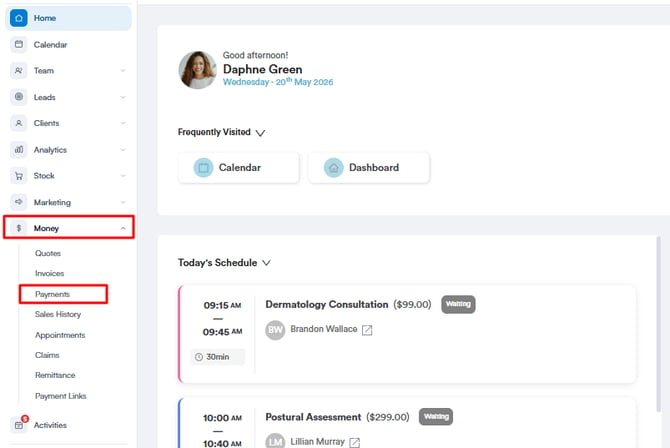
Log in to your Pabau account, and from the left sidebar menu, click on ''Money'', then select ''Payments'' to open the Payments page.
Step 2: Understanding the Payments Overview
The Payments Overview screen displays a comprehensive list of all payments made, with tools to filter, search, and manage payment records.
Here’s a breakdown of the key elements on the Payments page:
Filters, Views, and Search Options
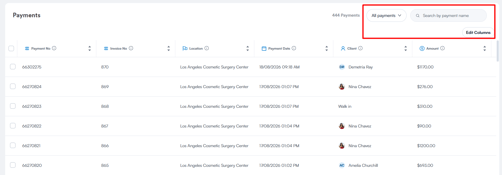
Use the tools at the top of the Payments page to organise, filter, and customise how payment data is displayed.
All Payments (Views)
Use the All payments dropdown to switch between existing views or create a new custom view.
From here, you can:
-
Apply specific filters to focus on relevant payments
-
Assign owners to a view
-
Save views for quick access in the future
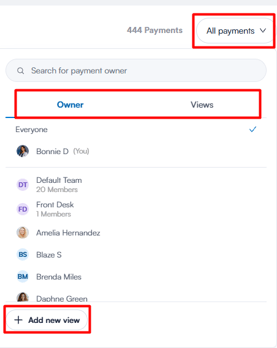
This allows you to tailor the Payments list to different reporting or operational needs.
NOTE: To learn more about how to create a custom view to display specific data, please check this article.
Search Bar
Use the search field on the right to quickly find specific payments by:
-
Payment number
-
Invoice number
-
Client name
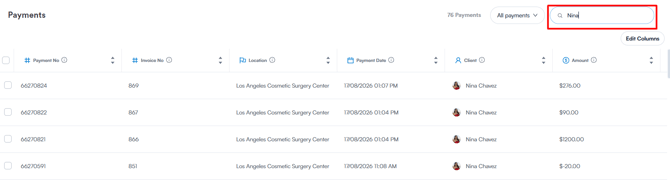
This is ideal when you need to locate a transaction quickly without applying filters.
Edit Columns
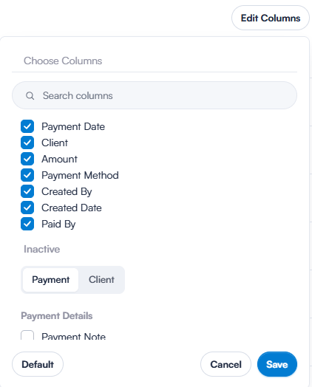
Select Edit Columns to customise which columns are shown in the payments table.
This allows you to show or hide specific data points, helping you create a clearer and more relevant view based on your workflow.
What Each Column Means
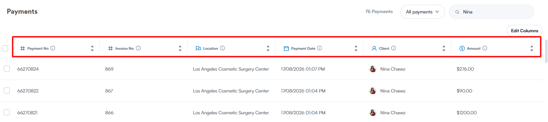
Each row in the table represents a single payment transaction. The available columns provide key details about each payment, including:
Payment No.
The unique reference number assigned to each payment. This helps with tracking, auditing, and cross-checking transactions.
Invoice No.
The invoice number linked to the payment, allowing you to easily identify which invoice the payment relates to.
Location
The clinic location where the payment was processed. This is especially useful for multi-location practices.
Payment Date
The exact date and time when the payment was recorded in the system.
Client
The client associated with the payment. This is typically the person receiving the service, shown with their name and avatar or initials.
Paid By
The name of the person who made the payment. In most cases, this matches the client, but it may differ if someone else (such as a family member or company) paid on their behalf.
Payment Method
Shows how the payment was made, for example cash, card, or package.
Created By
Indicates the staff member who recorded the payment in Pabau.
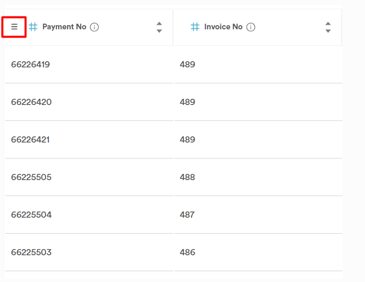
You can also reorder the columns by hovering over a column header, clicking and holding the three lines icon, then dragging the column to your preferred position. This helps you customize the table layout for your workflow.
Tips for Getting the Most Out of the Payments Page
-
Use multiple filters like date and location together to focus on specific revenue periods or clinics.
-
Search by client name or invoice number to quickly find payment details.
-
Show columns such as Payment Type and Created By to track payment methods and staff activity.
-
Reorder columns to keep your most important data visible and easy to access.
-
Use the Filter By option to monitor specific payment statuses or methods.
By following these steps and tips, you’ll be able to efficiently track and manage your payments, ensuring accurate financial oversight for your clinic.
Bulk Editing Payments
NOTE: Bulk editing on this page becomes available after the next Pabau release. If you do not see the pencil icon when you select rows, your account has not received the update yet.
You can add or replace the note on several payments at once — useful for tagging a batch of reconciled or disputed payments without opening each one.
Step 3: Select the payments You Want to Change
- Tick the checkbox at the start of each row you want to include. To take every row on the current page, use the checkbox in the table header.
- A toolbar appears above the table showing N Selected with a pencil icon.
NOTE: Bulk editing applies only to the rows you tick. If you use Select all N records to take everything matching your filters, the pencil is greyed out — clear that selection and tick rows instead.
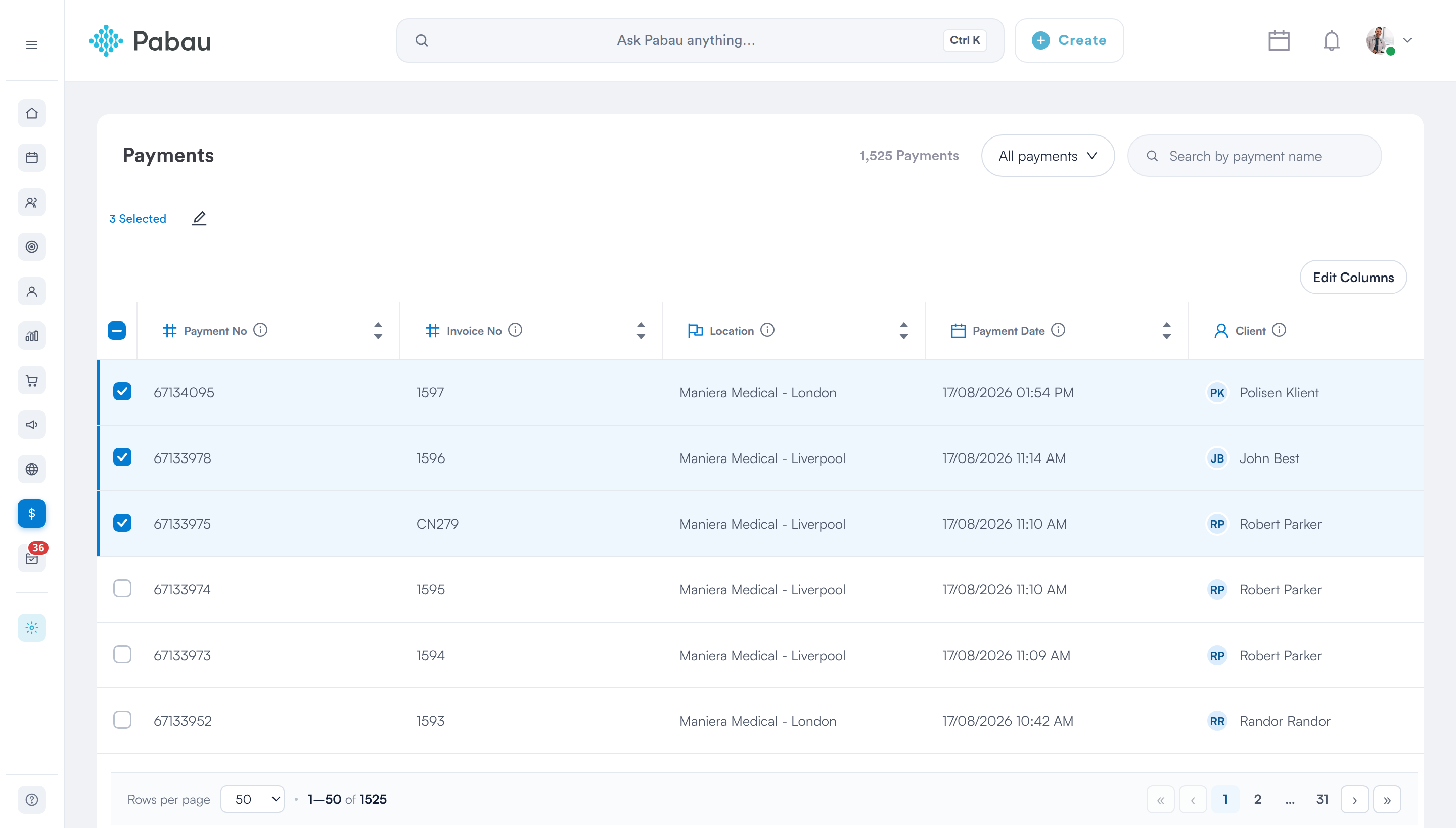
Rows ticked — the toolbar shows the count and the Bulk Edit pencil
Step 4: Choose What to Change
Click the pencil icon to open the Bulk Edit panel on the right. Each field you can change is listed with a dropdown:
- Keep current value — leave the field untouched. This is the default for every field.
- Edit current value — set the same new value on every selected record.
- Clear value — empty the field on every selected record.
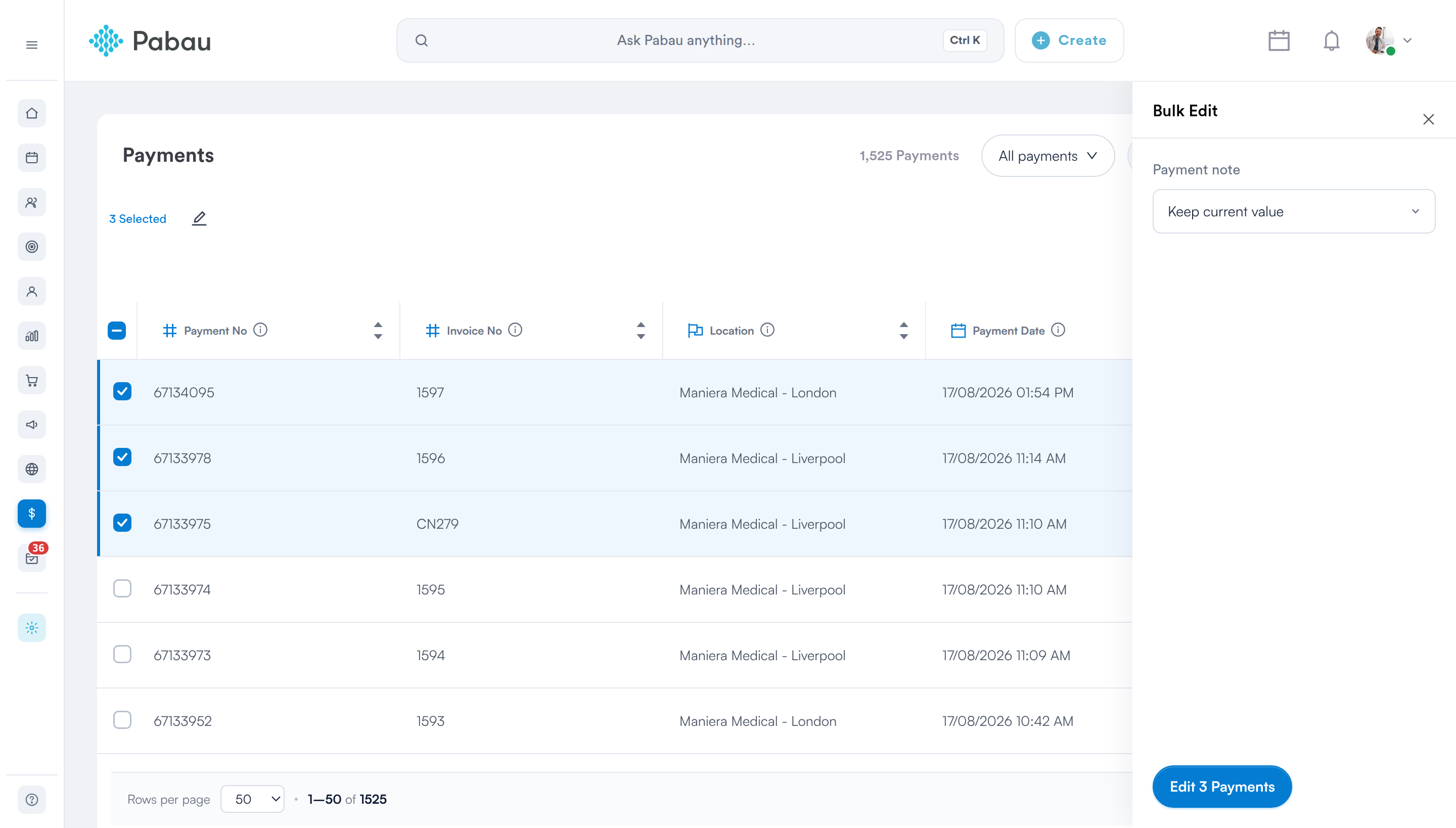
Every field starts on Keep current value, and the button names how many records will change
For payments, the panel offers:
- Payment note — free text, written to every selected payment.
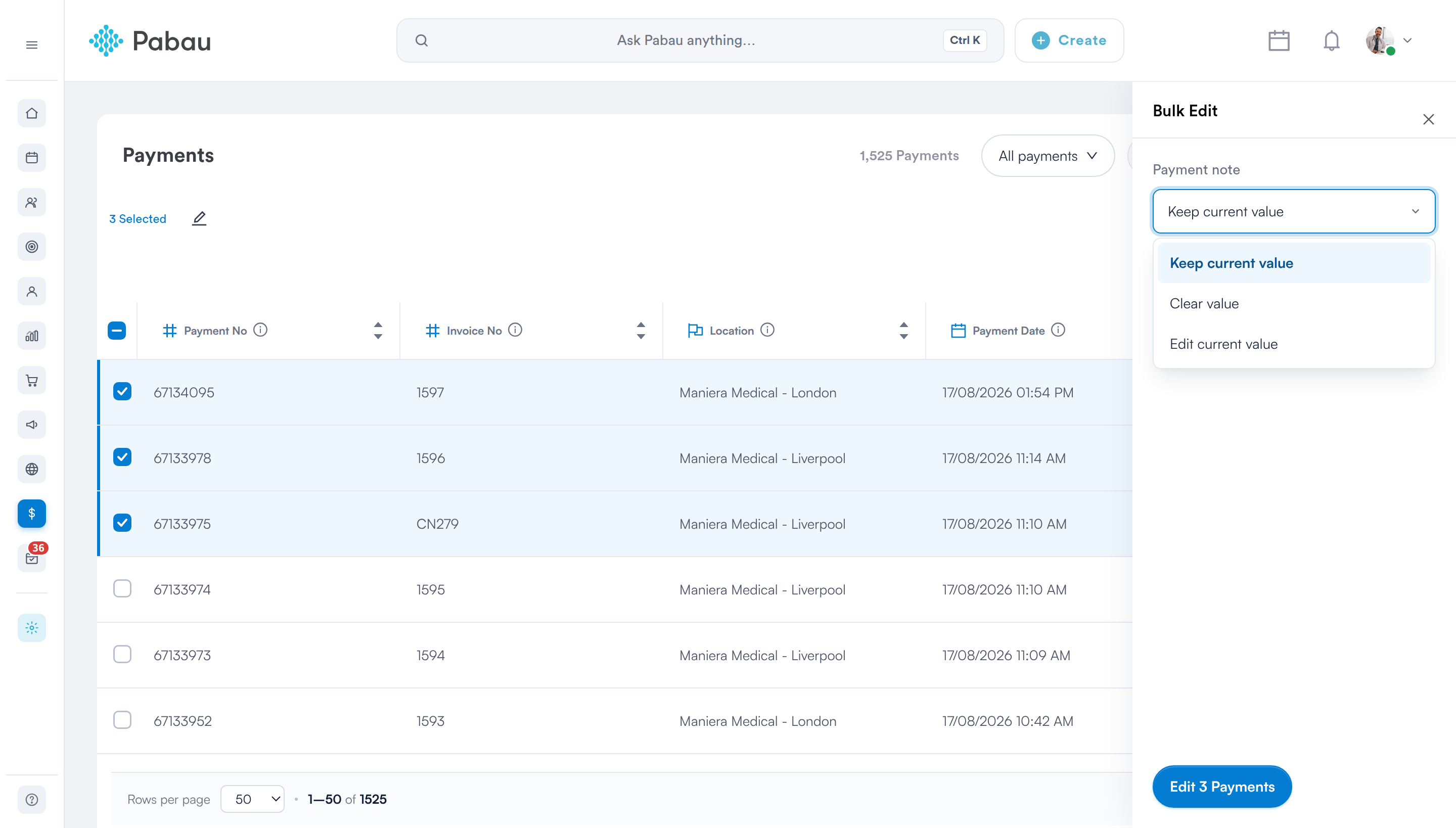
Each field offers Keep current value, Clear value and Edit current value
NOTE: Only the note can be bulk edited on this page. Amounts, payment methods and dates are deliberately not editable in bulk — change those on the individual payment.
Step 5: Apply the Changes
- Click Edit 5 Payments at the foot of the panel — the button names the exact number of records it will change.
- The table refreshes and a confirmation message names how many records were updated.
IMPORTANT: You can change up to 100 payments in one go. Selecting more returns an error and nothing is changed — work in batches of 100 or fewer.
WARNING:
Bulk changes cannot be undone. Check the panel before you apply it — the values you set replace what is currently on every selected record.
The pencil only appears for staff members whose permissions include access to the Payments page. See How to Set Money Permission for a Staff Member.
For more guides, refer to related articles below, select additional guides, or use the search bar at the top of the page. These guides will help you get the most out of your Pabau account.
Additionally, to help you fully utilize and understand your Pabau account, we recommend exploring additional guides and resources offered at the Pabau Academy. It offers in-depth video tutorials and lessons, offering a holistic learning experience that can equip you with the essential skills for achieving success with Pabau.