
NOTE: This feature is only available with the Care Plus plan. To learn more about upgrading to Care Plus, refer to this guide.
Form Rules lets you automate actions based on how clients answer questions in your forms. Set smart conditions that trigger follow-ups, show or hide fields, or adjust workflows automatically.
Step 1: Navigate to Setup
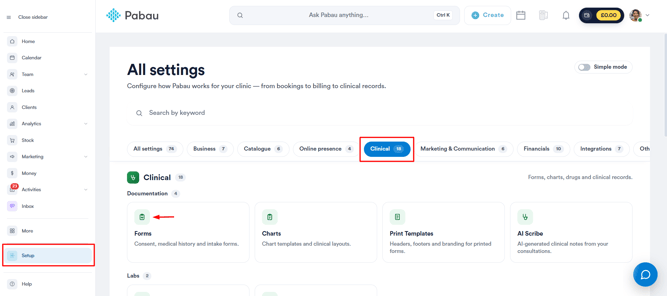
Log into your Pabau account and go to Setup. From there, click on Forms under the ''Clinical'' section.
Step 2: Create / Edit Form Template
Create a form by navigating to the Create button on the top right corner, or edit existing forms by clicking on the form you want to edit.
Step 3: Switch to the Advanced Tab
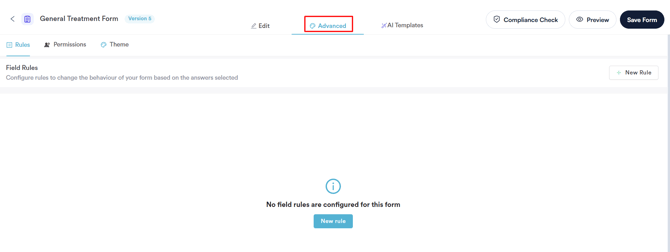
On the create/edit form modal, switch to the Advanced tab, and it will reveal the "Rules" sub-tab.
Step 4: Configure Field Rules
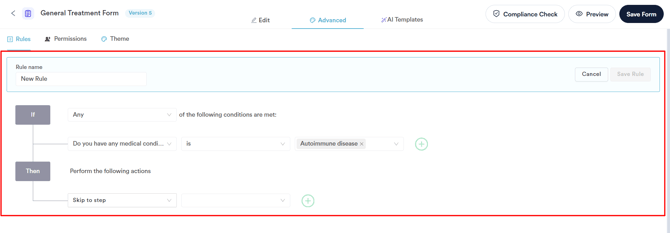
When the blue New Rule button is clicked, the screen below appears, allowing staff members to:
-
Enter a rule name (default: New Rule) – this field is required.
-
Configure the If and Then conditions – both fields must be filled in:
-
If: Enter a value in the “Write condition here” field.
-
Then: Perform the actions you select.
-
NOTE: Only input components can be used to trigger rules. Read-only components, such as images, drawings, headings, or block fields, are excluded from rule conditions and won’t appear in the component list when setting up rules.
Form Rule Automation Options
- Skip to Step
Jump your clients straight to the next relevant part of the form, skipping over unnecessary sections entirely. For example: if a client selects “No” to “Do you smoke?”, they can skip past the follow-up lifestyle questions and move straight to the next section. - Show Fields
Automatically display certain questions when a specific answer is selected. e.g., If the client answers Yes to “Do you have any allergies?”, a follow-up question asking them to list their allergies will appear. - Hide Fields
Hide unnecessary questions when they’re not relevant to the client’s situation. e.g., If a client selects Male as their gender, questions related to pregnancy will be hidden.
Step 5: Save Changes
To save the rules you’ve configured for this form, click the “Save Rule” button in the top right corner of the screen.
Once you've added the rules, ensure to click the "Save Form" button to finalize the changes.
Can a returning client skip questions when nothing has changed since their last visit?
Yes. There are two ways this happens, depending on the form.
Your default Medical History form (classic patient portal): this is built in, so you don't need a rule. When a client opens a request for your default Medical History form and has already completed it within the last 12 months, the portal first asks "Are there any changes to your medical history?" If they click No, the form is marked as completed for that appointment and they see "Thank you, your medical history is up to date." If they click Yes, the form opens so they can update it.
Any other form, using a rule: add a single-choice question near the top, for example "Has anything changed since your last visit?" with the answers Yes and No. Then create a rule with that question in the If condition, the operator is and the answer No, and choose one of these in Then:
- Skip to step, to jump past the questions to a later step of the form (for example, the signature step).
- Hide Fields, to hide the questions they would otherwise answer again.
Questions hidden by a rule are no longer required, so the client can still submit the form.
NOTE: A rule can't tell on its own whether the client has filled in the form before. It works from the client's answer, so the client chooses No themselves.
IMPORTANT: Form rules run when the form is filled in at the clinic or in the classic patient portal. In the new online booking portal, rules are not applied yet: every question is shown, and questions that a rule would show or hide are not required.
Where this comes from: the 12-month check uses the date of the client's most recent submission of your default Medical History form. You can choose which form is your default Medical History form in Setup → Forms.
Was this guide helpful? Let us know by voting below - your feedback helps us write clearer articles.
For more guides, browse the related articles below or use the search bar at the top of the page. You can also watch our video learning series, the Pabau Academy, or visit the Support page for additional help.