
When a client has an active membership, you can use it to pay for their appointment in the Point of Sale. A free service is applied at no charge, membership credits are used up, and membership discounts are applied automatically.
Step 1: Navigate to the Point of Sale
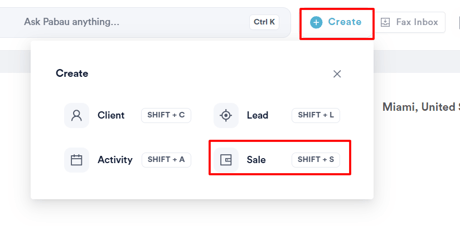
To access the Point of Sale, click the Create button at the top right of the screen, then Sale.
Step 2: Select Payment Option
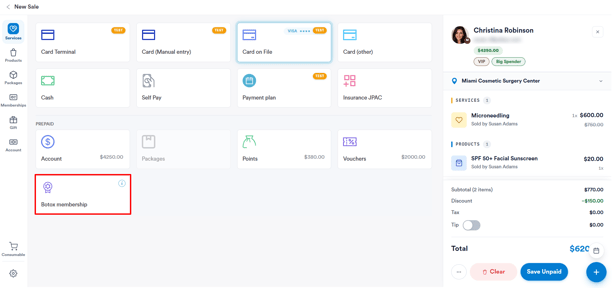
Proceed as you would when performing a sale. When you reach the payment stage, the membership option will appear in the prepaid section if the selected client has an active membership.
If the client's membership reward is a free service, selecting the membership payment option applies the reward to any covered service in the basket. The service is tagged "Covered by membership", its price changes to $0.00, and the payment is listed as a Membership Reward with its own reference number. 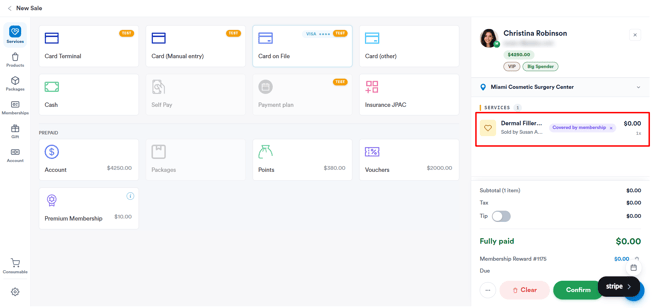
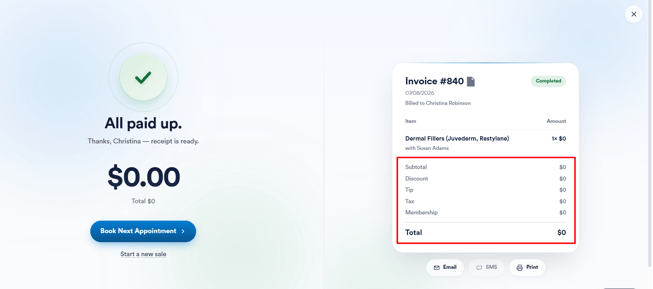
Once confirmed, the invoice is saved against the client for $0.00 and can be found in the Invoices tab under Financials on their client card.
If the membership is paused or not yet activated, it will still be visible but marked with a "Paused" status. A paused membership can't be used to pay: hover over it to see why.
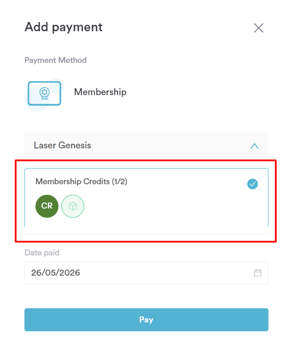
If the membership includes credits, the available credits balance will be displayed on the Membership button in the prepaid section. Click on it to open the payment popup, select the credits to apply, and click Pay to complete the transaction.
For discounts, there’s no need to select Membership at the Point of Sale - the discount is automatically applied to eligible products and services in the cart.
Step 3: Check What the Membership Covers
Not sure whether the client's membership covers what's in the basket? Check before you take payment.
- On the payment screen, click the i button on the membership tile (it reads View membership coverage when you hover over it).
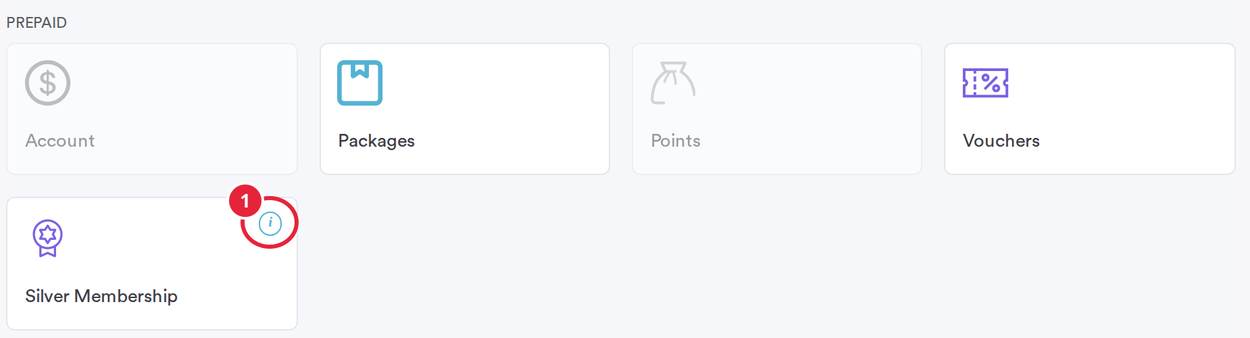
The info button on the membership tile
The coverage window, named after the plan (for example Silver Membership coverage), shows what the membership covers and which items in the basket it can be applied to. A count at the top sums up the basket, for example 1 Not covered.
- Each service is listed with its status: Covered, No sessions left, Not covered, or Available for a covered service that isn't in the basket yet. A plan that covers a whole range shows Any service or Any service from a category.
- The key at the bottom explains the colours: In basket — covered, In basket — covered, but no sessions left, In basket — not covered and Covered — not in basket.
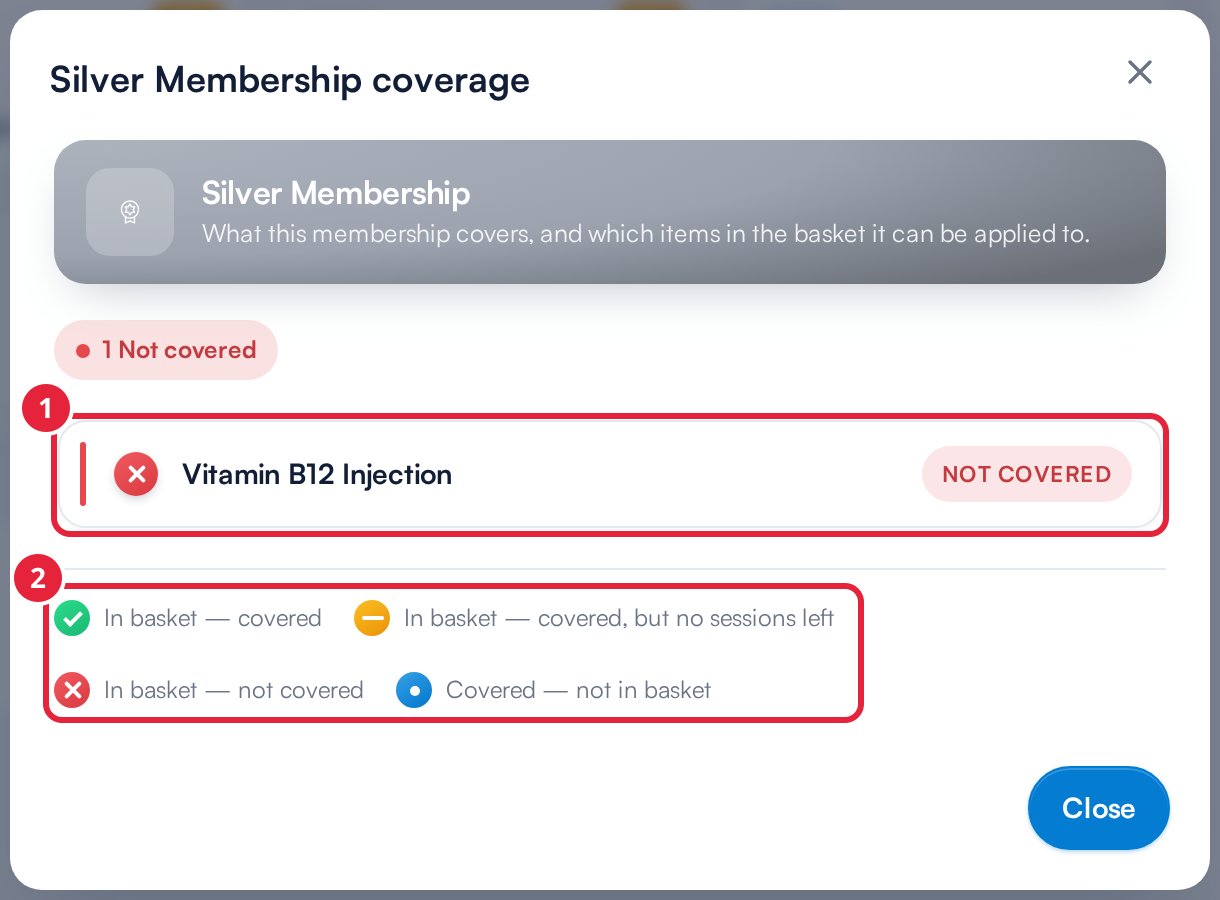
The coverage window shows what the membership can pay for
Click Close when you're done. If you click the membership tile and nothing in the basket is covered, this window opens on its own so you can see why. Pabau also tells you when the basket is empty (Add a service to the basket before applying this membership.), when the membership's allowance for those items has been used up for the period, and when the membership has already been applied to every eligible item.
NOTE: If a membership includes both a free service and a discounted service, the free service perk takes priority, as you can't discount a service that's free of charge.
NOTE: If a service booked while the membership was active is attended when the membership is paused or expired, the service needs to be paid for.
By following these steps, you can seamlessly use memberships as a payment method at the Point of Sale.
What's next?
- How to Sell Memberships from the Point of Sale
- How to Pause a Membership
- Overview of the Membership Dashboard
Was this guide helpful? Let us know by voting below - your feedback helps us write clearer articles.
For more guides, browse the related articles below or use the search bar at the top of the page. You can also watch our video learning series, the Pabau Academy, or visit the Support page for additional help.