
NOTE: This guide covers the new Online Bookings and Client Portal, which are being rolled out to clinics in phases. If your screens look different, your account may still be on the classic version — message us via the in-app chat and we will help.
Widgets let your website do more of the work — clients can book, buy a package, read your reviews or fill in a form without phoning the clinic. In the new Online Bookings, the old Promote tab has gone: the booking button now lives on the Add to website tab, and memberships, packages, products and gift cards are sold from your booking site’s own store pages.
In this article, you will learn which widget to use for each job and where to find it.
Which Widget Do You Need?
| You want clients to… | Use | Where |
|---|---|---|
| Book an appointment from your website | A floating, pop-up or link button, or the full booking form | Online Bookings → Add to website |
| Buy a membership, package, product or gift card | A link to that store page on your booking site | Your booking site’s menu |
| See offers while they book | Widgets on your booking page, such as Featured packages or an Announcement bar | Customise page → Widgets |
| Read your reviews | A review widget or badge | Marketing → Reviews |
| Fill in an enquiry or registration form | An embedded or pop-up form | Marketing → Capture Forms |
Step 1: Add Online Booking to Your Website
Go to More → Online Bookings (or Setup → Online presence → Online Bookings) and click the Add to website tab. Choose a Floating book button, Embedded booking, a Booking link button or a Pop-up book button, then copy the code. Step-by-step guides for WordPress, Wix, Squarespace, Shopify and Google Tag Manager are built in.
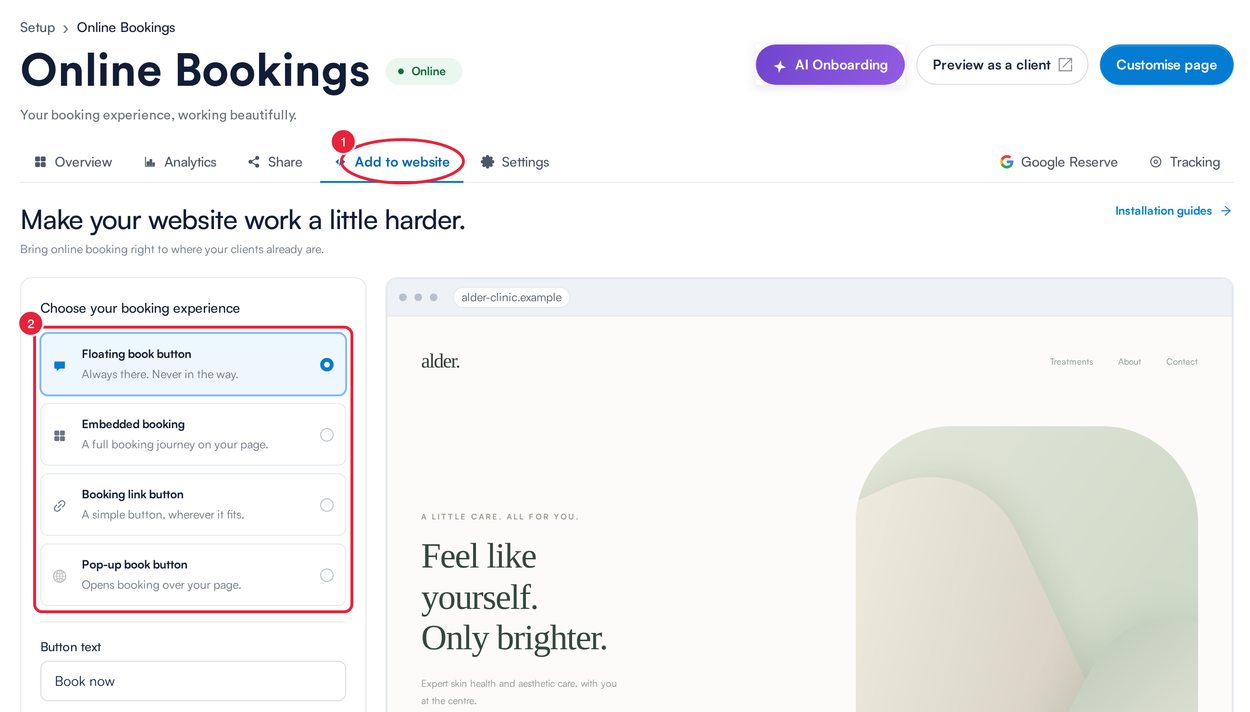
The Add to website tab
For the full guide, see How to Add Online Booking to Your Website.
Step 2: Link to Your Store Pages
Memberships, packages, products and gift cards each have their own page on your booking site. To send clients straight to one:
- On the Online Bookings dashboard, click Preview as a client.
- In the menu at the top, click Memberships, Packages, Shop or Gift Card.
- Copy the address from your browser’s address bar.
- On your website, add a button or menu item and paste the address as its link.
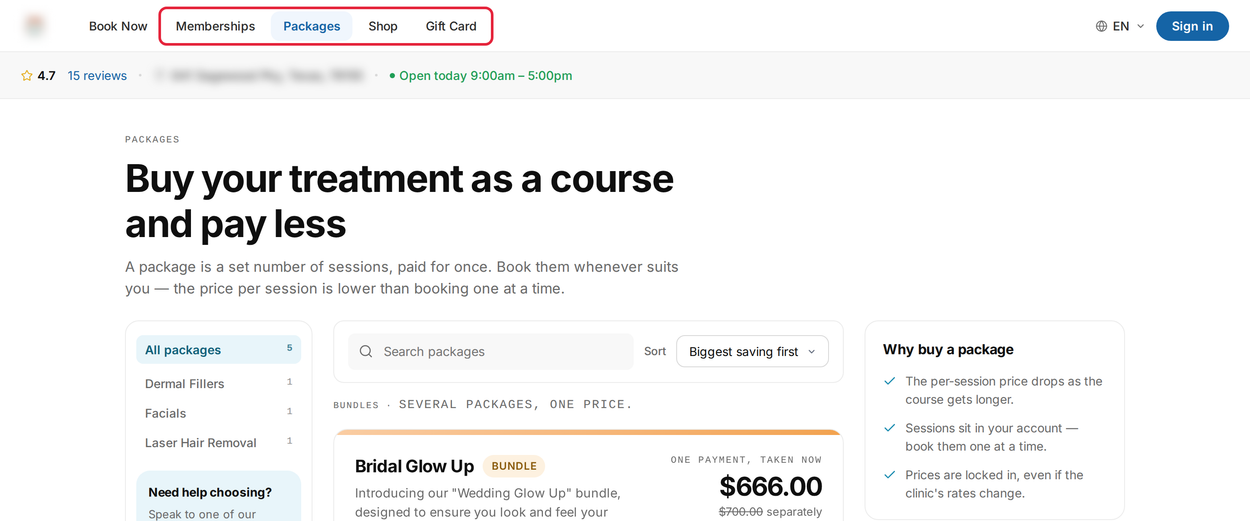
The store pages on your booking site
NOTE: Clients pay for store items online, so your account needs to be connected to Stripe — see How to Integrate with Stripe. If a store page is missing from the menu, check the Storefront switches in the Header section — see How to Customise the General Online Booking Settings.
To choose what each store page sells, see How to Sell Memberships, Packages, Products and Gift Cards in Your Online Store. For gift cards, make sure each card is set to sell online — see How to Create a Gift Card.
Step 3: Add Widgets to Your Booking Page
You can also promote offers on your booking page itself — for example, a banner for a seasonal offer or a card with your best-value packages.
- On the Online Bookings dashboard, click Customise page, then click Edit.
- Hover over the widgets area and click the Widgets label.
- Under Add widget, pick one: Text card, Image banner, Featured packages, Featured memberships, Bestsellers, Announcement bar, Brand logos, How it works, Social links or Custom HTML.
- Set it up and choose where it appears, then click Publish.
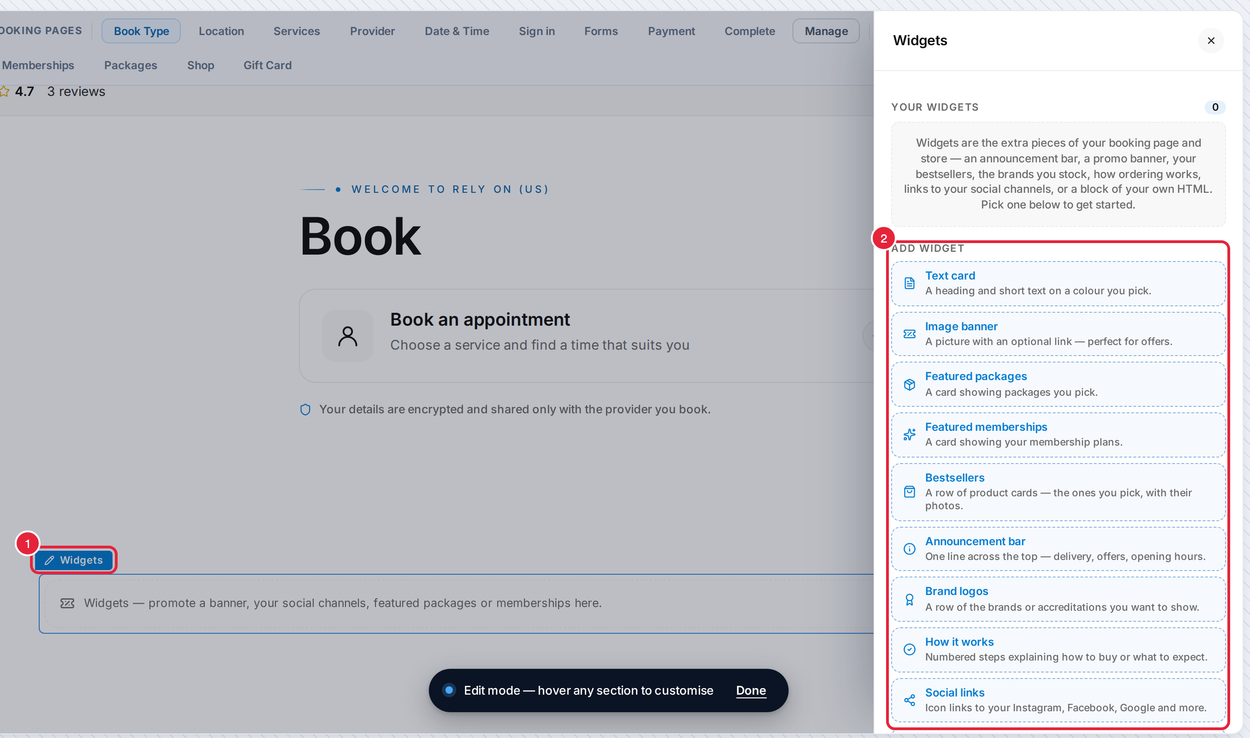
The Widgets section in Pabau Studio
TIP: Featured packages replaces the classic package widget for most clinics: it shows the packages you pick, with their savings, right where clients book. See How to Promote Your Packages Online.
Step 4: Add Reviews and Forms to Your Website
Review widgets and forms are not part of Online Bookings, so they have not changed:
- Reviews — go to Marketing → Reviews to get the code for a review widget or badge. See How to Add Review Widgets to Your Website.
- Forms — go to Marketing → Capture Forms and open the form’s sharing options to copy its embed code or link. See How to Add Forms to Your Website.
What’s next?
To share your booking page on social media, in emails or with a QR code, see How to Create a Custom Link for Online Bookings and New Online Bookings Part 5: Share Your Booking Page and Add It to Your Website.
Questions? Reach us any time via the in-app chat — we’re happy to help.
Was this guide helpful? Let us know by voting below - your feedback helps us write clearer articles.
For more guides, browse the related articles below or use the search bar at the top of the page. You can also watch our video learning series, the Pabau Academy, or visit the Support page for additional help.