
Step 1: Navigate to Gift Cards
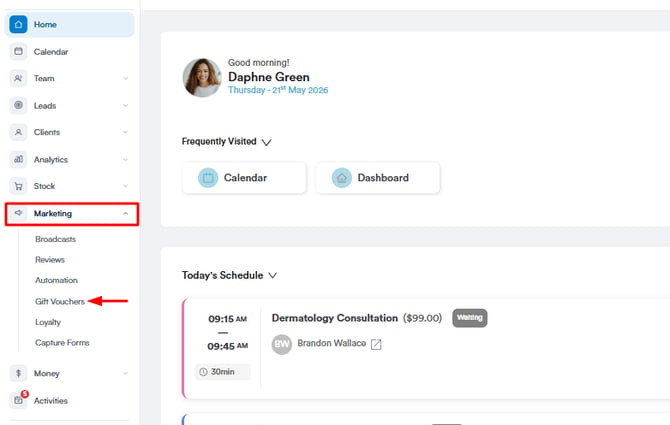
Log in to your Pabau account, and in the left sidebar menu, go to Marketing, then click on Gift Vouchers.
Step 2: Find the Gift Card for Deleting
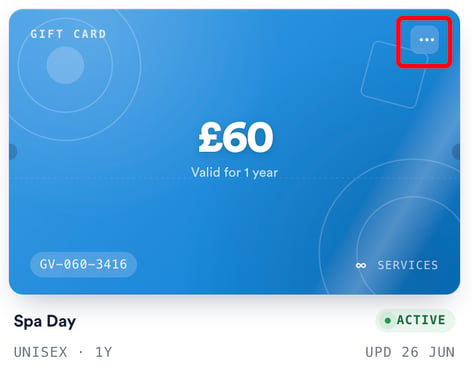
Locate the specific gift card you wish to delete, then click on the three dots in the top right corner of the card.
Step 3: Confirm Deletion
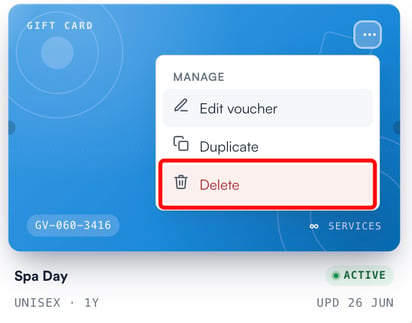
Click on "Delete" to permanently remove the selected card.
NOTE: If you delete a gift card, it can still be used by any clients who have bought it previously.
NOTE: You can also learn about this topic by watching a lesson on Pabau Academy.
In addition, we suggest reading our Gift Cards article for a more in-depth exploration of this topic.
For more guides, refer to related articles below, select additional guides, or use the search bar at the top of the page. These guides will help you get the most out of your Pabau account.
Additionally, to help you fully utilize and understand your Pabau account, we recommend exploring additional guides and resources offered at the Pabau Academy. It offers in-depth video tutorials and lessons, offering a holistic learning experience that can equip you with the essential skills for achieving success with Pabau.