
Table of Contents:
1.Overview of the Clinic List
2.How to Create a Clinic List
3.How to Email a Clinic List to Staff Members
4.How to Print a Clinic List
Overview of the Clinic List
Step 1: Navigate to the Calendar
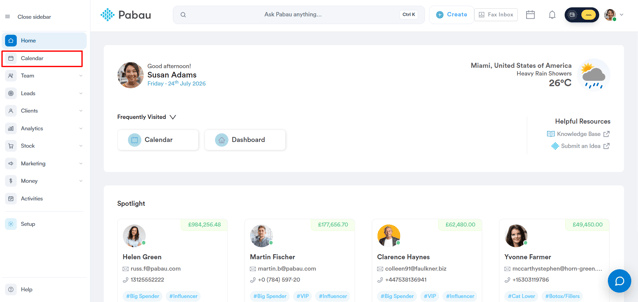
First, log in to your Pabau account, and in the left sidebar menu, click on Calendar.
Step 2: Access Clinic List
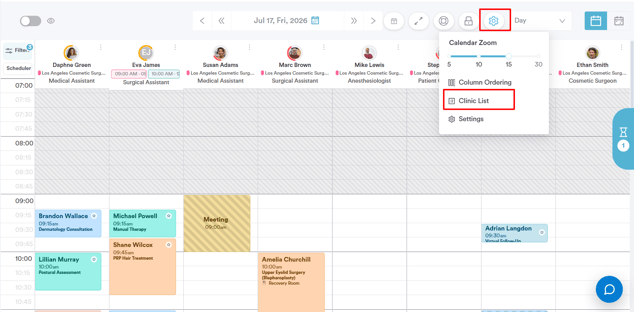
Click the cogwheel icon in the top-right corner of the calendar, then select "Clinic List" from the menu.
What's Inside the Panel
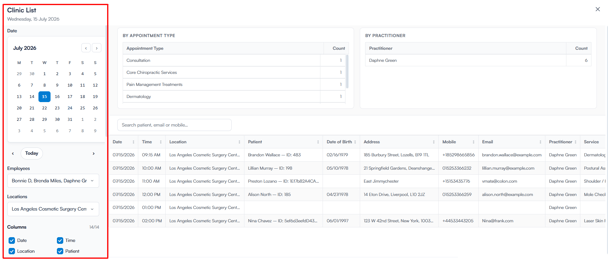
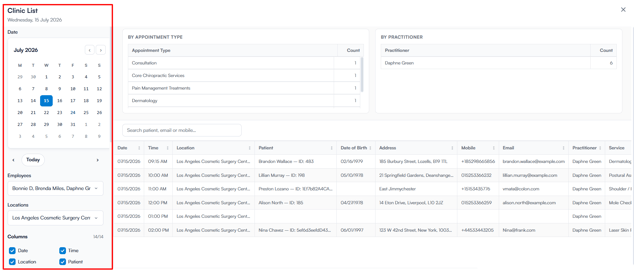
The Clinic List is split into a filter sidebar on the left and a main content area on the right.
Filter Sidebar
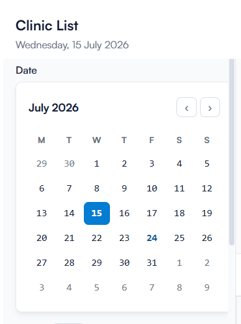
Date — Calendar picker for selecting the day to view. Use the arrows to move between months.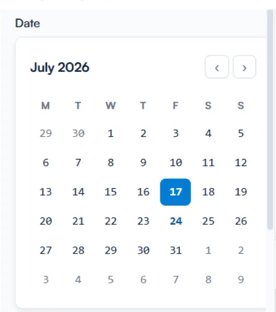
Today / Navigation Arrows — Jump to today, or step forward or back one day at a time.
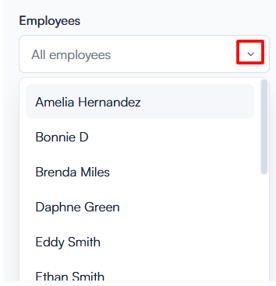
Employees — Filters the list by one or more team members. Defaults to All employees.
Locations — Filters the list by clinic location. Defaults to All locations.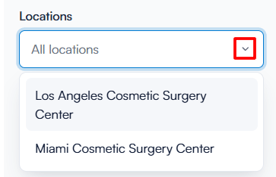
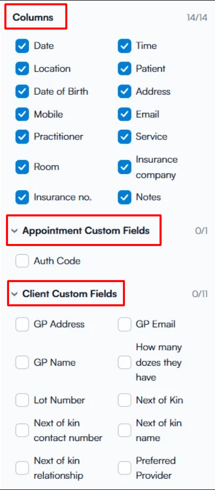
Columns — Choose which data columns appear in the booking table: Date, Time, Location, Patient, Date of Birth, Address, Mobile, Email, Practitioner, Service, Room, Insurance Company, Insurance No., and Notes.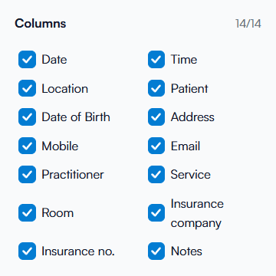
Appointment Custom Fields — Expandable section listing custom appointment fields configured for the clinic, such as Auth Code.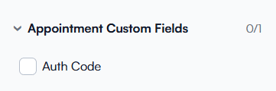
Client Custom Fields — Expandable section listing client-level custom fields, such as GP Address, GP Name, and Next of Kin.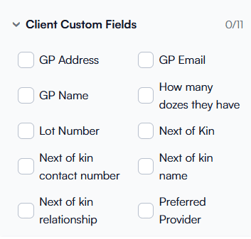
Day Summary — Includes or excludes the summary tables at the top of the list.
Page Break After Summary — Inserts a page break between the summary tables and the booking table.
Booking Count — Shown at the bottom of the sidebar (e.g. "25 bookings"), updating automatically as filters change.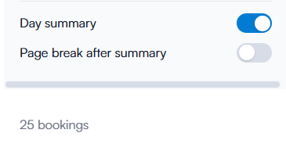
NOTE: Filter and column selections apply for the current session only. Reapply them the next time the Clinic List is opened.
Main Content Area
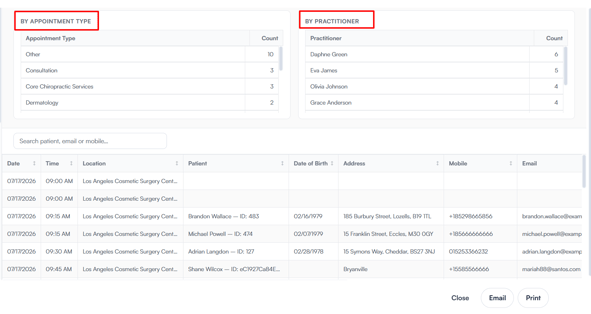
- By Appointment Type – summary table of booking counts per appointment type.
- By Practitioner – summary table of booking counts per practitioner.
- Search bar – search bookings by patient name, email, or mobile number.
- Booking table – detailed list of bookings, displaying the columns selected in the sidebar.
Action Bar
- Close – closes the Clinic List panel.
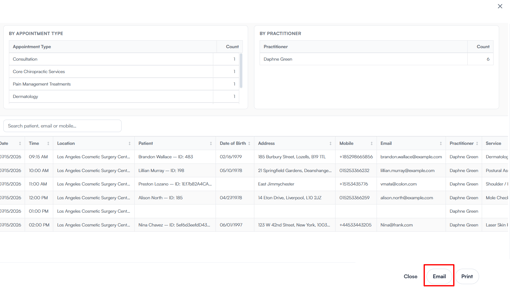
- Email – sends the current list to a recipient.
- Print – opens a print-ready version of the list.
With these filters and display options, you're ready to customize the Clinic List to suit your clinic's reporting needs.
How to Create a Clinic List
Step 1: Navigate to the Calendar
First, log in to your Pabau account, and in the left sidebar menu, click on Calendar.
Step 2: Access Clinic List
Click the cogwheel icon in the top-right corner of the calendar, then select "Clinic List" from the menu.
Step 3: Select a Date
Once you open the ''Clinic List'', use the calendar picker on the left to choose the date you want to view, or use the arrows next to "Today" to move a day at a time.
Step 4: Apply Filters and Choose Columns
Use the Employees and Locations dropdowns to narrow the list to specific staff members or clinic locations. 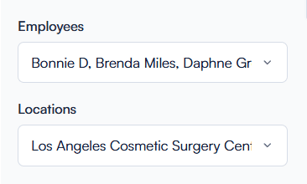
Under Columns, select which data fields to display, and expand Appointment Custom Fields and Client Custom Fields to include any additional fields configured for your clinic.
Step 5: Review the List
The panel displays the By Appointment Type and By Practitioner summary tables, along with the detailed booking table, based on your selections.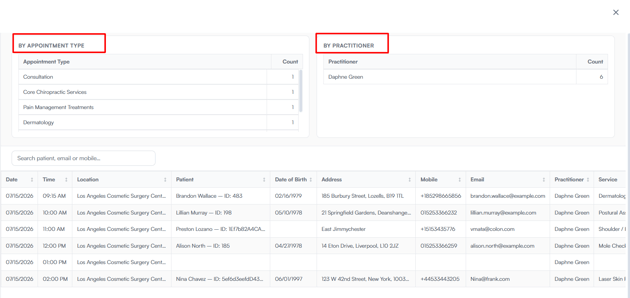
By following these steps, you'll be able to set up and generate a Clinic List tailored to your needs.
How to Email a Clinic List to Staff Members
Step 1: Navigate to the Calendar
First, log in to your Pabau account, and in the left sidebar menu, click on Calendar.
Step 2: Access Clinic List
Click the cogwheel icon in the top-right corner of the calendar, then select "Clinic List" from the menu.
Step 3: Customize the List
Once you open the Clinic List, select a date and apply any Employees, Locations, or Column filters needed.
Step 4: Open the Email Schedule
Once you customize the list, click "Email" at the bottom of the panel.
The Email Schedule window opens with the following fields:
- Email Subject – defaults to "Clinic List," and can be edited as needed.
- Email Body – defaults to a standard message and can be edited as needed.
- Selected Emails – automatically populated with the email addresses of the employees selected in your filters.
- Add New Email – enter an additional email address and click "Add" to include it alongside the pre-filled recipients.
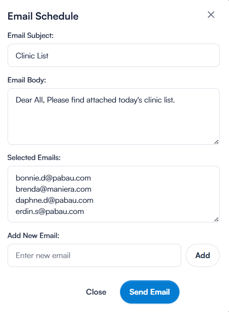
Once you're done, click "Send Email" to send the Clinic List to your selected recipients.
This completes the process of emailing a Clinic List to your staff members.
How to Print a Clinic List
Step 1: Navigate to the Calendar
First, log in to your Pabau account, and in the left sidebar menu, click on Calendar.
Step 2: Access Clinic List
Click the cogwheel icon in the top-right corner of the calendar, then select "Clinic List" from the menu.
Step 3: Customize the List
Select a date and apply any Employees, Locations, or Column filters needed.
Step 4: Print the List
Once you customize the list, click "Print" at the bottom of the panel.
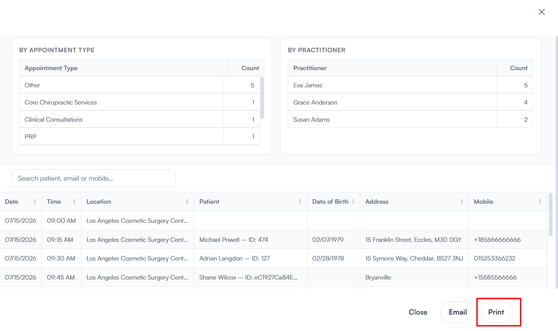 This opens your browser's print dialog, showing a preview of the Clinic List along with the following options:
- Destination – choose a printer, or select "Save as PDF" to export the list as a file.
- Pages – choose "All" or specify a page range.
- Pages per sheet – choose how many pages to print on each sheet.
- Margins – choose the margin size for the printed pages.
- Options – toggle "Headers and footers" and "Background graphics" on or off as needed.
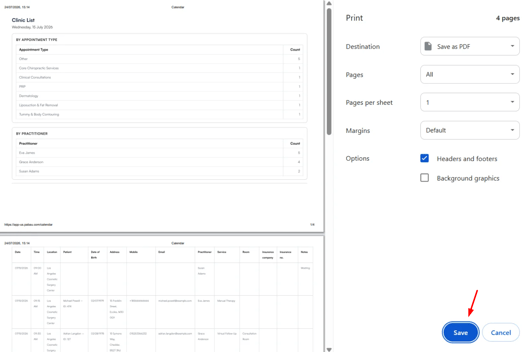
Once everything is set, click "Save" to export or print the list, or "Cancel" to exit without printing.
By following these steps, you can generate a print-ready or PDF copy of your Clinic List whenever it's needed.
Now that you know how to use the Clinic List, you can easily manage, share, and keep track of your clinic’s daily schedule with confidence.
For more guides, refer to related articles below, select additional guides, or use the search bar at the top of the page. These guides will help you get the most out of your Pabau account.
Additionally, to help you fully utilize and understand your Pabau account, we recommend exploring additional guides and resources offered at the Pabau Academy. It offers in-depth video tutorials and lessons, offering a holistic learning experience that can equip you with the essential skills for achieving success with Pabau.