
Table of Contents:
1. Managing Your Workflows
2. Viewing Workflow Run History
3. How to Create a Workflow
4. How to Create a Scheduled Workflow
5. How to Use PQL
5.1. Where to Use PQL in Pabau
New to Workflows?
If you're just getting started, we recommend reading the introductory article on Workflows first. It explains what workflows are, how they work, and includes a short video to help you get started.
Workflows in Pabau are designed to automate your clinic’s processes, reducing manual effort and ensuring nothing falls through the cracks. By setting up workflows, you can trigger actions automatically based on conditions you define, like sending notifications, updating records, or integrating with third-party tools.
With workflows, your clinic can:
-
Automate routine tasks to save time
-
Keep your team informed with automated notifications
-
Reduce errors caused by manual processes
-
Integrate with tools like Jira, Slack, Teams, Zoom, and Ansible
Workflows consist of triggers, conditions, and actions. Triggers define when a workflow starts, conditions check whether specific criteria are met, and actions carry out the tasks automatically.
Managing Your Workflows
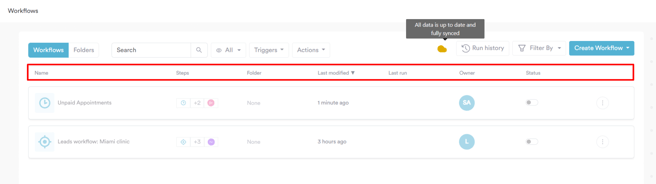
On the Workflows listing page, each workflow displays:
-
Name — displays the workflow name
-
Steps — the first trigger, the total number of steps, and the final action
-
Folder — which folder the workflow belongs to (blank if not organized into a folder)
-
Last Modified — the last time the workflow was edited
-
Last Run — the status of the most recent run: Success, Filtered, or Failed
-
Owner — which staff member created this workflow
-
Status — active or deactivated toggle
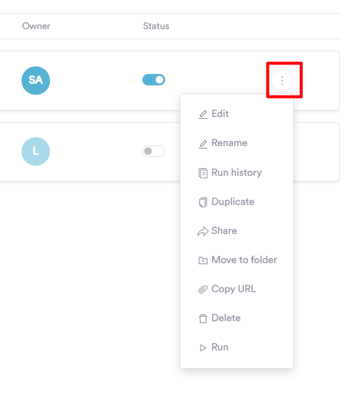
You can manage any workflow using the three-dot menu, which gives you access to:
- Edit — opens the workflow builder to make changes
- Rename — updates the name of the workflow
- Run history — opens the run history for that workflow
- Duplicate — creates a copy of the workflow titled [Workflow Name] Copy and opens it in edit mode
- Share — allows you to share the workflow with other team members
- Move to folder — organises the workflow into a folder
- Copy URL — copies a direct link to the workflow
- Delete — permanently removes the workflow
- Run — manually triggers the workflow to run immediately
Organizing with Folders
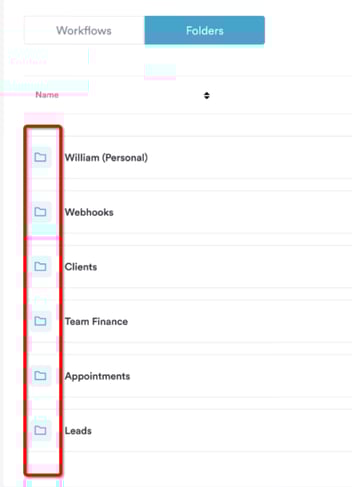
Create folders on the left side of the Workflows page to keep your automations organized.
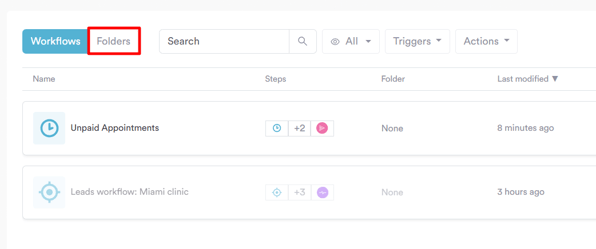
You can drag and drop both workflows and folders to reorder them. Clicking a folder in the list will filter the view to show only the workflows within it.
Viewing Workflow Run History
Every run is recorded in the Workflow Audit Log, accessible from the Workflows page. Logs are displayed in order from newest to oldest and show:
- Date and time of the run
- Trigger icon and total number of steps
- Workflow title
- Run status — Success, Filtered, or Failed
You can filter the log by date range, trigger type, action type, and specific workflow name.
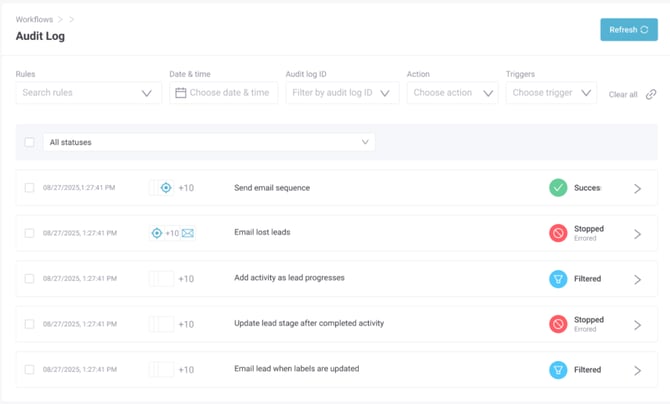
Run statuses:
- Success — the trigger fired, conditions were met, and all actions executed successfully
- Filtered — the trigger fired, but the conditions were not met, so no actions were executed
- Stopped— an error occurred during execution
Clicking into a run opens the individual run log, where you can see each step visualized in the workflow builder. Successful steps are highlighted in green, and branches show which path the data took. Clicking any step shows the Data In and Data Out for that step, so you can see exactly what data was processed at each stage.
Batch runs (Schedule trigger) When a Schedule trigger runs against a dataset, all individual runs in that batch are grouped into a single row in the history. The row shows a summary of total Successful, Failed, and Filtered runs, along with the combined duration.
The overall batch status is determined as follows:
- Any failed run → batch status is Failed
- All runs filtered → batch status is Filtered
- All runs successful → batch status is Success
- Mix of success and filtered → batch status is Success
Clicking into a batch opens the batch details page, which shows the workflow name, overall status, total run count, and a summary of completed, failed, and filtered runs. Each individual run is listed with its time taken, a human-friendly name (Date @ Time — Client Name for appointments), and its status. Clicking an individual run opens its full run log — pressing Close returns you to the batch details page.
How to Create a Workflow
Step 1: Access Workflows
Start by logging into your Pabau account using your login credentials. Then, navigate to Marketing on the left sidebar menu; this will reveal the "Workflow" tab. Click to access the Workflows page. Navigate to the top right corner and click the 'Create Workflow' button.
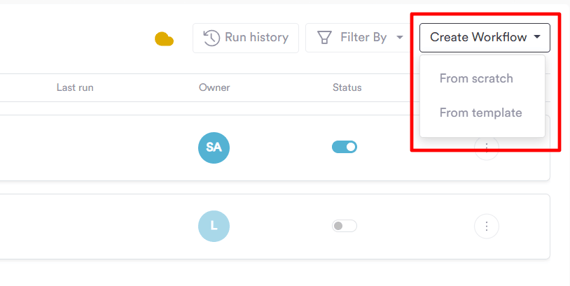
When you click Create Workflow, you will be asked to choose how you want to build your workflow. There are two options:
Option A — Use a Template
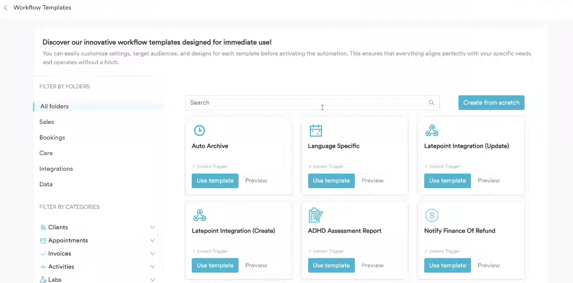
Templates are pre-built workflows designed for common clinic scenarios, such as sending a follow-up email after an appointment or notifying a team member when a new lead is created. Using a template is the fastest way to get a workflow up and running.
When you select a template, the trigger, conditions, and actions are already configured for you. You can review each step, adjust any settings to match your clinic's needs — such as changing the email content, updating conditions, or swapping the action type.
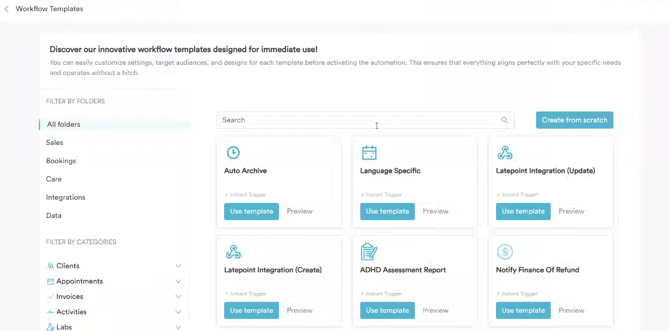
Option B — Start from Scratch
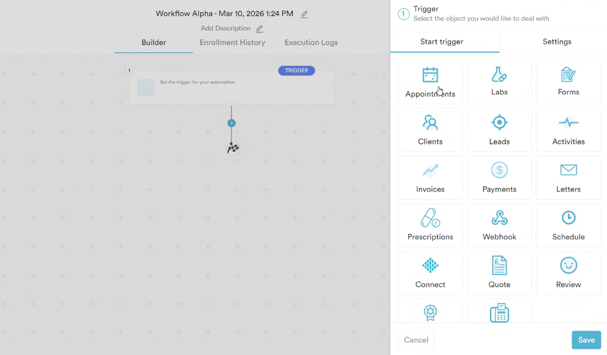
Starting from scratch gives you full control over every step of the workflow. When you open the workflow builder, the right sidebar will open automatically, prompting you to select a trigger. From there, you build the workflow step by step — adding your trigger, conditions, delays, branches, and actions in whatever combination your use case requires.
The steps below walk you through the full build process from scratch, but the same steps apply when editing or reviewing a template.
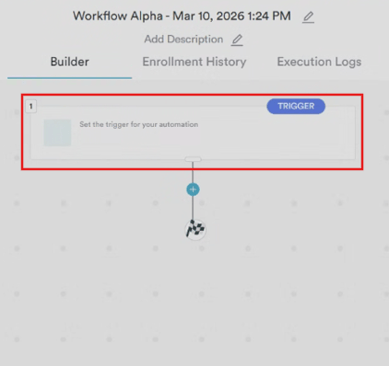
Step 2: Define a Trigger (Required)
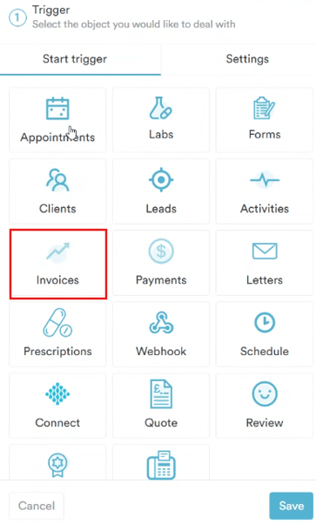
Choose the event that starts the workflow. Triggers are the starting point — nothing runs until a trigger fires. Available trigger types include:
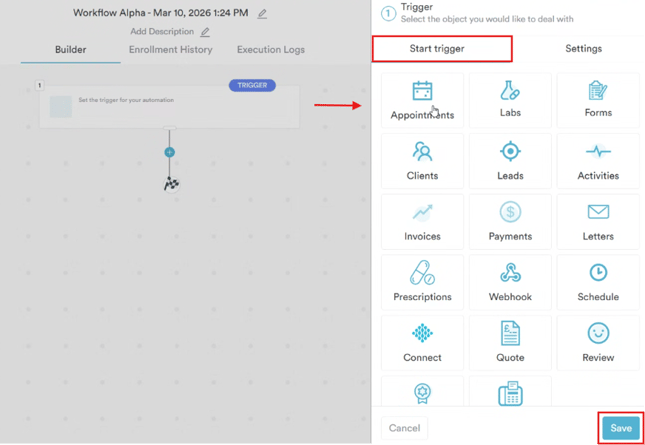
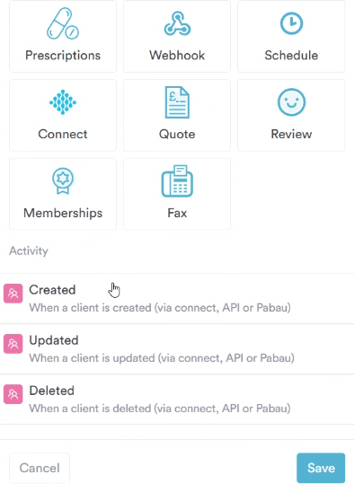
Clients
-
Created — when a client is created (via Connect, API, or Pabau)
-
Updated — when a client is updated (via Connect, API, or Pabau)
-
Deleted — when a client is deleted (via Connect, API, or Pabau)
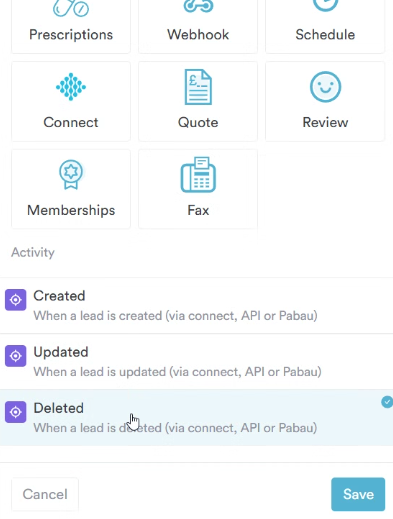
Leads
-
Created — when a lead is created (via Connect, API, or Pabau)
-
Updated — when a lead is updated (via Connect, API, or Pabau)
-
Deleted — when a lead is deleted (via Connect, API, or Pabau)
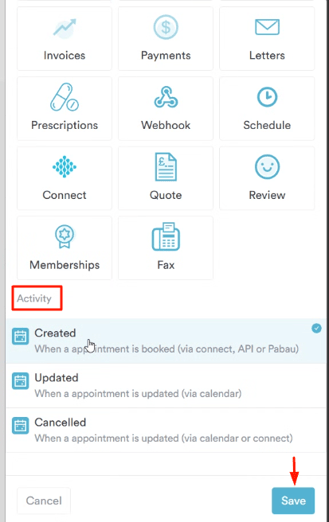
Appointments
-
Created — when an appointment is booked via Connect, API, or Pabau
-
Updated — when an appointment is updated via the calendar
-
Cancelled — when an appointment is cancelled via the calendar or Connect
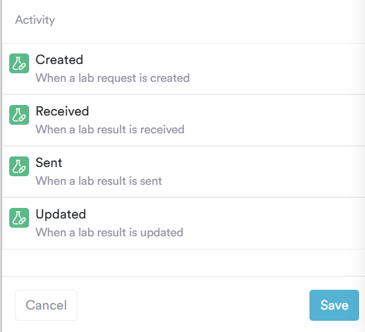
Labs
-
Created — when a lab request is created
-
Received — when a lab result is delivered or uploaded via integration or manually
-
Sent — when a lab result is sent to a client via Pabau
-
Updated — when a lab result is updated
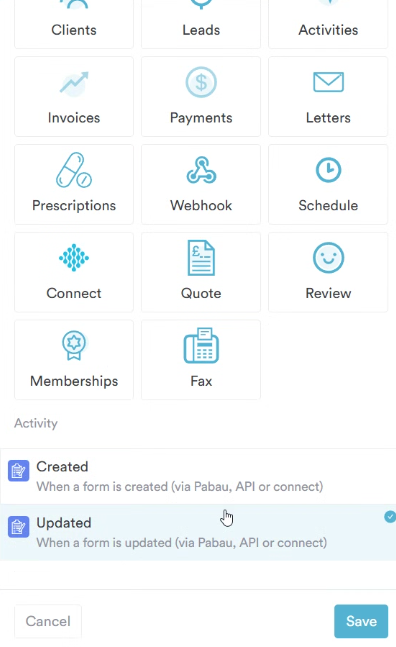
Forms
-
Created — when a form is created (via Pabau, API or Connect)
-
Updated— when a form is updated (via Pabau, API or Connect)
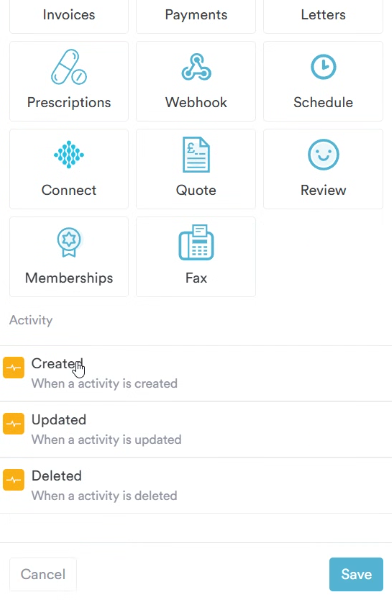
Activities
-
Created — when an activity is created
-
Updated — when an activity is updated
-
Deleted— when an activity is deleted
Invoices
-
Created — when an invoice is created
-
Updated — when an invoice is updated
-
Voided — when an invoice is voided
-
Refunded — when an invoice is refunded
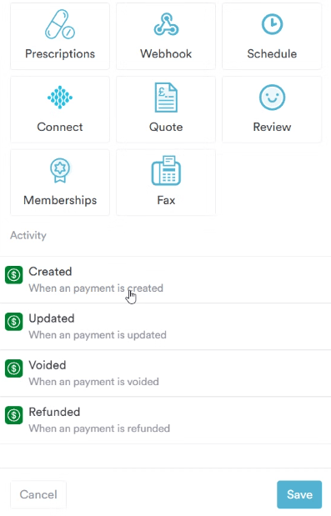
Payments
-
Created — when a payment is created
-
Updated — when a payment is updated
-
Voided — when a payment is voided
-
Refunded — when a payment is refunded
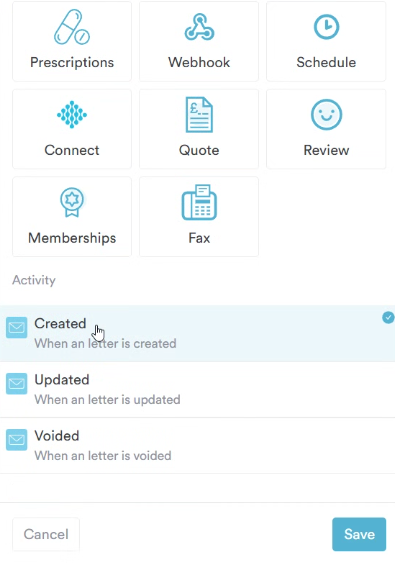
Letters
-
Created — when a letter is created
-
Updated — when a letter is updated
-
Voided — when a letter is voided
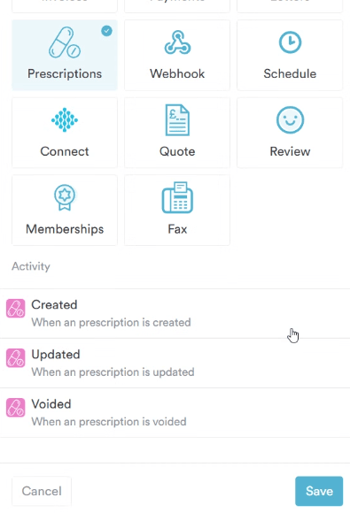
Prescriptions
-
Created — when a prescription is created
-
Updated — when a prescription is updated
-
Voided — when a prescription is voided
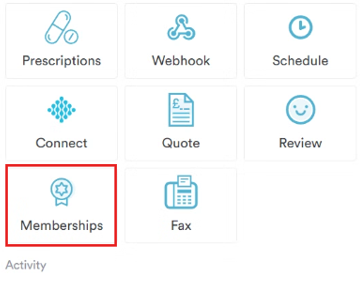
Memberships
-
Created — when a new membership is assigned to a client
-
Cancelled — when a membership is cancelled
Connect (Client Portal)
-
User Registration — when a client registers via the portal
-
User Login — when a client logs into the portal
-
Abandoned cart — when a booking is started but not finalized
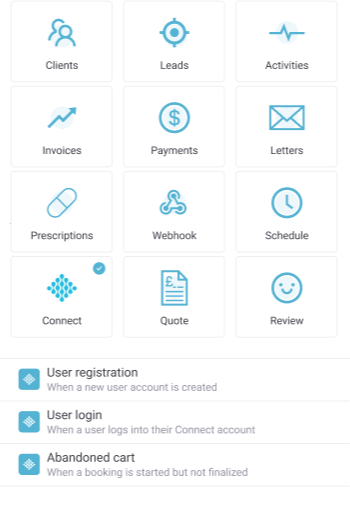
Quote
-
Created — when a quote is created
-
Updated — when a quote is updated
-
Deleted — when a quote is deleted
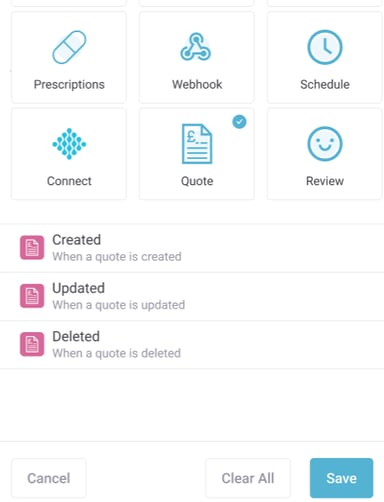
Reviews
-
Received — when a new review is submitted
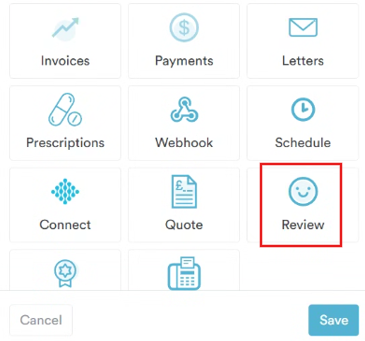
Webhook
-
Webhook Received — when an inbound webhook is received at your Pabau webhook URL
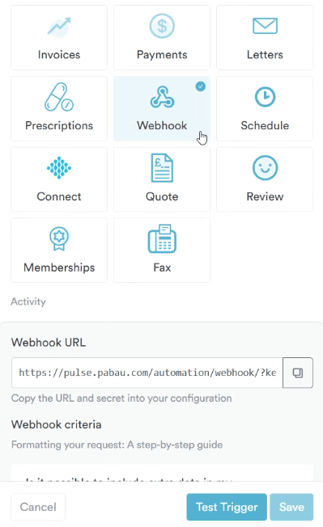
Schedule
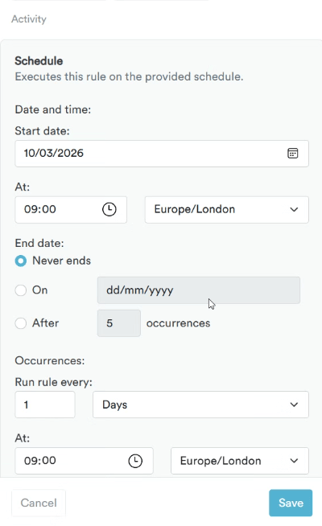
A special trigger that runs your workflow automatically at a defined time — daily, weekly, monthly, or on a custom CRON schedule.
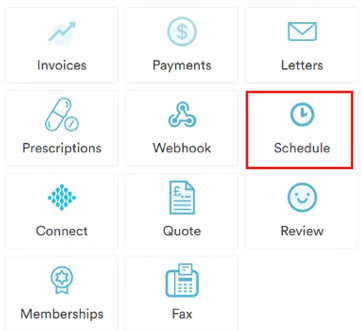
Unlike other triggers that fire on a single event, the Schedule trigger runs your workflow against every row returned by a PQL dataset query. For example, if the query returns 100 appointments, the workflow runs once per appointment, processing each one independently. This is ideal for bulk updates, automated reminders, and recurring tasks.
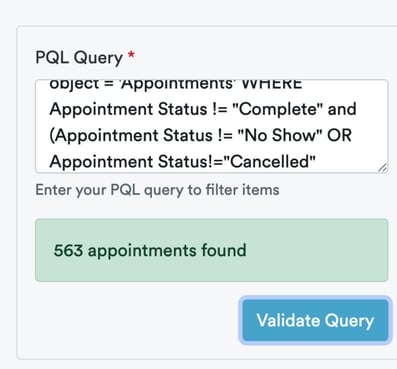
When configuring the Schedule trigger, enter your PQL query and click Validate Query to confirm it returns the expected results. A valid query is required before saving — empty results are acceptable, but the query itself must be valid. Clicking the results preview will open the Data Explorer in a new tab so you can review the full dataset before running.
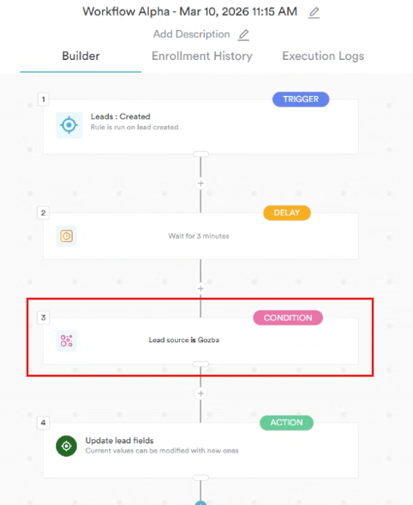
Step 3: Add Conditions (Optional)
Add rules to determine whether the workflow should proceed after the trigger fires. If the conditions are not met, the workflow stops and the run is logged as Filtered. You can combine multiple conditions and use smart values to dynamically evaluate data.
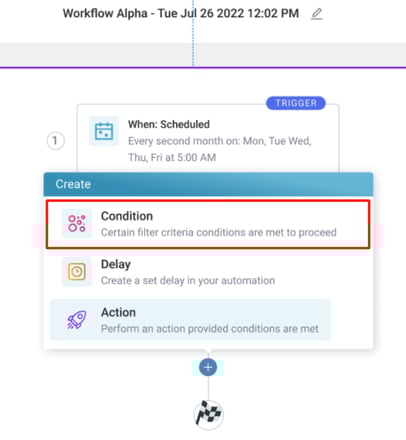
Conditions are tied to the trigger object. For example, if your trigger is Appointment Created, your conditions will relate to the appointment object.
Available conditions include:
Client Conditions — standard client fields as found in the client card, including custom fields
Lead Conditions — standard lead fields; for Stage Change triggers, conditions include Pipeline Name and Pipeline Stage (dynamic dropdowns)
Appointment Conditions — appointment fields including status, service, date, location, and more
Form Conditions — Form Name, Created By (dropdown of active users); form conditions also have access to the client object
Activity Conditions — activity fields including due date, status, assigned user, and more
Lab Conditions — Lab Name (dropdown), Tests (dropdown), Status, Created Date, Received Date, Created By
Membership Conditions — Membership Name, Amount, Status, Expiration Date, Activation Date
Connect Conditions
- User Registration: Created Date, Verification Date
- User Login: Login Date
Quote Conditions — Expiration Date, Created Date, Issue Date, Quote Amount, Quote Client, Quote Location, Quote Number, Quote Owner, Status, Template, Quote Appointment, Date Signed, Email Sent Date, Has Downloaded, Last Viewed, Quote Items
Review Conditions — Score, Client, Date, Message
Step 4: Add a Delay (Optional)
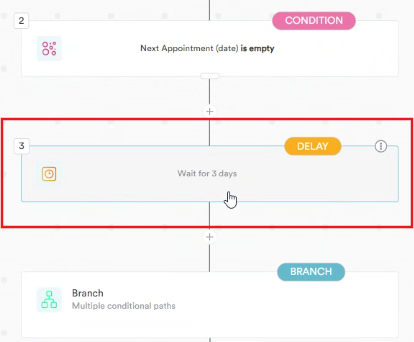
If needed, add a time-based delay between steps. You can also use event-based delays to pause the workflow until a specific change occurs — for example, waiting until a priority changes or a status is updated before moving to the next action.
Step 5: Add a Branch (Optional)
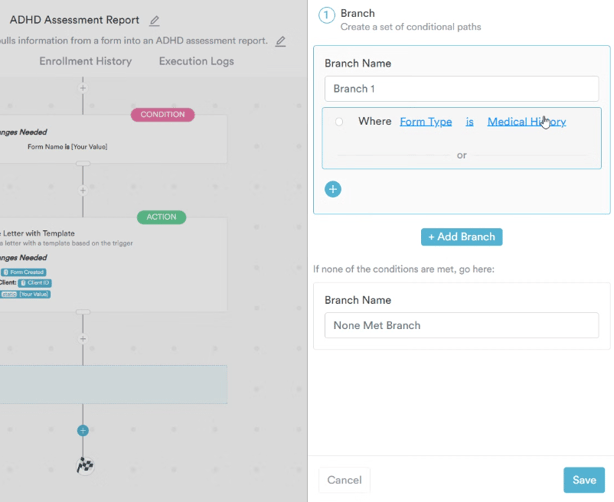
Branches allow you to create conditional paths within a workflow. If the criteria of the first path are met, the workflow follows that path. If not, it checks the next path, and so on. Think of branches as an extension of conditions for more complex logic.
Step 6: Add an Action (Required)
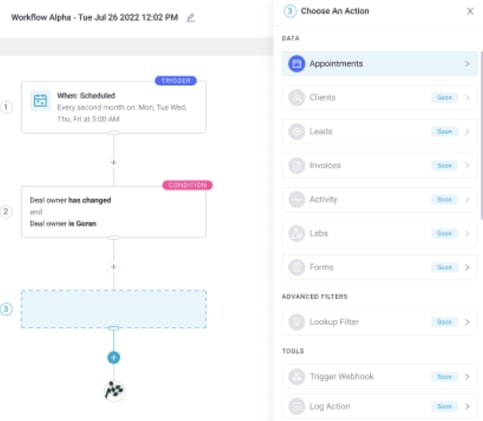
Actions are the final execution stage of a workflow. They are triggered only after all prior steps — triggers, conditions, and delays — have been satisfied. Each action performs a specific operation and returns either a Success or Failure outcome.
👤 Client Actions
- Create Client
- Update Client Fields
- Delete Client
- Create Client Note
- Create Client Alert
- Create Client Allergy
- Create Client Problem
🎯 Lead Actions
- Create Lead
- Update Lead Fields
- Delete Lead
- Convert Lead to Client
- Create Lead Activity
- Add Lead Note
📅 Appointment Actions
- Create Appointment — creates a new appointment in the calendar
- Update Appointment
- Cancel Appointment
- Find Appointment — searches for an existing appointment by Client Name, Date & Time, or Custom Field using AND logic, and returns the appointment ID for use in subsequent steps
💬 Communication Actions
- Send Email
- Send Email with Template
- Send Internal Email
- Send SMS
- Log Email - logs an email in the Communications tab of the client card. The email will not be sent from Pabau. This is useful when communications are sent through another platform but you want to keep a record within Pabau.
- Log Call - logs a call in the Communications tab of the client card. The call will not be made through Pabau. This is useful when calls are handled outside of Pabau but you want to keep a record within Pabau.
- Create Letter
- Create Letter with Template
📋 Activity Actions
- Create Activity
- Update Activity
- Delete Activity
🧾 Invoice Actions
- Create Invoice
- Update Invoice
- Void Invoice
📝 Forms Actions
- Create Form
- Update Form
🧪 Lab Actions
- Create Lab Order
- Update Lab
- Upload Lab Order
📦 Stock Actions
- Stock Adjustment — records a manual inventory movement. Enter a positive quantity to increase stock or a negative quantity to decrease stock, along with a description of the reason.
🔗 Integration & Utility Actions
- Send Slack Message — sends a message to a configured Slack channel
- Send Webhook — sends an outbound webhook to an external URL containing the relevant object data, always built from Pabau's latest GET APIs. Supported objects include Client, Appointment, Lead, Invoice, Payment, Forms, Activities, Labs, Prescriptions, and Letters.
- Perform Math — performs a defined mathematical operation on input values and returns the result for use in subsequent steps
- Format Data — formats data values such as dates, numbers, or strings using defined format codes before passing them to other actions
Step 7: Test and Activate
Testing a standard workflow: Click the Test button to simulate a run without executing any live actions. You can adjust the test time period to simulate data from the last 5 minutes, 10 minutes, 1 hour, 24 hours, or 48 hours — giving you a broader dataset to validate your workflow logic before going live. Test results are stored in the run log exactly as a live run would be, but no actions are executed.
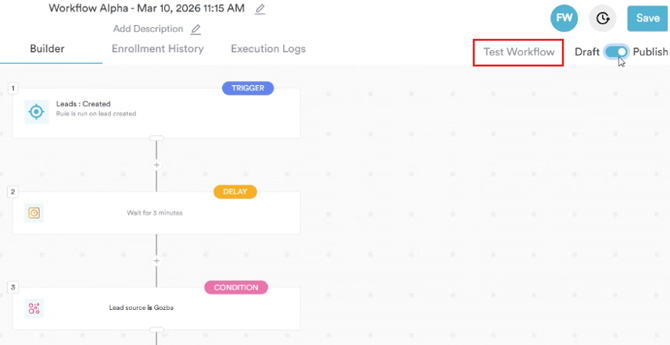
Testing a Schedule trigger workflow: For Schedule-based workflows, clicking Test performs a force run against the full dataset returned by your PQL query. A single row represents the dataset — hover over it to see a tooltip listing all the appointments the workflow will run against. Clicking Test executes the workflow against every item in the result set, exactly as a live run would.
When you are satisfied, enable the Publish toggle to activate the workflow.
How to Create a Scheduled Workflow
In this section, we’ll walk you through how to build a workflow that runs on a set schedule rather than an immediate trigger. Scheduled workflows are ideal for routine tasks like daily checks, cleanup processes, reminder sends, or reporting updates.
Step 1: Access Workflows
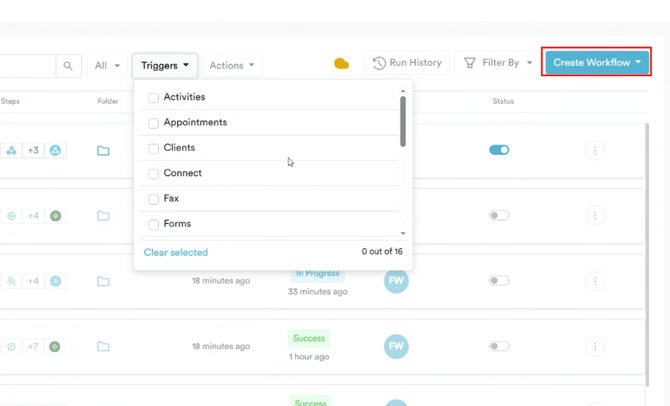
Log into your Pabau account and navigate to Marketing in the left sidebar menu. Click on the Workflow tab. In the top right corner, click Create Workflow. Choose whether to start from scratch or use a template.
-
If you are using a template, select one that matches your use case. The trigger, conditions, and actions will be pre-configured — you can review and adjust each step before activating.
- If you are starting from scratch, the workflow builder will open with the right sidebar prompting you to select a trigger. Continue with the steps below.
Step 2: Select the Schedule Trigger
From the trigger list, select Schedule. This is what separates a scheduled workflow from a standard one — instead of firing in response to a live event, it runs at the time and frequency you configure.
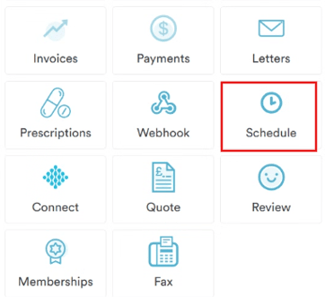
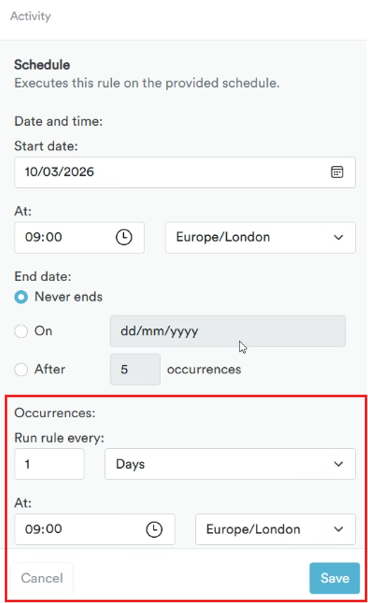
Once selected, you will need to configure two things:
Frequency — choose how often the workflow should run:
- Daily
- Weekly
- Monthly
- Custom — using a CRON expression for more precise scheduling (for example, running every night at 11pm, or every Monday morning at 8am)
PQL Query — define which records the workflow should run against each time it fires. For example:
"Appointments where the Start Date is Today AND the Status is not Complete AND the Status is not Cancelled"
This tells Pabau to find all of today's open appointments when the workflow runs, and process each one individually.
Once you have written your query, click Validate Query to confirm it is correctly written and see a preview of the results. You must validate before saving — empty results are fine, but the query itself must be valid.
To review the full list of matching records, click the results count to open the Data Explorer in a new tab. This lets you see exactly which records the workflow will run against before you activate it.
Step 3: Add Conditions (Optional)
Conditions allow you to add an extra layer of filtering on top of your PQL query. If a record matches the query but does not meet the conditions, the run will be logged as Filtered and no action will be taken for that record.
For example, if your query returns all of today's appointments, you could add a condition to only proceed if the appointment service is a specific treatment type.
Step 4: Add a Delay (Optional)
If you want to pause the workflow between steps — for example, waiting a set number of hours before sending a follow-up message — you can add a time-based or event-based delay here.
Step 5: Add a Branch (Optional)
Branches allow you to create different paths within the workflow depending on the data. If the first path's criteria are met, the workflow follows that route. If not, it checks the next path. This is useful when you need different actions to happen for different types of records within the same scheduled run.
Step 6: Add an Action (Required)
Actions are what the workflow actually does when it runs. Every record returned by your PQL query — that also meets any conditions you have set — will have this action performed against it.
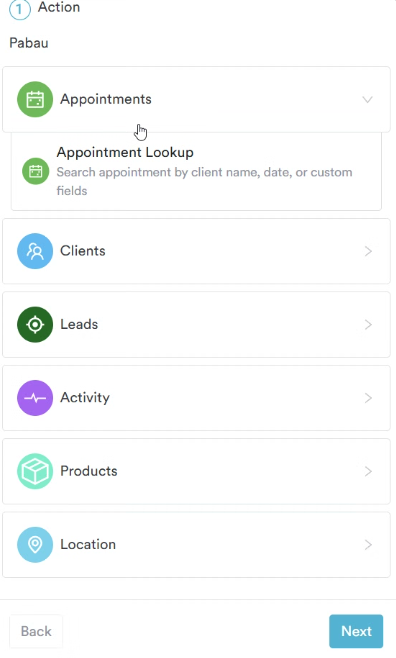
For example, if your scheduled workflow finds all of today's incomplete appointments, your action might be to update the appointment status to Complete, or to send the client a follow-up email.
Step 7: Test Your Workflow
Before activating, always test your scheduled workflow to make sure it behaves as expected.
Click the Test button in the top right corner of the workflow builder. For Schedule trigger workflows, this performs a force run against the full dataset returned by your PQL query. You will see a single row representing the dataset — hover over it to see a tooltip listing all the records the workflow will run against. Clicking Test will execute the workflow against every item in the result set, exactly as a live run would.
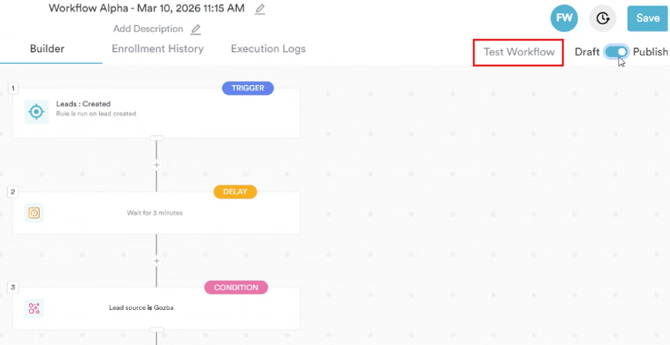
Test results are recorded in the run log so you can review what happened at each step, including the data in and data out for every record processed.
Step 8: Activate the Workflow
Once you are satisfied with the test results, enable the Publish toggle to activate the workflow. From this point, it will run automatically at the frequency and time you configured — no further action needed on your part.
How to Use PQL
PQL (Pabau Query Language) is the behind-the-scenes logic that powers the filtering and search tools you use every day in Pabau — across reports, lists, and automations. Whenever you set filters for appointments, clients, invoices, or anything else, PQL is what helps Pabau show only the results that match what you are looking for.
Most of the time, PQL works invisibly in the background and you never need to think about it. However, in certain areas of Pabau — such as the Schedule trigger in Workflows and the Data Explorer — you can write PQL queries directly to define exactly which records you want to target.
A PQL query is made up of three parts:
-
Object — the type of record you want to look at, such as Appointments, Clients, Invoices, or Leads.
-
Conditions — the rules that records must meet to be included in the results. For example, you might want only appointments where the status is not Complete, or only clients who were created in the last 30 days.
-
Operators — the logic that connects your conditions, such as AND (all conditions must be true) or OR (at least one condition must be true).
A simple example of a PQL query looks like this:
"Find all Appointments where the Appointment Start Date is Today AND the Appointment Status is not Complete AND the Appointment Status is not Cancelled."
When this query runs, Pabau will return every appointment that matches all three of those conditions — and only those appointments.
Where You Use PQL in Pabau
Workflows — Schedule Trigger
When you use the Schedule trigger in Workflows, you write a PQL query to define which records the workflow should run against. For example, you might write a query that finds all appointments from today that have not been marked as complete, then set the workflow to run at 11pm and automatically mark them all as complete. The workflow will run once for every record the query returns.
Data Explorer
The Data Explorer allows you to browse and query your clinic data directly using PQL. You can use it to explore records, spot trends, and validate your queries before using them in a workflow.
For more guides, refer to related articles below, select additional guides, or use the search bar at the top of the page. These guides will help you get the most out of your Pabau account.
Additionally, to help you fully utilize and understand your Pabau account, we recommend exploring additional guides and resources offered at the Pabau Academy. It offers in-depth video tutorials and lessons, offering a holistic learning experience that can equip you with the essential skills for achieving success with Pabau.